A new update is out for StaffPad. I have been testing the app and have more to say about it on a future episode of the podcast. For now, read about the update from the StaffPad team, themselves…
It’s been a while since our last update and, in the interim, we’ve been working hard on a lot of very interesting challenges and technologies – all designed to make writing music in StaffPad more productive and more flexible than ever.
This has resulted in some major changes under the hood, and a huge amount of R&D. I’m extremely proud of the work the team has done on this release, bringing features out of the research phase and into production use.
As always, this update is free and available in the App Store and Windows Store now. The video below gives a general overview of the update, covering composing using Piano Capture, MIDI Capture, Video Staffs, and more. Let’s dive into it! Keep reading here…
The new piano capture and MIDI capture are paradigm-shifting additions to this update that offer entire new input methods. StaffPad is not my only notation tool, but what I appreciate about it is that the features the team chooses to focus on are all features that lift the burden off of me. For example, writing directly on the staff with an Apple Pencil eliminates the abstractions of menus and buttons. Recording my upright piano straight into the staff is, similarly, a concept that let’s me more directly get my thoughts our of my head and into the app, and without fussing with interfaces, USB connections, and MIDI controllers.
This update is very much worth a look and I am excited to discuss it more down the road.
David William Hearn (composer, arranger, producer and creator of StaffPad) joins the show to talk about StaffPad, how teachers can use it, and the thought process behind designing great iPad software.
Patreon supporters get bonus discussion about recent tv, movies, and music we have been engaging with. Thanks to my sponsors this month, Scale Exercise Play-Along Tracks.
Dorico for iPad is out today! You can read their announcement here. It’s a desktop-class adaptation, which includes most of the features I need for my everyday work as a music teacher. I am beyond excited that a major professional scoring app has come to the iPad for two reasons:
I depend on iOS for getting much of my work done. There are still apps and workflows that require me to take out my Mac, and I am delighted whenever the release of a professional iPad app lessons these occurrences.
Our niche professional corner of the world is receiving legitimate, pro-featured, software for iPadOS, a market that is still light on “pro” software, even from Apple themselves (like, for real… where is Logic Pro on iPad?). While many “pro” iPad apps are companion experiences to bigger desktop versions, Dorico brings a whole lot of the power from its desktop app to its mobile version, proving that the iPad can be every bit as “pro” as its name suggests.
Dorico for iPad’s free tier is similar to their free desktop offering Dorico SE, and an in-app subscription adds features comparable to their Dorico Elements version. The iPad app has new features, many of which are optimizations for touch, including several new input methods (piano, fretboard, drum pads, and a new Key Editor). Dorico for iPad doesn’t do everything. Serious composers and power users might need the desktop for some things. For me, a middle school band director, it will fill most of my iOS composing needs.
There are some quirks due to Dorico not supporting features that make iPad apps feel like iPad apps: full Apple Pencil support, responsive touch gestures, file system integration, Magic Keyboard/trackpad support, and multitasking are examples of this. While there is room for improvement, it’s bold for the Dorico team to pack a desktop-class experience into the first version. I am thankful for their hard work and wish the Dorico team future success on this project.
Video
Watch Dorico for iPad in action.
Some Musings on Professional iPad Apps
When my long-time favorite iPad app (forScore) came to the Mac earlier this year, I wrote about it.
While forScore was one of the few remaining iPad apps I wanted on Mac, there are, similarly, plenty of Mac apps I would still love to see on iPad.
One could argue that with the latest iPad hardware (featuring M1 chips), there is no excuse for professional apps not to run on the platform. I agree! The iPad has more than enough processing power, all of the necessary input devices (if you have a keyboard and mouse), and even some things that the Mac doesn’t have (like touch support and the Apple Pencil).
The issue of why the iPad lacks pro apps is too broad to cover here, but it has much to do with how Apple has positioned iPadOS and the App Store model over the past 10 years. It is becoming easier than ever to make a cross-platform app, but this doesn’t change the fact that there are still some fundamentally dissimilar aspects of developing for iOS and macOS. The arguably bigger problem is that the App Store (even with fewer sandboxing limitations in recent years) is hostile towards the exact kind of developers who cater to niche professionals like composers and music teachers.
For example, companies who make digital audio workstations and notation editors have traditionally charged prices in the multiple hundreds of dollars, costs which the mobile market has decided is not acceptable. Such developers also offer things like crossgrade/upgrade/educational pricing, group licenses, and more. These are not feasible in the current-day App Store, and I think Apple is oblivious to keep calling the iPad Pro the iPad Pro while not providing more flexible App Store rules. This is not to mention that Apple hasn’t even brought their professional apps (Logic Pro, Final Cut Pro, and Xcode), to the iPad.
I am dependent on my iPad and prefer to work on it whenever possible. Its light form factor and simple operating system make me feel more nimble moving in and out of apps. Dorico has always been one of the reasons I have to take my Mac out of my bag when I am sitting on the couch wrapping up some school work late at night. Even though there are good score apps on iPad, the convenience of leaning back on the couch to get work done has been counterbalanced by needing to import and export XML files back and forth, just to get these apps to talk to Dorico on desktop.
It is within that context that I am pleased to say Dorico is available for iPad today. It’s the first of the major professional desktop scoring apps to be released on a mobile platform, and after just a few weeks of use, I can tell that it will become my primary notation editor on iOS.
I’m a Music Teacher
Because I am a music teacher, my opinions about scoring software are viewed through the lens of someone who does not depend on the entire feature set of Dorico, particularly engraving and playback. This means I usually need to get in and out of the program fast and that I am often performing tasks like writing scale exercises, reconstructing missing bass clarinet parts from my library, or adding percussion instruments to the score of a piece on our next concert. That said, I admire tools that empower me to work efficiently, and for notation, Dorico is that tool.
If you are looking for a professional composing perspective, and a more comprehensive feature overview, I recommend the Scoring Notes review of Dorico for iPad.
Dorico for iPad and Its Features
Dorico for iPad is an ambitious and stellar 1.0 that should make every developer of pro software take note and get to work.
The Dorico team has brought many of the core functions that make Dorico so powerful on Mac and Windows to the iPad version. All of the features I depend on are all there. It has keyboard input, powerful pop-overs, MIDI controller input, and all of the custom Notation and Layout Options that are available on desktop. It even has the same custom keyboard shortcut editor.
Dorico is available for free with a set of features very similar to their desktop offering Dorico SE. If you subscribe to the app through In-App Purchase, features are added which bring in line with the experience of using Dorico Elements.
Dorico for iPad has all of the modes you would expect: Setup, Write, Engrave, and Play. There is no Print mode and I don’t miss it. All of the export options I use regularly are conveniently accessed through a share button in the upper right corner of the application. Play mode supports third-party iOS plugins. This is certainly more limiting than desktop, because iOS doesn’t support traditional VSTs, but this is also not a feature I take advantage of anyway.
Dorico for iPad is so much Dorico that it is hard to write about it without reviewing the existing desktop versions, which is not something I have set out to do here. That said, it is worth noting some of the things that are added for touch, and some of the quirks that result from a desktop app being so faithfully reproduced on a touch-based tablet.
One of the things that makes Dorico on iPad feel so faithful to the desktop version is that computer keyboard input is nearly identical with a Magic Keyboard attached. Once I got acclimated to the small differences in the user interface, I comfortably began recalling all the same shortcuts and workflows I am used to.
Because this version is designed to be used without the keyboard attached, there are some added on-screen buttons for touch control. Extra toolbar buttons for things like delete, repeat, undo, redo, and moving the arrow keys, are all included.
A floating toolbar, which can be moved around on the screen, allows common note adjustments to be made by finger. This toolbar includes things like moving a selected note up/down, shifting a selection of notes right or left by a 16th note, etc…
Holding on the score with one finger and then dragging displays a rectangle on-screen that can select multiple elements of the score at once. And there are also some new methods of touch input:
An on-screen piano, which you can pan across and resize by dragging and pinching.
A fretboard for instruments like guitar.
Drum pads for percussion instruments (much more intuitive for writing drum set parts in my opinion.)
An integrated mixer which you can see right inside of Write mode.
A new Key Editor. I can best describe the Key Editor as a piano roll editing tool for the notes of your score. Users who are familiar with MIDI note editing in a digital audio workstation will love visualizing the notes of the staff as colorful rectangles. They can be dragged vertically to change pitch, horizontally to change the rhythm, and can be resized to adjust the duration. It is an intuitive way to work, particularly for touch.
Native Software
There will always be room for growth. What I want most from future iterations of Dorico on iPad can be best explained in the context of the forScore article I linked at the top of this post. forScore is a beloved app amongst musicians that is iPad-first but has recently been ported to the Mac through Apple’s Catalyst technology. My TL;DR in my forScore Mac review was basically to say that it’s amazing to have such an indispensable music app on Mac, even though it has some quirks relating to the fact that some iPad paradigms don’t translate to the Mac.
My Dorico first impressions are more or less the inverse of that statement. Dorico for iPad is desktop-class. What I’d like to see from it down the road is to become more iPad-native through taking advantage of common features on the platform. Dorico is written using Qt, a development platform that makes it easy to write one code base for Windows and Mac. This same development platform is what made it easier to bring Dorico to the iPad now, but for this same reason, I can understand that the team had their hands full prioritizing the features for the first version.
Now that the iPad Pro has excellent trackpad, keyboard, and mouse support, I don’t feel that different using it than I do my Mac in many instances. While Dorico’s “desktop-ness” is its greatest strength, its fluency makes the missing iPad-isms more apparent. Here are a few:
Dorico doesn’t have Apple Pencil support (with the exception of it imitating a touch in some circumstances).
Dorico does not work with the native File picker, which is to say that you can’t open a Dorico project from your Dropbox or iCloud Drive within the Files app, edit it, and then save it back to the original location. You must instead import it from within the Dorico app, which then makes a copy inside of the app. You can export it back to the original location you pulled it from, but don’t forget to delete the old copy! See an image below of OmniOutliner, a popular outlining app for iPad. When launched, it shows the same interface as the Files app. A document can be selected, edited, and saved back to the same location. I would love to see Dorico add this feature down the road.
Trackpad support isn’t native. Magic Keyboard users will note that two-finger swiping (which moves around the score in the Mac version) does nothing on iPad. Because the Magic Trackpad can simulate a finger, clicking and dragging with one finger will simulate the gesture of dragging the score around.
Dorico does not support multitasking features like Split View. This means that another app cannot share the screen at the same time unless it is in Slide Over mode which means it is a tiny, iPhone-sized, app that floats above Dorico and covers part of the information on the screen. One of my favorite workflows with notation software is to open it on half of the screen while referencing another score in forScore on the other half. The image below depicts forScore on screen at the same time as Dorico in Slide Over.
Elephants, Pencils, and Software Instruments
The obvious elephant in the room is StaffPad. StaffPad is not always included in conversations about major pro notation software (Sibelius, Finale, Dorico), but relative to the power of most iPad software in the App Store, it deserves to be a part of the conversation. I covered StaffPad here.
StaffPad feels very iPad-native and supports a premium design experience and numerous pro-features, like, for example, a store of top-of-the-line audio plugins within the app.
While the comparison to Dorico is fair, I also feel like StaffPad is aiming for a different experience. Sure, they will compete to some extent, but StaffPad is aiming at new innovative methods of input, and high-end audio output that is all intuitively integrated into the same package. For example, StaffPad features Apple Pencil gestures for note input, exclusively, and a forthcoming feature will listen to you play an instrument in the microphone and transcribe you in real-time. StaffPad’s third-party software instruments sound great and require little fuss to set up. It’s all a very iPad-first experience. But it’s an iPad-only experience (unless you are also using it on Windows).
The strength of Dorico on iPad is that you are getting much of the power of the desktop version, on iOS. This means that there are some quirks, but that you are ultimately less inhibited by what you can produce. Dorico’s Engrave mode allows you to get more customizable, better looking, scores and note input in the Write mode is just as easy to do with a computer keyboard or MIDI controller as it is on a desktop.
I do appreciate the novelty of writing scores with the Apple Pencil. It feels nice. In fairness to Dorico, I wanted to see if I am more efficient using this method. I took about 10 excerpts from my music teaching resource library (music I would use a notation editor for in real life) and timed myself recreating these excerpts into both StaffPad and Dorico.
Much like using the self-checkout lane of a grocery store, I “felt” faster in StaffPad, but I was about twice as fast at note entry using Dorico in every instance. I was also 100 percent sure that the note I input would be the note that appeared on the screen.
I appreciate that there is competition in this space, and I think that stylus input has a place in the future of mobile score software. But I have shifted most of my score work on iOS to Dorico, and will probably continue to do so in the future. It sure is great having another professional Mac app on iPad. Here’s to hoping that my other tools like Logic, Final Cut, and Descript are next in line.
Thanks Dorico team for an ambitious and excellent release. I am looking forward to years of updates.
Tyler S. Grant joins the show to talk about teaching band in a hybrid learning model, composing music, and the tools and habits that help him find balance between the two.
A number of teachers have asked me about the new iPad Air that Apple announced last month. It has been updated to look and function a lot more like the iPad Pro line and many are wondering if they need to go Pro or if the Air will satisfy their needs.
iPad Air and iPhone 12 (announced last week) reviews are out, and I have been reading through them this morning. Here are a few that stood out to me:
Based on everything I have learned so far, there has never been a better time to buy Apple’s entry level products. The regular iPhone 12 and iPad Air are spectacular products, and I am guessing that a very large majority of users, even tech nerds, and professionals, are going to feel totally satisfied with them.
I have not tested pro apps like StaffPad, Ferrite, or LumaFusion on the iPad Air because I am still using the 2018 model iPad Pro. My educated guess is that you would not feel limited by the iPad Air, even if you use these apps. You would especially not feel limited using music apps like Tonal Energy and forScore.
When it comes to the iPhone, I am more compelled by the new Mini size and the Pro Max size (which comes with a much better camera system than the regular 12 Pro). Reviews for these are not out yet.
I will probably upgrade my phone, and it will probably be the Pro Max, just because I have a 9-month-old and want to take the best pictures possible of him. That said, I really miss the iPhone 5 days of the tiny phone and might consider a Mini in a future year if I read good things about it later this season.
I am going to keep my iPad Pro around for a bit, but if the Mac were ever to come equipped with a touch screen and Apple Pencil support, I would have to re-evaluate needing the larger-sized iPad Pro and whether or not I need an iPad altogether. I do miss the comfort of the smaller iPad size, particularly for reading, and my gut says that this iPad Air might satisfy my needs down the road.
Conclusion – You probably won’t regret not going Pro on Apple’s fall lineup of products, but the differences are definitely in the details so make sure you read up on them first.
David MacDonald returns to the show to talk about the hardware and software in our virtual teaching setups. Then we speculate about touchscreen Macs and consider how Apple’s recent App Store policies might impact the future of creative professional software on iOS.
MusicFirst offers music educators and their students easy-to-use, affordable, cloud-based software that enables music learning, creation, assessment, sharing, and exploration on any device, anywhere, at any time.
MusicFirst Classroom is the only learning management system designed specifically for K-12 music education. It combines the flexibility of an LMS with engaging content and powerful software integrations to help manage your students’ progress, make lesson plans, and create assignments.
And for younger students, MusicFirst Junior is the perfect online system for teaching elementary general music. It includes a comprehensive K-5 curriculum, hundreds of lessons & songs, and kid-friendly graphics to making learning and creating music fun!
Whether you’re teaching remotely, in-person, or in a blended learning environment, MusicFirst will work with you to find a solution that fits your program’s unique needs. Try it free for 30 days at musicfirst.com.
I remember seeing the introduction of StaffPad for Windows Surface tablets back in 2015. Applications that convert handwriting to music notation were not widespread yet and I was absolutely shocked by the demo videos.
My amazement was immediately followed by frustration when I leaned this was a Windows only product. It was a tough pill to swallow, but I understood. The iPad was (and is) widely held as a superior tablet for consumer and professional use, but iOS did not have proper stylus support at the time. There were only third party options, and none of them leveraged the operating system for the level of accuracy that the Apple Pencil now provides.
When the iPad Pro launched months later, I thought “surely StaffPad will now be possible.” Turns out I was right. Though it has taken many years, the StaffPad team has been hard at work, and the product is now available for iOS.
I have been beta testing StaffPad for the past month. I consider myself to be testing it largely from the perspective of a music educator, specifically a middle school band director, which means that I am doing things like…
Reconstructing missing flute parts from my music library using the original score
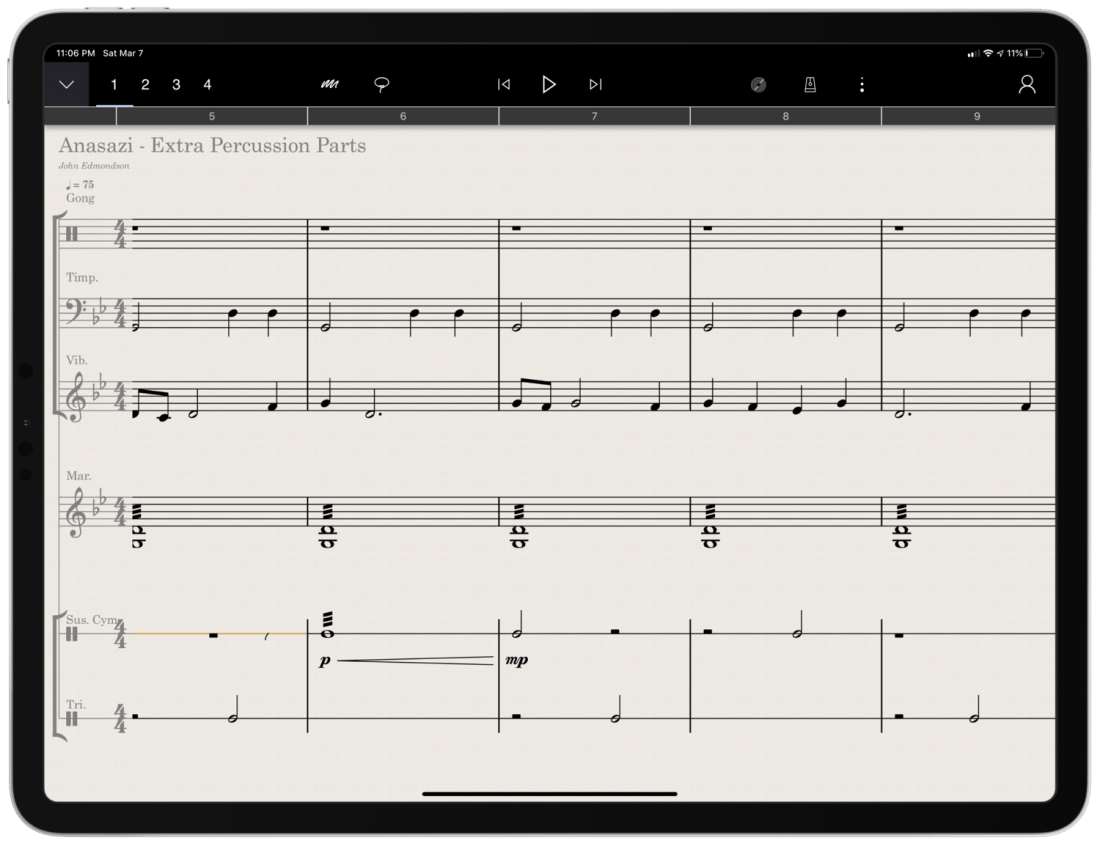
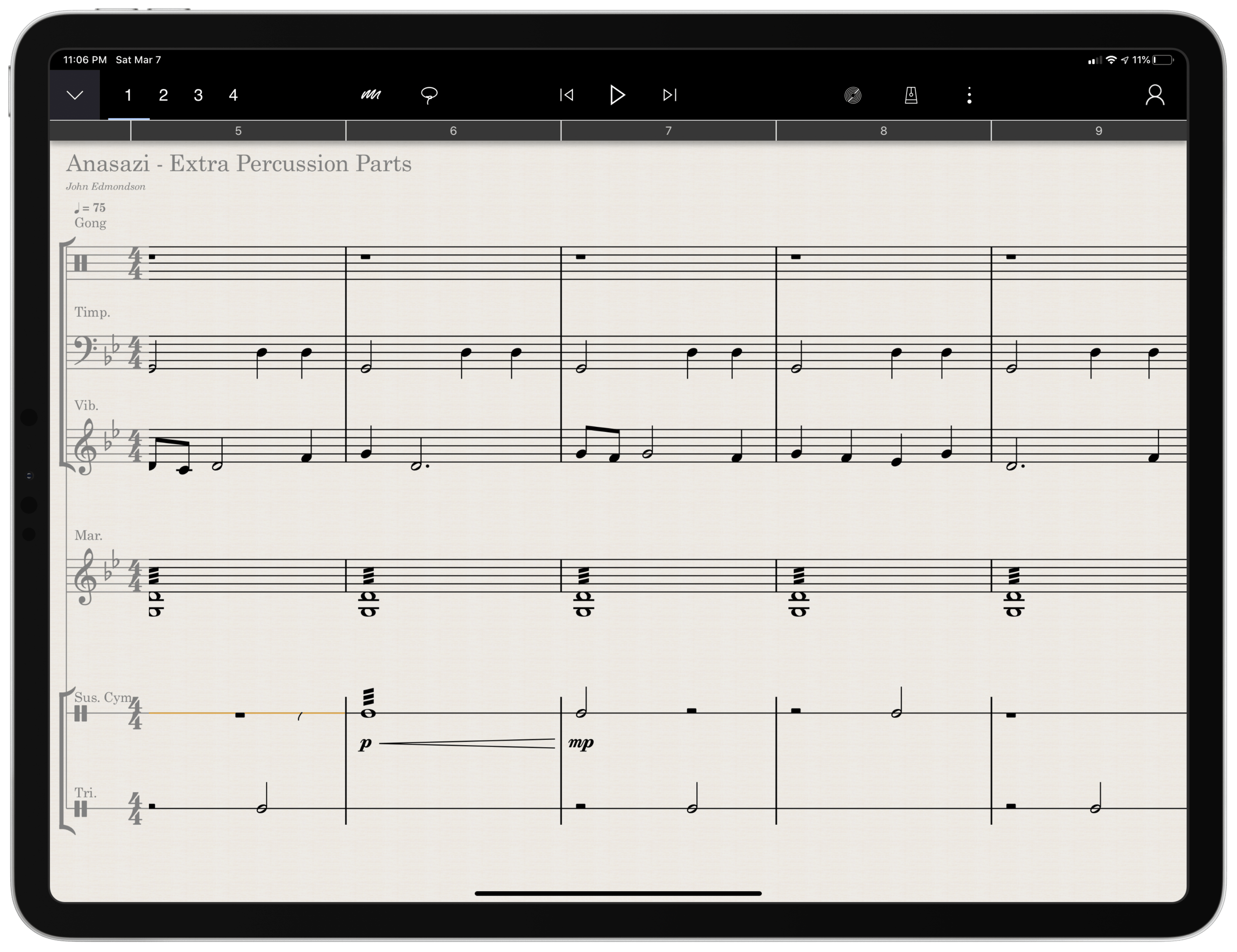
Arranging extra percussion parts for works that are sparse in percussion writing
Writing short folk melodies to use in our sectional curriculum
…pretty basic stuff. If you want a very balanced and comprehensive review of all the StaffPad features, not just the ones I depended on, I strongly recommend you check out the Scoring Notes review by David MacDonald.
TL;DR: If you want to skip this review, I’ll get to the point:
StaffPad is an exceptional tool for music educators. It is elegantly designed, astoundingly intuitive, and makes exactly the right trade-off for what a teacher would and would not need in a pro-level score editor. It is a best-of-class example of what a professional ‘iPad-first’ app should look like. It legitimizes the platform by being a tool that executes tasks that no other computing device can.
While I believe StaffPad near-perfectly conceived, it’s hand writing recognition is a headache to use at times, and it needs to improve a lot in this area for me to consider it rock-solid-dependable. Fortunately, I got better at it as I wrote this review.
Ok, let’s get to it.
UPDATE: I spoke at length about my experiences using StaffPad on my pocast. Listen and subscribe below.
The design of StaffPad is one of the most impressive I have ever seen. It is undeniably professional, but maintains the elegance and simplicity you would expect if you are familiar with Apple’s native iOS apps. It manages not to be overbearing with buttons and knobs, yet none of the tools seem too far away or too many menus deep.
Everything is beautifully laid out in a way where my eyes naturally gravitate towards the information relevant to me. There isn’t any information on this screen that doesn’t need to be.
Home shows just recent documents, Library shows all of your stuff, templates shows the customary templates you would expect from a score editor, and Collections shows some pre-made StaffPad scores designed to show off the sound library. I appreciate how the Templates page is not bogged down with dozens of rare options like Mariachi Band.
The Store button takes you to a screen where you can buy sound libraries and other extensions. More on that later. Discover takes you to some helpful introduction videos.
I am going to get into note input in a bit. Before that, I want to pontificate the nature of writing notes with a pencil on a touch surface.
At launch, the iPad made a promise to simplify computing for every person, allowing you to touch directly what you want to do on the screen and removing the abstraction of pointing and clicking, the preferred interface of personal computers for decades.
John Gruber, amongst other Apple commentators, have recently had a lot to say about the original promise of the iPad; about how it has maybe lost its way as it has tried to become more like the Mac, introducing inscrutable multitasking gestures and imitating professional PC software rather than leveraging the strengths of a touch interface. There is a great conversation about it on his podcast, which makes special reference to how revolutionary the original GarageBand app was for iPad.
I mention all of that here because I think StaffPad perfectly fulfills that original iPad promise. Writing notes directly on the screen really is the way to write music, as it removes all abstractions and lets you just touch where you want things to go. It also exists in a category of rare, niche, and professional iPad apps that a) cost real money, and b) could not really exist on a Mac. I already wrote about this a little bit here.
So what features exactly does StaffPad have? If you want an exhaustive list, check out StaffPad’s help page. It is very detailed and straightforward.
<div class="
      image-block-outer-wrapper
      layout-caption-below
      design-layout-inline
      combination-animation-none
      individual-animation-none
      individual-text-animation-none
    ">


    <figure class="
          sqs-block-image-figure
          intrinsic
        " style="max-width:2500px">


      <div class="image-block-wrapper">
        <div class="sqs-image-shape-container-element


          has-aspect-ratio
        " style="position: relative;padding-bottom:76.95999908447266%;overflow: hidden">


            <img src="https://images.squarespace-cdn.com/content/v1/5595df9ce4b0ce9ff9ecd1a8/1583683028358-VYZELFL54B15ZM614AQ7/0B66A098-2FE9-417B-8A4D-BDD066DC627D.png" alt="Though StaffPad’s website has a great introduction video, the help page lists everything StaffPad can do in a concise manner." width="2500" height="1924" style="display:block;object-fit: cover;width: 100%;height: 100%;object-position: 50% 50%" loading="lazy">

        </div>
      </div>


      <figcaption class="image-caption-wrapper">
        <div class="image-caption"><p class="">Though StaffPad’s website has a great introduction video, the help page lists everything StaffPad can do in a concise manner.</p></div>
      </figcaption>


    </figure>


</div>
If you need specialty engraving features and every editing feature money can buy, you need Dorico or Sibelius (but choose Dorico). If you need a sketch app for music notation, that can make 90% of your score needs come true from the comfort of your couch, StaffPad has you covered.
There are trade-offs. But for my basic purposes, they are just the right trade-offs. For a handwritten sketch app, StaffPad strikes exactly the right balance of what it does and what it doesn’t do, especially considering the quality of the resulting scores. There aren’t a lot of ways to customize your score’s layout, but StaffPad makes really good default choices about how to stylize the final product.
I appreciate that everything StaffPad does is very discoverable and not buried too many layers deep. Most things, you can just write directly on the screen with the pencil (though I had a lot of trouble with articulation, and especially with dynamics). StaffPad attempts to solve the problem of organizing features by using what I call a “double tool bar.” I am sure they have a technical name for it. Basically, the tool bar shows one set of tools, and when you tap the upward or downward facing arrow on the upper left corner of the screen, it shows another set of tools.
If I knew the logic behind how StaffPad has organized these tools, I would probably be able to find them better, but because the options are selectable from two sides of the same toolbar, I often get confused which “side” of it I need to be on to get what I want. At least changing it over is only a tap away.
One side of the tool bar has buttons which contains the following…
Options to change the voice(of which there are four).
Button to toggle an annotation mode.This mode allows you to scribble freely on your score and highlight certain sections. This mode is necessary because regular strokes draw notes on the staff by default. I can’t think of any standard notation editor that allows freeform annotations with a stylus since most of them are not designed for a tablet.
A loop tool. This tool is great but buggy. It does what you would expect. It allows you to circle a section of music and then copy, paste, or duplicate it. This is a nice way to solve the problem of there being no keyboard shortcuts for selection, copy, and paste, in the app. Sometimes StaffPad crashes when I use it.
The famous three-dots button.(which in most apps means “more”) This button takes you to most of the notations that you cannot write on the staff directly with the Apple Pencil – trills, fermatas, rehearsal markings, etc. This button is so frequently accessed that I kind of wish it showed up on both sides of the tool bar. Furthermore, it would be great to be able to edit the order the options appear, rather than scrolling to the right every time I need a rehearsal marking.
Fenby. – a digital assistant that you can talk to. Fenby is wicked cool. Similar to digital assistants like Siri, however, it works really well only when it works. I got used to telling it to “add strings” or “transpose” the score, but there are other commands listed on the StaffPad website that I could not get to work.
The other side of the tool bar includes buttons for…
Undo and redo buttons. Which, again, are so commonly needed that I wish they showed up on both sides of the tool bar. You can use the new text gestures introduced with iOS 13 to three finger pinch (copy), three finger spread (paste), three finger swipe left (undo) and three finger swipe right (redo). Once you get the hang of these, you really start to fly.
Also, a bonus note (and my favorite take away from Paul Shimmons’ StaffPad review): copying a selection of music in StaffPad, and pasting it into another app results in a beautifully formatted score excerpt. It’s nice touches like this that make StaffPad a delight to work with.
Copy and paste using the new three finger gestures in iOS 13 is very natural.
Button add/remove instruments. This screen is super elegant and I love it.
Automation layer. You can actually draw your automations right onto each stave with the pencil. It is too bad this is a feature I will not use that much, because the implementation is really slick. I hope that all iOS DAWS consider adding Apple Pencil support for automation layers.
Button to toggle transposing vs. non transposing score.
Playback buttons. Again, these are on both sides of the toolbar but I use them far less often than some of the other options.
Button to access version history.
Share button. The share menu is ridiculously elegant and straightforward. It has all of the export options you would want, and appears very clean. My only complaint is that it does not work the way standard iOS share buttons work where once you share something, the share menu is no longer active. In StaffPad, it is more of a “mode” that you enter in to. I don’t prefer this, but it is also not the end of the world.
Settings button. This screen is really straightforward and easy on the eyes. This is the one case where I do wish StaffPad would add more options. The screen is designed nicely enough that I would not mind scrolling downward for more options.
For example, I would like to be able to customize the tool bar or choose for the Apple Pencil’s double tap gesture to do something other than initiate a lasso select.
Fenby. I do not think this feature is useful enough to put on both tool bars.
Note input
Ok so here’s where the rubber meets the road. StaffPad only accepts note input through the Apple Pencil. I have written about this elsewhere. I would love for StaffPad, like Notion, to have a Mac counterpart. But it’s not designed that way. Because Windows operates on a tablet, Surface users of StaffPad do not need to distinguish between tablet and PC operating systems. StaffPad runs on Windows, period. macOS is a different operating system than iPadOS, so there is no way I can run StaffPad on my Mac.
Interestingly, the main PC score apps, Dorico, Sibelius, and Finale, have made no attempts at an iPad app. I find that we are in this weird fragmented stage with Apple software where nearly any productivity app (I am thinking iWork, the Omni apps, even now Photoshop) can run on any Apple platform and even sync your work between devices, meanwhile niche pro apps still tend to exist on only one platform (Pro Tools/Ableton on the Mac and forScore/StaffPad for the iPad for example). These niche pro apps take unique advantage of platform conventions (the ability to work with complex audio streams in the case of DAWS on the Mac, and the Apple Pencil in the case of iPad).
Maybe its for the best. But I can’t help but feel like StaffPad would be superior if I could snap my iPad into the Smart Keyboard Folio and enter notes from there, or boot up a Mac version and enter notes with a MIDI keyboard..
Because I can’t do that, it is imperative that StaffPad’s handwriting recognition is air tight.
Simply put: it doesn’t register for me all the time. While I am getting better at it after a month of practice, it has a way to go. Sometimes I write really messy and get surprisingly great results on first pass. Other times, I write as slowly and neatly as I can and StaffPad doesn’t convert the notation.
Fortunately, StaffPad’s rules for notation conversion are very thoughtfully considered. Unlike Notion, notes do not convert until I tap somewhere outside the current measure I am composing. This means I can stop and think as long as I want before moving on. StaffPad also leaves anything that it doesn’t recognize in my own handwriting while converting the rest. This means I do not have to worry about an ambiguous pencil stroke being converted into StaffPad’s best guess, and I can go back and fix it later. Speaking of fixing things later, there isn’t a need to be too careful, because notes that end up a line or a space to high or low can be held with the pencil tip and dragged wherever you want on the staff.
This video shows off the design, features, and note input of StaffPad in action.
StaffPad’s design ingenuity continues to shines in the details. You are allowed to write whatever you want in a bar, regardless of if it fits in the time signature or not. StaffPad also allows you to drag the bar line to the right with the pencil if you run out of room. These considerations work well for my brain, because there is less cognitive overhead. I feel like I am writing with a pencil and paper, not a computer.
Still, there are times that I have to try numerous attempts before achieving success. The StaffPad support team recommended that I do notes in one pass, articulations in another, and dynamics in yet another, until I gain confidence with the system. They also recommended that I try to write the notes at approximately the size they will appear once converted. This advise helped but I am still making more mistakes than I would like.
My wife is a professional artist. She uses the iPad Pro to do illustrations and design mock ups. In other words, she has way better control of a pencil than I do. I asked her to spend some time writing various different musical symbols, at varying speeds and sizes. She, too, was perplexed at which of her pencil strokes worked and which ones didn’t.
StaffPad’s help documentation (again, excellent) makes it look really easy. The examples of handwriting are really loose. As a percussionist who detests how other score programs handle drum set notation, I would love to be able to write drum parts as easily as the support documentation illustrates. No matter how hard I try to imitate it, I am getting inconsistent results enough so that I am reluctant to try these features again in the future.
While I am reflecting on note input, I need to acknowledge that StaffPad has, by far, the best implementation of erasing that I have ever seen for the Apple Pencil. There is no double-tap, or need to tap a button on screen to turn on the eraser. You simple press harder! It takes a little getting used to, and it is easy to press too hard when attempting to compose and erasing by mistake. But overall, I wish all apps would adopt this style. It is truly a dream.
Hard press to erase in @StaffPad is by far the best implementation of erasing with Apple Pencil I have seen in any app. It is even more seamless than if the Apple Pencil added an eraser to the other side. I’m seriously ruined for eraser tools in all other software. pic.twitter.com/fTJxDpsgVB
Most of my testing for StaffPad included preparing for my recent band concerts. My Concert Band has 10 percussionists and some of my music had only three or four parts. I also have some flutes in my Jazz Band this year, and planned some repertoire that does not have original flute parts. Arranging these additional parts took place while I was on leave for the birth of my first child and was awaiting a return to school, where I would have only two weeks to prepare this concert before the performance date.
Headaches aside, the lightness and simplicity of StaffPad’s design, mixed with its direct note input, made this an indispensable tool for me in the past month. Projects that would have had more overhead using a heftier score editor like Dorico were a breeze using StaffPad and iOS. The iPad’s portability made it easy to sneak little additions to my work into busy days of carrying, holding, and feeding a newborn in one arm while sitting on the couch in my living room rather than at a desk.
Between pencil input and the tool bars mentioned above, there are a handful of features that are hidden beneath contextual menus that are achieved by long pressing on various places in the score. Long pressing in a measure allowed you to change the time or key signature. Long pressing on bar lines allows you to change their style or add measures to the music, add lyrics, text, or chords. These menus are very tastefully done, and as I have already mentioned, they have just enough features that they are confusing to dig through, but just enough that I was never wondering where something was. The lyrics and chords options are not as in depth as other score applications, but they were just right for my needs.
iOS-ness
There are features available to third party apps that I believe should be in every app. I was disappointed that StaffPad did not follow a few of these conventions.
Specifically, I wish StaffPad supported Split View. iPad apps can now share half the screen with another app. StaffPad only works in full screen.
This was frustrating for me, particularly in my arranging project mentioned earlier. I wanted to be able to open forScore on one half of the screen for a reference of the full score, and then compose in StaffPad on the other half of the screen. StaffPad customer support informs me that they experienced weird multi-touch results when StaffPad was on half of the screen and that it doesn’t work. But I would still like to see it happen.
You can use other apps in slide over view, which is where you drag an iPhone-sized version of an app over top a full screen app for quick reference. You can see if the screenshot below that this is really too small to be tenable for score reference.
<div class="
      image-block-outer-wrapper
      layout-caption-below
      design-layout-inline
      combination-animation-none
      individual-animation-none
      individual-text-animation-none
    ">


    <figure class="
          sqs-block-image-figure
          intrinsic
        " style="max-width:2500px">


      <div class="image-block-wrapper">
        <div class="sqs-image-shape-container-element


          has-aspect-ratio
        " style="position: relative;padding-bottom:76.95999908447266%;overflow: hidden">


            <img src="https://images.squarespace-cdn.com/content/v1/5595df9ce4b0ce9ff9ecd1a8/1583684645922-TSXCS5EUETXGQFLXTPZ2/E07C9D5E-2A92-485A-B45A-51E39CF9485B.png" alt="Referencing a score is awkward because StaffPad doesn’t support the iPad’s splitview feature." width="2500" height="1924" style="display:block;object-fit: cover;width: 100%;height: 100%;object-position: 50% 50%" loading="lazy">

        </div>
      </div>


      <figcaption class="image-caption-wrapper">
        <div class="image-caption"><p class="">Referencing a score is awkward because StaffPad doesn’t support the iPad’s splitview feature.</p></div>
      </figcaption>


    </figure>


</div>
Playback
Spitfire and cinesamples audio libraries, amongst others, are available as inn-app purchases. They sound fantastic! Given how seamlessly they work with StaffPad, it is astounding how easy it is to get good sounding playback. If only using advanced audio plugins with score apps was this easy on macOS and Windows.
That said, I am extremely hesitant about buying these plugins. These samples, once purchased, only work with StaffPad on iOS and cannot be used with any other program like they can be if you purchase the PC versions of these plugins directly from the companies that engineer them.
StaffPad is a unique composing application that leverages everything unique about the iPad to provide what I anticipate will be an indispensable tool for my work as a music educator. While the handwriting recognition doesn’t always work as I expect, it gets better with each update and also as I practice it.
StaffPad is elegantly designed and makes trade-offs that position it as perhaps the most natural score editor I have ever worked with. I am so glad that this app exists both as a tool for my professional work, and as a statement about what the iPad can be. I would recommend it to anyone who is looking for a score app that balances power and ease as long as they acknowledge that there is a learning curve and a price.
Five years ago, StaffPad came to Windows Surface tablets. StaffPad is a professional music notation application that turns handwritten notes into beautiful music notation. It is built around the stylus being the primary input, and because the iPad did not have stylus support at launch, StaffPad remained Windows only.
Multiple years into Apple supporting its own official stylus, the Apple Pencil, StaffPad is finally here on iPad!
Since the features of StaffPad are covered in the links above, I want to comment on two interesting aspects of this release.
First, the price. At $89.99, this is no impulse purchase. I find it refreshing to see a professionally priced app like this on the App Store. For years, the App Store has seen a race to the bottom type approach for grabbing sales. Users are so used to <5 dollar apps that the idea of paying for software has diminished from reality.
Increasingly, developers are finding that subscription based pricing is the only way to maintain software and put food on the table. There was a big discussion about this in the Apple community last week when beloved calendar application Fantastical released their version 3 and went to subscription pricing. As is customary when an app goes to subscription pricing, users of the application and bystanders alike were enraged at the idea of a calendar costing four dollars a month.
<div class="
      image-block-outer-wrapper
      layout-caption-below
      design-layout-inline
      combination-animation-none
      individual-animation-none
      individual-text-animation-none
    ">


    <figure class="
          sqs-block-image-figure
          intrinsic
        " style="max-width:1155px">


      <div class="image-block-wrapper">
        <div class="sqs-image-shape-container-element


          has-aspect-ratio
        " style="position: relative;padding-bottom:216.45021057128906%;overflow: hidden">


            <img src="https://images.squarespace-cdn.com/content/v1/5595df9ce4b0ce9ff9ecd1a8/1580915317133-UOKYP5V5RR65Z4AVHD73/IMG_0261.jpeg" alt="I couldn’t resist sneaking my love of Fantastical into this post. The interface is beautiful." width="1155" height="2500" style="display:block;object-fit: cover;width: 100%;height: 100%;object-position: 50% 50%" loading="lazy">

        </div>
      </div>


      <figcaption class="image-caption-wrapper">
        <div class="image-caption"><p class="">I couldn’t resist sneaking my love of Fantastical into this post. The interface is beautiful.</p></div>
      </figcaption>


    </figure>


</div>


<div class="
      image-block-outer-wrapper
      layout-caption-below
      design-layout-inline
      combination-animation-none
      individual-animation-none
      individual-text-animation-none
    ">


    <figure class="
          sqs-block-image-figure
          intrinsic
        " style="max-width:1155px">


      <div class="image-block-wrapper">
        <div class="sqs-image-shape-container-element


          has-aspect-ratio
        " style="position: relative;padding-bottom:216.45021057128906%;overflow: hidden">


            <img src="https://images.squarespace-cdn.com/content/v1/5595df9ce4b0ce9ff9ecd1a8/1580915338578-0EX7B5FIOWYUATD1XZQE/IMG_0262.png" alt="And the natural language input is one of many essential features that helps me get my work done more efficiently." width="1155" height="2500" style="display:block;object-fit: cover;width: 100%;height: 100%;object-position: 50% 50%" loading="lazy">

        </div>
      </div>


      <figcaption class="image-caption-wrapper">
        <div class="image-caption"><p class="">And the natural language input is one of many essential features that helps me get my work done more efficiently.</p></div>
      </figcaption>


    </figure>


</div>
As a user of Fantastical, I was happy to keep supporting development. It is one of my most used applications on a daily basis and its features are essential to me having a full time teaching job, while also scheduling gigs, 25 private students, speaking engagements, and all of my other personal events.
Fantastical is what I would call a prosumer application. It offers more power to someone looking for an advanced and well designed calendar, and it has a wide appeal (everyone needs a calendar!). Four dollars a month is steep, but manageable. Now that the price is reoccurring, I do think it will appeal to a smaller audience, as each user will have to reevaluate on a monthly or yearly basis whether or not this application is continuing to be worth the cost.
StaffPad is very different. It is a professional creation tool. Much like Photoshop is essential to designers and photographers, score editors are essential to the lives of most musicians, composers, and music educators. By charging 89 dollars, StaffPad follows a long history of apps in its field, which are often priced between 200 and 600 dollars.
I have to wonder… if the iPad had more software like this, and from an earlier point in time, would users have adjusted their expectations and would more expensive professional apps be more viable? And if so, would the viability of such professional apps lead to more (and better) professional apps on iOS?
And furthermore, would Apple adjust to these trends? Apple still offers no free trial for apps (something that will definitely deter a lot of my music teaching colleagues away from giving StaffPad a chance). Not to mention that professional creative software has a tradition of volume licensing and educator discounts. Educators who would normally be able to afford a program like this for themselves or their class are going to be stuck if they are looking for the same options with StaffPad.
App developers get around to this in number of ways, an example of which is to offer a free app where you have to buy it as an in-app purchase after a week. Of course there is also the subscription model. I am glad StaffPad went with a more traditional model than a subscription because it fits within the tradition of how its class of software is priced. And my hope is that this just might convince more developers to bring their own apps to iPadOS.
Which brings me to my second point…
StaffPad doesn’t, and probably wont, have a macOS app. It is built entirely around stylus input. This is why it could only exist on Windows Surface tablets at first. I am thrilled it is on iPad, but this presents an interesting question for users of Apple products.
A Windows Surface user notices no distinction between whether or not StaffPad operates on a touch-based OS or a traditional point-and-click OS, because they are one and the same. Even as macOS and iPadOS move closer and closer together, this distinction has lead them to be products with very different potentials.
On the other end, all the other players in the score-editor field (Sibelius, Finale, Dorico) remain “desktop” applications that run on traditional point-and-click operating systems. With the power of the current iPad Pro, there is no reason these applications couldn’t exist on iOS, other than that developing for iOS is very different. None of these developers have shown any signs of bringing their programs to iPadOS any time soon, and I would suspect StaffPad has no plans for a Mac version.
I admire how Apple has held their ground about the iPad being the iPad and the Mac being the Mac. It has made both platforms stronger. But as the iPad becomes a more viable machine for getting work done, Apple has got to get a plan for how to solve this essential “input” question.






 Music Ed Tech Talk