#47 – Craft for Music Educators, with Dr. David MacDonald

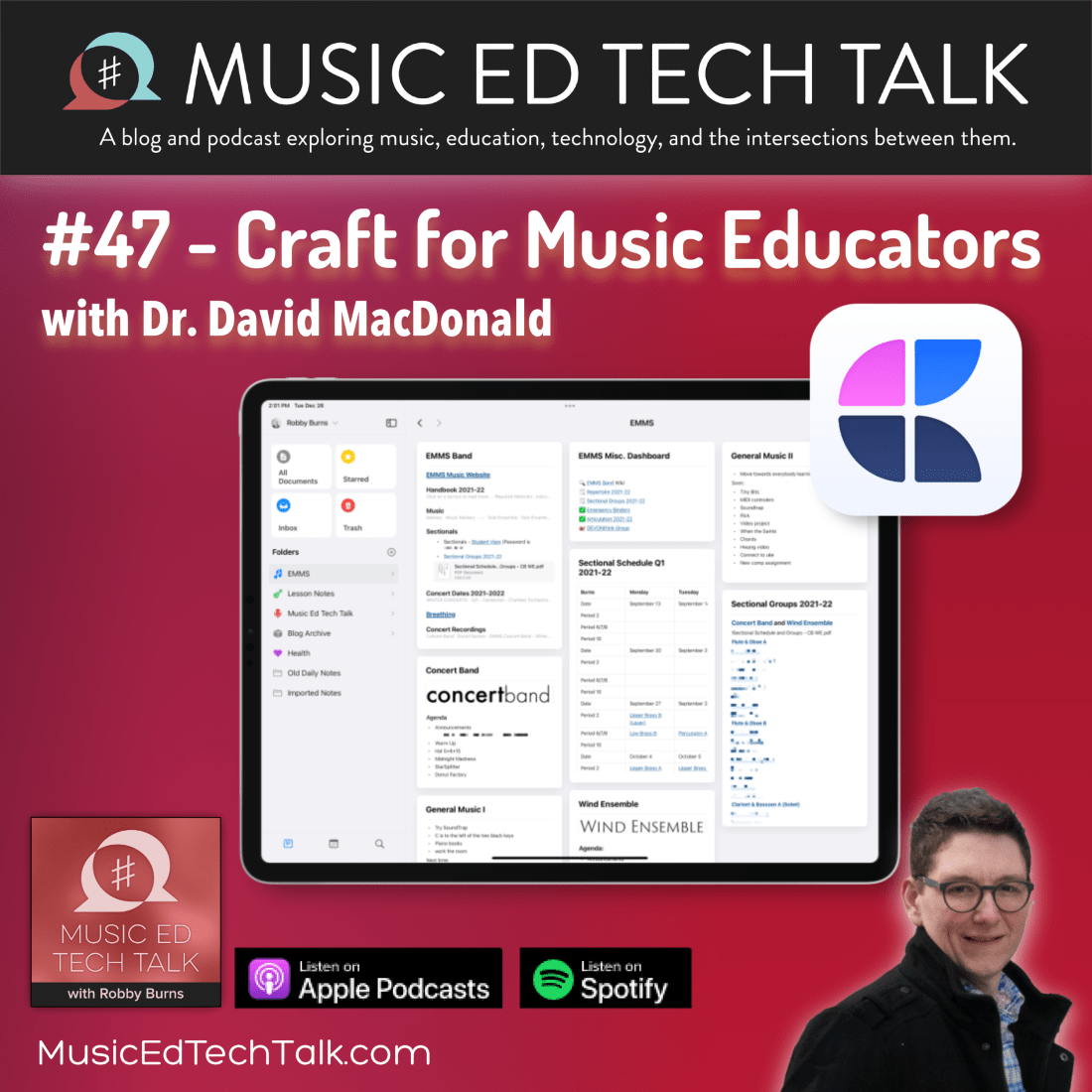
David rejoins the show to talk about how we use Craft, an extremely versatile, elegant, and powerful app for the web, iOS, and macOS devices.

Subscribe to the Blog…

RSS | Email Newsletter

Subscribe to the Podcast in…

Apple Podcasts | Overcast | Castro | Spotify | RSS

Support Music Ed Tech Talk

Become a Patron!

Buy me a coffee

Show Notes:

App of the Week

Robby – Documents

David – GoodReader

Music of the Week

Robby – NPR Top 50 of 2021

David – Silk Sonic

Tech Tip of the Week

Better Touch Tool

Where to Find Us:

Robby – Twitter | Blog | Book

David – Twitter | Website | Blog

Please don’t forget to rate the show and share it with others!

Craft Pro currently free for teachers and students

https://platform.twitter.com/widgets.js

Craft Download here is an app that has been getting a lot of attention in the Apple community lately for the way it makes the process of organizing and sharing information very elegant.

They are currently offering the pro version for FREE to teachers and students. Make sure you check out the tweet above for more details.

In their own words, Craft is a “tool for creating beautiful documents and notes and sharing your thoughts. Everything you create in Craft can be shared with one tap. Craft supports inline markdown, backlinks, code snippets, images, videos, attaching PDF files, and rich link previews.”

Craft is on iOS and macOS and is worth checking out.

It’s hard to pin down exactly how it might serve you because it is extremely versatile. If you like organizing and sharing your ideas, particularly if you are a lukewarm Google Docs user, this is worth a look.

Set your iPhone to open a tuner or take a screenshot when you tap the Apple logo on back

I have been seeing this tip gain popularity with teachers online, so I feel obligated to share it here:

You can program your iPhone to do a nearly endless list of things by double or triple tapping the back of it. Go to Settings–>Accessibility–>Touch and then scroll down to the option called “Back Tap.”

Alternatively, you can swipe down in settings to reveal a search bar and then type in “back tap.”

You can program a tap of the Apple Logo on the back of your iPhone to do tons of system actions like going home, muting your phone, taking a screenshot, or launching Control Center.

<div class="
      image-block-outer-wrapper
      layout-caption-below
      design-layout-inline
      combination-animation-none
      individual-animation-none
      individual-text-animation-none
    ">


    <figure class="
          sqs-block-image-figure
          intrinsic
        " style="max-width:1284px">


      <div class="image-block-wrapper">
        <div class="sqs-image-shape-container-element


          has-aspect-ratio
        " style="position: relative;padding-bottom:216.35513305664062%;overflow: hidden">


            <img src="https://images.squarespace-cdn.com/content/v1/5595df9ce4b0ce9ff9ecd1a8/1608564366540-64K77SDX21XQUB5U6V9A/IMG_5104.PNG" alt="The Touch options in the accessibility settings." width="1284" height="2778" style="display:block;object-fit: cover;width: 100%;height: 100%;object-position: 50% 50%" loading="lazy">

        </div>
      </div>


      <figcaption class="image-caption-wrapper">
        <div class="image-caption"><p class="">The Touch options in the accessibility settings.</p></div>
      </figcaption>


    </figure>


</div>


<div class="
      image-block-outer-wrapper
      layout-caption-below
      design-layout-inline
      combination-animation-none
      individual-animation-none
      individual-text-animation-none
    ">


    <figure class="
          sqs-block-image-figure
          intrinsic
        " style="max-width:1284px">


      <div class="image-block-wrapper">
        <div class="sqs-image-shape-container-element


          has-aspect-ratio
        " style="position: relative;padding-bottom:216.35513305664062%;overflow: hidden">


            <img src="https://images.squarespace-cdn.com/content/v1/5595df9ce4b0ce9ff9ecd1a8/1608564386924-92182U2GU0QIAR8FEUDM/IMG_5103.PNG" alt="Setting a double and triple-tap." width="1284" height="2778" style="display:block;object-fit: cover;width: 100%;height: 100%;object-position: 50% 50%" loading="lazy">

        </div>
      </div>


      <figcaption class="image-caption-wrapper">
        <div class="image-caption"><p class="">Setting a double and triple-tap.</p></div>
      </figcaption>


    </figure>


</div>


<div class="
      image-block-outer-wrapper
      layout-caption-below
      design-layout-inline
      combination-animation-none
      individual-animation-none
      individual-text-animation-none
    ">


    <figure class="
          sqs-block-image-figure
          intrinsic
        " style="max-width:1284px">


      <div class="image-block-wrapper">
        <div class="sqs-image-shape-container-element


          has-aspect-ratio
        " style="position: relative;padding-bottom:216.35513305664062%;overflow: hidden">


            <img src="https://images.squarespace-cdn.com/content/v1/5595df9ce4b0ce9ff9ecd1a8/1608564409103-HO5MK70DHDBQ9E457DKC/IMG_5102.PNG" alt="There are lots of options!" width="1284" height="2778" style="display:block;object-fit: cover;width: 100%;height: 100%;object-position: 50% 50%" loading="lazy">

        </div>
      </div>


      <figcaption class="image-caption-wrapper">
        <div class="image-caption"><p class="">There are lots of options!</p></div>
      </figcaption>


    </figure>


</div>

You can also choose a Shortcut to launch. And Shortcuts can do anything from launching an app to running JavaScript. So you can imagine the possibility…

Personally, I have a double-tap set to reveal Control Center and a triple tap set to initiate open a new note in my note-taking app, Drafts.

To open a specific app, you will first need to make a Shortcut that performs the “Open App” action and then select that Shortcut from the available options in the Back Tap settings. To do that, open the Shortcuts app (pre-installed on every iPhone or available from the App Store on older versions of iOS).

Once in Shortcuts, create a new one with the plus icon in the upper right. Name your shortcut if you want (by pressing the three-dots “More” button), and then press “Add Action.” There is an overwhelming number of options if you are unfamiliar with Shortcuts, so just use the search and look for the action called “Open App.” Select this action from the search results and then a block will appear with a blue “Choose” option where you can choose the app you want it to open. Choose your tuner of choice.

Once saved, this Shortcut will be available as an option in the Back Tap settings.

***Note: The Tonal Energy app actually allows you to set up Shortcuts that jump to specific places within the app like the Analysis or Metronome section. You can find this in the TE settings. It will save you a bunch of extra taps.

<div class="
      image-block-outer-wrapper
      layout-caption-below
      design-layout-inline
      combination-animation-none
      individual-animation-none
      individual-text-animation-none
    ">


    <figure class="
          sqs-block-image-figure
          intrinsic
        " style="max-width:1284px">


      <div class="image-block-wrapper">
        <div class="sqs-image-shape-container-element


          has-aspect-ratio
        " style="position: relative;padding-bottom:216.35513305664062%;overflow: hidden">


            <img src="https://images.squarespace-cdn.com/content/v1/5595df9ce4b0ce9ff9ecd1a8/1608564995967-B0VIN8WSL17DIJ4DPL95/IMG_5106.PNG" alt="Creating a new Shortcut." width="1284" height="2778" style="display:block;object-fit: cover;width: 100%;height: 100%;object-position: 50% 50%" loading="lazy">

        </div>
      </div>


      <figcaption class="image-caption-wrapper">
        <div class="image-caption"><p class="">Creating a new Shortcut.</p></div>
      </figcaption>


    </figure>


</div>


<div class="
      image-block-outer-wrapper
      layout-caption-below
      design-layout-inline
      combination-animation-none
      individual-animation-none
      individual-text-animation-none
    ">


    <figure class="
          sqs-block-image-figure
          intrinsic
        " style="max-width:1284px">


      <div class="image-block-wrapper">
        <div class="sqs-image-shape-container-element


          has-aspect-ratio
        " style="position: relative;padding-bottom:216.35513305664062%;overflow: hidden">


            <img src="https://images.squarespace-cdn.com/content/v1/5595df9ce4b0ce9ff9ecd1a8/1608565028662-3UNS3SDR1AHYL5TYGF5T/IMG_5107.PNG" alt="Search for the Open App action." width="1284" height="2778" style="display:block;object-fit: cover;width: 100%;height: 100%;object-position: 50% 50%" loading="lazy">

        </div>
      </div>


      <figcaption class="image-caption-wrapper">
        <div class="image-caption"><p class="">Search for the Open App action.</p></div>
      </figcaption>


    </figure>


</div>


<div class="
      image-block-outer-wrapper
      layout-caption-below
      design-layout-inline
      combination-animation-none
      individual-animation-none
      individual-text-animation-none
    ">


    <figure class="
          sqs-block-image-figure
          intrinsic
        " style="max-width:1284px">


      <div class="image-block-wrapper">
        <div class="sqs-image-shape-container-element


          has-aspect-ratio
        " style="position: relative;padding-bottom:216.35513305664062%;overflow: hidden">


            <img src="https://images.squarespace-cdn.com/content/v1/5595df9ce4b0ce9ff9ecd1a8/1608565049152-C3300UYIFHO6GDN04RY0/IMG_5108.jpg" alt="Tonal Energy allows you to make Shortcuts that launch to specific parts of their app in the settings." width="1284" height="2778" style="display:block;object-fit: cover;width: 100%;height: 100%;object-position: 50% 50%" loading="lazy">

        </div>
      </div>


      <figcaption class="image-caption-wrapper">
        <div class="image-caption"><p class="">Tonal Energy allows you to make Shortcuts that launch to specific parts of their app in the settings.</p></div>
      </figcaption>


    </figure>


</div>

METT Episode #18 – Productivity Boot Camp (Part I): Notes and Tasks, with Dr. Frank Buck

Thanks to my sponsors this month, Flat for Education.

Dr. Frank Buck returns to the show for the kick-off of my mini-series, Productivity Boot Camp! Dr. Frank Buck is a productivity master with a background in band directing and administration. I share my knowledge of Apple products and native third-party apps, and he shares his experience with web-based, cross-platform apps. We bounce back and forth about good digital task and note management and share our favorite apps!

Show Notes:

App of the Week:
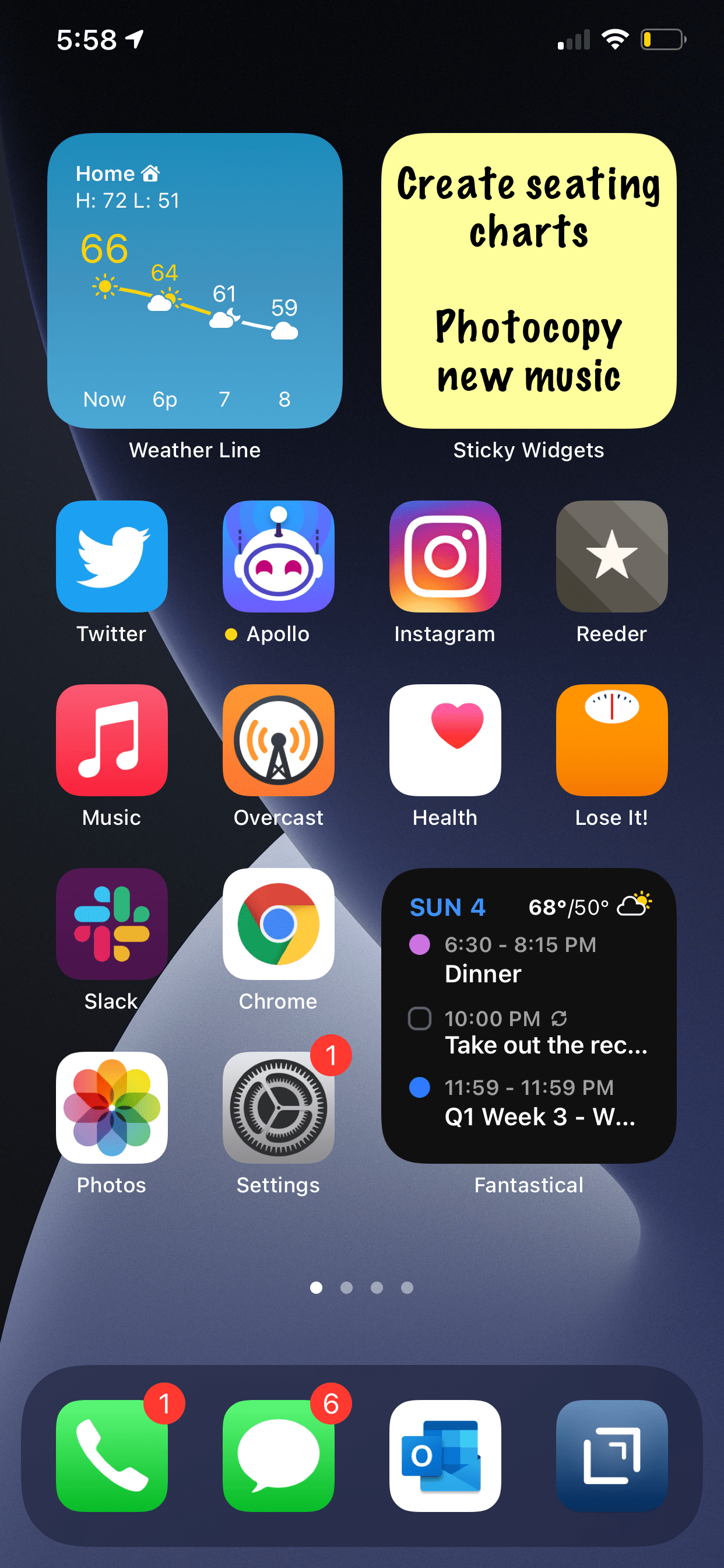
Robby – Sticky Widgets
Frank Buck – Feedly

Album of the Week:
Robby – The Lost Art of Longing | BT
Frank Buck – Handel Flute Sonata V – Recording of Dr. Frank Buck Performing

Where to Find Us:
Robby – Twitter | Blog | Book
Frank Buck – Twitter | Website

Please don’t forget to rate the show and share it with others!

Subscribe to Music Ed Tech Talk:

Subscribe to the Blog

Subscribe to the Podcast in…
Apple Podcasts | Overcast | Castro | Spotify | RSS

Thanks to this week’s sponsor, Flat for Education:

Flat for Education offers music educators and their students the most affordable cloud-based music notation software on the market. Empowering teachers to create playful and engaging music activities, creations, assessments on any device at any time.

The platform integrates with every well-known learning management system available: Google Classroom, Microsoft 365, Canvas, Schoology, and MusicFirst to name a few. Everything will be synchronized with your existing setup to avoid any time loss.

Flat for Education offers an advanced system of assignments allowing you to create playful and stunning music activities with your students.

Create a template for all your students to start working from, or simplify the toolbar to have them only working with eighth and quarter notes. The only limit is your imagination.

Save a lot of time by generating worksheets and quizzes in just a few clicks for your students to practice music theory.

Finally, Bands directors and choirs conductors can have their students directly recording their performance from home for review.

Whether you are teaching remotely or in-person, Flat for Education will support you in creating playful and engaging music activities in no time. Try it free for 90 days on flat.io/edu

Learn OmniFocus: Workflows with Robby Burns – Watch the Free Video Now

Last weekend, I had the awesome pleasure of being a workflow guest on Learn OmniFocus, a website dedicated to teaching and training on the task management app OmniFocus, complementary apps, and the productive way of life.

The video, along with resources mentioned in my appearance can be viewed here. I recommend watching it here because there are chapters you can use to skip around to the various sections of the video by topic. 

Alternatively you can watch the video on Facebook or on YouTube.

<div class="sqs-video-wrapper" data-provider-name="YouTube" data-html="

“>

Topic include

  • the definition of multitasking

  • my love of quick entry and using a task inbox

  • how single item action lists are useful in the middle school band teaching environment

  • how to stay on top of more tasks than are actually possible to do in the day through use of tags and perspectives that filter out information only relevant to a particular context

  • Using the Drafts app for quickly capturing my thoughts, processing my tasks, and acting upon them in powerful ways

  • using project templates for larger projects like field trips and musical performances so that tasks don’t slip through the cracks

  • using Siri Shortcuts to turn data into variables and make a blog post, shared document, and OmniFocus project for creating an episode of the Music Ed Tech Talk podcast

  • Using DEVONthink to connect documents to projects and tasks in OmniFocus and keep things I want to “check out later” off of my todo list

  • putting widgets with charts that show a view of my day in OmniFocus on the Home Screen of my iPhone

My thanks to Tim Stringer for his invitation and for his inspiring work with Learn OmniFocus and for inviting me to join!

Learn OmniFocus is a great website, resource, and community dedicated to empowering people to be more mindful and productive. The app OmniFocus is at the center of it but there is so much more to it than that, including productivity basics, apps, and services that compliment one another. Be sure to check it out here and become a member here. There are educator discounts!