

<div class="sqs-video-wrapper" data-provider-name="YouTube" data-html="
“>

The school year is finally over, as is my first ever quarter of online teaching.
I wanted my students to end the year seeing themselves represented together, playing the same music, at the same time. So I sharpened my Final Cut skills and dove into the process of making a virtual ensemble.
The video in this post gives an overview of my process for making these videos, all the way from making a play along track, to advanced editing such as pitch and rhythm correction. The video includes a couple of my favorite Mac utilities for manipulating audio and video files. Scroll to the bottom to see all of the final videos of my students.
If you want free alternatives to the apps in the video, try:
To edit on iPadOS, try:
Subscribe to the Music Ed Tech Talk Podcast: Apple Podcasts | Overcast | Castro | Spotify | RSS
Buy my book, Digital Organization Tips for Music Teachers
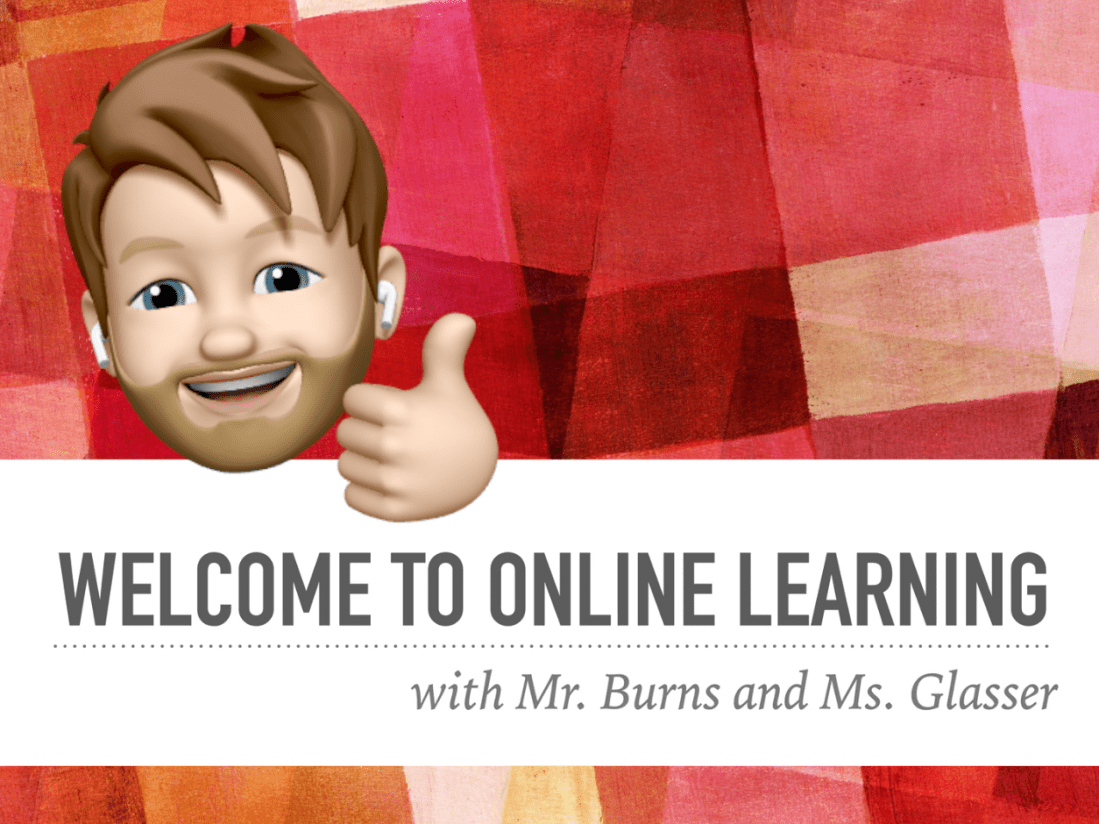
Teachers in my district were tasked with making a welcome video introducing students to the first week of distance learning.
After denying several times that I would put any serious effort into this project, I inevitably got carried away and spiraled down a rabbit hole of apps, workflows, and tricks. Musicians and teachers are feeling a special kind of hunger right now to be creative. I am thankful for software and internet connected tools that help me to communicate in a unique way.
First, enjoy the video below:
The video was produced with the following software:
Apple Clips App might be the only one of these apps you need. It is a free Apple app that is kind of like a cross between iMovie and Photo Booth. Its intended purpose is to make quick, engaging videos, designed to be shared in the age of Instagram Stories.
Clips is how I got my Memoji head to appear on my body. It will also automatically caption your video for you. It can bring in numerous effects, call outs, emoji, backdrops, and can even do still images of words. You could make a video that accomplishes the same general effects as mine in next to zero effort using only Clips.
<div class="
      image-block-outer-wrapper
      layout-caption-below
      design-layout-inline
      combination-animation-none
      individual-animation-none
      individual-text-animation-none
    ">


    <figure class="
          sqs-block-image-figure
          intrinsic
        " style="max-width:1443px">


      <div class="image-block-wrapper">
        <div class="sqs-image-shape-container-element


          has-aspect-ratio
        " style="position: relative;padding-bottom:198.6833038330078%;overflow: hidden">


            <img src="https://images.squarespace-cdn.com/content/v1/5595df9ce4b0ce9ff9ecd1a8/1586639484809-3JS15B9QIDA1YU9LS68G/iVBORw0KGgoAAAANSUhEUgAABaMAAAszCAYAAACIWkB7AAABgmlDQ1BzUkdCIElFQzYxOTY2LTIu-2+5.PNG" alt="Clips allows you to integrate Animoji, Filters, Text, Stickers, and Emoji to your live video." width="1443" height="2867" style="display:block;object-fit: cover;width: 100%;height: 100%;object-position: 50% 50%" loading="lazy">

        </div>
      </div>


      <figcaption class="image-caption-wrapper">
        <div class="image-caption"><p class="">Clips allows you to integrate Animoji, Filters, Text, Stickers, and Emoji to your live video.</p></div>
      </figcaption>


    </figure>


</div>


<div class="
      image-block-outer-wrapper
      layout-caption-below
      design-layout-inline
      combination-animation-none
      individual-animation-none
      individual-text-animation-none
    ">


    <figure class="
          sqs-block-image-figure
          intrinsic
        " style="max-width:1443px">


      <div class="image-block-wrapper">
        <div class="sqs-image-shape-container-element


          has-aspect-ratio
        " style="position: relative;padding-bottom:198.6833038330078%;overflow: hidden">


            <img src="https://images.squarespace-cdn.com/content/v1/5595df9ce4b0ce9ff9ecd1a8/1586639517421-K3TKGRRLGTMHTJN8H973/iVBORw0KGgoAAAANSUhEUgAABaMAAAszCAYAAACIWkB7AAABgmlDQ1BzUkdCIElFQzYxOTY2LTIu-2+4.PNG" alt="Clips automatically adds captions in a style you like. You can edit them after the fact." width="1443" height="2867" style="display:block;object-fit: cover;width: 100%;height: 100%;object-position: 50% 50%" loading="lazy">

        </div>
      </div>


      <figcaption class="image-caption-wrapper">
        <div class="image-caption"><p class="">Clips automatically adds captions in a style you like. You can edit them after the fact.</p></div>
      </figcaption>


    </figure>


</div>


<div class="
      image-block-outer-wrapper
      layout-caption-below
      design-layout-inline
      combination-animation-none
      individual-animation-none
      individual-text-animation-none
    ">


    <figure class="
          sqs-block-image-figure
          intrinsic
        " style="max-width:1443px">


      <div class="image-block-wrapper">
        <div class="sqs-image-shape-container-element


          has-aspect-ratio
        " style="position: relative;padding-bottom:198.6833038330078%;overflow: hidden">


            <img src="https://images.squarespace-cdn.com/content/v1/5595df9ce4b0ce9ff9ecd1a8/1586639567505-19DDGEIFM7BPQGL7VF6K/iVBORw0KGgoAAAANSUhEUgAABaMAAAszCAYAAACIWkB7AAABgmlDQ1BzUkdCIElFQzYxOTY2LTIu-2+6.PNG" alt="You can record yourself speaking over static posters to communicate information in an engaging way." width="1443" height="2867" style="display:block;object-fit: cover;width: 100%;height: 100%;object-position: 50% 50%" loading="lazy">

        </div>
      </div>


      <figcaption class="image-caption-wrapper">
        <div class="image-caption"><p class="">You can record yourself speaking over static posters to communicate information in an engaging way.</p></div>
      </figcaption>


    </figure>


</div>
iMessage is where I made my Memoji. It is also another place that you can get a Memoji head on top of your body (see screenshots below). I used this method for a few scenes in the video, instead of Clips, because it can shoot in landscape view. Clips produces square video only.
<div class="
      image-block-outer-wrapper
      layout-caption-below
      design-layout-inline
      combination-animation-none
      individual-animation-none
      individual-text-animation-none
    ">


    <figure class="
          sqs-block-image-figure
          intrinsic
        " style="max-width:1443px">


      <div class="image-block-wrapper">
        <div class="sqs-image-shape-container-element


          has-aspect-ratio
        " style="position: relative;padding-bottom:198.6833038330078%;overflow: hidden">


            <img src="https://images.squarespace-cdn.com/content/v1/5595df9ce4b0ce9ff9ecd1a8/1586639707502-8Y82ATQOI1TRRMHJFJYM/iVBORw0KGgoAAAANSUhEUgAABaMAAAszCAYAAACIWkB7AAABgmlDQ1BzUkdCIElFQzYxOTY2LTIu-2.PNG" alt="An alternate way to film yourself with a Memoji head is to open up a text message conversation to someone or yourself." width="1443" height="2867" style="display:block;object-fit: cover;width: 100%;height: 100%;object-position: 50% 50%" loading="lazy">

        </div>
      </div>


      <figcaption class="image-caption-wrapper">
        <div class="image-caption"><p class="">An alternate way to film yourself with a Memoji head is to open up a text message conversation to someone or yourself.</p></div>
      </figcaption>


    </figure>


</div>


<div class="
      image-block-outer-wrapper
      layout-caption-below
      design-layout-inline
      combination-animation-none
      individual-animation-none
      individual-text-animation-none
    ">


    <figure class="
          sqs-block-image-figure
          intrinsic
        " style="max-width:1443px">


      <div class="image-block-wrapper">
        <div class="sqs-image-shape-container-element


          has-aspect-ratio
        " style="position: relative;padding-bottom:198.6833038330078%;overflow: hidden">


            <img src="https://images.squarespace-cdn.com/content/v1/5595df9ce4b0ce9ff9ecd1a8/1586639773074-HJ6AGP8TJZP3HZY063KW/iVBORw0KGgoAAAANSUhEUgAABaMAAAszCAYAAACIWkB7AAABgmlDQ1BzUkdCIElFQzYxOTY2LTIu-2+2.PNG" alt="Select the camera icon right above the keyboard, and then tap the effect button in the lower left corner." width="1443" height="2867" style="display:block;object-fit: cover;width: 100%;height: 100%;object-position: 50% 50%" loading="lazy">

        </div>
      </div>


      <figcaption class="image-caption-wrapper">
        <div class="image-caption"><p class="">Select the camera icon right above the keyboard, and then tap the effect button in the lower left corner.</p></div>
      </figcaption>


    </figure>


</div>


<div class="
      image-block-outer-wrapper
      layout-caption-below
      design-layout-inline
      combination-animation-none
      individual-animation-none
      individual-text-animation-none
    ">


    <figure class="
          sqs-block-image-figure
          intrinsic
        " style="max-width:1443px">


      <div class="image-block-wrapper">
        <div class="sqs-image-shape-container-element


          has-aspect-ratio
        " style="position: relative;padding-bottom:198.6833038330078%;overflow: hidden">


            <img src="https://images.squarespace-cdn.com/content/v1/5595df9ce4b0ce9ff9ecd1a8/1586639815026-QYATBABHZ5OJ5MSWKYJK/iVBORw0KGgoAAAANSUhEUgAABaMAAAszCAYAAACIWkB7AAABgmlDQ1BzUkdCIElFQzYxOTY2LTIu-2+3.PNG" alt="Next, select the Animoji icon, and then select your own Memoji." width="1443" height="2867" style="display:block;object-fit: cover;width: 100%;height: 100%;object-position: 50% 50%" loading="lazy">

        </div>
      </div>


      <figcaption class="image-caption-wrapper">
        <div class="image-caption"><p class="">Next, select the Animoji icon, and then select your own Memoji.</p></div>
      </figcaption>


    </figure>


</div>
Final Cut is an industry standard video editor. It is currently free for 90 days. If you know iMovie and want to go deeper, this will be the easiest option for you.
I used Final Cut to dump all of my audio, video, and photo assets, and to mix them all down into the final product. I didn’t use Final Cut to do anything iMovie can’t do except for the fancy moment where multiple videos show up on top of the main video at once (and it was very important to me that it do this).
<div class="
      image-block-outer-wrapper
      layout-caption-below
      design-layout-inline
      combination-animation-none
      individual-animation-none
      individual-text-animation-none
    ">


    <figure class="
          sqs-block-image-figure
          intrinsic
        " style="max-width:2500px">


      <div class="image-block-wrapper">
        <div class="sqs-image-shape-container-element


          has-aspect-ratio
        " style="position: relative;padding-bottom:61.119998931884766%;overflow: hidden">


            <img src="https://images.squarespace-cdn.com/content/v1/5595df9ce4b0ce9ff9ecd1a8/1586639944177-KQX5J3F6EZLJCSXUVV58/Screen+Shot+2020-04-11+at+4.55.30+PM.png" alt="Screen Shot 2020-04-11 at 4.55.30 PM.png" width="2500" height="1528" style="display:block;object-fit: cover;width: 100%;height: 100%;object-position: 50% 50%" loading="lazy">

        </div>
      </div>


    </figure>


</div>
ScreenFlow is like the iMovie of making screencasts. It can do fancy video automations and call out things happening on the screen (like mouse clicks, taps, type our whatever your keyboard is doing, etc…)
ScreenFlow’s editing tools are almost as easy as iMovie and it is so powerful, I probably could have probably made the entire video in it. There is a free version if you don’t mind a watermark on the final product.
Keynote is what I used to make the nice slides with information. I used ScreenFlow to record my screen as I tabbed through the presentation in time along to an audio recording of my voice over.
Apple’s premiere audio editing software. Free for 90 days right now. If you have used GarageBand, the basics of Logic will feel familiar to you. I used it to record some of the voice overs in the video but it is frankly unnecessary. I just wanted to use my nicer microphone and it happened to be plugged into the Mac I already use to edit audio in Logic.
Downie is how I downloaded some video and audio assets from the web to my Mac’s hard drive.
This is a beautiful and fuss-free Mac app that converts video and audio from one file format to another.
This free teleprompter allows you to write a script and have it appear in large text on your iPad’s screen. It automatically paces through the words as you read them.
I also used OmniOutliner to outline the original ideas, BBEdit to write the script, and YouTube to publish, but those are largely unnecessary.
If this seems overwhelming, I assure you that you could make close to the same result in just iMovie or Apple Clips with next to zero effort. I have been locked inside for weeks and wanted to learn some of the skills required to polish up a video in Final Cut. I hope you enjoyed it.

 Music Ed Tech Talk