Music Ed Tech Talk #68 – Sponge Cousin, with Dr. David MacDonald

David returns to discuss Apple Music Classical, new updates to Farrago and forScore, and other music tech news.

Subscribe to the Blog…
RSS | Email Newsletter

Subscribe to the Podcast in…
Apple Podcasts | Overcast | Castro | Spotify | RSS

Support Music Ed Tech Talk

Become a Patron!

.bmc-button img{height: 34px !important;width: 35px !important;margin-bottom: 1px !important;box-shadow: none !important;border: none !important;vertical-align: middle !important;}.bmc-button{padding: 7px 15px 7px 10px !important;line-height: 35px !important;height:51px !important;text-decoration: none !important;display:inline-flex !important;color:#ffffff !important;background-color:#000000 !important;border-radius: 5px !important;border: 1px solid transparent !important;padding: 7px 15px 7px 10px !important;font-size: 20px !important;letter-spacing:0.6px !important;box-shadow: 0px 1px 2px rgba(190, 190, 190, 0.5) !important;-webkit-box-shadow: 0px 1px 2px 2px rgba(190, 190, 190, 0.5) !important;margin: 0 auto !important;font-family:'Arial', cursive !important;-webkit-box-sizing: border-box !important;box-sizing: border-box !important;}.bmc-button:hover, .bmc-button:active, .bmc-button:focus {-webkit-box-shadow: 0px 1px 2px 2px rgba(190, 190, 190, 0.5) !important;text-decoration: none !important;box-shadow: 0px 1px 2px 2px rgba(190, 190, 190, 0.5) !important;opacity: 0.85 !important;color:#ffffff !important;}Buy me a coffeeBuy me a coffee

Thanks to my sponsors this month, Scale Exercise Play-Along Tracks.

Show Notes:

App of the Week:
Robby – DayOne
David – Airalo

Album of the Week:
Robby – Makaya McCraven – In These Times
David – Caroline Shaw and Sō Percussion – Let the Soil Play

Tech Tip of the Week:
Robby – Streamdeck StageManager iOS App Workflow with Farrago during class
David – Shazam in Control Center

Where to Find Us:
Robby – Blog | Book
David – Website

Please don’t forget to rate the show and share it with others!

App of the Week: Timery for Mac

I started time tracking around this time last year as a way to see how long I was spending on making virtual ensemble videos and other creative projects I was pursuing in my personal life.

Toggl is absolutely the tool for this job, and Timery is the best Toggl experience on iOS.

<div class="
      image-block-outer-wrapper
      layout-caption-below
      design-layout-inline
      combination-animation-none
      individual-animation-none
      individual-text-animation-none
    ">


    <figure class="
          sqs-block-image-figure
          intrinsic
        " style="max-width:648px">


      <div class="image-block-wrapper">
        <div class="sqs-image-shape-container-element


          has-aspect-ratio
        " style="position: relative;padding-bottom:61.88271713256836%;overflow: hidden">


            <img src="https://images.squarespace-cdn.com/content/v1/5595df9ce4b0ce9ff9ecd1a8/1622816443522-F8Z0FNSTZ6Y0AIOG1F1C/timery+social+no+blur.png" alt="Using Apple’s Catalyst technology, Timery for Mac is built off of the iPad experience, with tweaks that make it adhere to macOS standards." width="648" height="401" style="display:block;object-fit: cover;width: 100%;height: 100%;object-position: 50% 50%" loading="lazy">

        </div>
      </div>


      <figcaption class="image-caption-wrapper">
        <div class="image-caption"><p class="">Using Apple’s Catalyst technology, Timery for Mac is built off of the iPad experience, with tweaks that make it adhere to macOS standards.</p></div>
      </figcaption>


    </figure>


</div>

The hardest thing about time tracking is remembering to start and stop the timers. Because Timery has such a user-friendly design, it becomes way easier to trigger timers. Support for always-visible iOS widgets and support for Shortcuts make the experience even more frictionless.

The app is now available for the Mac using Apple’s Catalyst technology which I have recently taken about on my podcast (listen and subscribe below). forScore for the Mac is also made using this technology.

<div class="
      image-block-outer-wrapper
      layout-caption-below
      design-layout-inline
      combination-animation-none
      individual-animation-none
      individual-text-animation-none
    ">


    <figure class="
          sqs-block-image-figure
          intrinsic
        " style="max-width:1284px">


      <div class="image-block-wrapper">
        <div class="sqs-image-shape-container-element


          has-aspect-ratio
        " style="position: relative;padding-bottom:216.35513305664062%;overflow: hidden">


            <img src="https://images.squarespace-cdn.com/content/v1/5595df9ce4b0ce9ff9ecd1a8/1622816705050-C37BWI6ZQ1X03TAEPGYH/IMG_912FABD900BD-1.jpeg" alt="A TImery widget on iOS can be fixed to your Homescreen where you can see which timers are running and quickly launch the ones you need most." width="1284" height="2778" style="display:block;object-fit: cover;width: 100%;height: 100%;object-position: 50% 50%" loading="lazy">

        </div>
      </div>


      <figcaption class="image-caption-wrapper">
        <div class="image-caption"><p class="">A TImery widget on iOS can be fixed to your Homescreen where you can see which timers are running and quickly launch the ones you need most.</p></div>
      </figcaption>


    </figure>


</div>

I enjoy using the same apps for doing things across platforms. Timery is no exception. And because the Timery app takes advantage of macOS platform norms (like putting all of its commands in the menu bar), you can do cool things like automating it with Keyboard Maestro.

The only reason I might continue to stick with the standard Toggl app on Mac is because it does even more to take advantage of the system. For example, you can pin the window so it stays permanently visible on the screen no matter how many other windows you have open. It can also detect when your keyboard and mouse aren’t in use and offer to backdate the time you were idle (or working) based on your computer activity.

If you want to learn more, check our the MacStories review, linked below with a quote:

Timery Comes to the Mac and Makes Time Tracking With Toggl Easier Than Ever — MacStories:

I’d still like to see reports added to Timery in the future, but I’m glad the Mac was addressed first. Time tracking is the sort of activity that needs to exist everywhere to be most effective. I’ve spent the past couple of years using Toggl’s Mac app, which has improved dramatically in that time, but I’m glad that I can now learn one set of keyboard commands and use them across both the iPad and Mac. If the lack of a Mac version of Timery was holding you back, now is a perfect time to give the app a try.

🎙 METT Episode #26 – Featuring Katie Wardrobe

Technology trainer and speaker, Katie Wardrobe, joins the show to talk about producing technology training and resources for music teachers. (And way more)

Topics include:

  • Katie’s exceptional website: Midnight Music
  • Free vs. paid software
  • Teaching facing / student facing software
  • M1 and Intel Macs
  • Tools Katie uses to make content
  • Canva
  • File Management on iPad
  • Podcasting
  • Managing big projects
  • Our recent favorite tech tips, albums, and apps

Show Notes:

Katie’s Home Screen

Robby’s Homescreen

App of the Week:
Robby – CalZones
Katie – DaVinci Resolve

Album of the Week:
Robby – Tye Tribbett Apple Music Essentials Playlist
Katie – The Arcadian Wild | Cory Wong & Metropole Orkest

Where to Find Us:
Robby – Twitter | Blog | Book
Katie – Twitter | Website

Please don’t forget to rate the show and share it with others!

Subscribe to Music Ed Tech Talk:

Subscribe to the Blog

Subscribe to the Podcast in…
Apple Podcasts | Overcast | Castro | Spotify | RSS

Creating a Focused Home Lesson Planning Environment with Dark Noise and a Siri Shortcut

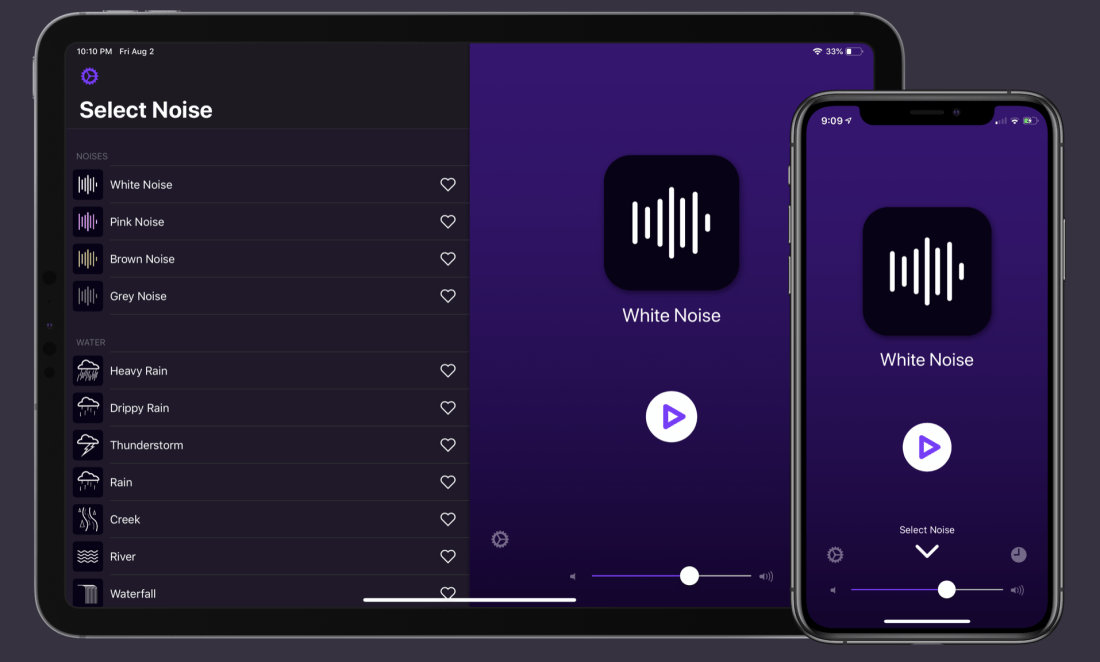
There’s a new update to my favorite noise app, Dark Noise. I learned about this app from Craig McClellan during the App of the Week segment on episode 9 of the Music Ed Tech Talk Podcast.

Now that many teachers are working from home, I have found that managing my environment is key to my sanity. Dark Noise elevates the idea of a noise machine to a premium level, offering a superior user experience and all sorts of power user tools like Siri Shortcuts integrations.

One of my favorite Shortcuts is called Lesson Planning. The shortcut puts my phone in Do Not Disturb mode, starts a time tracker, takes a predetermined sound in Dark Noise, and plays it in a particular AirPlay 2 speaker in my house. For me, that’s a Sonos Move speaker in the sun room.

You can download that Shortcut here: Lesson Planning

That version of the Shortcut is intended for public use. My personal version of it adds a step to set the hue of the lights in that same room.

The shortcut can be set to go off when I ask Siri, by launching it from a widget, or by even installing it as an app icon on the homescreen. Its never beyond a tap away. My custom phrase is “Hey Siri, I’m working in the sun room.”

The new update includes some nice new features. Read this MacStories article for the details:

Dark Noise 2 Review: Sound Mixing, New Noises, iPad Cursor Support, and More – MacStories:

In Dark Noise 2 not only can you mix different sounds to create custom noises, but there are also eight new sound options to choose from, iCloud sync has been added for syncing your favorite sounds and custom mixes, and there’s optimized support for the iPadOS cursor. It’s a big release that retains the design elegance Dark Noise has had from day one, but expands the app’s usefulness in key ways.

Staying On Top of Teaching Responsibilities with OmniFocus Perspectives (OmniFocus Mini-Series)

Teaching is a challenging, multifaceted career. I never end a day feeling like I accomplished everything I was supposed to. But sometimes, software can help! And for my tasks, that software is OmniFocus. 

Most of the checkable todo items in my life go in OmniFocus. It is a powerful task app for Mac, iOS, and Apple Watch that is based on David Allen’s “Getting Things Done” methodology. There are 100 reasons I love it. Lately, it’s because I am getting a lot of mileage out of the Perspective feature. Perspectives allow you to build different custom views for how OmniFocus displays your tasks.

<div class="
      image-block-outer-wrapper
      layout-caption-below
      design-layout-inline
      combination-animation-none
      individual-animation-none
      individual-text-animation-none
    ">


    <figure class="
          sqs-block-image-figure
          intrinsic
        " style="max-width:2500px">


      <div class="image-block-wrapper">
        <div class="sqs-image-shape-container-element


          has-aspect-ratio
        " style="position: relative;padding-bottom:66.91999816894531%;overflow: hidden">


            <img src="https://images.squarespace-cdn.com/content/v1/5595df9ce4b0ce9ff9ecd1a8/1591740426076-RKWIWZW86K7S4E8K89RJ/1.png" alt="The Forecast Perspective comes installed on OmniFocus. It shows you a convenient day at a glance so that you never need to stress about todos until the day they are due." width="2500" height="1673" style="display:block;object-fit: cover;width: 100%;height: 100%;object-position: 50% 50%" loading="lazy">

        </div>
      </div>


      <figcaption class="image-caption-wrapper">
        <div class="image-caption"><p class="">The Forecast Perspective comes installed on OmniFocus. It shows you a convenient day at a glance so that you never need to stress about todos until the day they are due.</p></div>
      </figcaption>


    </figure>


</div>

A Perspective is kind of like a custom search that you can save. The building blocks will seem similar if you have ever made an email rule.

I have over 1,000 tasks in OmniFocus. My goal with Perspectives is to create windows into my work that empower me to think only about the things that are relevant to me at a given time or in a given situation. 

Here are a few Perspectives that are most useful to me. 

Priority

<div class="
      image-block-outer-wrapper
      layout-caption-below
      design-layout-inline
      combination-animation-none
      individual-animation-none
      individual-text-animation-none
    ">


    <figure class="
          sqs-block-image-figure
          intrinsic
        " style="max-width:1405px">


      <div class="image-block-wrapper">
        <div class="sqs-image-shape-container-element


          has-aspect-ratio
        " style="position: relative;padding-bottom:92.88256072998047%;overflow: hidden">


            <img src="https://images.squarespace-cdn.com/content/v1/5595df9ce4b0ce9ff9ecd1a8/1591740553183-YOHTYFY9LQRW134K14WP/2+-+priority.png" alt="The Priority Perspective filters only items that are due soon or that are high priority items I want to be working on for the day. OmniFocus highlights flagged tasks with an orange ring and due tasks with a yellow ring to draw your attention." width="1405" height="1305" style="display:block;object-fit: cover;width: 100%;height: 100%;object-position: 50% 50%" loading="lazy">

        </div>
      </div>


      <figcaption class="image-caption-wrapper">
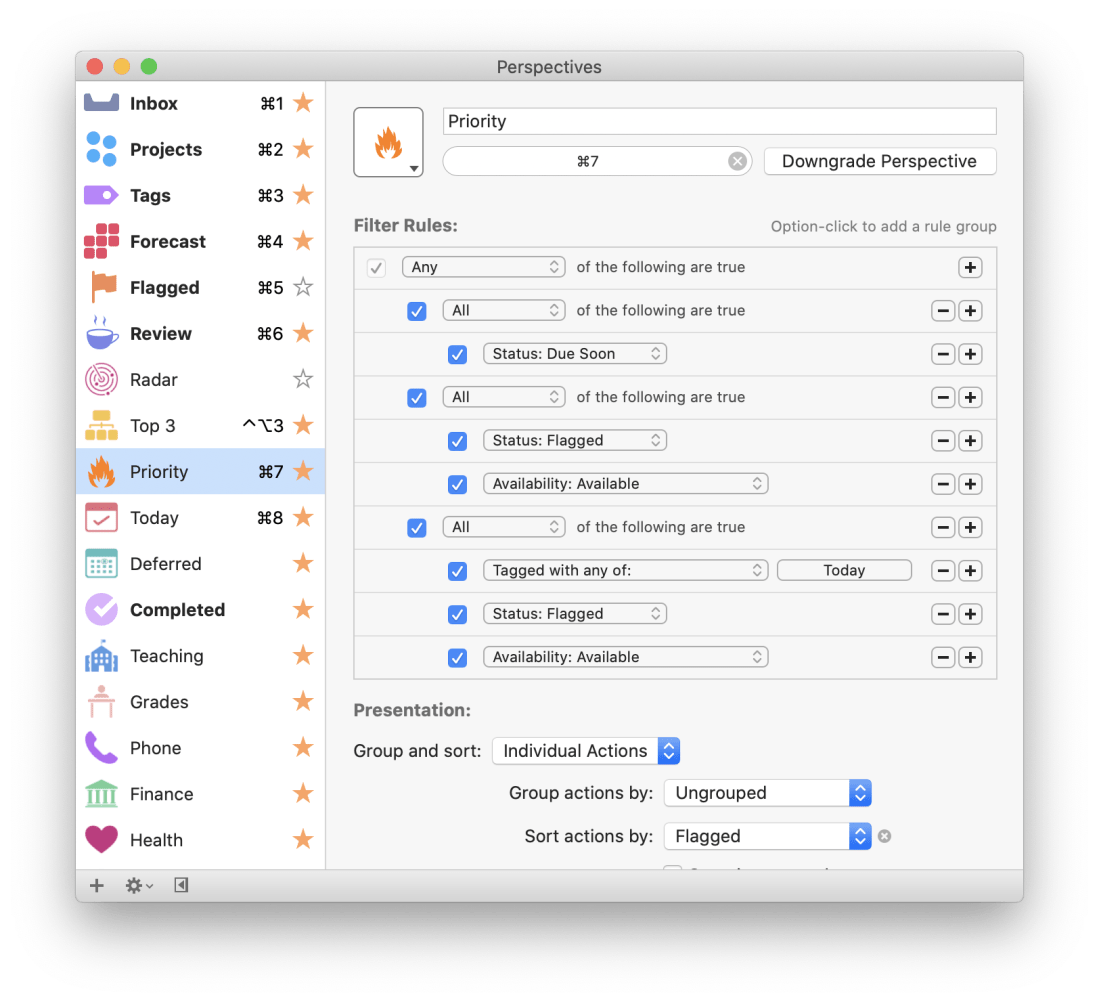
        <div class="image-caption"><p class="">The Priority Perspective filters only items that are due soon or that are high priority items I want to be working on for the day. OmniFocus highlights flagged tasks with an orange ring and due tasks with a yellow ring to draw your attention.</p></div>
      </figcaption>


    </figure>


</div>

This Perspective shows me all of my most important tasks. I designed it for moments where I have an overwhelming number of things to do spanning numerous unrelated projects and I just need to focus on the things I can’t survive the day (or moment) without doing. This Perspective is set up to show only tasks that are due soon, overdue, and tasks that are both tagged ‘Today’ and have a flag. The result is a list of tasks that are due soon mixed in with the most important things I want to be working on ‘today.’ 

<div class="
      image-block-outer-wrapper
      layout-caption-below
      design-layout-inline
      combination-animation-none
      individual-animation-none
      individual-text-animation-none
    ">


    <figure class="
          sqs-block-image-figure
          intrinsic
        " style="max-width:1779px">


      <div class="image-block-wrapper">
        <div class="sqs-image-shape-container-element


          has-aspect-ratio
        " style="position: relative;padding-bottom:91.90556335449219%;overflow: hidden">


            <img src="https://images.squarespace-cdn.com/content/v1/5595df9ce4b0ce9ff9ecd1a8/1591740714885-XSMTEMH3SITH76XDCEDH/3+-+priotiry+set+up.png" alt="This is how my Priority Perspective is set up." width="1779" height="1635" style="display:block;object-fit: cover;width: 100%;height: 100%;object-position: 50% 50%" loading="lazy">

        </div>
      </div>


      <figcaption class="image-caption-wrapper">
        <div class="image-caption"><p class="">This is how my Priority Perspective is set up.</p></div>
      </figcaption>


    </figure>


</div>

There are usually only a few tasks that result from this search which helps my eyes (and brain) focus on top priorities.

Today

This is a project that filters only items with the tag ‘Today.’ These items already show up on my Forecast view alongside overdue and due soon items, but there are times where I do not have any items due that day, or where I they aren’t available yet, resulting in a cluttered looking Forecast. The Today Perspective shows me only a list of things I want to be working on Today, organized by project.

<div class="
      image-block-outer-wrapper
      layout-caption-below
      design-layout-inline
      combination-animation-none
      individual-animation-none
      individual-text-animation-none
    ">


    <figure class="
          sqs-block-image-figure
          intrinsic
        " style="max-width:2289px">


      <div class="image-block-wrapper">
        <div class="sqs-image-shape-container-element


          has-aspect-ratio
        " style="position: relative;padding-bottom:81.3018798828125%;overflow: hidden">


            <img src="https://images.squarespace-cdn.com/content/v1/5595df9ce4b0ce9ff9ecd1a8/1591740869969-CL1FMPJD11IEWLV4B2YR/4+-+today.png" alt="This is my Today Perspective. It is similar to the Forecast, only tasks don’t necessarily need to be due to show up here, and it is organized by project. See an image of my Forecast at the top of this post." width="2289" height="1861" style="display:block;object-fit: cover;width: 100%;height: 100%;object-position: 50% 50%" loading="lazy">

        </div>
      </div>


      <figcaption class="image-caption-wrapper">
        <div class="image-caption"><p class="">This is my Today Perspective. It is similar to the Forecast, only tasks don’t necessarily need to be due to show up here, and it is organized by project. See an image of my Forecast at the top of this post.</p></div>
      </figcaption>


    </figure>


</div>


<div class="
      image-block-outer-wrapper
      layout-caption-below
      design-layout-inline
      combination-animation-none
      individual-animation-none
      individual-text-animation-none
    ">


    <figure class="
          sqs-block-image-figure
          intrinsic
        " style="max-width:1779px">


      <div class="image-block-wrapper">
        <div class="sqs-image-shape-container-element


          has-aspect-ratio
        " style="position: relative;padding-bottom:91.90556335449219%;overflow: hidden">


            <img src="https://images.squarespace-cdn.com/content/v1/5595df9ce4b0ce9ff9ecd1a8/1591740916886-2PYLIZB0N84LQFWPSHGE/5+-+today+set+up.png" alt="This is how my Today Perspective is set up." width="1779" height="1635" style="display:block;object-fit: cover;width: 100%;height: 100%;object-position: 50% 50%" loading="lazy">

        </div>
      </div>


      <figcaption class="image-caption-wrapper">
        <div class="image-caption"><p class="">This is how my Today Perspective is set up.</p></div>
      </figcaption>


    </figure>


</div>

Deferred

This Perspective shows me when certain items became available to begin working on, in the order that they became available. This is useful for seeing if there are tasks that became available a long time ago that I am really slacking on, or maybe that I need to drop and admit I took on too much. 

<div class="
      image-block-outer-wrapper
      layout-caption-below
      design-layout-inline
      combination-animation-none
      individual-animation-none
      individual-text-animation-none
    ">


    <figure class="
          sqs-block-image-figure
          intrinsic
        " style="max-width:2289px">


      <div class="image-block-wrapper">
        <div class="sqs-image-shape-container-element


          has-aspect-ratio
        " style="position: relative;padding-bottom:81.3018798828125%;overflow: hidden">


            <img src="https://images.squarespace-cdn.com/content/v1/5595df9ce4b0ce9ff9ecd1a8/1591740987077-EOSZ16AN3VEIQG0XEIF3/6+-+deferred.png" alt="My Deferred Perspective. Tip - Giving an item a Defer date in OmniFocus means that it isn’t available to work on until that date. You can use these to easily filter only items that are ‘available,’ which can relieve the stress of seeing everything a…" width="2289" height="1861" style="display:block;object-fit: cover;width: 100%;height: 100%;object-position: 50% 50%" loading="lazy">

        </div>
      </div>


      <figcaption class="image-caption-wrapper">
        <div class="image-caption"><p class="">My Deferred Perspective. Tip - Giving an item a Defer date in OmniFocus means that it isn’t available to work on until that date. You can use these to easily filter only items that are ‘available,’ which can relieve the stress of seeing everything at once.</p></div>
      </figcaption>


    </figure>


</div>

Teaching

I have numerous projects relating to teaching in the Howard County Public School System. I have action lists for each of my ensembles, for directing the HCPSS Honor Band, for planning concerts, field trips, and for articulating our students from middle to high school. The Teaching Perspective focuses me on only the tasks related to teaching responsibilities, and organizes them by due date. This way I am thinking about only work tasks, while remaining focused on the next task I should be completing.

<div class="
      image-block-outer-wrapper
      layout-caption-below
      design-layout-inline
      combination-animation-none
      individual-animation-none
      individual-text-animation-none
    ">


    <figure class="
          sqs-block-image-figure
          intrinsic
        " style="max-width:2289px">


      <div class="image-block-wrapper">
        <div class="sqs-image-shape-container-element


          has-aspect-ratio
        " style="position: relative;padding-bottom:81.3018798828125%;overflow: hidden">


            <img src="https://images.squarespace-cdn.com/content/v1/5595df9ce4b0ce9ff9ecd1a8/1591741154885-71XPVMNBWMOYKZJ2TJ2N/7+-+teaching.png" alt="My Teaching Perspective shows only Howard County Public School System responsibilities. This is really useful for when I need to focus only on work." width="2289" height="1861" style="display:block;object-fit: cover;width: 100%;height: 100%;object-position: 50% 50%" loading="lazy">

        </div>
      </div>


      <figcaption class="image-caption-wrapper">
        <div class="image-caption"><p class="">My Teaching Perspective shows only Howard County Public School System responsibilities. This is really useful for when I need to focus only on work.</p></div>
      </figcaption>


    </figure>


</div>

Grading

My school uses Canvas for grading students and Synergy for tracking certain data on them. Both are slow, web-based, programs that take a while to load. For this reason, I tend to want to spend concentrated times working with grades and then ignore them, rather than being constantly in and out of the grade book.

For this reason, I add a lot of grade based tasks to OmniFocus and tag them with keywords like Grades, Canvas, or Synergy. I tend to use these a lot when triaging email. For example, if my school’s data clerk emails teachers with due dates and deadlines for final grades, I forward that into my OmniFocus inbox using my special email address that the app provides. Once it is out of my email inbox and into my OmniFocus inbox I give it a defer date and a due date, and tag it with the tag ‘Canvas.’

Sometimes students email me work if they have issues submitting it on Canvas. Or parents ask me questions in email about certain grades. In these situations, I forward the emails into my OmniFocus inbox and then tag them with the necessary tag. 

The Grades Perspective aggregates all of these tags into one view. This is useful because these tasks rarely have hard due dates. By not assigning them due dates, they never clutter up my Forecast perspective (where I spend most of my time). When I am ready to focus on grading, I can open up this Perspective and filter all other tasks out.

<div class="
      image-block-outer-wrapper
      layout-caption-below
      design-layout-inline
      combination-animation-none
      individual-animation-none
      individual-text-animation-none
    ">


    <figure class="
          sqs-block-image-figure
          intrinsic
        " style="max-width:2292px">


      <div class="image-block-wrapper">
        <div class="sqs-image-shape-container-element


          has-aspect-ratio
        " style="position: relative;padding-bottom:84.55497741699219%;overflow: hidden">


            <img src="https://images.squarespace-cdn.com/content/v1/5595df9ce4b0ce9ff9ecd1a8/1591741229683-BK8A9OWB5Z37O9BIDEOC/8+-+grades.png" alt="The Grades Perspective shows only responsibilities that involve entering grades and working with my school’s learning management software." width="2292" height="1938" style="display:block;object-fit: cover;width: 100%;height: 100%;object-position: 50% 50%" loading="lazy">

        </div>
      </div>


      <figcaption class="image-caption-wrapper">
        <div class="image-caption"><p class="">The Grades Perspective shows only responsibilities that involve entering grades and working with my school’s learning management software.</p></div>
      </figcaption>


    </figure>


</div>

Top 3

Sometimes I get so overwhelmed that I just need to think “what are three things that I need to focus on today.” This usually happens on days where I need to be spending long periods of serious focus on one or more broad tasks. I often go traditional-task-list and break out a pencil and paper for moments like this. Lately, I use this OmniFocus Perspective called Top 3. I have a tag called “1,” “2,” and “3.” All this Perspective does is filter them so that I don’t see anything else.

<div class="
      image-block-outer-wrapper
      layout-caption-below
      design-layout-inline
      combination-animation-none
      individual-animation-none
      individual-text-animation-none
    ">


    <figure class="
          sqs-block-image-figure
          intrinsic
        " style="max-width:1302px">


      <div class="image-block-wrapper">
        <div class="sqs-image-shape-container-element


          has-aspect-ratio
        " style="position: relative;padding-bottom:58.986175537109375%;overflow: hidden">


            <img src="https://images.squarespace-cdn.com/content/v1/5595df9ce4b0ce9ff9ecd1a8/1592438097674-N72CYJNU5FVBQDUSTETR/CleanShot+2020-06-17+at+19.52.03%402x.png" alt="CleanShot 2020-06-17 at 19.52.03@2x.png" width="1302" height="768" style="display:block;object-fit: cover;width: 100%;height: 100%;object-position: 50% 50%" loading="lazy">

        </div>
      </div>


    </figure>


</div>

Icons

OmniFocus Perspectives can be given a custom icon that matches the style of the perspective icons that come with the app. I am able to make my Perspectives look really attractive and eye-grabbing with the MacStories Perspective Icons, a new product that features 20,000 icons for OmniFocus. You can read more about them and buy them here

<div class="
      image-block-outer-wrapper
      layout-caption-below
      design-layout-inline
      combination-animation-none
      individual-animation-none
      individual-text-animation-none
    ">


    <figure class="
          sqs-block-image-figure
          intrinsic
        " style="max-width:1532px">


      <div class="image-block-wrapper">
        <div class="sqs-image-shape-container-element


          has-aspect-ratio
        " style="position: relative;padding-bottom:45.430809020996094%;overflow: hidden">


            <img src="https://images.squarespace-cdn.com/content/v1/5595df9ce4b0ce9ff9ecd1a8/1591741346555-RWSMZXTX68YP86IHURPM/9+-+macstories.png" alt="9 - macstories.png" width="1532" height="696" style="display:block;object-fit: cover;width: 100%;height: 100%;object-position: 50% 50%" loading="lazy">

        </div>
      </div>


    </figure>


</div>

Conclusion

OmniFocus has challenged me to think about my own productivity and capacity to focus. Through Perspectives, I am able to build windows into my work that help me to see only what I need to at a given time. 

You can read more about OmniFocus here and learn more about building Perspectives from learnomnifocus.com here.

A Blogging Experiment

Yesterday I posted The 7 Best Apple Home Devices on this blog. In part this was an effort to condense some of my intense study on the subject of home automation over the past four or five years so that someone could benefit from a broad-stroke overview of how I set everything up.

But this post was also 50 percent an experiment. Two summers ago, I posted The 6 Best Automation Apps for iOS. Strangely, this has become the most popular blog on my entire website, by far. This is despite it not really being about music or education, and despite the fact that blogs like MacStories pump out articles 100 times better on the subject, regularly.

My second most popular post is a video about indexing large PDFs using the musical score app forScore on iPad. It is far less popular from the post on automation, but still far more popular than anything I have ever posted. I feel like it represents my niche pretty accurately.

I did some thinking on what could have made my automation blog post so popular. Was it that the title is concise? Bold? Simple? Was it that it had a bite-sized, concrete, number of apps in that same title? Or was it that I successfully tagged the post so that it shows up in a lot of web searches? I tried to replicate a little bit of that format in yesterday’s home automation post, while still writing about something I am passionate about. We will see how well it does.

And please do tell me if the home automation post was helpful to you in any way.

🔗 Sonos gets AirPlay 2 Support and Affinity Designer Comes to iPad

It’s an exciting day for users of Apple products today. Two announcements that caught my attention are highlighted below…

Affinity Designer Debuts on iPad as a Full-Featured Graphic Design Tool – MacStories:

Nearly one year ago, Serif released Affinity Photo for the iPad as a full-featured photo editing powerhouse. Unlike what companies such as Adobe do, where a Mac app like Photoshop is broken down into less powerful versions on iOS, Affinity Photo was brought to the iPad with no compromises whatsoever. Today, that same philosophy is bringing us Serif’s second major iPad app: Affinity Designer.

Where Affinity Photo focuses on photo editing, Affinity Designer is a vector-based illustration tool. And with full support for the Apple Pencil, iOS 11’s drag and drop, and system technologies like Metal, the app looks like the ultimate portable design studio.

For a limited time, Affinity Designer is available at a launch price of $13.99, 30% off the regular price of $19.99.

I have long been looking for something like Adobe Illustrator on the iPad. I have been very happy with OmniGraffle for designing seating charts, posters, flyers, and other graphics on iOS, especially because it syncs flawlessly to its Mac counterpart. For $13.99 I am going to be very tempted to give Affinity Designer a spin. Download it here.

<div class="
      image-block-outer-wrapper
      layout-caption-below
      design-layout-inline
      combination-animation-none
      individual-animation-none
      individual-text-animation-none
    ">


    <figure class="
          sqs-block-image-figure
          intrinsic
        " style="max-width:220px">


      <div class="image-block-wrapper">
        <div class="sqs-image-shape-container-element


          has-aspect-ratio
        " style="position: relative;padding-bottom:100.44117736816406%;overflow: hidden">


            <img src="https://images.squarespace-cdn.com/content/v1/5595df9ce4b0ce9ff9ecd1a8/1531347878229-ASIZ2JHEVIF1K2QJ4QLJ/IMG_1671.JPEG" alt="IMG_1671.JPEG" width="220" height="221" style="display:block;object-fit: cover;width: 100%;height: 100%;object-position: 50% 50%" loading="lazy">

        </div>
      </div>


    </figure>


</div>

Next up, Sonos!

Sonos Adds AirPlay 2 Support to Certain Speaker Models – MacStories

Sonos announced today that it has added AirPlay 2 support to compatible speaker systems. The update allows users to stream audio to the company’s Sonos One, Beam, Playbase, and the second generation Play:5 speakers from iOS apps that support AirPlay 2 of and from iTunes on a Mac.

I recently purchased a HomePod and have been looking forward to pairing its audio with my existing Sonos Playbar in the living room and Sonos Play:1 in the bedroom. Jason Snell wrote a great post for Macworld that gets into the all the details about how all of these different smart speakers play together.

Sonos update adds AirPlay 2 support | Macworld:

Perhaps most impressively, all AirPlay 2 speakers can play music in perfect synchronization. If you’ve got a HomePod or two and a compatible Sonos device, you can now select all those devices and play music through them, entirely in sync. Even better, if you’ve got incompatible Sonos devices and place them in the same group as an AirPlay 2-compatible Sonos device via the Sonos app, those speakers will also play synchronously. I was able to get music to play in sync throughout my house this morning, via a paired set of HomePods, a Play:5, and the (incompatible) Play:1 in my bathroom.

My two Sonos speakers are incompatible. So I can’t get too excited unless I buy a new Sonos One or Play:5. I do need one of these for the basement but it is a steep price to pay. Furthermore, it is a bummer that the old speakers cannot be controlled individually through the Apple home app, only as a group with a compatible Sonos.

I can bypass this problem in the living room, where my TV (with Apple TV attached) is running its audio through a Sonos Playbar. AirPlay allows a phone to send audio to an Apple TV on the same network, so if I want to control the Playbar individually, I just send audio to the living room Apple TV its attached to. The bedroom will be a different story, through I cannot imagine that many scenarios where I will need separate music or volume control in the bedroom and basement.


<div class="
      image-block-outer-wrapper
      layout-caption-below
      design-layout-inline
      combination-animation-none
      individual-animation-none
      individual-text-animation-none
    ">


    <figure class="
          sqs-block-image-figure
          intrinsic
        " style="max-width:1136px">


      <div class="image-block-wrapper">
        <div class="sqs-image-shape-container-element


          has-aspect-ratio
        " style="position: relative;padding-bottom:106.38629150390625%;overflow: hidden">


            <img src="https://images.squarespace-cdn.com/content/v1/5595df9ce4b0ce9ff9ecd1a8/1531347912824-E7ZY7GFA4PW2UW1SMJCB/FullSizeRender.jpg" alt="FullSizeRender.jpg" width="1136" height="1209" style="display:block;object-fit: cover;width: 100%;height: 100%;object-position: 50% 50%" loading="lazy">

        </div>
      </div>


    </figure>


</div>

App of the Week: OmniOutliner 3

I am kicking off a new series this week where I will highlight an app I am making use of lately. 

Hundreds of the apps I experiment with never make it into any of my conference presentations, longer form blog posts, or every day conversations. In effort to start sharing how I am taking advantage of these (and to get me posting here more consistently), I am going to do my best to write about one app a week. 

My goal is to very briefly explain what the app does and how I am using it in my life. I will leave full length reviews to the professionals. 

This week’s app is OmniOutliner. OmniOutliner comes from Omni Group who makes my task manager of choice (and number one most used app), OmniFocus. OmniOutliner is a writing tool that emphasizes features for creating outlines. It is far more intuitive, beautiful, and user customizable than what you are probably using to do this kind of work now, which is most likely a word processor like Microsoft Word or Google Docs. These traditional word processors are a clunk-fest of digging through menu options and formatting settings.

Hierarchical, list-types of documents are what this app handles best, though you can really do anything with it…budget, draft your next novel…anything. OmniOutliner has friendly keyboard shortcuts to make outlining fast. Pressing Enter goes to the next line of text. Command+Right Bracket or Left Bracket makes the current line of text you are typing go one level deeper or shallower in the hierarchy. Collapsible arrow buttons can be clicked to expose or hide entire sections of your outline. A theme can be stylized and applied across the entire document, or even just one level of the hierarchy.

Things I have used this app to write in the past few years: my book, every music presentation I have ever given at a conference, and lesson plans. The last one, lesson plans, I have especially come to love doing in OmniOutliner. My daily lesson plan is permanently left open on both my iPad and Mac. When I have something I want to add to my warm up or announcements, I add it from my Mac (or iPhone, depending on what is in front of me), type the extra line of text, and then wait. When I open up OmniOutliner on my iPad alongside my score reader of choice, forScore, the edits automatically sync to my iPad’s copy and I have an up to date version of my plan, ready to rehearse from.

For an actual review of OmniOutliner, check out this great one from MacStories. BTW, OmniOutliner now has a 10 dollar “Essentials” version that gives you most of the compelling features of the app without going all in on the powerful stuff I did not mention here (like cross-platform automation, for example). 

Download here:

OmniOutliner 3 by The Omni Group

OmniFocus 2 by The Omni Group

<div class="
      image-block-outer-wrapper
      layout-caption-below
      design-layout-inline
      combination-animation-none
      individual-animation-none
      individual-text-animation-none
    ">


    <figure class="
          sqs-block-image-figure
          intrinsic
        " style="max-width:2500px">


      <div class="image-block-wrapper">
        <div class="sqs-image-shape-container-element


          has-aspect-ratio
        " style="position: relative;padding-bottom:74.95999908447266%;overflow: hidden">


            <img src="https://images.squarespace-cdn.com/content/v1/5595df9ce4b0ce9ff9ecd1a8/1519082487041-HWK4B09I0P08866KWHXS/IMG_1558.png" alt="IMG_1558.png" width="2500" height="1874" style="display:block;object-fit: cover;width: 100%;height: 100%;object-position: 50% 50%" loading="lazy">

        </div>
      </div>


    </figure>


</div>


🔗 Black Friday App Deals

Every Black Friday, tons of apps go cheap or free on the App Store. I always use this opportunity to score a bunch of apps I have been waiting on, particular higher priced apps. 

The best resource I have found for keeping track of every deal is MacStories. Check out their blog post on The Best Deals for iPhone and iPad Apps, Games, and Accessories. They have already started collecting apps on sale and will be updating it all throughout tomorrow and in the coming days. It catalogues apps ranging from iOS apps to Mac apps to tech deals on Amazon. 

Happy app purchasing!!!

Apple Acquires Workflow!

I am still playing spring catch-up. A lot has happened in tech over the winter and early spring, a lot of it I wanted to write about but was lost in them sea of band concerts, assessments, conferences, and the like.

This one was very exciting for me…

Earlier this year, Apple acquired iOS productivity app Workflow (Download Link). You can read the general details of that acquisition here.

MacStories has a great write up of what this could mean for both Workflow and Apple here.

Workflow is one of the only reasons I can use an iPad to get work done. It is a standout app and anyone reading this should immediately stop and go download it from the App Store now that it is free. Workflow is at the core of a number of tasks I do on my iPad that are essential to teaching band on a daily basis. I wrote about it in my book, Digital Organization Tips for Music Teachers. Actually, one of the workflows I am most proud of including in the book is made in Workflow: by tapping a single button, a clean copy of a student seating chart is copied and exported into the Notability app where I can annotate it on half of the screen while I read my scores in forScoe on the other half of the screen. These annotated seating charts are later archived by date and used to help me remember information about my students and generate weekly rehearsal participation grades.

It's hard to say what this Apple acquisition could mean. I think the best case scenario is that the Workflow will get deeper access to the features of iOS, allowing even more powerful automations, perhaps even being rebranded "Automator" like the macOS app that functions similarly. Time will tell. In the meantime, go download Workflow!