Due app gets an Update for the Mac

Due is an indispensable app that I depend on daily on both iOS, the Apple Watch, and the Mac. There are three things that immediately come to mind when I think about why I like this app over the basic Reminders app.

  1. Its design is beautiful, intelligent, and easy to read.
  2. Its natural language parsing is a breeze… “remind me to help with lunch duty at 11:27 am” adds a reminder with the time just as I type it.
  3. The swipe down gesture to add a new task is very intuitive.
  4. By far, most important: you can set the notifications to keep pinging you until you check the task as done. You can even customize the amount of time it snoozes when you tap the snooze button.
<div class="
      image-block-outer-wrapper
      layout-caption-below
      design-layout-inline
      combination-animation-none
      individual-animation-none
      individual-text-animation-none
    ">


    <figure class="
          sqs-block-image-figure
          intrinsic
        " style="max-width:225px">


      <div class="image-block-wrapper">
        <div class="sqs-image-shape-container-element


          has-aspect-ratio
        " style="position: relative;padding-bottom:100%;overflow: hidden">


            <img src="https://images.squarespace-cdn.com/content/v1/5595df9ce4b0ce9ff9ecd1a8/1595957370650-C198OHIC4U78WGHA7DKH/Unknown.png" alt="Unknown.png" width="225" height="225" style="display:block;object-fit: cover;width: 100%;height: 100%;object-position: 50% 50%" loading="lazy">

        </div>
      </div>


    </figure>


</div>

I don't use this app to manage big projects. For that, I use OmniFocus. But for tasks that have to be acted on in a very specific moment, Due is the tool for the job.

It just got a major Mac update. Most of the changes are design focused, which I can appreciate because the Mac app, while it functioned, was starting to look pretty out of date. If you want to read more of the specifics, I recommend the MacStories article linked below.

Due for Mac Modernized with New Design and Features:

A full-fledged task manager is terrific for many projects, but if you dump your entire life into one, it can quickly become a cluttered mess. At the same time, if you’re focused on a big project, it’s easy to let everything that’s not in your task manager slip through the cracks. One strategy for attacking the problem that has worked well for me is using a separate, lightweight app for tasks like remembering to take out the garbage, pick up medicine at the pharmacy, or publish an article when an embargo lifts.

In the past, I’ve used Due on the iPhone and iPad for these sorts of tasks. There has been a Mac version of Due for years too, but it hadn’t been updated in about two years and was showing its age. However, with today’s update, Due for Mac joins the iOS version with a fully-modern design and slate of new features, putting it on par with the outstanding iOS version, which I’ve covered in the past.
Should You Keep Dropbox?

One of the reasons I continue using Apple products is that they work well together. The better the features work across devices, the less often users need third party software to get things done.

Now that iCloud Drive supports the sharing of files and folders, a lot of vocal Mac and iOS users have debated if they can finally let go of Dropbox.

Productivity master, David Sparks, had some things to say about it on his blog this week:

I’m Keeping Dropbox — MacSparky

All that said, Dropbox still has many features that sure would be nice in iCloud, like a much better implementation of version history and deletion recovery. I was hoping we would get some more functionality for iCloud Drive this year at WWDC, but we didn’t. I was hoping I could throw Dropbox overboard. One less service and one less thing to pay for sure sounded nice.

For me, the major hole in iCloud Drive is that I cannot control what lives on my hard drive and what stays in the cloud. Both Dropbox and iCloud have a feature where they will smartly try to make this decision for you, uploading files you haven’t touched in months to the cloud so that they don’t take up hard drive space. 

Sometimes I need the control to be able to tell a service to keep a folder or a file permanently downloaded, no matter what. And iCloud Drive still can’t do this task.

iCloud folder and file sharing are reliable in my use, but setting up the share is far less intuitive than Dropbox, which presents its options to you with clear iconography when you right-click on a folder or file in the Finder.

Why Apple can’t get right what Dropbox figured out over ten years ago still confuses me. Hopefully they will tweak it and make it better.

I am fortunate that my free Dropbox account is large enough that I don’t need to pay. iCloud remains my primary storage solution but I keep Dropbox around for miscellaneous purposes, including sharing with others who don’t use iCloud.

If you want to use Dropbox on a Mac, but avoid installing it, I recommend the app Transmit. While the app is marketed as an FTP client, it can also act as a Google Drive or Dropbox client, allowing you to upload, download, copy, and share files, using a native macOS experience, and without allowing Dropbox to run in the background.

<div class="
      image-block-outer-wrapper
      layout-caption-below
      design-layout-inline
      combination-animation-none
      individual-animation-none
      individual-text-animation-none
    ">


    <figure class="
          sqs-block-image-figure
          intrinsic
        " style="max-width:473px">


      <div class="image-block-wrapper">
        <div class="sqs-image-shape-container-element


          has-aspect-ratio
        " style="position: relative;padding-bottom:56.448204040527344%;overflow: hidden">


            <img src="https://images.squarespace-cdn.com/content/v1/5595df9ce4b0ce9ff9ecd1a8/1595768986115-FCA3C7CFPFFJGKZ1T7J5/iCloud+Dropbox+Question+Mark+image+for+blog+post+july+2020.jpg" alt="iCloud Dropbox Question Mark image for blog post july 2020.jpg" width="473" height="267" style="display:block;object-fit: cover;width: 100%;height: 100%;object-position: 50% 50%" loading="lazy">

        </div>
      </div>


    </figure>


</div>

Routing Audio from Your Apps Directly Into Your Zoom Call (Or Other Voice Chat App) with Loopback

UPDATE: Learn more about Loopback from my interview with CEO Paul Kafasis on my podcast. Listen and subscribe below…

Listen on Apple PodcastsListen on SpotifyRSS Feed

<div class="
      image-block-outer-wrapper
      layout-caption-below
      design-layout-inline
      combination-animation-none
      individual-animation-none
      individual-text-animation-none
    ">


    <figure class="
          sqs-block-image-figure
          intrinsic
        " style="max-width:512px">


      <div class="image-block-wrapper">
        <div class="sqs-image-shape-container-element


          has-aspect-ratio
        " style="position: relative;padding-bottom:100%;overflow: hidden">


            <img src="https://images.squarespace-cdn.com/content/v1/5595df9ce4b0ce9ff9ecd1a8/1595452750007-D26OAX2RKZQIH3PLZ874/loopback%402x.png" alt="Loopback is an app that creates custom audio ins and outs for the Mac using the audio of other apps." width="512" height="512" style="display:block;object-fit: cover;width: 100%;height: 100%;object-position: 50% 50%" loading="lazy">

        </div>
      </div>


      <figcaption class="image-caption-wrapper">
        <div class="image-caption"><p class="">Loopback is an app that creates custom audio ins and outs for the Mac using the audio of other apps.</p></div>
      </figcaption>


    </figure>


</div>

Have you been teaching a class in Google Meet or Zoom and wanted to play a song from iTunes for your digital classroom? Or perhaps a YouTube video or any other application with audio?

Sure, you can play it right on your computer and let the audio from your speakers go straight back into the microphone input of your computer. This works ok in my opinion. But it isn’t going to produce a pure representation of the audio I am trying to send. And in some cases, it creates issues with echo, delay, or a nasty feedback loop.

So what do you do? Rogue Amoeba makes excellent Mac apps that, for lack of better explanation, hack into the audio system of your Mac. I have written about Audio Hijack here before, their app that allows you to record audio from other applications (and that’s just the start of all the powerful things it can do). Rogue Amoeba also makes an excellent utility called Loopback.

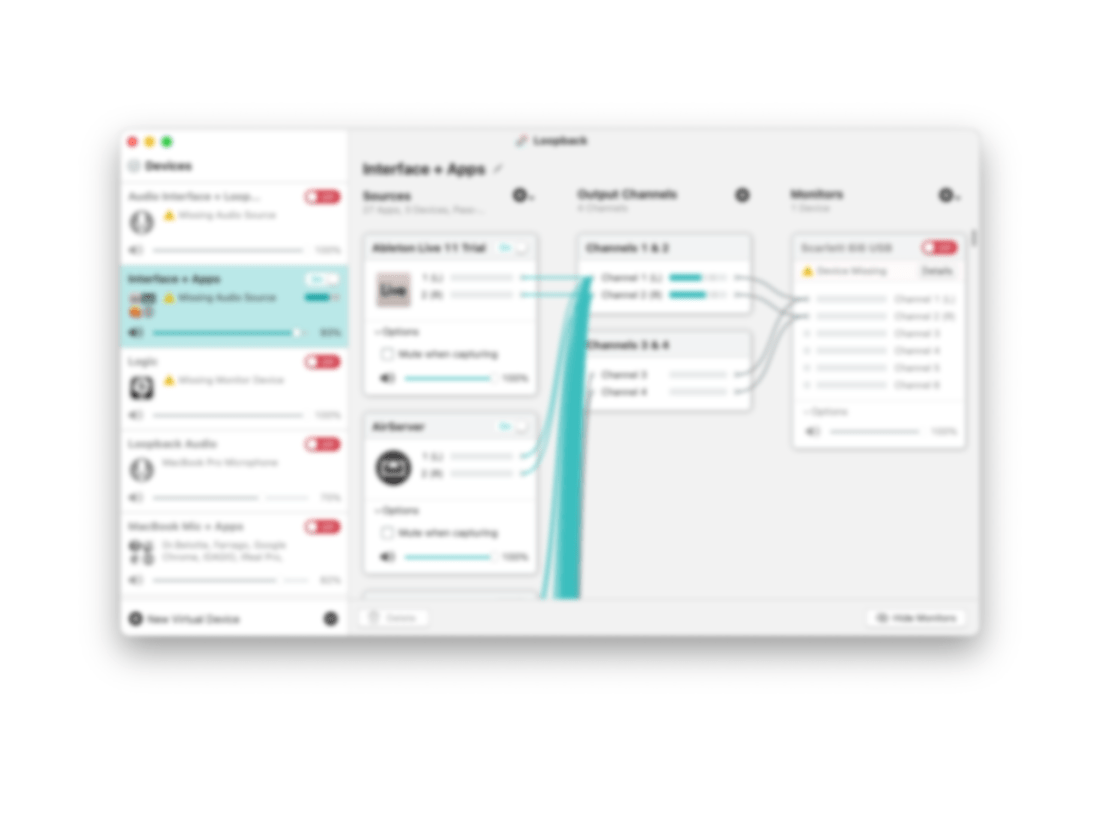
What does Loopback do? Think about your computer’s audio settings. You have an Input and an Output. The Input is, by default, your computer microphone, and the Output is the speakers. If you connect an audio interface that has higher quality microphone and speakers plugged in, you would need to set the Input and Output to that interface to get the input and out put the be the microphone and speakers, respectively.

<div class="
      image-block-outer-wrapper
      layout-caption-below
      design-layout-inline
      combination-animation-none
      individual-animation-none
      individual-text-animation-none
    ">


    <figure class="
          sqs-block-image-figure
          intrinsic
        " style="max-width:2224px">


      <div class="image-block-wrapper">
        <div class="sqs-image-shape-container-element


          has-aspect-ratio
        " style="position: relative;padding-bottom:55.035972595214844%;overflow: hidden">


            <img src="https://images.squarespace-cdn.com/content/v1/5595df9ce4b0ce9ff9ecd1a8/1595453574122-OW83Y83K7XW3RVX5EOY1/CleanShot+2020-07-22+at+17.31.48%402x.png" alt="Usually my computer microphone is a Device that can be set to the computer’s Input. In the scenario above, Loopback has allowed me to combine the audio from my microphone and the Music app into a new audio Device called “Music+Mic” that can be selec…" width="2224" height="1224" style="display:block;object-fit: cover;width: 100%;height: 100%;object-position: 50% 50%" loading="lazy">

        </div>
      </div>


      <figcaption class="image-caption-wrapper">
        <div class="image-caption"><p class="">Usually my computer microphone is a Device that can be set to the computer’s Input. In the scenario above, Loopback has allowed me to combine the audio from my microphone and the Music app into a new audio Device called “Music+Mic” that can be selected as the input of my Mac or any individual app.</p></div>
      </figcaption>


    </figure>


</div>

Your Inputs and Outputs can be controlled from the Sound settings of your computer. Some audio apps also let you control how, specifically, they behave. For example, I have manually set up GarageBand and Skype to use my audio interface as the Device I use for input so that whether I am recording for my podcast, or simply catching up with a relative, they hear me through the microphone, no matter what Device my Mac’s audio Output is set to in the System Preferences.

Loopback allows you to create Inputs and Outputs that are accessible to your Mac’s Sound settings as well as your apps. In the example above, I have created an Input that combines my Mac’s microphone (the usual Input) with the output of the Apple Music app, something I might want to use to play a recording example for my students in a Google Meet.

<div class="
      image-block-outer-wrapper
      layout-caption-below
      design-layout-inline
      combination-animation-none
      individual-animation-none
      individual-text-animation-none
    ">


    <figure class="
          sqs-block-image-figure
          intrinsic
        " style="max-width:1560px">


      <div class="image-block-wrapper">
        <div class="sqs-image-shape-container-element


          has-aspect-ratio
        " style="position: relative;padding-bottom:78.20512390136719%;overflow: hidden">


            <img src="https://images.squarespace-cdn.com/content/v1/5595df9ce4b0ce9ff9ecd1a8/1595452699201-P28K84NUK3AWBKDPOE50/CleanShot+2020-07-22+at+17.06.46%402x.png" alt="Selecting my new audio Device from the System Preferences." width="1560" height="1220" style="display:block;object-fit: cover;width: 100%;height: 100%;object-position: 50% 50%" loading="lazy">

        </div>
      </div>


      <figcaption class="image-caption-wrapper">
        <div class="image-caption"><p class="">Selecting my new audio Device from the System Preferences.</p></div>
      </figcaption>


    </figure>


</div>

Look now as I go to my computer’s Sound settings, and I can select this new custom Input to be used across the entire operating system! This way, when I am in a Google Meet, students are hearing both me speaking through the mic and all of the output of the Music app.

<div class="
      image-block-outer-wrapper
      layout-caption-below
      design-layout-inline
      combination-animation-none
      individual-animation-none
      individual-text-animation-none
    ">


    <figure class="
          sqs-block-image-figure
          intrinsic
        " style="max-width:2500px">


      <div class="image-block-wrapper">
        <div class="sqs-image-shape-container-element


          has-aspect-ratio
        " style="position: relative;padding-bottom:62.519996643066406%;overflow: hidden">


            <img src="https://images.squarespace-cdn.com/content/v1/5595df9ce4b0ce9ff9ecd1a8/1595452726313-QK1V1G3GMW9N3C0GMI23/CleanShot+2020-07-22+at+17.06.14%402x.png" alt="Now I can route my band warm up tracks, reference recordings, or any other audio I desire, into my Google Meet classrooms." width="2500" height="1563" style="display:block;object-fit: cover;width: 100%;height: 100%;object-position: 50% 50%" loading="lazy">

        </div>
      </div>


      <figcaption class="image-caption-wrapper">
        <div class="image-caption"><p class="">Now I can route my band warm up tracks, reference recordings, or any other audio I desire, into my Google Meet classrooms.</p></div>
      </figcaption>


    </figure>


</div>

🎬 How to Make a Virtual Ensemble!

<div class="sqs-video-wrapper" data-provider-name="YouTube" data-html="
“>

The school year is finally over, as is my first ever quarter of online teaching.

I wanted my students to end the year seeing themselves represented together, playing the same music, at the same time. So I sharpened my Final Cut skills and dove into the process of making a virtual ensemble.

The video in this post gives an overview of my process for making these videos, all the way from making a play along track, to advanced editing such as pitch and rhythm correction. The video includes a couple of my favorite Mac utilities for manipulating audio and video files. Scroll to the bottom to see all of the final videos of my students.

Apps Mentioned in the Video

If you want free alternatives to the apps in the video, try:

To edit on iPadOS, try:

Subscribe to this Blog here

Subscribe to the Music Ed Tech Talk Podcast: Apple Podcasts | Overcast | Castro | Spotify | RSS

Buy my book, Digital Organization Tips for Music Teachers

Here are the final videos…

<div class="sqs-video-wrapper" data-provider-name="YouTube" data-html="
“>