Its been a busy few weeks as I have been wrapping up the end of a tough school year. While I am late to getting this week’s podcast episode out, I have been working on this site and have a bunch of content to share in the coming week.
I managed to sneak in enough time during the last week of school to watch Apple’s WWDC Keynote and to talk about it on Music Ed Tech Talk with Craig McClellan (cohost of my other podcast, The Class Nerd).
It was an opportunity to take a nice break from the challenging end-of-year procedures, and to think about how Apple’s fall software updates will impact how I get work done in the classroom. Listen below.
Robby and Craig break down the announcements from Apple’s Word Wide Developer Conference and discuss how teachers might use the upcoming features to their latest software updates.
*The following post first appeared on the NAfME Blog on April 19th, 2021.
Over the past year of remote and hybrid instruction, teachers have reimagined the tools, assignments, and methods that best engage their students. The need to engage my band students from a distance has challenged me to depend on cloud-based tools that still foster the development of their performance skills. The features of these cloud tools allow me to engage students in new ways by introducing interactive projects, collaboration with peers, and automated grading.
The ideas below will be featured in my presentation at the NAfME Eastern Division Conference this weekend. Register here to join me and the many exceptional presenters who will be sharing their ideas.
What is Cloud Software
Cloud software is a buzzword in the technology industry that is used to describe apps that run in a web browser. Examples of cloud-based music software include BandLab, Soundtrap, Noteflight, MusicFirst, and Flat for Education, to name a few. Because these offerings are web-based, they can run on nearly any computer with a web browser, as long as you have an internet connection. For this reason, they are more widely accessible to all students and can be integrated into an LMS (learning management software) like Canvas, Blackboard, and Google Classroom.
Here are some practical ideas for assignments in a performing ensemble using cloud software.
Noteflight
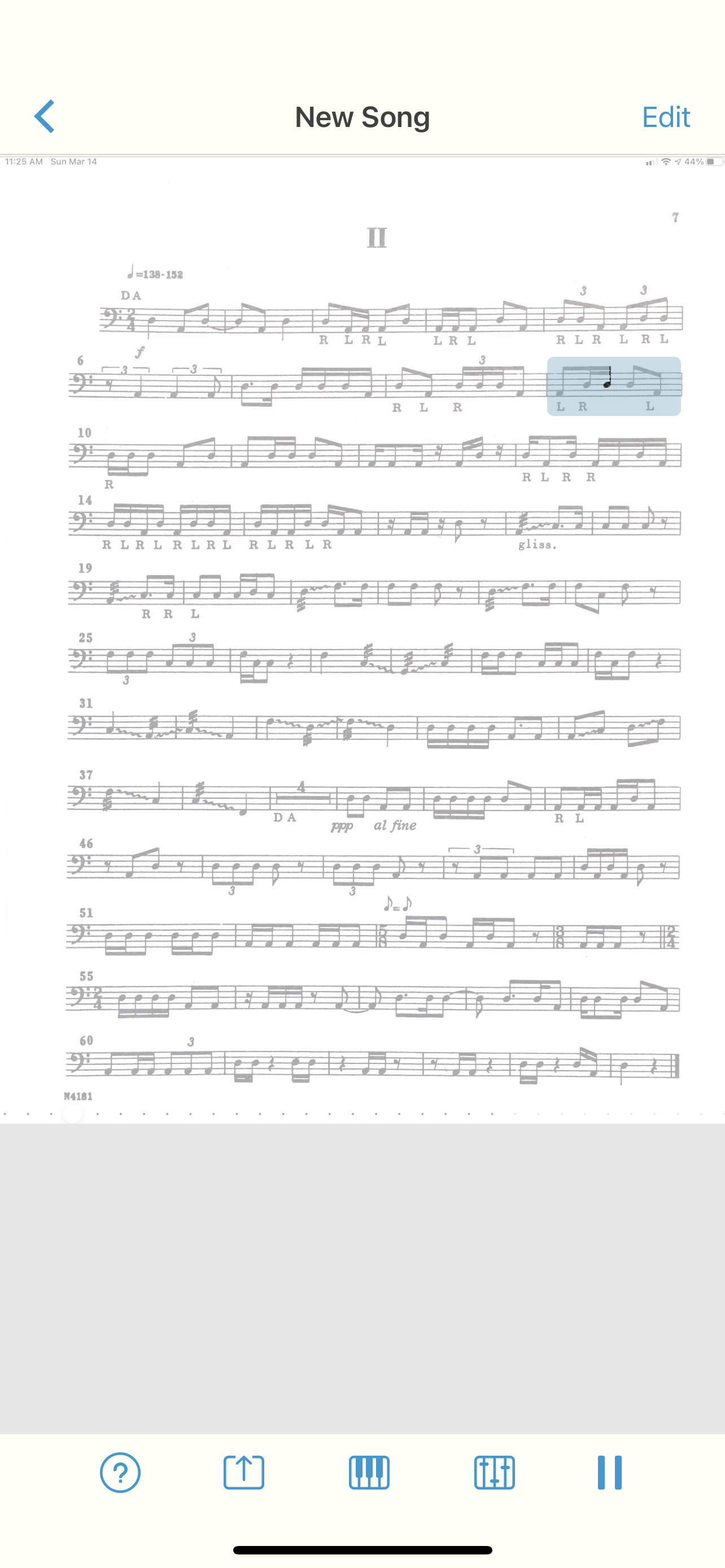
Noteflight is a music notation tool that runs on the web. In recent years, Noteflight has expanded to offer Noteflight Learn, which allows teachers to take Noteflight content and assign it to students in their class, much like an LMS. In the past year, Noteflight has added a feature called SoundCheck which can take these assigned Noteflight scores, and assess student performance for note/rhythm/pitch accuracy.
Students can play these scores, practice to them at any speed, and loop tricky sections. When they are done recording themselves, Noteflight provides an accuracy score and a line beneath the notes which indicates pitch and note inaccuracies by the counter and color of the line.
You can make any Noteflight score into a Soundcheck-enabled assignment. If the score is linked to an assignment in your LMS, the student score will automatically go into your grade book. Because computers are not perfect, I prefer to go back and listen to my students who don’t receive good scores on assignments, to make sure I agree with the automatic grade.
Generally, is better at assessing note accuracy than pitch, so I tend to use SoundCheck as a first step to ensuring students are prepared for their music. Finer qualities in the music like tone and articulation are best left to video assessments with more comprehensive rubrics.
Getting Existing Music Into Soundcheck
If you have music that outside of Noteflight that you want to turn into an assessment, some apps can help. I use an app called Sheet Music Scanner on my iPad to take pictures of paper sheet music and turn them into XML files. XML is a file format that can pass notation projects from one notation editor to another. Once the XML version is saved to my device, I can import it into Noteflight and then assign it to my students.
Notation editors like Sibelius and Dorico can export to XML. If you have already created a score in a professional editor, it is easy to turn into an assignment.
Flipgrid
If your LMS does not have a video recording feature built-in, you might want to check out Flipgrid. My LMS has a video feature, and I still use Flipgrid because it makes video recording whimsical and fun. The Flipgrid interface puts an active circle around your face when you have submitted a recent video (like an Instagram story). Students can add filters, emoji, text, and other effects to their final videos. Students can watch each other’s videos, and leave video responses. It is like a mini social network for your class, with lots of control over the privacy settings.
Flipgrid also integrates into LMS software, so you can use it as an alternative to the basic video recorder if you wish.
Soundtrap
Soundtrap is a web-based DAW (digital audio workstation). I have heard it described as “if Google Docs and GarageBand had a baby.” This is because it looks and functions like GarageBand, but runs on the web. Like Google’s apps, it is also collaborative. This means that you can have two or more students editing the same project at the same time while discussing their progress in a chat.
Soundtrap is great for producing beats, songwriting, and all of the things you would expect to do with access to limitless software instruments, samples, and pre-made loops. But what I use it for in the band room is to teach chamber music.
If I have a flute trio, for example, I can provide the music to my students and then invite them all to a Soundtrap project. Each student can create their audio track and record their part to the metronome. They can all be doing this simultaneously. Once they click save, they can play it back and hear what they sound like alongside one another in a somewhat real-time experience.
A fun alternative to this is to give a small ensemble piece to a single student and have them overdub themselves playing each part. This can help them to better understand how the varying parts fit together and complement one another. In cases like this, I have reached out to the local high school and asked for student volunteers to play all of the parts to a metronome. I then take all of the high schooler’s recordings and add them as tracks in a Soundtrap template so that my students can toggle each part on and off for reference while they are recording.
You can see an example of this around the 20-minute mark in the video below.
Conclusion
These cloud-based assignments empower all students to participate in engaged music-making, alone and in groups. Nailing down the accuracy with a metronome will do wonders for their sense of timing and internal pulse. With recording assignments in Noteflight and Soundtrap, my students will do numerous takes until they get it just right! I cannot speak highly enough of these tools, and I certainly plan to use the assignment ideas above even when we return to a fully in-person learning environment.
If a video of this process is more your speed, you can watch how some of it works below. I also have a podcast version of this post available here.
Next, I’d like to talk about apps to help you manage your time and save your ideas digitally.
Put Only Hard Commitments in Your Calendar
Managing your time is a key part of being a music educator. Sometimes it feels like we have more responsibilities than there is actually time in the day to complete.
In “Digital Organization Tools for Music Educators,” I recommend apps to help you wrangle your to-do list. Now I would like to recommend some apps and tips for managing the events on your calendar.
If your calendar needs are simple, I recommend you go no further than Google. It runs entirely in a web browser but can also be used in combination with your calendar app of choice. My music team uses a Google Calendar to publish all of our classes, sectionals, concerts, and events. This allows us to edit this data right from our calendar apps on our phones and computers, while also publishing them to a website for parents to view.
Google Calendar works perfectly fine for most needs. It is available to anyone for free on the web and has a functional mobile app on most smartphone platforms.
Microsoft Outlook and the Apple Calendars, despite being created by big tech companies, are actually capable of showing you a calendar from any service (Google included). My personal calendars are in iCloud, and our school uses Exchange. I can log into my iCloud, Google, and Exchange calendars all from within the same app to see everything I am committed to.
Apple Calendar and Microsoft Outlook are two of the most widely used calendar apps on desktop and mobile operating systems. Either of them can handle calendars from Google, iCloud, or Exchange accounts and show them all alongside one another.
Tip!—Avoid putting tasks in your calendar. Tasks have due dates, but they rarely need to be worked on at a specific time. I find that putting tasks in my calendar adds lots of noise and I eventually just end up ignoring all of it. If you want to stay sane, put only time-based appointments on your calendar. You can make an appointment with yourself to tackle a big task, but try to avoid putting things like “print concert programs” and “design seating chart” alongside events with concrete start and end times.
If you want more power out of your calendars, I recommend you check out Fantastical. (Currently iOS and Mac only. Android users can check out SolCalendar). Here are my favorite features:
Natural language input is not only fast, but you can set a keyboard shortcut on your computer to invoke a mini-calendar for quickly adding events.
Natural language input: Typing “Choir Rehearsal tomorrow at 7 pm @2032 Beaverton Road /Work” will add an event called Choir Rehearsal to your calendar at the designated time and location. The “/Work” will put on the “Work” calendar.
Calendar Sets: I subscribe to my school and school district’s master calendar to better plan after-school rehearsals, concerts, and space use. I subscribe to these calendars in Fantastical, but I have them toggled off by default. I created a Calendar Set called “All” that turns on the chaos and shows me every single calendar I have at once. Many things overlap, but it enables me to be informed as I plan without needing to visit my district’s website.
Conference Call Detection: Fantastical also has built-in Zoom and Google Meet integration. If it detects a meeting URL in the calendar event, it adds a one-touch button to the event which will launch you right into the meeting. This event was shared with me and has a Zoom call URL associated with it. Fantastical automatically added the Zoom icon so that I can click on it to immediately enter the call. Fantastical integrates with all of these services.
A handful of Fantastical’s features are free, and some of the more advanced features are paid.
Other great calendar apps:
Quickly Clip Ideas from Everywhere
There is much to say about note apps. The one feature I see least utilized by busy teachers is the clipper. A clipper is a tool that runs in the Share Sheet of your phone or as a web extension. Clippers are perfect for “saving it for later.” A good one can handle mixed media including photos, websites, emails, text notes, files, and more. Here are my favorite apps that have easy ways to capture data for later:
Evernote: Known for being cross-platform and having a free tier. Its web extension can grab almost anything from the web and clip it to your notebook in a neatly formatted article view that is text searchable. The Evernote web clipper can be installed as an extension or from the share-sheet on mobile devices. You can choose how it will save the content, and even categorize it with tags and a memo before clipping.
Microsoft OneNote: Similar features to Evernote. It’s free if your district has Office 365. Plays nice with the rest of the Office Suite.
Apple Notes: Apple Notes has caught up with most of the major features of competing note apps. From almost anywhere on an iOS or Mac device, press the Share button to save something to Apple Notes. Almost any type of media can be clipped.
Drafts: Drafts is text-only, but I prefer it for my note-taking because I can capture quickly and then easily send the text out to other apps once I have decided where it belongs.
Google Keep: Leverages all smart AI features and integration with Google Services that you would expect. Google Keep is simple, but it provides plenty of features. Notes can be turned into reminders, Google Docs, or shared with others.
Instapaper: Primarily for saving web content like news articles. It strips out the ads, buttons, and other chrome, so you get an experience less like reading a website and more like reading a newspaper.
Of these apps, Evernote is most able to handle whatever kind of data you throw at it. Because it’s available on the web, it’s easy to share your data with others and even get your data out and into another app, if you choose to.
Before and after a website has been parsed by Instapaper’s clipper.
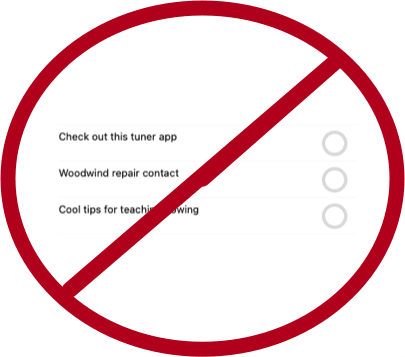
Tip!—In the same way I try to avoid putting tasks on my calendar, I also try to avoid clipping things I want to check out later to my to-do list. It clutters things up. I put only actionable tasks on my task list. If it doesn’t have a verb (“email Jacklyn choir rosters for 2021–22,” “tune the bass drum,” “draft grant proposal”), save it to a note instead.
I have been seeing this tip gain popularity with teachers online, so I feel obligated to share it here:
You can program your iPhone to do a nearly endless list of things by double or triple tapping the back of it. Go to Settings–>Accessibility–>Touch and then scroll down to the option called “Back Tap.”
Alternatively, you can swipe down in settings to reveal a search bar and then type in “back tap.”
You can program a tap of the Apple Logo on the back of your iPhone to do tons of system actions like going home, muting your phone, taking a screenshot, or launching Control Center.
You can also choose a Shortcut to launch. And Shortcuts can do anything from launching an app to running JavaScript. So you can imagine the possibility…
Personally, I have a double-tap set to reveal Control Center and a triple tap set to initiate open a new note in my note-taking app, Drafts.
To open a specific app, you will first need to make a Shortcut that performs the “Open App” action and then select that Shortcut from the available options in the Back Tap settings. To do that, open the Shortcuts app (pre-installed on every iPhone or available from the App Store on older versions of iOS).
Once in Shortcuts, create a new one with the plus icon in the upper right. Name your shortcut if you want (by pressing the three-dots “More” button), and then press “Add Action.” There is an overwhelming number of options if you are unfamiliar with Shortcuts, so just use the search and look for the action called “Open App.” Select this action from the search results and then a block will appear with a blue “Choose” option where you can choose the app you want it to open. Choose your tuner of choice.
Once saved, this Shortcut will be available as an option in the Back Tap settings.
***Note: The Tonal Energy app actually allows you to set up Shortcuts that jump to specific places within the app like the Analysis or Metronome section. You can find this in the TE settings. It will save you a bunch of extra taps.
<div class="
      image-block-outer-wrapper
      layout-caption-below
      design-layout-inline
      combination-animation-none
      individual-animation-none
      individual-text-animation-none
    ">


    <figure class="
          sqs-block-image-figure
          intrinsic
        " style="max-width:1284px">


      <div class="image-block-wrapper">
        <div class="sqs-image-shape-container-element


          has-aspect-ratio
        " style="position: relative;padding-bottom:216.35513305664062%;overflow: hidden">


            <img src="https://images.squarespace-cdn.com/content/v1/5595df9ce4b0ce9ff9ecd1a8/1608564995967-B0VIN8WSL17DIJ4DPL95/IMG_5106.PNG" alt="Creating a new Shortcut." width="1284" height="2778" style="display:block;object-fit: cover;width: 100%;height: 100%;object-position: 50% 50%" loading="lazy">

        </div>
      </div>


      <figcaption class="image-caption-wrapper">
        <div class="image-caption"><p class="">Creating a new Shortcut.</p></div>
      </figcaption>


    </figure>


</div>


<div class="
      image-block-outer-wrapper
      layout-caption-below
      design-layout-inline
      combination-animation-none
      individual-animation-none
      individual-text-animation-none
    ">


    <figure class="
          sqs-block-image-figure
          intrinsic
        " style="max-width:1284px">


      <div class="image-block-wrapper">
        <div class="sqs-image-shape-container-element


          has-aspect-ratio
        " style="position: relative;padding-bottom:216.35513305664062%;overflow: hidden">


            <img src="https://images.squarespace-cdn.com/content/v1/5595df9ce4b0ce9ff9ecd1a8/1608565028662-3UNS3SDR1AHYL5TYGF5T/IMG_5107.PNG" alt="Search for the Open App action." width="1284" height="2778" style="display:block;object-fit: cover;width: 100%;height: 100%;object-position: 50% 50%" loading="lazy">

        </div>
      </div>


      <figcaption class="image-caption-wrapper">
        <div class="image-caption"><p class="">Search for the Open App action.</p></div>
      </figcaption>


    </figure>


</div>


<div class="
      image-block-outer-wrapper
      layout-caption-below
      design-layout-inline
      combination-animation-none
      individual-animation-none
      individual-text-animation-none
    ">


    <figure class="
          sqs-block-image-figure
          intrinsic
        " style="max-width:1284px">


      <div class="image-block-wrapper">
        <div class="sqs-image-shape-container-element


          has-aspect-ratio
        " style="position: relative;padding-bottom:216.35513305664062%;overflow: hidden">


            <img src="https://images.squarespace-cdn.com/content/v1/5595df9ce4b0ce9ff9ecd1a8/1608565049152-C3300UYIFHO6GDN04RY0/IMG_5108.jpg" alt="Tonal Energy allows you to make Shortcuts that launch to specific parts of their app in the settings." width="1284" height="2778" style="display:block;object-fit: cover;width: 100%;height: 100%;object-position: 50% 50%" loading="lazy">

        </div>
      </div>


      <figcaption class="image-caption-wrapper">
        <div class="image-caption"><p class="">Tonal Energy allows you to make Shortcuts that launch to specific parts of their app in the settings.</p></div>
      </figcaption>


    </figure>


</div>
Tyler S. Grant joins the show to talk about teaching band in a hybrid learning model, composing music, and the tools and habits that help him find balance between the two.
My wife and I started using the 12 dollar a month Peloton service, without the bike, early this year. It is full of engaging, thorough, and motivating classes that span everything from yoga to strength training. I recommend it. Even if you don’t have an interest in the bike, it is still a viable service for staying physically active at home. That said, we did become interested in the bike through this service and have been owners since around February.
<div class="
      image-block-outer-wrapper
      layout-caption-below
      design-layout-inline
      combination-animation-none
      individual-animation-none
      individual-text-animation-none
    ">


    <figure class="
          sqs-block-image-figure
          intrinsic
        " style="max-width:1242px">


      <div class="image-block-wrapper">
        <div class="sqs-image-shape-container-element


          has-aspect-ratio
        " style="position: relative;padding-bottom:216.42510986328125%;overflow: hidden">


            <img src="https://images.squarespace-cdn.com/content/v1/5595df9ce4b0ce9ff9ecd1a8/1602779879740-3ANA8T5APF1PGJECNPO4/IMG_3577.PNG" alt="Go to the Apple Health settings of the Peloton app to begin setup." width="1242" height="2688" style="display:block;object-fit: cover;width: 100%;height: 100%;object-position: 50% 50%" loading="lazy">

        </div>
      </div>


      <figcaption class="image-caption-wrapper">
        <div class="image-caption"><p class="">Go to the Apple Health settings of the Peloton app to begin setup.</p></div>
      </figcaption>


    </figure>


</div>


<div class="
      image-block-outer-wrapper
      layout-caption-below
      design-layout-inline
      combination-animation-none
      individual-animation-none
      individual-text-animation-none
    ">


    <figure class="
          sqs-block-image-figure
          intrinsic
        " style="max-width:1242px">


      <div class="image-block-wrapper">
        <div class="sqs-image-shape-container-element


          has-aspect-ratio
        " style="position: relative;padding-bottom:216.42510986328125%;overflow: hidden">


            <img src="https://images.squarespace-cdn.com/content/v1/5595df9ce4b0ce9ff9ecd1a8/1602779771852-K63S5UDUFECEG0RQLQ25/IMG_3574.PNG" alt="After my bike workout, I go to this screen of the Peloton app to review my workout." width="1242" height="2688" style="display:block;object-fit: cover;width: 100%;height: 100%;object-position: 50% 50%" loading="lazy">

        </div>
      </div>


      <figcaption class="image-caption-wrapper">
        <div class="image-caption"><p class="">After my bike workout, I go to this screen of the Peloton app to review my workout.</p></div>
      </figcaption>


    </figure>


</div>
One of my favorite features of the bike is that it syncs my activity to Apple’s health ecosystem, where I also track sleep, water, and numerous other fitness metrics.
The newer and fancier Peloton bike uses Apple’s GymKit technology to sync metrics only the bike knows (like distance) with metrics only the Apple Watch knows (like heart rate) and then immediately track it as an Apple Watch workout.
I admit I am slightly jealous I don’t have this version but you can get the same results if you have a third-party heart rate monitor. All I do is wear this third party heart rate monitor on my arm when I do a bike ride, and then open up the Peloton app on my phone when I am done. The Peloton app syncs my ride metrics to the Apple Health app, which then syncs the fitness data to the Fitness app on the iPhone and Apple Watch, ensuring that I fill my rings.
<div class="
      image-block-outer-wrapper
      layout-caption-below
      design-layout-inline
      combination-animation-none
      individual-animation-none
      individual-text-animation-none
    ">


    <figure class="
          sqs-block-image-figure
          intrinsic
        " style="max-width:1242px">


      <div class="image-block-wrapper">
        <div class="sqs-image-shape-container-element


          has-aspect-ratio
        " style="position: relative;padding-bottom:216.42510986328125%;overflow: hidden">


            <img src="https://images.squarespace-cdn.com/content/v1/5595df9ce4b0ce9ff9ecd1a8/1602779957090-3LDY9EJA0W3LXK7Y4BDE/IMG_3576.PNG" alt="Post workout, I review my workout in the Peloton app and then open Apple Health to see the data tracked in that workout alongside other thigns I am tracking like diet, water, meditation minutes, and blood oxygen." width="1242" height="2688" style="display:block;object-fit: cover;width: 100%;height: 100%;object-position: 50% 50%" loading="lazy">

        </div>
      </div>


      <figcaption class="image-caption-wrapper">
        <div class="image-caption"><p class="">Post workout, I review my workout in the Peloton app and then open Apple Health to see the data tracked in that workout alongside other thigns I am tracking like diet, water, meditation minutes, and blood oxygen.</p></div>
      </figcaption>


    </figure>


</div>


<div class="
      image-block-outer-wrapper
      layout-caption-below
      design-layout-inline
      combination-animation-none
      individual-animation-none
      individual-text-animation-none
    ">


    <figure class="
          sqs-block-image-figure
          intrinsic
        " style="max-width:1242px">


      <div class="image-block-wrapper">
        <div class="sqs-image-shape-container-element


          has-aspect-ratio
        " style="position: relative;padding-bottom:216.42510986328125%;overflow: hidden">


            <img src="https://images.squarespace-cdn.com/content/v1/5595df9ce4b0ce9ff9ecd1a8/1602779801724-D72VQBX8X1D0Y72ECXEW/IMG_3575.PNG" alt="Next, I open the Apple Fitness app. Sometimes it takes a few minutes for the rings to show up here, and then later on the watch, but they always do." width="1242" height="2688" style="display:block;object-fit: cover;width: 100%;height: 100%;object-position: 50% 50%" loading="lazy">

        </div>
      </div>


      <figcaption class="image-caption-wrapper">
        <div class="image-caption"><p class="">Next, I open the Apple Fitness app. Sometimes it takes a few minutes for the rings to show up here, and then later on the watch, but they always do.</p></div>
      </figcaption>


    </figure>


</div>
The best part is that I can charge my watch while I ride, which means I can wear it to track sleep throughout the night using AutoSleep.
Peloton also has an Apple TV and Amazon Fire Stick app now. Great for doing yoga in the living room. I track these workouts normally on my Apple Watch by running the appropriate workout type before I start.
Speaking of widgets on the iPhone home screen, this is one that I have a feeling a lot of people will appreciate.
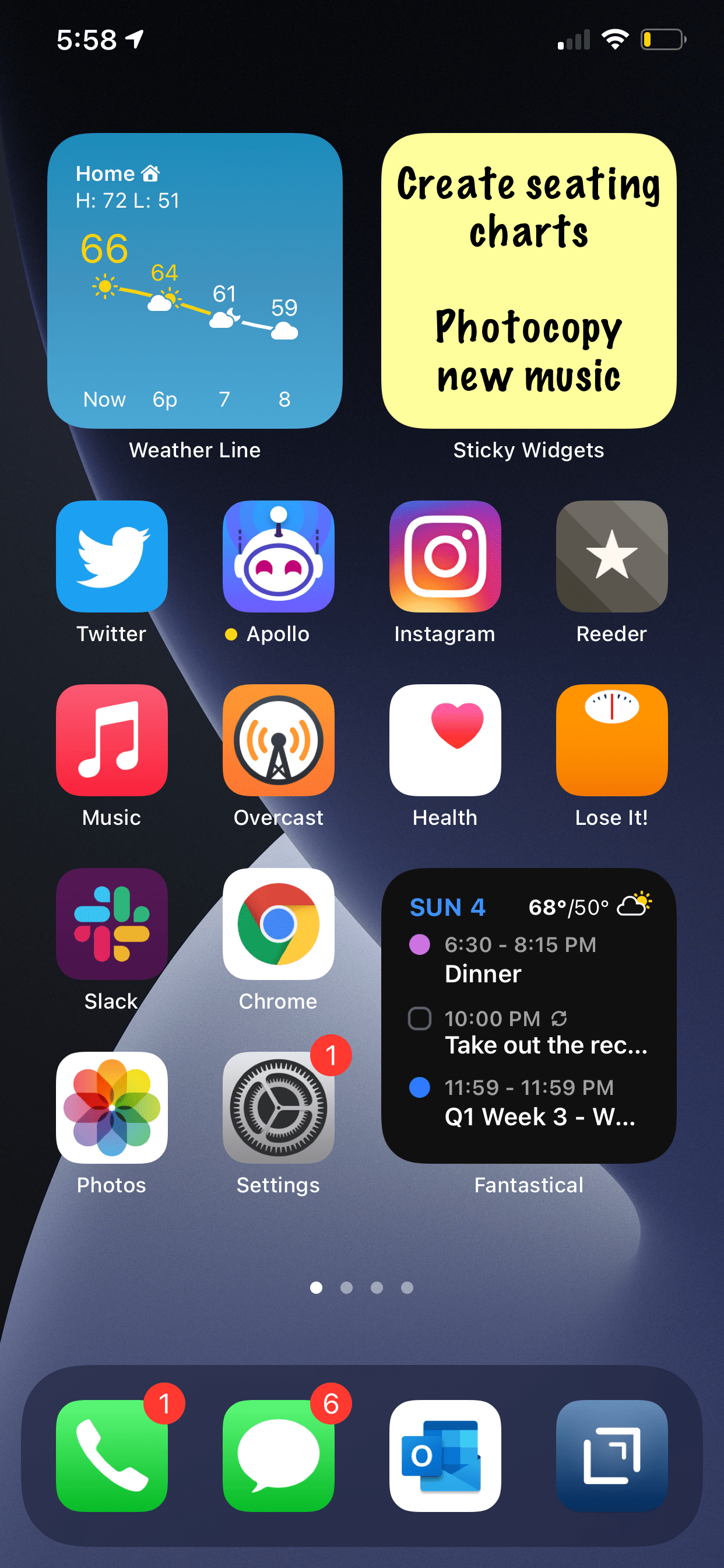
Sticky Widgets allows you to post sticky notes straight to the home screen that come in different colors and say anything you want. The experience is as simple as you can imagine.
Sure, I advocate for using proper note-taking and task management software, but there are times where you just want to write something directly and trust that it will be plastered in front of your eyes indefinitely.
Sticky Widgets enables placing sticky note-style widgets on your iPhone or iPad Home Screen which can be modified simply by tapping on the widget. It’s utility that’s such an obvious fit for widgets, I’m surprised I haven’t seen a hundred other apps doing the same thing.
iOS 14, iPadOS 14, watchOS 7, and tvOS 14 came out a few weeks ago. I have a lot to say about these updates, but today I wanted to write about widgets for a moment.
Widgets are catching on as a significant feature amongst the masses. As someone who plays around with the way apps are organized on the home screen at least twice a week, I can tell that widgets are going to add a lot of excitement (and anxiety) into my life. I have been toying with them since July when this software entered the public beta, and I am far from resolved.
Page one (middle image) contains my most tapped app icons. This will be a hard habit to break, but I find lots of value in having upcoming calendar tasks and weather permanently on my most visited screen. Weather Line and Fantastical have the best small-sized widgets, in my opinion. Even this smallest widget size takes up four app icons, so they need to be beautiful and information-dense for it to be worth me sacrificing four apps.
I didn’t think I would want weather on this first screen, but now that it is always visible to me, I don’t see how I could live without it. The Weather Line widget is awesome because its user interface depicts the weather on a line, almost like a chart. It even manages to fit an hourly rain graph into its small space when it is raining out. Not even my second favorite weather widget, Carrot Weather, does that.
The Today View (left image) is where I keep Siri Shortcuts and the older, legacy style widgets from iOS 13. As much as I like the newer widgets’ look, the older style widgets are interactive. I keep OmniFocus, Timery (for time tracking), Streaks (for tracking daily habits), and Waterminder (for quickly logging water) all on this screen because I can tap right on the buttons to act on these apps without the widget needing to launch into the app.
I am continually playing with page 2 (right picture). I like it to be mostly another grid of tappable apps, but I am experimenting with various widgets here. I think what I have settled on is to have the Maps and Notes app widgets stacked on top of each other at the top, and then to use the Siri Suggestion widget, which shows me two rows of apps that swap in and out throughout the day based on my phone’s predictions of which apps I want to use in which contexts. The image above shows some other widgets I am experimenting with, but I think I prefer having more app icons there.
On the iPad, I keep: calendar, weather, notes, Apollo (a Reddit app I use to keep up on the latest news about my interests), Siri Shortcuts, and the Files app for launching into recently modified files.
On both my phone and iPad, I am waiting for an OmniFocus widget to track my tasks. Even though I like the one in the Today view where you can mark the tasks as done right from the widget, I think I might want to have my next few upcoming tasks permanently visible on page one.
9to5Mac.com and MacStories.net have been two great websites to follow if you want to stay up on which apps offer widgets.
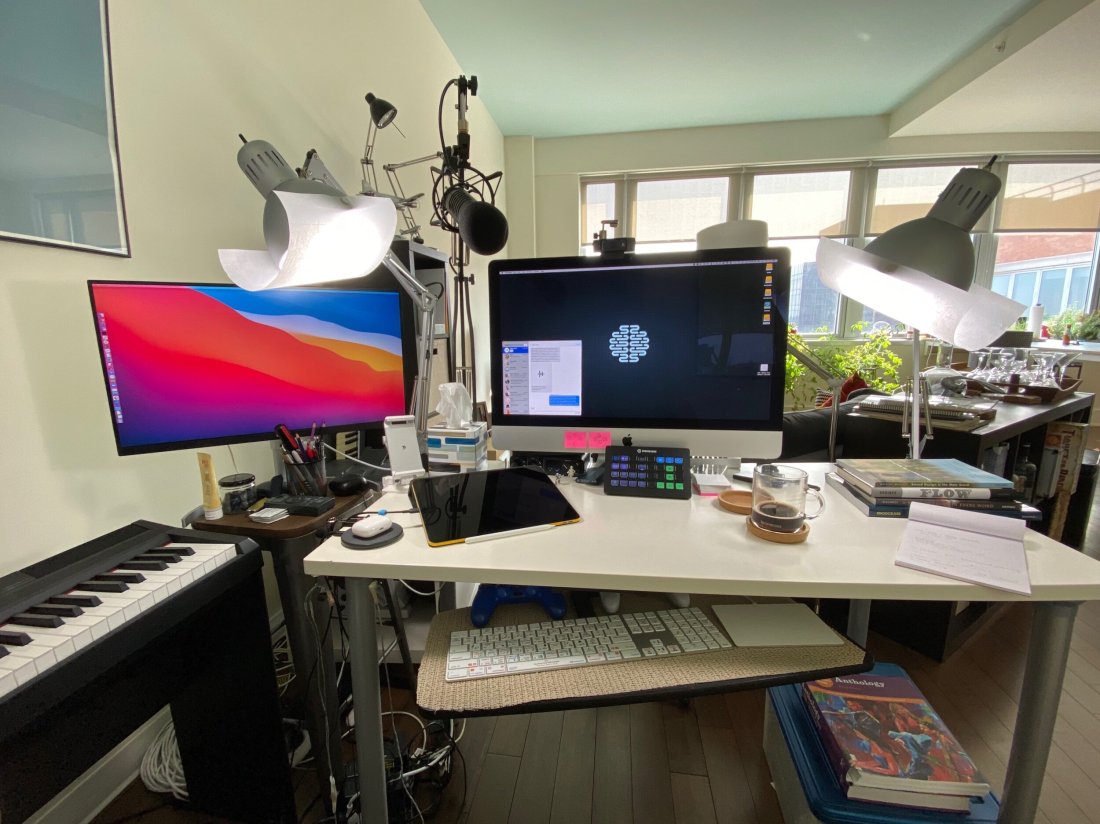
David MacDonald returns to the show to talk about the hardware and software in our virtual teaching setups. Then we speculate about touchscreen Macs and consider how Apple’s recent App Store policies might impact the future of creative professional software on iOS.
MusicFirst offers music educators and their students easy-to-use, affordable, cloud-based software that enables music learning, creation, assessment, sharing, and exploration on any device, anywhere, at any time.
MusicFirst Classroom is the only learning management system designed specifically for K-12 music education. It combines the flexibility of an LMS with engaging content and powerful software integrations to help manage your students’ progress, make lesson plans, and create assignments.
And for younger students, MusicFirst Junior is the perfect online system for teaching elementary general music. It includes a comprehensive K-5 curriculum, hundreds of lessons & songs, and kid-friendly graphics to making learning and creating music fun!
Whether you’re teaching remotely, in-person, or in a blended learning environment, MusicFirst will work with you to find a solution that fits your program’s unique needs. Try it free for 30 days at musicfirst.com.
“Intuition, I realized, was the certainty with which a skill instantly worked on the basis of rational experience. Without training, intuition does not develop. People only think that intuition is inborn. If intuition unexpectedly reveals itself, however, it is because unconscious training has been amassed somewhere along the way. ”
— Shinichi Suzuki , Nutured by Love
What is Solfege Bingo
Solfege Bingo is a game for young music students. You can play in class to help develop audiation, pitch recognition, and solfege.
The book comes with a series of bingo cards, each of which with three-note Solfege patterns in each square. “Do re mi, fa sol do, etc…” With the book comes a CD that has many different recorded examples of a singer singing these patterns, with space in between each pattern. Students match the three-note patterns they hear with the ones on their card until they get bingo.
The CD features a second set of recorded examples in which a clarinet plays the patterns so that the students must recognize the patterns by ear, not by syllable.
I first learned about this series as a student teacher, where the choir teacher would use them as warm-ups. She would use them as ear training examples to familiarize her ensembles with solfege. On the recorded examples, the space between each pattern is equal to the length of the patterns themselves, so you can use them as a call and response. The recording models the pattern, the choir sings it back.
Transposing the Tracks for Bands and Adding a Drone
A few years ago, I got the idea to transpose these recordings into band keys using GarageBand. I added a clarinet drone on the key center (using one of the software MIDI instruments) to help students hear the relationships of the pitches not only to each other but also to the tonic.
In band, I start the year by implementing these play-along tracks during warm-ups, starting in concert Bb. I first use the vocalist track and have students sing back. Then they play it back, with brass buzzing on mouthpieces. Then with brass on instruments. (The repetition of this has the side effect of reinforcing fingerings.) Eventually, once I feel like they have begun to internalize the pitches, I play them the clarinet version of the recording. The clarinet drone rings through my entire track, which takes the place of my usual Tonal Energy Tuner drone.
It sounds like this when it’s done…
<div class="
      image-block-outer-wrapper
      layout-caption-below
      design-layout-inline
      combination-animation-none
      individual-animation-none
      individual-text-animation-none
    ">


    <figure class="
          sqs-block-image-figure
          intrinsic
        " style="max-width:2500px">


      <div class="image-block-wrapper">
        <div class="sqs-image-shape-container-element


          has-aspect-ratio
        " style="position: relative;padding-bottom:63.55999755859375%;overflow: hidden">


            <img src="https://images.squarespace-cdn.com/content/v1/5595df9ce4b0ce9ff9ecd1a8/1598794636657-ZIEPEZK131RK9SSQFK6W/0cleanshotblog.png" alt="In GarageBand, I dragged in the audio file I wanted to edit, creating an audio track. Then, I created a second software instrument track, selected clarinet as the instrument, and held out the note Bb on my MIDI keyboard for the drone. Double-clickin…" width="2500" height="1589" style="display:block;object-fit: cover;width: 100%;height: 100%;object-position: 50% 50%" loading="lazy">

        </div>
      </div>


      <figcaption class="image-caption-wrapper">
        <div class="image-caption"><p class="">In GarageBand, I dragged in the audio file I wanted to edit, creating an audio track. Then, I created a second software instrument track, selected clarinet as the instrument, and held out the note Bb on my MIDI keyboard for the drone. Double-clicking an audio region reveals a transpose option on the left. Dragging the slider moves the pitch up of the selected region up or down by a semitone.</p></div>
      </figcaption>


    </figure>


</div>
Classroom Management (Making Two of Me)
I recall a year where I was struggling with engaging one of my band classes during the warm-ups. I needed a way to create some structure and reinforce expectations for the first 10 minutes of class, while making sure that the winds got the tone and ear development I wanted them to have. It is always easy to assume that students are against you when they are talking amongst themselves, wandering the back of the room, and slouching in their seats. I have come to find that, more often than not, my students aren’t against me, they just flat out didn’t understand my expectations for participation, posture, and technique and that they needed my support (even when it seems my expectations should be obvious).
My solution was to duplicate myself. I needed there to be one of me on the podium guiding the rehearsal sequence, and another of me walking the room to adjust students’ expectations of themselves.
I added the Solfege Bingo play-along tracks to slides in my daily agenda presentation, which is always on display at the front of the room through a projector. I make all of my slides in Apple’s Keynote. I found that I could embed an mp3 of one of my tracks into a slide and set the presentation to automatically skip to the next slide after a certain length of time had passed. So I created a sequence of these Solfege Bingo tracks, and a couple of other typical warm-ups I do, and embedded them all in Keynote slides so that the warm-up would happen automatically.
<div class="
      image-block-outer-wrapper
      layout-caption-below
      design-layout-inline
      combination-animation-none
      individual-animation-none
      individual-text-animation-none
    ">


    <figure class="
          sqs-block-image-figure
          intrinsic
        " style="max-width:2500px">


      <div class="image-block-wrapper">
        <div class="sqs-image-shape-container-element


          has-aspect-ratio
        " style="position: relative;padding-bottom:64.16000366210938%;overflow: hidden">


            <img src="https://images.squarespace-cdn.com/content/v1/5595df9ce4b0ce9ff9ecd1a8/1598793117355-3KSJN6YFIHRAZJLXBIF4/CleanShot+2020-08-30+at+09.06.33%402x.png" alt="In the upper right corner, click the Transitions button to reveal transitions. From the Start Transition dropdown menu, you can choose to have a slide start automatically after a certain amount of time, using the Delay timer. You might have to tweak…" width="2500" height="1604" style="display:block;object-fit: cover;width: 100%;height: 100%;object-position: 50% 50%" loading="lazy">

        </div>
      </div>


      <figcaption class="image-caption-wrapper">
        <div class="image-caption"><p class="">In the upper right corner, click the Transitions button to reveal transitions. From the Start Transition dropdown menu, you can choose to have a slide start automatically after a certain amount of time, using the Delay timer. You might have to tweak this a little bit to get it right, but the result is that these couple of Keynote slides play in a row, automatically, while I walk around the band room and give feedback to students.</p></div>
      </figcaption>


    </figure>


</div>
This allows me to work the room. While warm-ups were taking place, I can walk in the percussion section and remind them what instrument they play for warm-ups that day (it’s on the chart in the back of the room 🤷♂️). I can give postural feedback to my trombones. I can high five the tuba player. I can fit someone for a concert shirt. I can do nearly anything. And this is all while reinforcing audiation, tone development, and proper intonation.
I recommend the Solfege Bingo book. It’s effortless to modulate tracks with software. You can use the pitch-flex feature in GarageBand, as I mentioned above. But you can also use apps like Transcribe!, The Amazing Slow Downer, or Anytune.
Adding a clarinet drone is easy. I added a software instrument track in GarageBand, set it to a clarinet, and played the tonic along to the recording. But you could also use Tonal Energy as a GarageBand instrument.
Conclusion
Given the time I am posting this, it is worth mentioning that I totally intend to use these warmup play-along tracks in my online band classes this fall, which will be taking place in Google Meet. I am using the Loopback app to route the audio of Keynote through to the call, and a soundboard app called Farrago to trigger them. I can run the tracks through Google Meet and everyone plays along while on mute. I am hoping to blog about Farrago soon.
I am also planning to blog about another version of this workflow I have tried in especially needy classrooms, where I go as far as to record myself giving instructions to the band in between transitions, and even program the tracks to rehearse concert music for me while the real ‘me’ works the room. I have run up to 40 minutes of a band rehearsal through pre-recorded instructions and play along tracks before!


 Buy me a coffee




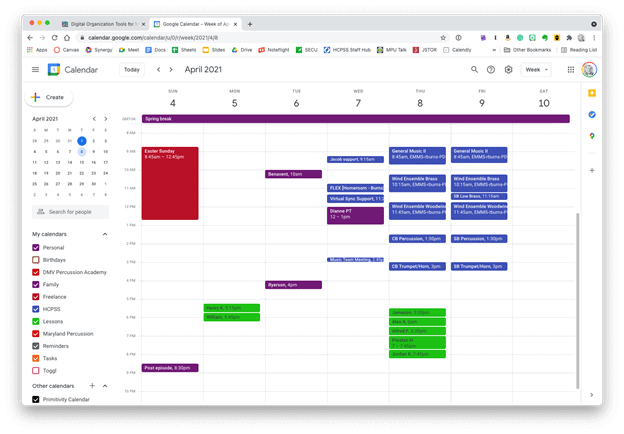 Google Calendar works perfectly fine for most needs. It is available to anyone for free on the web and has a functional mobile app on most smartphone platforms.
 Apple Calendar and Microsoft Outlook are two of the most widely used calendar apps on desktop and mobile operating systems. Either of them can handle calendars from Google, iCloud, or Exchange accounts and show them all alongside one another.
 Natural language input is not only fast, but you can set a keyboard shortcut on your computer to invoke a mini-calendar for quickly adding events.
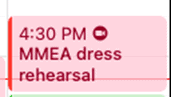 This event was shared with me and has a Zoom call URL associated with it. Fantastical automatically added the Zoom icon so that I can click on it to immediately enter the call.
 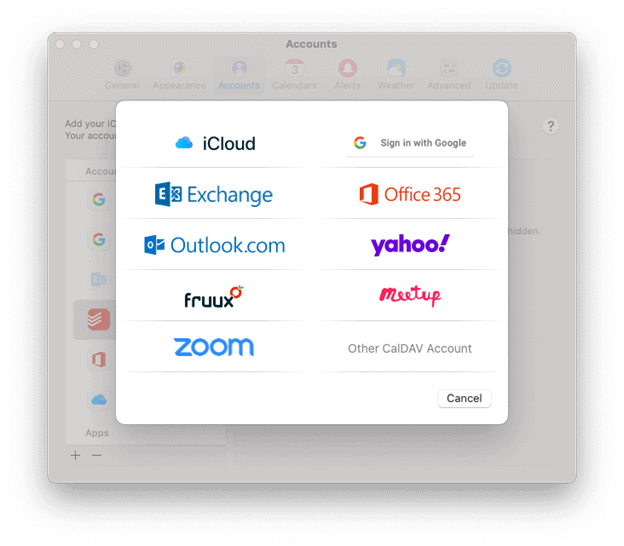 Fantastical integrates with all of these services.
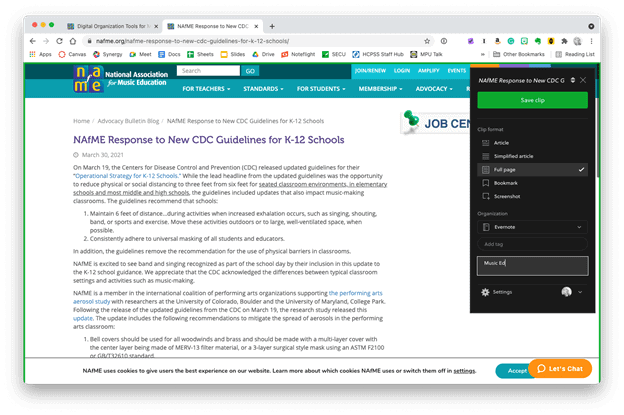 The Evernote web clipper can be installed as an extension or from the share-sheet on mobile devices. You can choose how it will save the content, and even categorize it with tags and a memo before clipping.
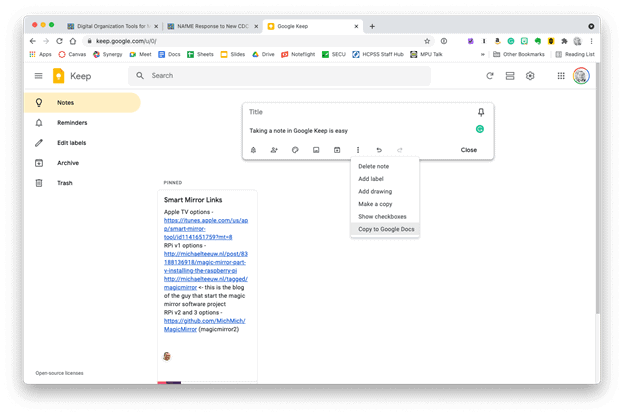 Google Keep is simple, but it provides plenty of features. Notes can be turned into reminders, Google Docs, or shared with others.



 Music Ed Tech Talk
You must be logged in to post a comment.