With GoodNotes, it’s easy to mix drawing and writing. It’s also easy to write in a magnified view while the words simultaneously appear in a normal size on the page behind it.
And with yesterday’s version 5.5 update, GoodNotes is now also able to collaborate.
I use Apple Notes for most mixed media note taking (text, checklists, images, web links) and DEVONthink for my archiving needs (long term file, email, web archiving). But most notes I write by hand go in GoodNotes. It is nice to see any app add collaboration as a feature. I am not sure if I would use this in GoodNotes but it will be fun to try.
The other thing I use GoodNotes for every day (when school is meeting in person) is for annotating my custom-made seating charts to keep track of student data. You can read about that on this article I wrote for SBO Magazine. What makes GoodNotes so convenient for annotating PDFs like this is that it treats them as a paper style instead of fillable PDF, so you don’t need to go into any kind of annotation ‘mode’ to begin marking it up with the Apple Pencil.
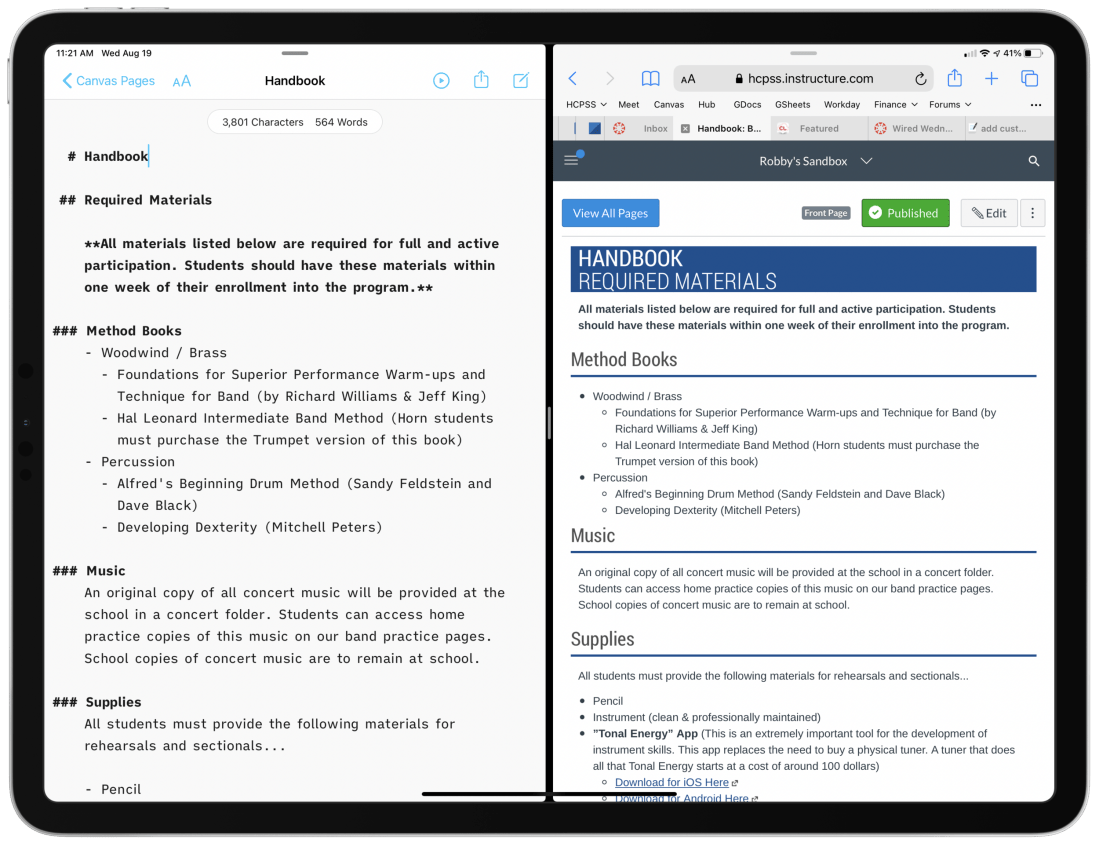
Left:A draft of a Canvas page, written in a text file on my computer. I used the Markdown syntax for headings, lists, and links. Right: What the Canvas page looks like once the text on the left is imported into the course page as HTML.
My district’s LMS of choice is Canvas, which is pretty stressful to work with. From most accounts I hear about other LMS software, Canvas is far from the worst. “You go to war with the LMS you have” I once heard.
Lately, I am writing my Canvas content in Markdown and storing it as text files on my computer.
Why?
Canvas is littered with user-hostile behaviors. Each class is a separate container. All files, pages, and assignments are quarantined, requiring multi-step procedures for sharing between courses. On top of this, the organizing tools are a mess. I am never 100 percent sure where to go. Even when I do, I have to wait for the internet to load each new thing I click on.
<div class="
      image-block-outer-wrapper
      layout-caption-below
      design-layout-inline
      combination-animation-none
      individual-animation-none
      individual-text-animation-none
    ">


    <figure class="
          sqs-block-image-figure
          intrinsic
        " style="max-width:2500px">


      <div class="image-block-wrapper">
        <div class="sqs-image-shape-container-element


          has-aspect-ratio
        " style="position: relative;padding-bottom:61.119998931884766%;overflow: hidden">


            <img src="https://images.squarespace-cdn.com/content/v1/5595df9ce4b0ce9ff9ecd1a8/1597866028922-HBRQ0FDXB4AE8F1L2EUI/CleanShot+2020-08-19+at+15.38.50%402x.png" alt="Instead of one file repository that all courses pull from, each class has its own separate Files area." width="2500" height="1528" style="display:block;object-fit: cover;width: 100%;height: 100%;object-position: 50% 50%" loading="lazy">

        </div>
      </div>


      <figcaption class="image-caption-wrapper">
        <div class="image-caption"><p class="">Instead of one file repository that all courses pull from, each class has its own separate Files area.</p></div>
      </figcaption>


    </figure>


</div>
Canvas is equally difficult for students. All of the course pages and content are just sort of floating in space. It’s up to the teacher to link the material together meaningful, but the tools to do so are inelegant and unintuitive. My music program has resorted to a website for communicating most general information since it exposes the hierarchy of its structure to our viewers. In other words, we control where every page lives, and our students can get to any part of our site from the navigation bar at the top of the page.
The WYSIWYG web editors you see within most Canvas pages, assignments, and announcements are equally frustrating. They are clunky, the text field is tiny, the buttons for all the tools are ambiguous, and I lose my data if the page refreshes itself or I lose connection. Additionally, it’s hard to anticipate what my formatting will look like before actually clicking the save button.
Lately, I am writing my Canvas content in Markdown and storing it as text files on my computer. By editing in Markdown, I can create content in third-party apps, work with data offline, control where files are organized, search them from the Spotlight, and quickly export as HTML for input into the Canvas HTML editor when I am ready to publish.
Using Mac and iOS Native Apps
I like native applications because the good ones feel designed to look like the computing platform. For example, the forScore app on iOS uses similar navigation buttons and fonts to Apple’s own Mail, Keynote, Pages, and Notes. This way, I don’t feel like I am learning new software.
Native apps that deal with documents store files on my hard drive. I can easily organize them into my own folder system, work on them without an internet connection, open the same file in different applications, and search them from the Spotlight. Document-based apps update your file as you edit your data. Websites often lose your data when they run into issues.
I don’t write anything longer than a sentence or two into the text field of a website. Instead, I draft them inDrafts and move my work to iAWriter for longer projects. Both of these apps can preview Markdown.
What is Markdown?
Markdown is a shorthand syntax for HTML. It empowers me to draft web content without actually writing code. Skim this Markdown syntax guide to see what I mean. You can learn the basics in five minutes.
Drafts and iA Writer have one-button shortcuts to convert Markdown to formatted text or HTML. Here is an example of Markdown, and what it would look like once converted to rich text or HTML.
# Blog Post Title
Here are *three things* I want to do today.
1. Work out
2. Sit in the hot tub
3. Grill some chicken

Let me tell you more about them.

## Work out
Today I will work out on my bike. My wife once said, and I quote:
> The earlier in the day you aim to do it, the more likely it is to happen.

## Sit in the hot tub
This will be relaxing. Maybe I will listen to a podcast there. Here are some recent favorites...
- Sound Expertise
- Sticky Notes
- Upgrade

My favorite podcast player is [Overcast](https://overcast.fm).
Once an app like Drafts or iA Writer converts the Markdown to rich text, it would look like this:
<div class="
      image-block-outer-wrapper
      layout-caption-below
      design-layout-inline
      combination-animation-none
      individual-animation-none
      individual-text-animation-none
    ">


    <figure class="
          sqs-block-image-figure
          intrinsic
        " style="max-width:1536px">


      <div class="image-block-wrapper">
        <div class="sqs-image-shape-container-element


          has-aspect-ratio
        " style="position: relative;padding-bottom:119.140625%;overflow: hidden">


            <img src="https://images.squarespace-cdn.com/content/v1/5595df9ce4b0ce9ff9ecd1a8/1597864448247-LZ511PWF8U5IKLA96WGX/CleanShot+2020-08-19+at+14.44.57%402x.png" alt="A good Markdown app like iA Writer will convert the syntax to rich text for you and copy it so that you can paste it into an application like Google Docs, Microsoft Word, or your website." width="1536" height="1830" style="display:block;object-fit: cover;width: 100%;height: 100%;object-position: 50% 50%" loading="lazy">

        </div>
      </div>


      <figcaption class="image-caption-wrapper">
        <div class="image-caption"><p class="">A good Markdown app like iA Writer will convert the syntax to rich text for you and copy it so that you can paste it into an application like Google Docs, Microsoft Word, or your website.</p></div>
      </figcaption>


    </figure>


</div>
I could have just as easily exported the resulting rich text to a Word document or Google Doc and all of the formatting would have been properly executed.
iAWriter can also export my Markdown as HTML like this:
<h1>Blog Post Title</h1>

<p>Here are <em>three things</em> I want to do today.</p>

<ol>
<li>Work out</li>
<li>Sit in the hot tub</li>
<li>Grill some chicken</li>
</ol>

<p>Let me tell you more about them.</p>

<h2>Work out</h2>

<p>Today I will workout on my bike. My wife once said, and I quote:</p>

<blockquote>
<p>The earlier in the day you aim to do it, the more likely it is to happen.</p>
</blockquote>

<h2>Sit in the hot tub</h2>

<p>This will be relaxing. Maybe I will listen to a podcast there. Here are some recent favorites...</p>

<ul>
<li>Sound Expertise</li>
<li>Sticky Notes</li>
<li>Upgrade</li>
</ul>

<p>My favorite podcast player is <a href="https://overcast.fm">Overcast</a>.</p>
Because Markdown can be converted to HTML automatically, I have found it less stressful to actually write my Canvas pages, announcements, and messages to parents in Markdown and then pasting the resulting HTML into the HTML editor of Canvas. I store my Markdown files in a folder of text files, with subfolders for each course. I have favorited these folders so that they are always accessible in the iA Writer sidebar. These folders are easily accessible. Because I am writing in plaintext, the result feels much more like writing in a simple note app than it does a word processor.
<div class="
      image-block-outer-wrapper
      layout-caption-below
      design-layout-inline
      combination-animation-none
      individual-animation-none
      individual-text-animation-none
    ">


    <figure class="
          sqs-block-image-figure
          intrinsic
        " style="max-width:2372px">


      <div class="image-block-wrapper">
        <div class="sqs-image-shape-container-element


          has-aspect-ratio
        " style="position: relative;padding-bottom:78.33052062988281%;overflow: hidden">


            <img src="https://images.squarespace-cdn.com/content/v1/5595df9ce4b0ce9ff9ecd1a8/1597864486248-5J9W1DWCB7H44XERKZW5/CleanShot+2020-08-19+at+14.45.57%402x.png" alt="iA Writer links to folders of text files on your hard drive. But it looks like a simple note app." width="2372" height="1858" style="display:block;object-fit: cover;width: 100%;height: 100%;object-position: 50% 50%" loading="lazy">

        </div>
      </div>


      <figcaption class="image-caption-wrapper">
        <div class="image-caption"><p class="">iA Writer links to folders of text files on your hard drive. But it looks like a simple note app.</p></div>
      </figcaption>


    </figure>


</div>
Here is an example of a Canvas announcement intended to be shared with one of my band classes early this fall. It contains an embedded Google Form families sign as an agreement to our policies. Markdown and HTML can be written in the same document and iA Writer treats it all as HTML when you export it.
I got the HTML embed straight from the Share menu of the Google Form setup. I didn’t need to know any code to make this message!
<div class="
      image-block-outer-wrapper
      layout-caption-below
      design-layout-inline
      combination-animation-none
      individual-animation-none
      individual-text-animation-none
    ">


    <figure class="
          sqs-block-image-figure
          intrinsic
        " style="max-width:2500px">


      <div class="image-block-wrapper">
        <div class="sqs-image-shape-container-element


          has-aspect-ratio
        " style="position: relative;padding-bottom:62.519996643066406%;overflow: hidden">


            <img src="https://images.squarespace-cdn.com/content/v1/5595df9ce4b0ce9ff9ecd1a8/1597866399217-9I7XOHMYA9C68EXRFUBS/CleanShot+2020-08-19+at+15.46.06%402x.png" alt="On the left: a Markdown document that contains HTML code for a Google Form embed. On the right: pasting that as HTML into the HTML editor in Canvas." width="2500" height="1563" style="display:block;object-fit: cover;width: 100%;height: 100%;object-position: 50% 50%" loading="lazy">

        </div>
      </div>


      <figcaption class="image-caption-wrapper">
        <div class="image-caption"><p class="">On the left: a Markdown document that contains HTML code for a Google Form embed. On the right: pasting that as HTML into the HTML editor in Canvas.</p></div>
      </figcaption>


    </figure>


</div>


<div class="
      image-block-outer-wrapper
      layout-caption-below
      design-layout-inline
      combination-animation-none
      individual-animation-none
      individual-text-animation-none
    ">


    <figure class="
          sqs-block-image-figure
          intrinsic
        " style="max-width:2500px">


      <div class="image-block-wrapper">
        <div class="sqs-image-shape-container-element


          has-aspect-ratio
        " style="position: relative;padding-bottom:76.95999908447266%;overflow: hidden">


            <img src="https://images.squarespace-cdn.com/content/v1/5595df9ce4b0ce9ff9ecd1a8/1597864190944-J0QAE339L9AL7Q519LPF/iVBORw0KGgoAAAANSUhEUgAAC50AAAjwCAYAAAAKgq9xAAAACXBIWXMAAAsTAAALEwEAmpwYAAAM+3.png" alt="How the resulting announcement appears to students." width="2500" height="1924" style="display:block;object-fit: cover;width: 100%;height: 100%;object-position: 50% 50%" loading="lazy">

        </div>
      </div>


      <figcaption class="image-caption-wrapper">
        <div class="image-caption"><p class="">How the resulting announcement appears to students.</p></div>
      </figcaption>


    </figure>


</div>
EDIT: When I wrote this post, I fogtot to add one benefit to having all of these files on your computer… even though Canvas messages don’t support formatting like headings and bold, I draft those in iAWriter too. It is SO much easier to find and re-use old emails I have sent to parents when they are searchable from my computer. Have you ever tried to search your Canvas ‘Sent’ folder? It’s terrible! Local computer copies for the win!
The school year is finally over, as is my first ever quarter of online teaching.
I wanted my students to end the year seeing themselves represented together, playing the same music, at the same time. So I sharpened my Final Cut skills and dove into the process of making a virtual ensemble.
The video in this post gives an overview of my process for making these videos, all the way from making a play along track, to advanced editing such as pitch and rhythm correction. The video includes a couple of my favorite Mac utilities for manipulating audio and video files. Scroll to the bottom to see all of the final videos of my students.
I remember seeing the introduction of StaffPad for Windows Surface tablets back in 2015. Applications that convert handwriting to music notation were not widespread yet and I was absolutely shocked by the demo videos.
My amazement was immediately followed by frustration when I leaned this was a Windows only product. It was a tough pill to swallow, but I understood. The iPad was (and is) widely held as a superior tablet for consumer and professional use, but iOS did not have proper stylus support at the time. There were only third party options, and none of them leveraged the operating system for the level of accuracy that the Apple Pencil now provides.
When the iPad Pro launched months later, I thought “surely StaffPad will now be possible.” Turns out I was right. Though it has taken many years, the StaffPad team has been hard at work, and the product is now available for iOS.
I have been beta testing StaffPad for the past month. I consider myself to be testing it largely from the perspective of a music educator, specifically a middle school band director, which means that I am doing things like…
Reconstructing missing flute parts from my music library using the original score
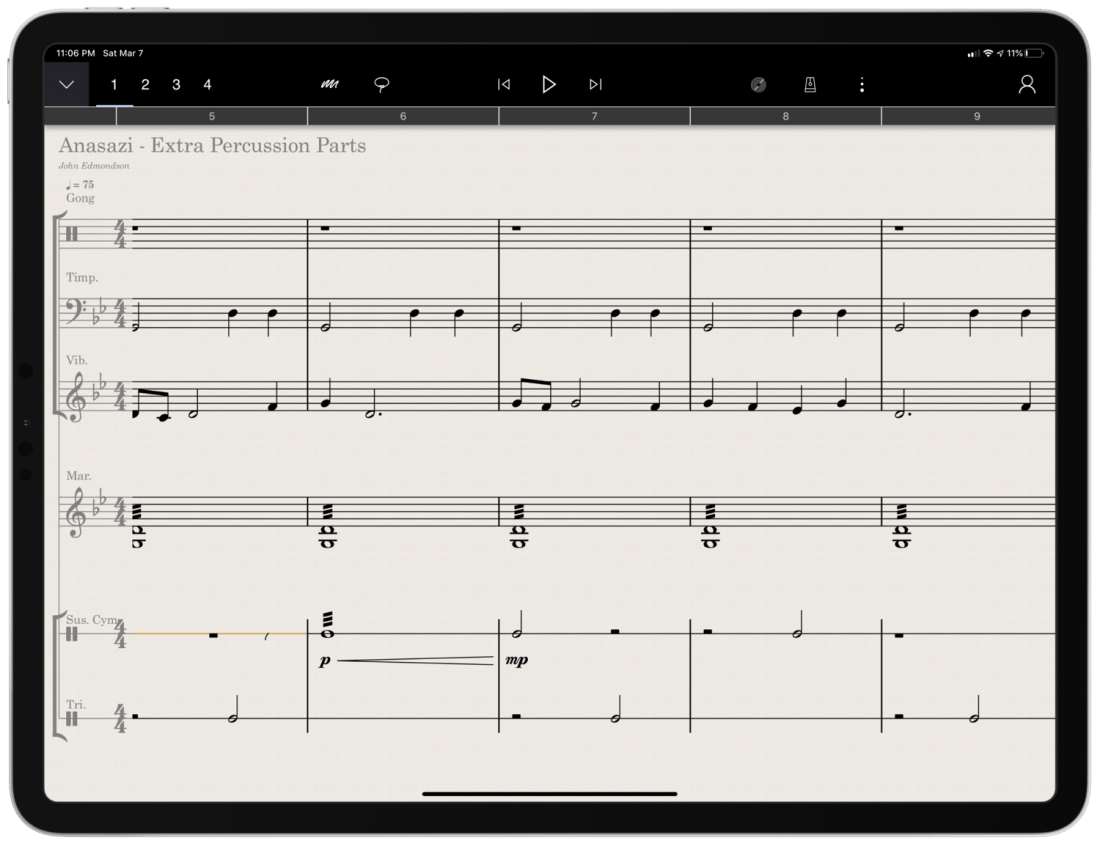
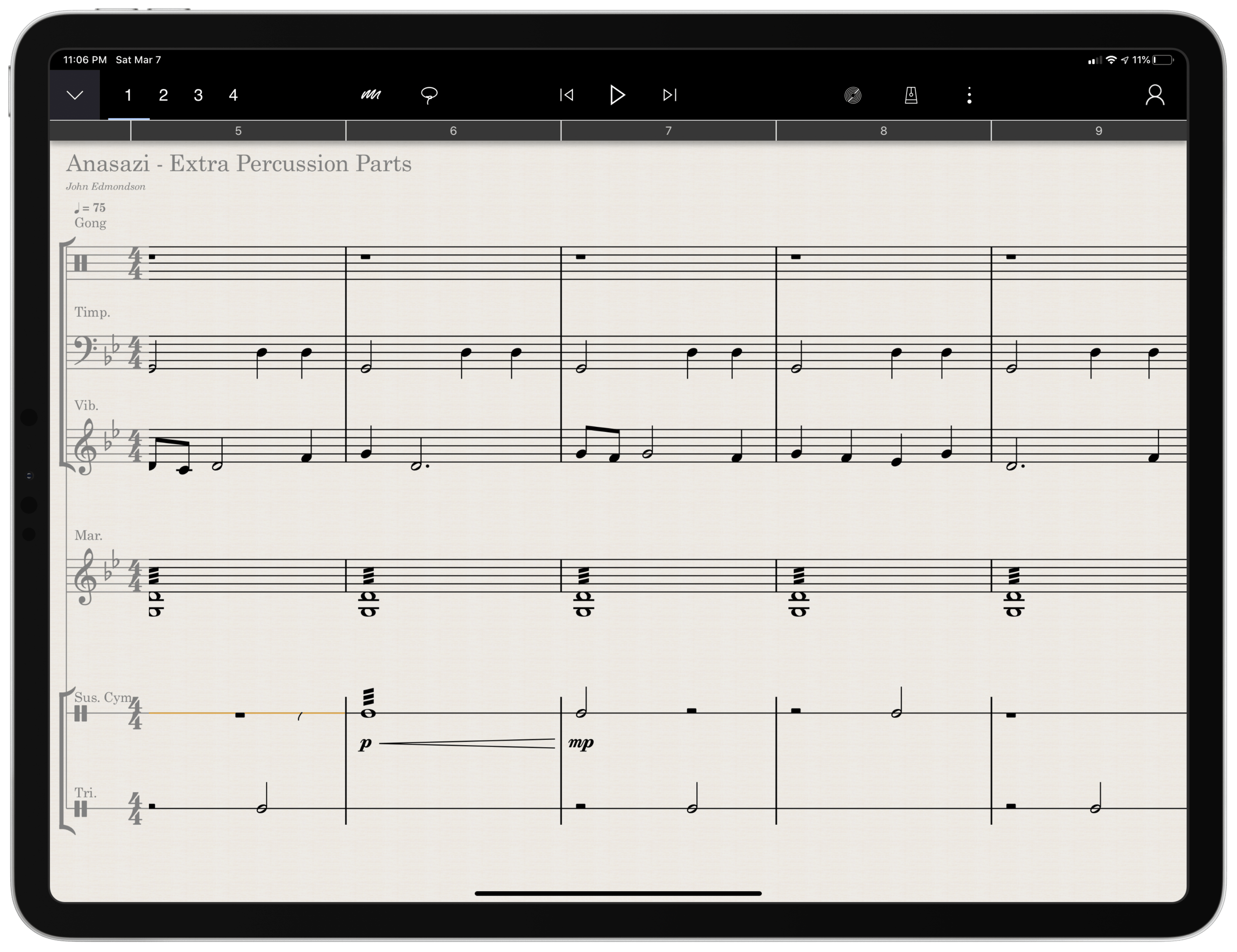
Arranging extra percussion parts for works that are sparse in percussion writing
Writing short folk melodies to use in our sectional curriculum
…pretty basic stuff. If you want a very balanced and comprehensive review of all the StaffPad features, not just the ones I depended on, I strongly recommend you check out the Scoring Notes review by David MacDonald.
TL;DR: If you want to skip this review, I’ll get to the point:
StaffPad is an exceptional tool for music educators. It is elegantly designed, astoundingly intuitive, and makes exactly the right trade-off for what a teacher would and would not need in a pro-level score editor. It is a best-of-class example of what a professional ‘iPad-first’ app should look like. It legitimizes the platform by being a tool that executes tasks that no other computing device can.
While I believe StaffPad near-perfectly conceived, it’s hand writing recognition is a headache to use at times, and it needs to improve a lot in this area for me to consider it rock-solid-dependable. Fortunately, I got better at it as I wrote this review.
Ok, let’s get to it.
UPDATE: I spoke at length about my experiences using StaffPad on my pocast. Listen and subscribe below.
The design of StaffPad is one of the most impressive I have ever seen. It is undeniably professional, but maintains the elegance and simplicity you would expect if you are familiar with Apple’s native iOS apps. It manages not to be overbearing with buttons and knobs, yet none of the tools seem too far away or too many menus deep.
Everything is beautifully laid out in a way where my eyes naturally gravitate towards the information relevant to me. There isn’t any information on this screen that doesn’t need to be.
Home shows just recent documents, Library shows all of your stuff, templates shows the customary templates you would expect from a score editor, and Collections shows some pre-made StaffPad scores designed to show off the sound library. I appreciate how the Templates page is not bogged down with dozens of rare options like Mariachi Band.
The Store button takes you to a screen where you can buy sound libraries and other extensions. More on that later. Discover takes you to some helpful introduction videos.
I am going to get into note input in a bit. Before that, I want to pontificate the nature of writing notes with a pencil on a touch surface.
At launch, the iPad made a promise to simplify computing for every person, allowing you to touch directly what you want to do on the screen and removing the abstraction of pointing and clicking, the preferred interface of personal computers for decades.
John Gruber, amongst other Apple commentators, have recently had a lot to say about the original promise of the iPad; about how it has maybe lost its way as it has tried to become more like the Mac, introducing inscrutable multitasking gestures and imitating professional PC software rather than leveraging the strengths of a touch interface. There is a great conversation about it on his podcast, which makes special reference to how revolutionary the original GarageBand app was for iPad.
I mention all of that here because I think StaffPad perfectly fulfills that original iPad promise. Writing notes directly on the screen really is the way to write music, as it removes all abstractions and lets you just touch where you want things to go. It also exists in a category of rare, niche, and professional iPad apps that a) cost real money, and b) could not really exist on a Mac. I already wrote about this a little bit here.
So what features exactly does StaffPad have? If you want an exhaustive list, check out StaffPad’s help page. It is very detailed and straightforward.
<div class="
      image-block-outer-wrapper
      layout-caption-below
      design-layout-inline
      combination-animation-none
      individual-animation-none
      individual-text-animation-none
    ">


    <figure class="
          sqs-block-image-figure
          intrinsic
        " style="max-width:2500px">


      <div class="image-block-wrapper">
        <div class="sqs-image-shape-container-element


          has-aspect-ratio
        " style="position: relative;padding-bottom:76.95999908447266%;overflow: hidden">


            <img src="https://images.squarespace-cdn.com/content/v1/5595df9ce4b0ce9ff9ecd1a8/1583683028358-VYZELFL54B15ZM614AQ7/0B66A098-2FE9-417B-8A4D-BDD066DC627D.png" alt="Though StaffPad’s website has a great introduction video, the help page lists everything StaffPad can do in a concise manner." width="2500" height="1924" style="display:block;object-fit: cover;width: 100%;height: 100%;object-position: 50% 50%" loading="lazy">

        </div>
      </div>


      <figcaption class="image-caption-wrapper">
        <div class="image-caption"><p class="">Though StaffPad’s website has a great introduction video, the help page lists everything StaffPad can do in a concise manner.</p></div>
      </figcaption>


    </figure>


</div>
If you need specialty engraving features and every editing feature money can buy, you need Dorico or Sibelius (but choose Dorico). If you need a sketch app for music notation, that can make 90% of your score needs come true from the comfort of your couch, StaffPad has you covered.
There are trade-offs. But for my basic purposes, they are just the right trade-offs. For a handwritten sketch app, StaffPad strikes exactly the right balance of what it does and what it doesn’t do, especially considering the quality of the resulting scores. There aren’t a lot of ways to customize your score’s layout, but StaffPad makes really good default choices about how to stylize the final product.
I appreciate that everything StaffPad does is very discoverable and not buried too many layers deep. Most things, you can just write directly on the screen with the pencil (though I had a lot of trouble with articulation, and especially with dynamics). StaffPad attempts to solve the problem of organizing features by using what I call a “double tool bar.” I am sure they have a technical name for it. Basically, the tool bar shows one set of tools, and when you tap the upward or downward facing arrow on the upper left corner of the screen, it shows another set of tools.
If I knew the logic behind how StaffPad has organized these tools, I would probably be able to find them better, but because the options are selectable from two sides of the same toolbar, I often get confused which “side” of it I need to be on to get what I want. At least changing it over is only a tap away.
One side of the tool bar has buttons which contains the following…
Options to change the voice(of which there are four).
Button to toggle an annotation mode.This mode allows you to scribble freely on your score and highlight certain sections. This mode is necessary because regular strokes draw notes on the staff by default. I can’t think of any standard notation editor that allows freeform annotations with a stylus since most of them are not designed for a tablet.
A loop tool. This tool is great but buggy. It does what you would expect. It allows you to circle a section of music and then copy, paste, or duplicate it. This is a nice way to solve the problem of there being no keyboard shortcuts for selection, copy, and paste, in the app. Sometimes StaffPad crashes when I use it.
The famous three-dots button.(which in most apps means “more”) This button takes you to most of the notations that you cannot write on the staff directly with the Apple Pencil – trills, fermatas, rehearsal markings, etc. This button is so frequently accessed that I kind of wish it showed up on both sides of the tool bar. Furthermore, it would be great to be able to edit the order the options appear, rather than scrolling to the right every time I need a rehearsal marking.
Fenby. – a digital assistant that you can talk to. Fenby is wicked cool. Similar to digital assistants like Siri, however, it works really well only when it works. I got used to telling it to “add strings” or “transpose” the score, but there are other commands listed on the StaffPad website that I could not get to work.
The other side of the tool bar includes buttons for…
Undo and redo buttons. Which, again, are so commonly needed that I wish they showed up on both sides of the tool bar. You can use the new text gestures introduced with iOS 13 to three finger pinch (copy), three finger spread (paste), three finger swipe left (undo) and three finger swipe right (redo). Once you get the hang of these, you really start to fly.
Also, a bonus note (and my favorite take away from Paul Shimmons’ StaffPad review): copying a selection of music in StaffPad, and pasting it into another app results in a beautifully formatted score excerpt. It’s nice touches like this that make StaffPad a delight to work with.
Copy and paste using the new three finger gestures in iOS 13 is very natural.
Button add/remove instruments. This screen is super elegant and I love it.
Automation layer. You can actually draw your automations right onto each stave with the pencil. It is too bad this is a feature I will not use that much, because the implementation is really slick. I hope that all iOS DAWS consider adding Apple Pencil support for automation layers.
Button to toggle transposing vs. non transposing score.
Playback buttons. Again, these are on both sides of the toolbar but I use them far less often than some of the other options.
Button to access version history.
Share button. The share menu is ridiculously elegant and straightforward. It has all of the export options you would want, and appears very clean. My only complaint is that it does not work the way standard iOS share buttons work where once you share something, the share menu is no longer active. In StaffPad, it is more of a “mode” that you enter in to. I don’t prefer this, but it is also not the end of the world.
Settings button. This screen is really straightforward and easy on the eyes. This is the one case where I do wish StaffPad would add more options. The screen is designed nicely enough that I would not mind scrolling downward for more options.
For example, I would like to be able to customize the tool bar or choose for the Apple Pencil’s double tap gesture to do something other than initiate a lasso select.
Fenby. I do not think this feature is useful enough to put on both tool bars.
Note input
Ok so here’s where the rubber meets the road. StaffPad only accepts note input through the Apple Pencil. I have written about this elsewhere. I would love for StaffPad, like Notion, to have a Mac counterpart. But it’s not designed that way. Because Windows operates on a tablet, Surface users of StaffPad do not need to distinguish between tablet and PC operating systems. StaffPad runs on Windows, period. macOS is a different operating system than iPadOS, so there is no way I can run StaffPad on my Mac.
Interestingly, the main PC score apps, Dorico, Sibelius, and Finale, have made no attempts at an iPad app. I find that we are in this weird fragmented stage with Apple software where nearly any productivity app (I am thinking iWork, the Omni apps, even now Photoshop) can run on any Apple platform and even sync your work between devices, meanwhile niche pro apps still tend to exist on only one platform (Pro Tools/Ableton on the Mac and forScore/StaffPad for the iPad for example). These niche pro apps take unique advantage of platform conventions (the ability to work with complex audio streams in the case of DAWS on the Mac, and the Apple Pencil in the case of iPad).
Maybe its for the best. But I can’t help but feel like StaffPad would be superior if I could snap my iPad into the Smart Keyboard Folio and enter notes from there, or boot up a Mac version and enter notes with a MIDI keyboard..
Because I can’t do that, it is imperative that StaffPad’s handwriting recognition is air tight.
Simply put: it doesn’t register for me all the time. While I am getting better at it after a month of practice, it has a way to go. Sometimes I write really messy and get surprisingly great results on first pass. Other times, I write as slowly and neatly as I can and StaffPad doesn’t convert the notation.
Fortunately, StaffPad’s rules for notation conversion are very thoughtfully considered. Unlike Notion, notes do not convert until I tap somewhere outside the current measure I am composing. This means I can stop and think as long as I want before moving on. StaffPad also leaves anything that it doesn’t recognize in my own handwriting while converting the rest. This means I do not have to worry about an ambiguous pencil stroke being converted into StaffPad’s best guess, and I can go back and fix it later. Speaking of fixing things later, there isn’t a need to be too careful, because notes that end up a line or a space to high or low can be held with the pencil tip and dragged wherever you want on the staff.
This video shows off the design, features, and note input of StaffPad in action.
StaffPad’s design ingenuity continues to shines in the details. You are allowed to write whatever you want in a bar, regardless of if it fits in the time signature or not. StaffPad also allows you to drag the bar line to the right with the pencil if you run out of room. These considerations work well for my brain, because there is less cognitive overhead. I feel like I am writing with a pencil and paper, not a computer.
Still, there are times that I have to try numerous attempts before achieving success. The StaffPad support team recommended that I do notes in one pass, articulations in another, and dynamics in yet another, until I gain confidence with the system. They also recommended that I try to write the notes at approximately the size they will appear once converted. This advise helped but I am still making more mistakes than I would like.
My wife is a professional artist. She uses the iPad Pro to do illustrations and design mock ups. In other words, she has way better control of a pencil than I do. I asked her to spend some time writing various different musical symbols, at varying speeds and sizes. She, too, was perplexed at which of her pencil strokes worked and which ones didn’t.
StaffPad’s help documentation (again, excellent) makes it look really easy. The examples of handwriting are really loose. As a percussionist who detests how other score programs handle drum set notation, I would love to be able to write drum parts as easily as the support documentation illustrates. No matter how hard I try to imitate it, I am getting inconsistent results enough so that I am reluctant to try these features again in the future.
While I am reflecting on note input, I need to acknowledge that StaffPad has, by far, the best implementation of erasing that I have ever seen for the Apple Pencil. There is no double-tap, or need to tap a button on screen to turn on the eraser. You simple press harder! It takes a little getting used to, and it is easy to press too hard when attempting to compose and erasing by mistake. But overall, I wish all apps would adopt this style. It is truly a dream.
Hard press to erase in @StaffPad is by far the best implementation of erasing with Apple Pencil I have seen in any app. It is even more seamless than if the Apple Pencil added an eraser to the other side. I’m seriously ruined for eraser tools in all other software. pic.twitter.com/fTJxDpsgVB
Most of my testing for StaffPad included preparing for my recent band concerts. My Concert Band has 10 percussionists and some of my music had only three or four parts. I also have some flutes in my Jazz Band this year, and planned some repertoire that does not have original flute parts. Arranging these additional parts took place while I was on leave for the birth of my first child and was awaiting a return to school, where I would have only two weeks to prepare this concert before the performance date.
Headaches aside, the lightness and simplicity of StaffPad’s design, mixed with its direct note input, made this an indispensable tool for me in the past month. Projects that would have had more overhead using a heftier score editor like Dorico were a breeze using StaffPad and iOS. The iPad’s portability made it easy to sneak little additions to my work into busy days of carrying, holding, and feeding a newborn in one arm while sitting on the couch in my living room rather than at a desk.
Between pencil input and the tool bars mentioned above, there are a handful of features that are hidden beneath contextual menus that are achieved by long pressing on various places in the score. Long pressing in a measure allowed you to change the time or key signature. Long pressing on bar lines allows you to change their style or add measures to the music, add lyrics, text, or chords. These menus are very tastefully done, and as I have already mentioned, they have just enough features that they are confusing to dig through, but just enough that I was never wondering where something was. The lyrics and chords options are not as in depth as other score applications, but they were just right for my needs.
iOS-ness
There are features available to third party apps that I believe should be in every app. I was disappointed that StaffPad did not follow a few of these conventions.
Specifically, I wish StaffPad supported Split View. iPad apps can now share half the screen with another app. StaffPad only works in full screen.
This was frustrating for me, particularly in my arranging project mentioned earlier. I wanted to be able to open forScore on one half of the screen for a reference of the full score, and then compose in StaffPad on the other half of the screen. StaffPad customer support informs me that they experienced weird multi-touch results when StaffPad was on half of the screen and that it doesn’t work. But I would still like to see it happen.
You can use other apps in slide over view, which is where you drag an iPhone-sized version of an app over top a full screen app for quick reference. You can see if the screenshot below that this is really too small to be tenable for score reference.
<div class="
      image-block-outer-wrapper
      layout-caption-below
      design-layout-inline
      combination-animation-none
      individual-animation-none
      individual-text-animation-none
    ">


    <figure class="
          sqs-block-image-figure
          intrinsic
        " style="max-width:2500px">


      <div class="image-block-wrapper">
        <div class="sqs-image-shape-container-element


          has-aspect-ratio
        " style="position: relative;padding-bottom:76.95999908447266%;overflow: hidden">


            <img src="https://images.squarespace-cdn.com/content/v1/5595df9ce4b0ce9ff9ecd1a8/1583684645922-TSXCS5EUETXGQFLXTPZ2/E07C9D5E-2A92-485A-B45A-51E39CF9485B.png" alt="Referencing a score is awkward because StaffPad doesn’t support the iPad’s splitview feature." width="2500" height="1924" style="display:block;object-fit: cover;width: 100%;height: 100%;object-position: 50% 50%" loading="lazy">

        </div>
      </div>


      <figcaption class="image-caption-wrapper">
        <div class="image-caption"><p class="">Referencing a score is awkward because StaffPad doesn’t support the iPad’s splitview feature.</p></div>
      </figcaption>


    </figure>


</div>
Playback
Spitfire and cinesamples audio libraries, amongst others, are available as inn-app purchases. They sound fantastic! Given how seamlessly they work with StaffPad, it is astounding how easy it is to get good sounding playback. If only using advanced audio plugins with score apps was this easy on macOS and Windows.
That said, I am extremely hesitant about buying these plugins. These samples, once purchased, only work with StaffPad on iOS and cannot be used with any other program like they can be if you purchase the PC versions of these plugins directly from the companies that engineer them.
StaffPad is a unique composing application that leverages everything unique about the iPad to provide what I anticipate will be an indispensable tool for my work as a music educator. While the handwriting recognition doesn’t always work as I expect, it gets better with each update and also as I practice it.
StaffPad is elegantly designed and makes trade-offs that position it as perhaps the most natural score editor I have ever worked with. I am so glad that this app exists both as a tool for my professional work, and as a statement about what the iPad can be. I would recommend it to anyone who is looking for a score app that balances power and ease as long as they acknowledge that there is a learning curve and a price.
Five years ago, StaffPad came to Windows Surface tablets. StaffPad is a professional music notation application that turns handwritten notes into beautiful music notation. It is built around the stylus being the primary input, and because the iPad did not have stylus support at launch, StaffPad remained Windows only.
Multiple years into Apple supporting its own official stylus, the Apple Pencil, StaffPad is finally here on iPad!
Since the features of StaffPad are covered in the links above, I want to comment on two interesting aspects of this release.
First, the price. At $89.99, this is no impulse purchase. I find it refreshing to see a professionally priced app like this on the App Store. For years, the App Store has seen a race to the bottom type approach for grabbing sales. Users are so used to <5 dollar apps that the idea of paying for software has diminished from reality.
Increasingly, developers are finding that subscription based pricing is the only way to maintain software and put food on the table. There was a big discussion about this in the Apple community last week when beloved calendar application Fantastical released their version 3 and went to subscription pricing. As is customary when an app goes to subscription pricing, users of the application and bystanders alike were enraged at the idea of a calendar costing four dollars a month.
<div class="
      image-block-outer-wrapper
      layout-caption-below
      design-layout-inline
      combination-animation-none
      individual-animation-none
      individual-text-animation-none
    ">


    <figure class="
          sqs-block-image-figure
          intrinsic
        " style="max-width:1155px">


      <div class="image-block-wrapper">
        <div class="sqs-image-shape-container-element


          has-aspect-ratio
        " style="position: relative;padding-bottom:216.45021057128906%;overflow: hidden">


            <img src="https://images.squarespace-cdn.com/content/v1/5595df9ce4b0ce9ff9ecd1a8/1580915317133-UOKYP5V5RR65Z4AVHD73/IMG_0261.jpeg" alt="I couldn’t resist sneaking my love of Fantastical into this post. The interface is beautiful." width="1155" height="2500" style="display:block;object-fit: cover;width: 100%;height: 100%;object-position: 50% 50%" loading="lazy">

        </div>
      </div>


      <figcaption class="image-caption-wrapper">
        <div class="image-caption"><p class="">I couldn’t resist sneaking my love of Fantastical into this post. The interface is beautiful.</p></div>
      </figcaption>


    </figure>


</div>


<div class="
      image-block-outer-wrapper
      layout-caption-below
      design-layout-inline
      combination-animation-none
      individual-animation-none
      individual-text-animation-none
    ">


    <figure class="
          sqs-block-image-figure
          intrinsic
        " style="max-width:1155px">


      <div class="image-block-wrapper">
        <div class="sqs-image-shape-container-element


          has-aspect-ratio
        " style="position: relative;padding-bottom:216.45021057128906%;overflow: hidden">


            <img src="https://images.squarespace-cdn.com/content/v1/5595df9ce4b0ce9ff9ecd1a8/1580915338578-0EX7B5FIOWYUATD1XZQE/IMG_0262.png" alt="And the natural language input is one of many essential features that helps me get my work done more efficiently." width="1155" height="2500" style="display:block;object-fit: cover;width: 100%;height: 100%;object-position: 50% 50%" loading="lazy">

        </div>
      </div>


      <figcaption class="image-caption-wrapper">
        <div class="image-caption"><p class="">And the natural language input is one of many essential features that helps me get my work done more efficiently.</p></div>
      </figcaption>


    </figure>


</div>
As a user of Fantastical, I was happy to keep supporting development. It is one of my most used applications on a daily basis and its features are essential to me having a full time teaching job, while also scheduling gigs, 25 private students, speaking engagements, and all of my other personal events.
Fantastical is what I would call a prosumer application. It offers more power to someone looking for an advanced and well designed calendar, and it has a wide appeal (everyone needs a calendar!). Four dollars a month is steep, but manageable. Now that the price is reoccurring, I do think it will appeal to a smaller audience, as each user will have to reevaluate on a monthly or yearly basis whether or not this application is continuing to be worth the cost.
StaffPad is very different. It is a professional creation tool. Much like Photoshop is essential to designers and photographers, score editors are essential to the lives of most musicians, composers, and music educators. By charging 89 dollars, StaffPad follows a long history of apps in its field, which are often priced between 200 and 600 dollars.
I have to wonder… if the iPad had more software like this, and from an earlier point in time, would users have adjusted their expectations and would more expensive professional apps be more viable? And if so, would the viability of such professional apps lead to more (and better) professional apps on iOS?
And furthermore, would Apple adjust to these trends? Apple still offers no free trial for apps (something that will definitely deter a lot of my music teaching colleagues away from giving StaffPad a chance). Not to mention that professional creative software has a tradition of volume licensing and educator discounts. Educators who would normally be able to afford a program like this for themselves or their class are going to be stuck if they are looking for the same options with StaffPad.
App developers get around to this in number of ways, an example of which is to offer a free app where you have to buy it as an in-app purchase after a week. Of course there is also the subscription model. I am glad StaffPad went with a more traditional model than a subscription because it fits within the tradition of how its class of software is priced. And my hope is that this just might convince more developers to bring their own apps to iPadOS.
Which brings me to my second point…
StaffPad doesn’t, and probably wont, have a macOS app. It is built entirely around stylus input. This is why it could only exist on Windows Surface tablets at first. I am thrilled it is on iPad, but this presents an interesting question for users of Apple products.
A Windows Surface user notices no distinction between whether or not StaffPad operates on a touch-based OS or a traditional point-and-click OS, because they are one and the same. Even as macOS and iPadOS move closer and closer together, this distinction has lead them to be products with very different potentials.
On the other end, all the other players in the score-editor field (Sibelius, Finale, Dorico) remain “desktop” applications that run on traditional point-and-click operating systems. With the power of the current iPad Pro, there is no reason these applications couldn’t exist on iOS, other than that developing for iOS is very different. None of these developers have shown any signs of bringing their programs to iPadOS any time soon, and I would suspect StaffPad has no plans for a Mac version.
I admire how Apple has held their ground about the iPad being the iPad and the Mac being the Mac. It has made both platforms stronger. But as the iPad becomes a more viable machine for getting work done, Apple has got to get a plan for how to solve this essential “input” question.
Things have been quiet on the blog lately. My wife and I bought a new house in late October and are expecting our first child any day now. Once I can find some time again, I have some very exciting work I am looking forward to here.
In the meantime I wanted to squeeze in a few annual posts I usually do around this time. I have had plenty of time to reflect this year, just not as much time to write. So my descriptions will be more brief, if not absent. I always find it easier to write about technology because of the matter of fact way I can describe what it does.
Ghost Note at Creative Alliance – When you take the percussionists from Snarky Puppy, Mono Neon on bass, and other members of the backup band for Prince, you get unbelievably funky.
Nickel Creek/Punch Brothers at Carnegie Hall – Beautiful hall to see two of my all time favorite bands performing together for the first time.
Louis Cole at U Street Music Hall – Just Louis Cole, a MIDI keyboard, drum set, and Logic Pro. It was fun in such an intimate venue to see how he uses Logic to handle all of his arrangement tracks. His keyboard playing was FUNKY and his drumming was technically impressive.
Favorite Apps
Home and home apps – I would consider my current favorite hobby to be automating my home. When we moved to the new house this year, I added some of the following stuff to my home automation setup: smart dimmers for the lights, baseboard thermostats, floodlight cameras, garage door openers, diffusers, smoke detectors, and more. The Apple Home app is my master control center for all of these devices, but I also really like Home+ 4 as it offers a superior and more customizable interface in some respects.
I also love HomeRun for customizing my Apple Watch watch face so that it always knows which scenes I want to run at my house based on time of day.
Peleton – I didn’t think this service could be worth the hype but I am really buying in. We have a little bit of space in the new house to lay out some yoga gear and do some body weight working out. We are undecided on the bike so far, but the Peloton app is full of classes for strength, meditation, yoga, functional training, running, biking, and more!
There are always new classes, many are live, and they are highly specific. I can filter 5, 10, 15, and 20 minute classes when I only have a little bit of time. There are restorative yoga classes and body weight strength classes that just need a mat. Best of all, the iPhone app can send to my Apple TV and Apple Watch simultaneously so I can watch the instructor on the big screen and track my heart rate on the watch.
FileMaker – I live by this app. I only know the scripting well enough to program my own keyboard shortcuts. But for tracking students, musical repertoire, assignments, and everything else, this is the power app solution for every problem.
AnyTune Pro+ – This iOS and Mac app has finally replaced Transcribe! for me in most cases. It has great Music app integration, native keyboard shortcuts, and a rich user interface. I love using Downie to take YouTube videos from the internet and then slow them down in AnyTune so that my band students and private percussion students can practice to a superior performance at a reasonable speed.
Timery – This is a super impressive and scriptable time tracking app for iOS that has a great widget and Siri Shortcuts support.
Reeder 4 – Reeder is still the app my thumb reaches for first when I have some free time. I love reading my RSS subscriptions in its clean user interface. Now that it has Instapaper support, I don’t need to leave the app to catch up on my read later list.
Cardhop for iOS – This is the contacts app replacement you NEED to install on your iOS devices. It takes the frustration out of adding to and updating your contacts. You must see it to believe it.
IDAGIO – This subscription app and service takes the metadata problem out of classical music by properly tagging composer, arranger, soloist, orchestra, and performer information and allowing it to be filtered. You can filter by year, ensemble, composer, conductor, and even soloist.
GoodNotes for Mac – One of my most used iPad apps is now on the Mac. The Mac version uses Apple’s Catalyst technology which allows developers to port iPad apps to the Mac. For this reason it exhibits some weird behaviors. But I don’t need to spend tons of time working in it as much as I just need to be able to view my synced documents from a Mac. I use the iPad version to annotate my band seating charts. I write down things about posture, behavior, participation, and then compare it against a weekly rehearsal rubric at the end of every week.
It is a lot easier to input grades into our district’s LMS, Canvas, on Mac, so it is helpful to now be able to see my annotated charts on macOS, rather than having my iPad and my Mac open side by side.
Which music and apps were most compelling to you in 2019?
Things might be quiet here for a while longer. In early 2020, I look forward to getting cozier in my new home, and learning what it feels like to be a father. I wish you a great year of music making, with all the best technology tools by your side. Happy New Year!



 Music Ed Tech Talk