FileMaker 19 Holds Promise for My Music Teaching Workflow

This isn’t exactly new news anymore, but I wanted to acknowledge that Claris has launched FileMaker 19.

I spend a lot of time in FileMaker. My colleague, Ben Denne, actually designed a FileMaker app that our music team has collaborated on. The app manages a database of our student’s names, a sequential list of all the songs we teach in our classes, concert repertoire, and performance records.

My music team uses FileMaker to track performance records of students, scoring them on simple rubrics.
My music team uses FileMaker to track records of student performances. The database calculates total points earned over the course of each student’s middle school career.

The app is able to log instances of student performances and generate points for them that track their progress over the course of their entire three years of middle school. Ben is coming on my podcast, Music Ed Tech Talk later this week to talk about that with me if you want to learn more.

With FileMaker 19, Claris offers their own syncing service, which could significantly cut down costs and increase sync speed for us (two of our major grievances with our current system, which is provided by a third party company.) It also introduces tons of new features that allow users to extend the app. Two that caught my eye are are a deeper support for JavaScript and, finally, Siri Shortcuts actions!

JavaScript is a widely used language. I can imagine huge potential for integrating FileMaker with other apps and web-services. The Siri Shortcuts support, based on five minutes of tinkering, appears to allow users to donate any script from within any one of their FileMaker apps as a Siri Shortcut action. This could be a huge time saver for me, as scripts require a lot of tapping around in menus to run on the current iPad version of FileMaker.

If Shortcuts were to ever allows users to automate actions without requiring a confirmation tap, I can see myself eliminating some tasks that I do at the end of every school day. For example, every day before I pack up my things, I run a script that emails the parents a performance record for every song their child played for me that day, including which points they received on every song.

The move to FileMaker 19 and a new host server would be a lot of work for our music team, but I look forward to investigating the potential.

Read more about the annoucnement here:

Claris Launches FileMaker 19:

SAN FRANCISCO, May 20, 2020 — Claris International Inc., an Apple subsidiary, today announced the launch of FileMaker 19: the company’s first open platform for developers to rapidly build sophisticated custom apps leveraging direct JavaScript integrations, drag-and-drop add-ons, AI via Apple’s Core ML, and more. Through FileMaker 19, developers can be more productive and businesses can now leverage Claris’ global community of developers, marketplace of add-ons, and existing developer resources to collaboratively solve complex digital problems.

”As cost pressure grows in our rapidly-changing world, companies need to innovate quickly to boost productivity and deliver for their customers,” said Claris CEO Brad Freitag. “That critical agility is at the core of FileMaker 19 as we open the Claris Platform to the most popular programming language on the planet. We’re excited to see what our 50,000 customers will do with a growing set of add-ons and the ability to integrate any of the millions of JavaScript packages.”
🔗 New version of Logic Pro released today

Major upgrade to Logic Pro today. New non-linear loop composing, new drum machine, and sampling features… it sure does feel like this release is a response to some of the features that make Abelton Live such a compelling experience. 

From the Logic Pro page today…

Logic Pro – Apple:

Live Loops is a dynamic way to create and arrange music in real time. Kick off your composition by adding loops, samples, or your recorded performances into a grid of cells. Trigger different cells to play with your ideas without worrying about a timeline or arrangement. Once you find combinations that work well together you can create song sections, then move everything into the Tracks area to continue production and finish your song.

We redesigned and improved our most popular plug-in — the EXS24 Sampler — and renamed it Sampler. The new single-window design makes it easier to create and edit sampler instruments while remaining backward compatible with all EXS24 files. An expanded synthesis section with sound-shaping controls brings more depth and dynamics to your instruments. The reimagined mapping editor adds powerful, time-saving features that speed the creation of complex instruments. Use the zone waveform editor to make precise edits to sample start/end, loop ranges, and crossfades. And save hours of tedious editing with new drag-and-drop hot zones.

Quick Sampler is a fast and easy way to work with a single sample. Drag and drop an audio file from the Finder, Voice Memos, or anywhere within Logic Pro X. Or record audio directly into Quick Sampler using a turntable, microphone, musical instrument, or even channel strips playing in Logic Pro X. In a few steps, you can transform an individual sample into a fully playable instrument. And with Slice Mode, you can split a single sample into multiple slices — perfect for chopping up vocals or breaking up and resequencing drum loops.

The new Sampler and Quick Sampler seem especially interesting. Making these kinds of (usually advanced) workflows dead simple is something that Apple is unmatched at when it comes to software design.

🎬 My Online Learning Welcome Video

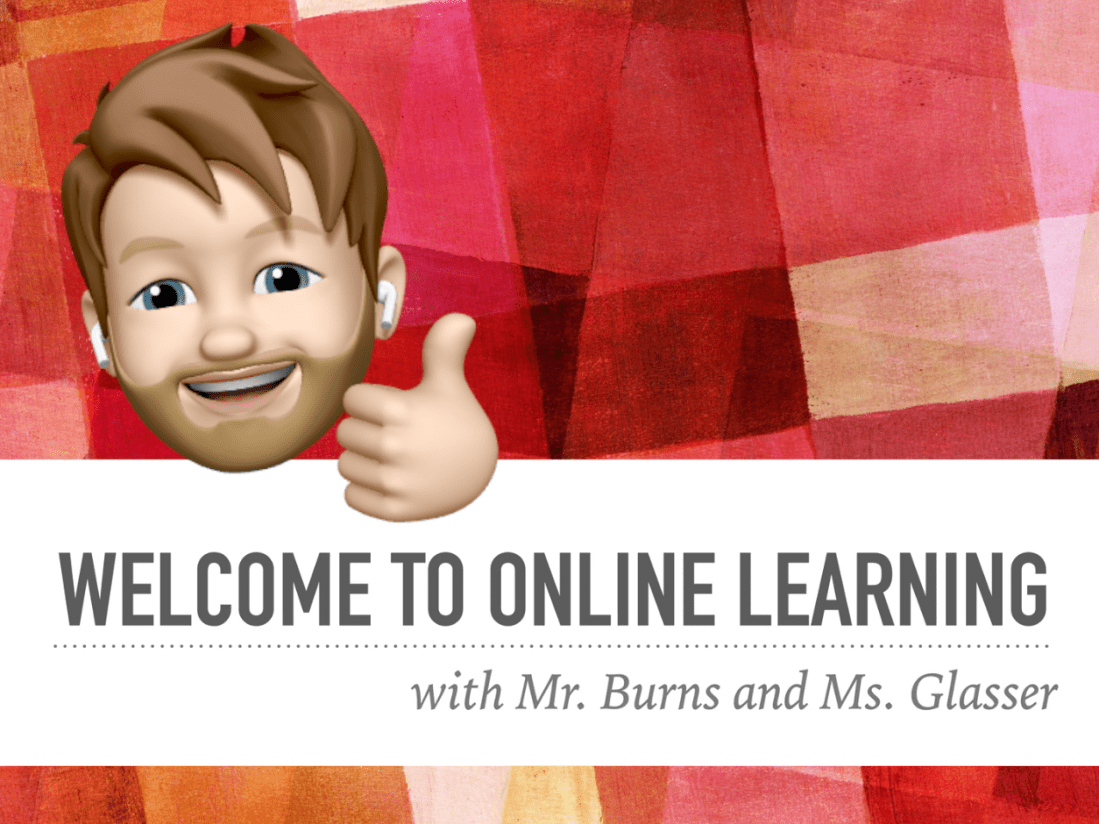
Teachers in my district were tasked with making a welcome video introducing students to the first week of distance learning.

After denying several times that I would put any serious effort into this project, I inevitably got carried away and spiraled down a rabbit hole of apps, workflows, and tricks. Musicians and teachers are feeling a special kind of hunger right now to be creative. I am thankful for software and internet connected tools that help me to communicate in a unique way.

First, enjoy the video below:

<div class="sqs-video-wrapper" data-provider-name="YouTube" data-html="
“>

The video was produced with the following software:

Apple Clips App

(Download here

Apple Clips App might be the only one of these apps you need. It is a free Apple app that is kind of like a cross between iMovie and Photo Booth. Its intended purpose is to make quick, engaging videos, designed to be shared in the age of Instagram Stories.

Clips is how I got my Memoji head to appear on my body. It will also automatically caption your video for you. It can bring in numerous effects, call outs, emoji, backdrops, and can even do still images of words. You could make a video that accomplishes the same general effects as mine in next to zero effort using only Clips. 

<div class="
      image-block-outer-wrapper
      layout-caption-below
      design-layout-inline
      combination-animation-none
      individual-animation-none
      individual-text-animation-none
    ">


    <figure class="
          sqs-block-image-figure
          intrinsic
        " style="max-width:1443px">


      <div class="image-block-wrapper">
        <div class="sqs-image-shape-container-element


          has-aspect-ratio
        " style="position: relative;padding-bottom:198.6833038330078%;overflow: hidden">


            <img src="https://images.squarespace-cdn.com/content/v1/5595df9ce4b0ce9ff9ecd1a8/1586639484809-3JS15B9QIDA1YU9LS68G/iVBORw0KGgoAAAANSUhEUgAABaMAAAszCAYAAACIWkB7AAABgmlDQ1BzUkdCIElFQzYxOTY2LTIu-2+5.PNG" alt="Clips allows you to integrate Animoji, Filters, Text, Stickers, and Emoji to your live video." width="1443" height="2867" style="display:block;object-fit: cover;width: 100%;height: 100%;object-position: 50% 50%" loading="lazy">

        </div>
      </div>


      <figcaption class="image-caption-wrapper">
        <div class="image-caption"><p class="">Clips allows you to integrate Animoji, Filters, Text, Stickers, and Emoji to your live video.</p></div>
      </figcaption>


    </figure>


</div>


<div class="
      image-block-outer-wrapper
      layout-caption-below
      design-layout-inline
      combination-animation-none
      individual-animation-none
      individual-text-animation-none
    ">


    <figure class="
          sqs-block-image-figure
          intrinsic
        " style="max-width:1443px">


      <div class="image-block-wrapper">
        <div class="sqs-image-shape-container-element


          has-aspect-ratio
        " style="position: relative;padding-bottom:198.6833038330078%;overflow: hidden">


            <img src="https://images.squarespace-cdn.com/content/v1/5595df9ce4b0ce9ff9ecd1a8/1586639517421-K3TKGRRLGTMHTJN8H973/iVBORw0KGgoAAAANSUhEUgAABaMAAAszCAYAAACIWkB7AAABgmlDQ1BzUkdCIElFQzYxOTY2LTIu-2+4.PNG" alt="Clips automatically adds captions in a style you like. You can edit them after the fact." width="1443" height="2867" style="display:block;object-fit: cover;width: 100%;height: 100%;object-position: 50% 50%" loading="lazy">

        </div>
      </div>


      <figcaption class="image-caption-wrapper">
        <div class="image-caption"><p class="">Clips automatically adds captions in a style you like. You can edit them after the fact.</p></div>
      </figcaption>


    </figure>


</div>


<div class="
      image-block-outer-wrapper
      layout-caption-below
      design-layout-inline
      combination-animation-none
      individual-animation-none
      individual-text-animation-none
    ">


    <figure class="
          sqs-block-image-figure
          intrinsic
        " style="max-width:1443px">


      <div class="image-block-wrapper">
        <div class="sqs-image-shape-container-element


          has-aspect-ratio
        " style="position: relative;padding-bottom:198.6833038330078%;overflow: hidden">


            <img src="https://images.squarespace-cdn.com/content/v1/5595df9ce4b0ce9ff9ecd1a8/1586639567505-19DDGEIFM7BPQGL7VF6K/iVBORw0KGgoAAAANSUhEUgAABaMAAAszCAYAAACIWkB7AAABgmlDQ1BzUkdCIElFQzYxOTY2LTIu-2+6.PNG" alt="You can record yourself speaking over static posters to communicate information in an engaging way." width="1443" height="2867" style="display:block;object-fit: cover;width: 100%;height: 100%;object-position: 50% 50%" loading="lazy">

        </div>
      </div>


      <figcaption class="image-caption-wrapper">
        <div class="image-caption"><p class="">You can record yourself speaking over static posters to communicate information in an engaging way.</p></div>
      </figcaption>


    </figure>


</div>

iMessage

iMessage is where I made my Memoji. It is also another place that you can get a Memoji head on top of your body (see screenshots below). I used this method for a few scenes in the video, instead of Clips, because it can shoot in landscape view. Clips produces square video only.

<div class="
      image-block-outer-wrapper
      layout-caption-below
      design-layout-inline
      combination-animation-none
      individual-animation-none
      individual-text-animation-none
    ">


    <figure class="
          sqs-block-image-figure
          intrinsic
        " style="max-width:1443px">


      <div class="image-block-wrapper">
        <div class="sqs-image-shape-container-element


          has-aspect-ratio
        " style="position: relative;padding-bottom:198.6833038330078%;overflow: hidden">


            <img src="https://images.squarespace-cdn.com/content/v1/5595df9ce4b0ce9ff9ecd1a8/1586639707502-8Y82ATQOI1TRRMHJFJYM/iVBORw0KGgoAAAANSUhEUgAABaMAAAszCAYAAACIWkB7AAABgmlDQ1BzUkdCIElFQzYxOTY2LTIu-2.PNG" alt="An alternate way to film yourself with a Memoji head is to open up a text message conversation to someone or yourself." width="1443" height="2867" style="display:block;object-fit: cover;width: 100%;height: 100%;object-position: 50% 50%" loading="lazy">

        </div>
      </div>


      <figcaption class="image-caption-wrapper">
        <div class="image-caption"><p class="">An alternate way to film yourself with a Memoji head is to open up a text message conversation to someone or yourself.</p></div>
      </figcaption>


    </figure>


</div>


<div class="
      image-block-outer-wrapper
      layout-caption-below
      design-layout-inline
      combination-animation-none
      individual-animation-none
      individual-text-animation-none
    ">


    <figure class="
          sqs-block-image-figure
          intrinsic
        " style="max-width:1443px">


      <div class="image-block-wrapper">
        <div class="sqs-image-shape-container-element


          has-aspect-ratio
        " style="position: relative;padding-bottom:198.6833038330078%;overflow: hidden">


            <img src="https://images.squarespace-cdn.com/content/v1/5595df9ce4b0ce9ff9ecd1a8/1586639773074-HJ6AGP8TJZP3HZY063KW/iVBORw0KGgoAAAANSUhEUgAABaMAAAszCAYAAACIWkB7AAABgmlDQ1BzUkdCIElFQzYxOTY2LTIu-2+2.PNG" alt="Select the camera icon right above the keyboard, and then tap the effect button in the lower left corner." width="1443" height="2867" style="display:block;object-fit: cover;width: 100%;height: 100%;object-position: 50% 50%" loading="lazy">

        </div>
      </div>


      <figcaption class="image-caption-wrapper">
        <div class="image-caption"><p class="">Select the camera icon right above the keyboard, and then tap the effect button in the lower left corner.</p></div>
      </figcaption>


    </figure>


</div>


<div class="
      image-block-outer-wrapper
      layout-caption-below
      design-layout-inline
      combination-animation-none
      individual-animation-none
      individual-text-animation-none
    ">


    <figure class="
          sqs-block-image-figure
          intrinsic
        " style="max-width:1443px">


      <div class="image-block-wrapper">
        <div class="sqs-image-shape-container-element


          has-aspect-ratio
        " style="position: relative;padding-bottom:198.6833038330078%;overflow: hidden">


            <img src="https://images.squarespace-cdn.com/content/v1/5595df9ce4b0ce9ff9ecd1a8/1586639815026-QYATBABHZ5OJ5MSWKYJK/iVBORw0KGgoAAAANSUhEUgAABaMAAAszCAYAAACIWkB7AAABgmlDQ1BzUkdCIElFQzYxOTY2LTIu-2+3.PNG" alt="Next, select the Animoji icon, and then select your own Memoji." width="1443" height="2867" style="display:block;object-fit: cover;width: 100%;height: 100%;object-position: 50% 50%" loading="lazy">

        </div>
      </div>


      <figcaption class="image-caption-wrapper">
        <div class="image-caption"><p class="">Next, select the Animoji icon, and then select your own Memoji.</p></div>
      </figcaption>


    </figure>


</div>

Final Cut Pro X

Final Cut is an industry standard video editor. It is currently free for 90 days. If you know iMovie and want to go deeper, this will be the easiest option for you. 

I used Final Cut to dump all of my audio, video, and photo assets, and to mix them all down into the final product. I didn’t use Final Cut to do anything iMovie can’t do except for the fancy moment where multiple videos show up on top of the main video at once (and it was very important to me that it do this).

<div class="
      image-block-outer-wrapper
      layout-caption-below
      design-layout-inline
      combination-animation-none
      individual-animation-none
      individual-text-animation-none
    ">


    <figure class="
          sqs-block-image-figure
          intrinsic
        " style="max-width:2500px">


      <div class="image-block-wrapper">
        <div class="sqs-image-shape-container-element


          has-aspect-ratio
        " style="position: relative;padding-bottom:61.119998931884766%;overflow: hidden">


            <img src="https://images.squarespace-cdn.com/content/v1/5595df9ce4b0ce9ff9ecd1a8/1586639944177-KQX5J3F6EZLJCSXUVV58/Screen+Shot+2020-04-11+at+4.55.30+PM.png" alt="Screen Shot 2020-04-11 at 4.55.30 PM.png" width="2500" height="1528" style="display:block;object-fit: cover;width: 100%;height: 100%;object-position: 50% 50%" loading="lazy">

        </div>
      </div>


    </figure>


</div>

ScreenFlow 

(Download here)

ScreenFlow is like the iMovie of making screencasts. It can do fancy video automations and call out things happening on the screen (like mouse clicks, taps, type our whatever your keyboard is doing, etc…)

ScreenFlow’s editing tools are almost as easy as iMovie and it is so powerful, I probably could have probably made the entire video in it. There is a free version if you don’t mind a watermark on the final product.

Keynote

Keynote is what I used to make the nice slides with information. I used ScreenFlow to record my screen as I tabbed through the presentation in time along to an audio recording of my voice over.

Logic Pro

Apple’s premiere audio editing software. Free for 90 days right now. If you have used GarageBand, the basics of Logic will feel familiar to you. I used it to record some of the voice overs in the video but it is frankly unnecessary. I just wanted to use my nicer microphone and it happened to be plugged into the Mac I already use to edit audio in Logic.

Downie

(Download here)

Downie is how I downloaded some video and audio assets from the web to my Mac’s hard drive. 

Permute

(Download here)

This is a beautiful and fuss-free Mac app that converts video and audio from one file format to another.

Prompt Lite for iPad

(Download here)

This free teleprompter allows you to write a script and have it appear in large text on your iPad’s screen. It automatically paces through the words as you read them.

Others

I also used OmniOutliner to outline the original ideas, BBEdit to write the script, and YouTube to publish, but those are largely unnecessary. 

If this seems overwhelming, I assure you that you could make close to the same result in just iMovie or Apple Clips with next to zero effort. I have been locked inside for weeks and wanted to learn some of the skills required to polish up a video in Final Cut. I hope you enjoyed it.