

I started time tracking around this time last year as a way to see how long I was spending on making virtual ensemble videos and other creative projects I was pursuing in my personal life.
Toggl is absolutely the tool for this job, and Timery is the best Toggl experience on iOS.
<div class="
      image-block-outer-wrapper
      layout-caption-below
      design-layout-inline
      combination-animation-none
      individual-animation-none
      individual-text-animation-none
    ">


    <figure class="
          sqs-block-image-figure
          intrinsic
        " style="max-width:648px">


      <div class="image-block-wrapper">
        <div class="sqs-image-shape-container-element


          has-aspect-ratio
        " style="position: relative;padding-bottom:61.88271713256836%;overflow: hidden">


            <img src="https://images.squarespace-cdn.com/content/v1/5595df9ce4b0ce9ff9ecd1a8/1622816443522-F8Z0FNSTZ6Y0AIOG1F1C/timery+social+no+blur.png" alt="Using Apple’s Catalyst technology, Timery for Mac is built off of the iPad experience, with tweaks that make it adhere to macOS standards." width="648" height="401" style="display:block;object-fit: cover;width: 100%;height: 100%;object-position: 50% 50%" loading="lazy">

        </div>
      </div>


      <figcaption class="image-caption-wrapper">
        <div class="image-caption"><p class="">Using Apple’s Catalyst technology, Timery for Mac is built off of the iPad experience, with tweaks that make it adhere to macOS standards.</p></div>
      </figcaption>


    </figure>


</div>
The hardest thing about time tracking is remembering to start and stop the timers. Because Timery has such a user-friendly design, it becomes way easier to trigger timers. Support for always-visible iOS widgets and support for Shortcuts make the experience even more frictionless.
The app is now available for the Mac using Apple’s Catalyst technology which I have recently taken about on my podcast (listen and subscribe below). forScore for the Mac is also made using this technology.
<div class="
      image-block-outer-wrapper
      layout-caption-below
      design-layout-inline
      combination-animation-none
      individual-animation-none
      individual-text-animation-none
    ">


    <figure class="
          sqs-block-image-figure
          intrinsic
        " style="max-width:1284px">


      <div class="image-block-wrapper">
        <div class="sqs-image-shape-container-element


          has-aspect-ratio
        " style="position: relative;padding-bottom:216.35513305664062%;overflow: hidden">


            <img src="https://images.squarespace-cdn.com/content/v1/5595df9ce4b0ce9ff9ecd1a8/1622816705050-C37BWI6ZQ1X03TAEPGYH/IMG_912FABD900BD-1.jpeg" alt="A TImery widget on iOS can be fixed to your Homescreen where you can see which timers are running and quickly launch the ones you need most." width="1284" height="2778" style="display:block;object-fit: cover;width: 100%;height: 100%;object-position: 50% 50%" loading="lazy">

        </div>
      </div>


      <figcaption class="image-caption-wrapper">
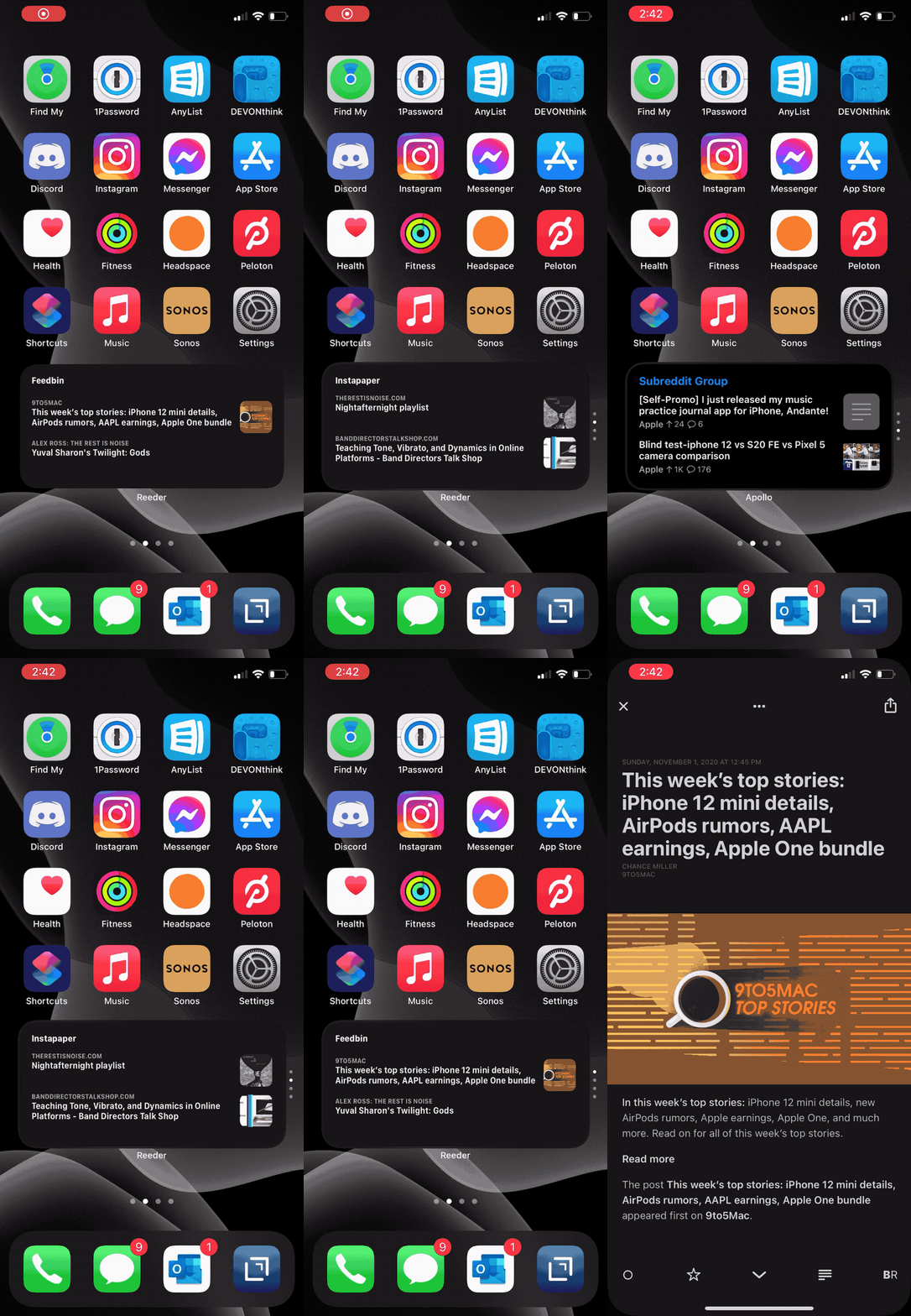
        <div class="image-caption"><p class="">A TImery widget on iOS can be fixed to your Homescreen where you can see which timers are running and quickly launch the ones you need most.</p></div>
      </figcaption>


    </figure>


</div>
I enjoy using the same apps for doing things across platforms. Timery is no exception. And because the Timery app takes advantage of macOS platform norms (like putting all of its commands in the menu bar), you can do cool things like automating it with Keyboard Maestro.
The only reason I might continue to stick with the standard Toggl app on Mac is because it does even more to take advantage of the system. For example, you can pin the window so it stays permanently visible on the screen no matter how many other windows you have open. It can also detect when your keyboard and mouse aren’t in use and offer to backdate the time you were idle (or working) based on your computer activity.
If you want to learn more, check our the MacStories review, linked below with a quote:
Timery Comes to the Mac and Makes Time Tracking With Toggl Easier Than Ever — MacStories:
I’d still like to see reports added to Timery in the future, but I’m glad the Mac was addressed first. Time tracking is the sort of activity that needs to exist everywhere to be most effective. I’ve spent the past couple of years using Toggl’s Mac app, which has improved dramatically in that time, but I’m glad that I can now learn one set of keyboard commands and use them across both the iPad and Mac. If the lack of a Mac version of Timery was holding you back, now is a perfect time to give the app a try.
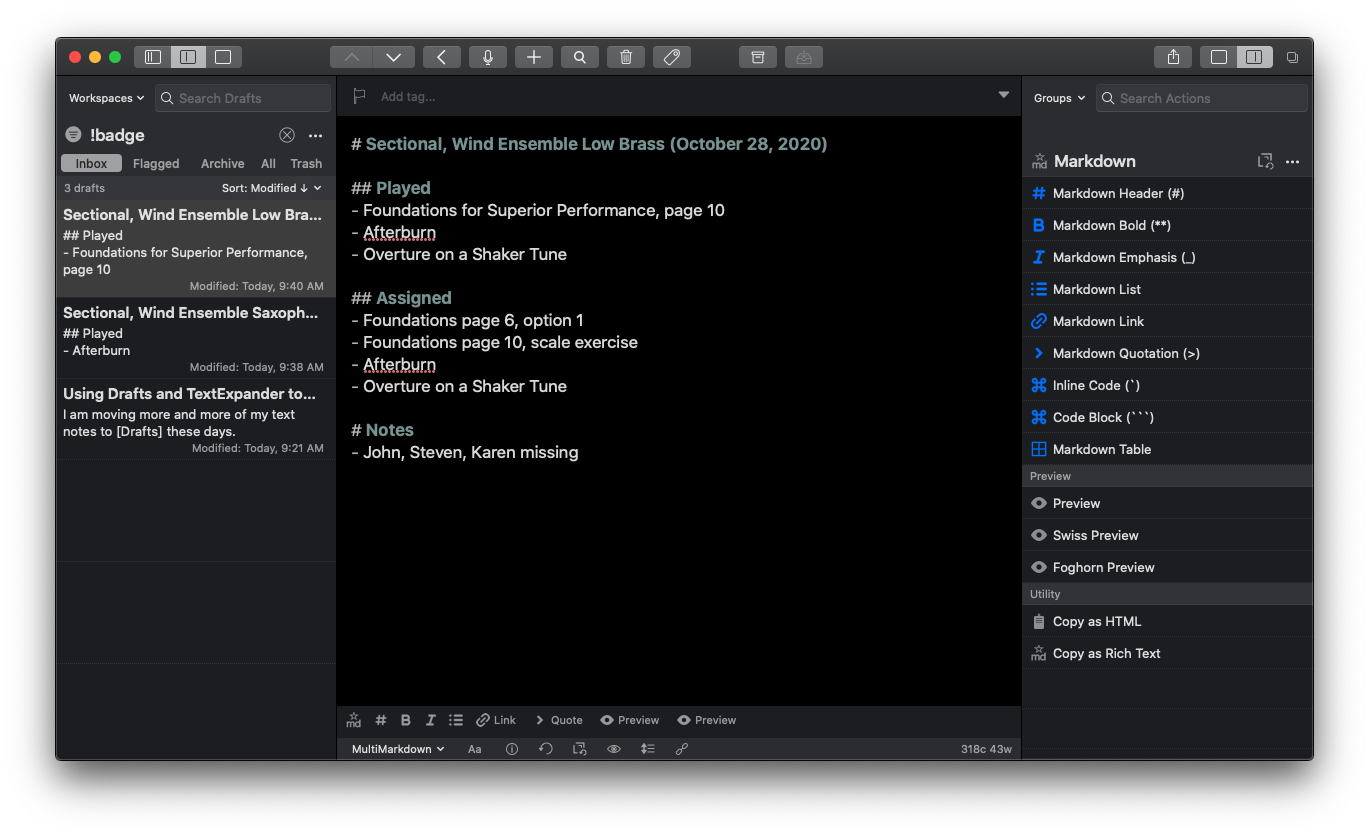
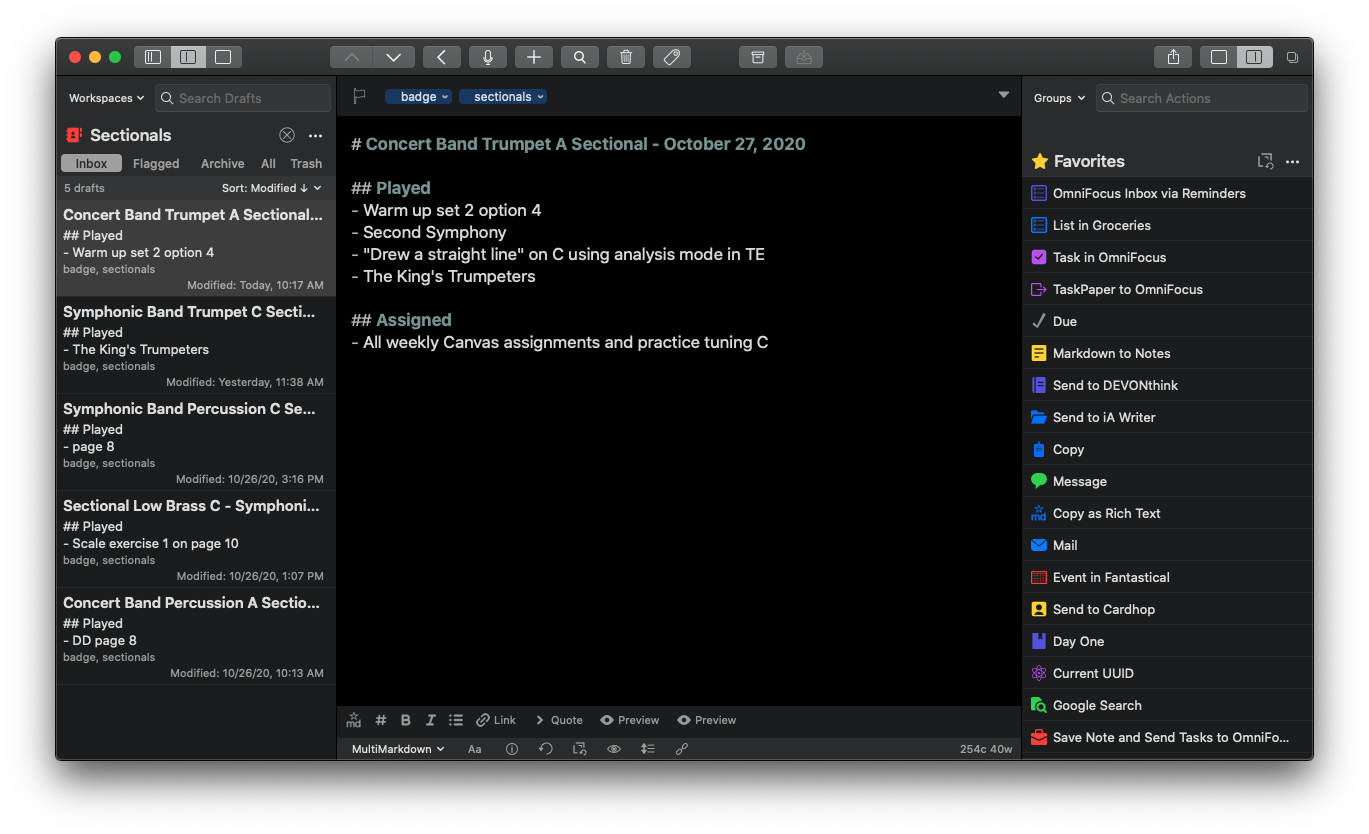
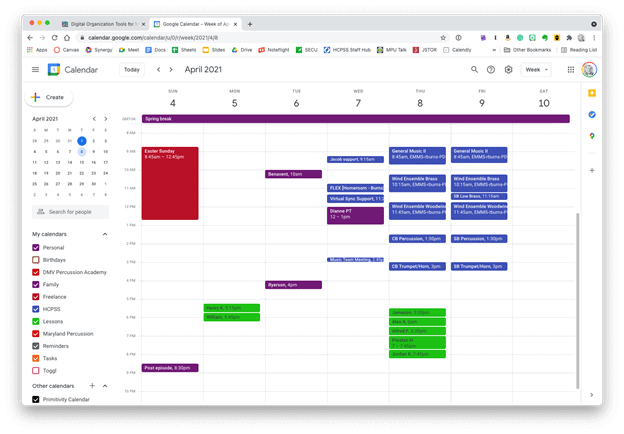 Google Calendar works perfectly fine for most needs. It is available to anyone for free on the web and has a functional mobile app on most smartphone platforms.
 Apple Calendar and Microsoft Outlook are two of the most widely used calendar apps on desktop and mobile operating systems. Either of them can handle calendars from Google, iCloud, or Exchange accounts and show them all alongside one another.
 Natural language input is not only fast, but you can set a keyboard shortcut on your computer to invoke a mini-calendar for quickly adding events.
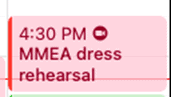 This event was shared with me and has a Zoom call URL associated with it. Fantastical automatically added the Zoom icon so that I can click on it to immediately enter the call.
 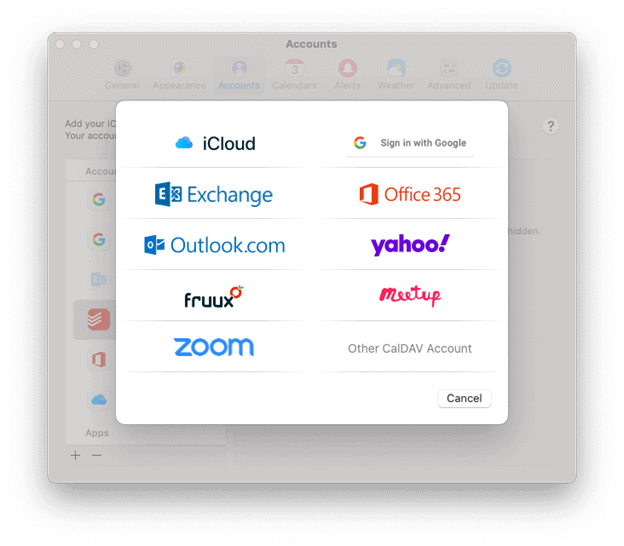 Fantastical integrates with all of these services.
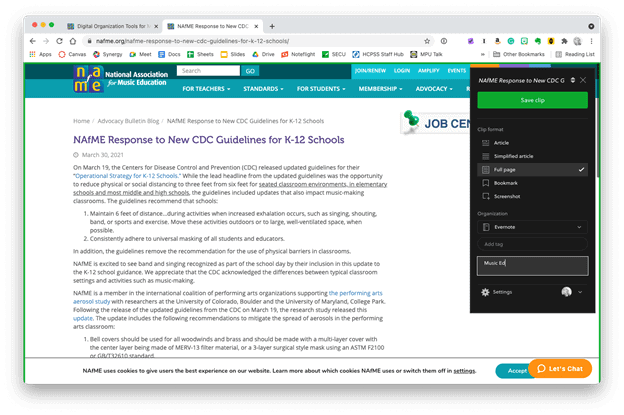 The Evernote web clipper can be installed as an extension or from the share-sheet on mobile devices. You can choose how it will save the content, and even categorize it with tags and a memo before clipping.
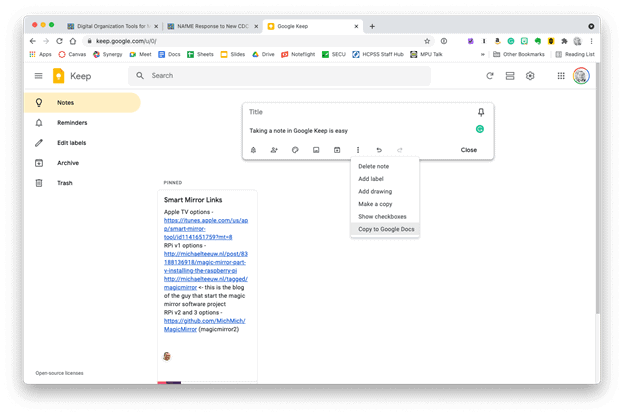 Google Keep is simple, but it provides plenty of features. Notes can be turned into reminders, Google Docs, or shared with others.




 Music Ed Tech Talk
You must be logged in to post a comment.