One of my favorite and most depended-on apps of the past decade has been Drafts.
Developer Greg Pierce (who you can hear on this podcast episode) recently celebrated the 10 year anniversary of Drafts. I strongly recommend you check it out, even if you just use the free version.
In preparation the anniversary, Greg asked me if I could write some words about my experiences with Drafts. He featured some of my words in this promotional post, but you can read all of them below…
I remember a long road trip with my wife back in the spring of 2011. It was my turn to drive, and I was listening to the Mac Power Users to help engage my mind and stay awake. The hosts mentioned an app called Drafts that could take my spontaneous thoughts, organize them, and powerfully act on them later.
I was intrigued! When my wife took the wheel, I downloaded it immediately and began poking around. Never before had the utility of an app become so quickly apparent to me.
Of the many professional domains I juggle, my job as a middle school band director alone requires me to manage a lot of responsibility. I have to be a master teacher, performer, arranger, composer, conductor, data clerk, fundraiser, field trip planner, and more. During class, I am often managing the needs of 60 or more students in a room at once while trying to be a professional at all of those other things. Being able to tap the Drafts icon on my dock and quickly enter any thought that enters into my mind has been nothing short of life-changing. I used to be overwhelmed by my responsibilities, but through organization systems, and particularly Drafts, I have been able to take away the friction between the thoughts that grab my attention and what gets permanently saved in a computer. Drafts turns my devices into a second brain, and my rampant thoughts fade out of sight, out of mind.
The ability to perform actions on text is crucial for determining where a draft goes. Is it a message? A calendar event? A note? Task? Most of my Drafts become notes or tasks, and actions to save them as such come free with the app! But on top of this, the ability to design my own automations has made it easier to get thoughts out of drafts and into other apps on my devices, allowing me to be better organized FASTER, and to therefore have more free time to focus on the part of my job that matters: making awesome music, and connecting with my amazing students.
I love Drafts so much that I recommend it to everyone I know. I mentioned it in my book Digital Organization Tips for Music Teachers, I have interviewed developer Greg on my podcast and even once bought it for all of my administrators at my school as a holiday gift. It is really worth a try, whoever you are. Drafts is simple enough to be a no-nonsense, minimalist, note-taking app for the masses while remaining customizable enough that nerds can build their own tool with it. As an educator, I appreciate experiences with low floors and high ceilings. And Drafts is exactly that.
Last weekend, I had the awesome pleasure of being a workflow guest on Learn OmniFocus, a website dedicated to teaching and training on the task management app OmniFocus, complementary apps, and the productive way of life.
The video, along with resources mentioned in my appearance can be viewed here. I recommend watching it here because there are chapters you can use to skip around to the various sections of the video by topic.
Alternatively you can watch the video on Facebook or on YouTube.
how single item action lists are useful in the middle school band teaching environment
how to stay on top of more tasks than are actually possible to do in the day through use of tags and perspectives that filter out information only relevant to a particular context
Using the Drafts app for quickly capturing my thoughts, processing my tasks, and acting upon them in powerful ways
using project templates for larger projects like field trips and musical performances so that tasks don’t slip through the cracks
using Siri Shortcuts to turn data into variables and make a blog post, shared document, and OmniFocus project for creating an episode of the Music Ed Tech Talk podcast
Using DEVONthink to connect documents to projects and tasks in OmniFocus and keep things I want to “check out later” off of my todo list
putting widgets with charts that show a view of my day in OmniFocus on the Home Screen of my iPhone
My thanks to Tim Stringer for his invitation and for his inspiring work with Learn OmniFocus and for inviting me to join!
Learn OmniFocus is a great website, resource, and community dedicated to empowering people to be more mindful and productive. The app OmniFocus is at the center of it but there is so much more to it than that, including productivity basics, apps, and services that compliment one another. Be sure to check it out here and become a member here. There are educator discounts!
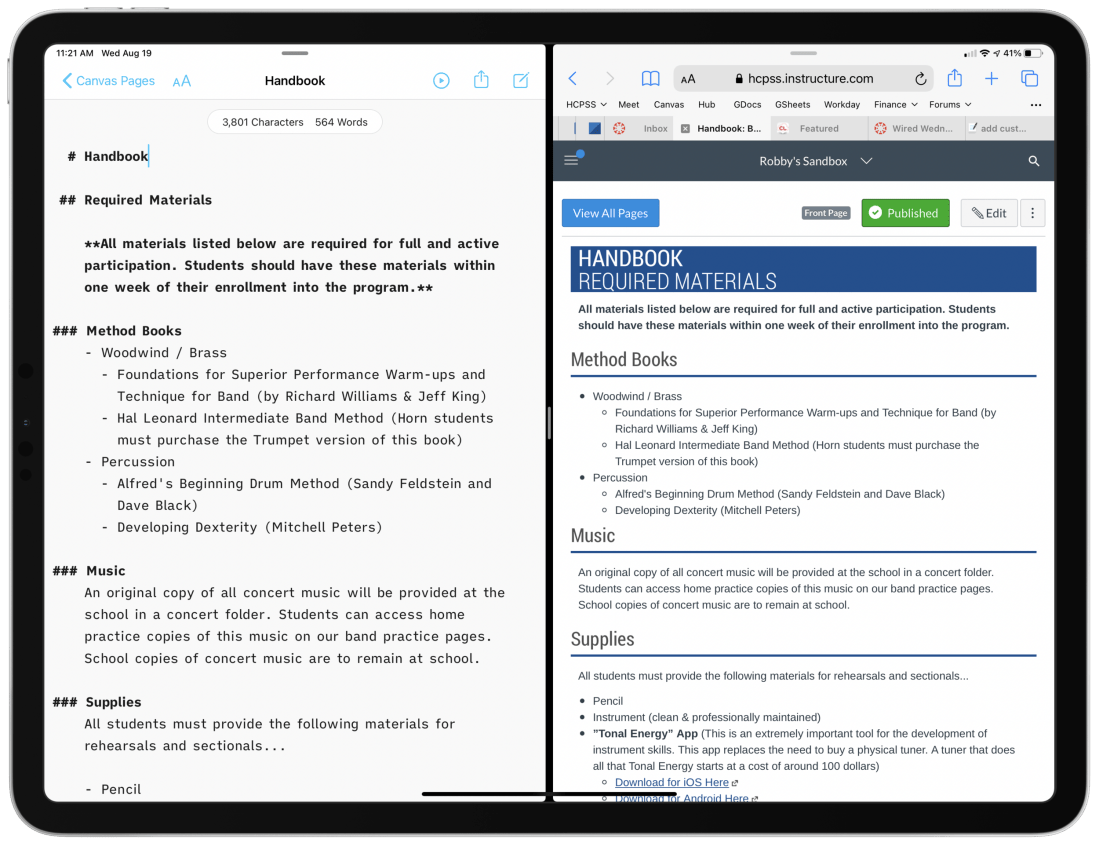
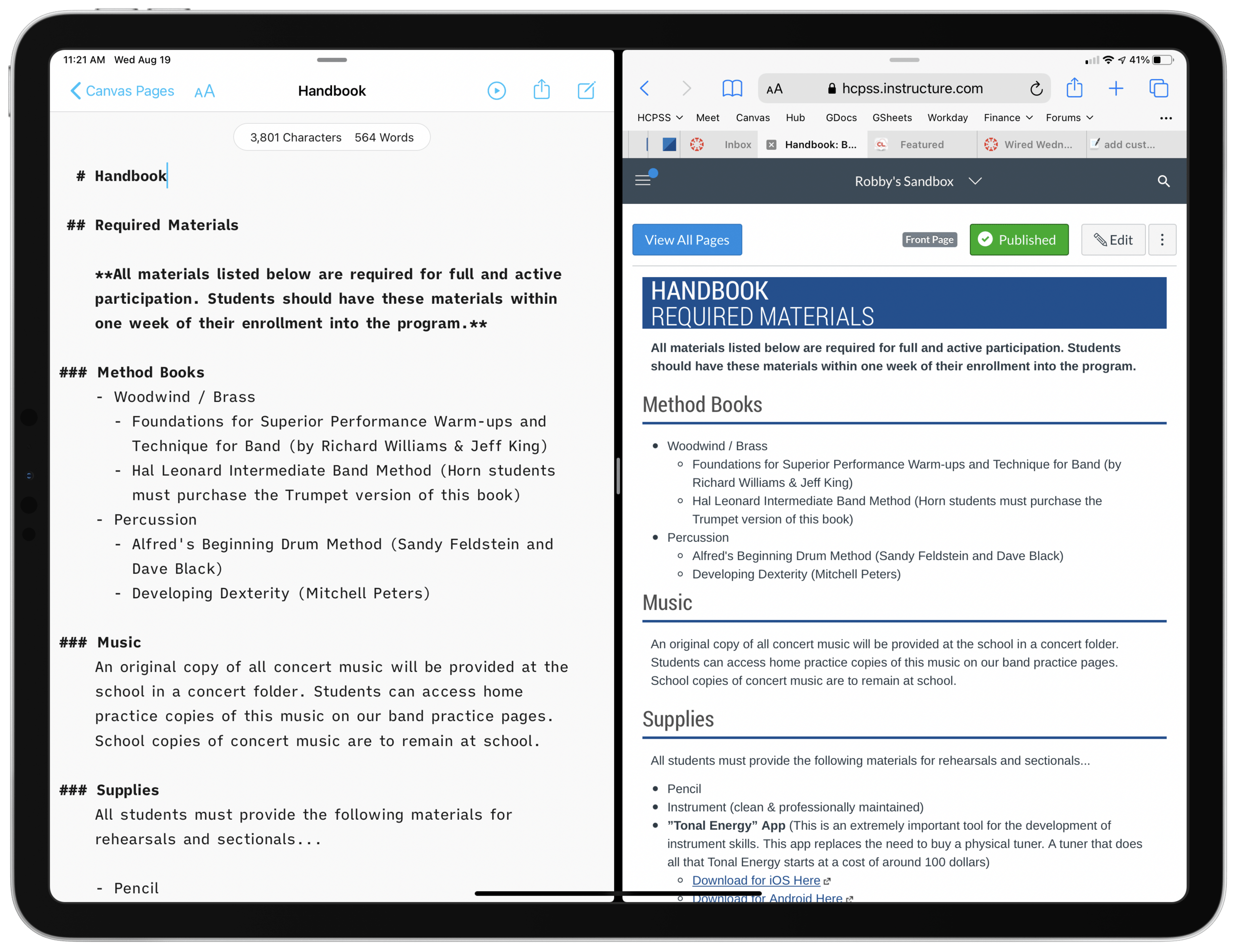
Left:A draft of a Canvas page, written in a text file on my computer. I used the Markdown syntax for headings, lists, and links. Right: What the Canvas page looks like once the text on the left is imported into the course page as HTML.
My district’s LMS of choice is Canvas, which is pretty stressful to work with. From most accounts I hear about other LMS software, Canvas is far from the worst. “You go to war with the LMS you have” I once heard.
Lately, I am writing my Canvas content in Markdown and storing it as text files on my computer.
Why?
Canvas is littered with user-hostile behaviors. Each class is a separate container. All files, pages, and assignments are quarantined, requiring multi-step procedures for sharing between courses. On top of this, the organizing tools are a mess. I am never 100 percent sure where to go. Even when I do, I have to wait for the internet to load each new thing I click on.
<div class="
      image-block-outer-wrapper
      layout-caption-below
      design-layout-inline
      combination-animation-none
      individual-animation-none
      individual-text-animation-none
    ">


    <figure class="
          sqs-block-image-figure
          intrinsic
        " style="max-width:2500px">


      <div class="image-block-wrapper">
        <div class="sqs-image-shape-container-element


          has-aspect-ratio
        " style="position: relative;padding-bottom:61.119998931884766%;overflow: hidden">


            <img src="https://images.squarespace-cdn.com/content/v1/5595df9ce4b0ce9ff9ecd1a8/1597866028922-HBRQ0FDXB4AE8F1L2EUI/CleanShot+2020-08-19+at+15.38.50%402x.png" alt="Instead of one file repository that all courses pull from, each class has its own separate Files area." width="2500" height="1528" style="display:block;object-fit: cover;width: 100%;height: 100%;object-position: 50% 50%" loading="lazy">

        </div>
      </div>


      <figcaption class="image-caption-wrapper">
        <div class="image-caption"><p class="">Instead of one file repository that all courses pull from, each class has its own separate Files area.</p></div>
      </figcaption>


    </figure>


</div>
Canvas is equally difficult for students. All of the course pages and content are just sort of floating in space. It’s up to the teacher to link the material together meaningful, but the tools to do so are inelegant and unintuitive. My music program has resorted to a website for communicating most general information since it exposes the hierarchy of its structure to our viewers. In other words, we control where every page lives, and our students can get to any part of our site from the navigation bar at the top of the page.
The WYSIWYG web editors you see within most Canvas pages, assignments, and announcements are equally frustrating. They are clunky, the text field is tiny, the buttons for all the tools are ambiguous, and I lose my data if the page refreshes itself or I lose connection. Additionally, it’s hard to anticipate what my formatting will look like before actually clicking the save button.
Lately, I am writing my Canvas content in Markdown and storing it as text files on my computer. By editing in Markdown, I can create content in third-party apps, work with data offline, control where files are organized, search them from the Spotlight, and quickly export as HTML for input into the Canvas HTML editor when I am ready to publish.
Using Mac and iOS Native Apps
I like native applications because the good ones feel designed to look like the computing platform. For example, the forScore app on iOS uses similar navigation buttons and fonts to Apple’s own Mail, Keynote, Pages, and Notes. This way, I don’t feel like I am learning new software.
Native apps that deal with documents store files on my hard drive. I can easily organize them into my own folder system, work on them without an internet connection, open the same file in different applications, and search them from the Spotlight. Document-based apps update your file as you edit your data. Websites often lose your data when they run into issues.
I don’t write anything longer than a sentence or two into the text field of a website. Instead, I draft them inDrafts and move my work to iAWriter for longer projects. Both of these apps can preview Markdown.
What is Markdown?
Markdown is a shorthand syntax for HTML. It empowers me to draft web content without actually writing code. Skim this Markdown syntax guide to see what I mean. You can learn the basics in five minutes.
Drafts and iA Writer have one-button shortcuts to convert Markdown to formatted text or HTML. Here is an example of Markdown, and what it would look like once converted to rich text or HTML.
# Blog Post Title
Here are *three things* I want to do today.
1. Work out
2. Sit in the hot tub
3. Grill some chicken

Let me tell you more about them.

## Work out
Today I will work out on my bike. My wife once said, and I quote:
> The earlier in the day you aim to do it, the more likely it is to happen.

## Sit in the hot tub
This will be relaxing. Maybe I will listen to a podcast there. Here are some recent favorites...
- Sound Expertise
- Sticky Notes
- Upgrade

My favorite podcast player is [Overcast](https://overcast.fm).
Once an app like Drafts or iA Writer converts the Markdown to rich text, it would look like this:
<div class="
      image-block-outer-wrapper
      layout-caption-below
      design-layout-inline
      combination-animation-none
      individual-animation-none
      individual-text-animation-none
    ">


    <figure class="
          sqs-block-image-figure
          intrinsic
        " style="max-width:1536px">


      <div class="image-block-wrapper">
        <div class="sqs-image-shape-container-element


          has-aspect-ratio
        " style="position: relative;padding-bottom:119.140625%;overflow: hidden">


            <img src="https://images.squarespace-cdn.com/content/v1/5595df9ce4b0ce9ff9ecd1a8/1597864448247-LZ511PWF8U5IKLA96WGX/CleanShot+2020-08-19+at+14.44.57%402x.png" alt="A good Markdown app like iA Writer will convert the syntax to rich text for you and copy it so that you can paste it into an application like Google Docs, Microsoft Word, or your website." width="1536" height="1830" style="display:block;object-fit: cover;width: 100%;height: 100%;object-position: 50% 50%" loading="lazy">

        </div>
      </div>


      <figcaption class="image-caption-wrapper">
        <div class="image-caption"><p class="">A good Markdown app like iA Writer will convert the syntax to rich text for you and copy it so that you can paste it into an application like Google Docs, Microsoft Word, or your website.</p></div>
      </figcaption>


    </figure>


</div>
I could have just as easily exported the resulting rich text to a Word document or Google Doc and all of the formatting would have been properly executed.
iAWriter can also export my Markdown as HTML like this:
<h1>Blog Post Title</h1>

<p>Here are <em>three things</em> I want to do today.</p>

<ol>
<li>Work out</li>
<li>Sit in the hot tub</li>
<li>Grill some chicken</li>
</ol>

<p>Let me tell you more about them.</p>

<h2>Work out</h2>

<p>Today I will workout on my bike. My wife once said, and I quote:</p>

<blockquote>
<p>The earlier in the day you aim to do it, the more likely it is to happen.</p>
</blockquote>

<h2>Sit in the hot tub</h2>

<p>This will be relaxing. Maybe I will listen to a podcast there. Here are some recent favorites...</p>

<ul>
<li>Sound Expertise</li>
<li>Sticky Notes</li>
<li>Upgrade</li>
</ul>

<p>My favorite podcast player is <a href="https://overcast.fm">Overcast</a>.</p>
Because Markdown can be converted to HTML automatically, I have found it less stressful to actually write my Canvas pages, announcements, and messages to parents in Markdown and then pasting the resulting HTML into the HTML editor of Canvas. I store my Markdown files in a folder of text files, with subfolders for each course. I have favorited these folders so that they are always accessible in the iA Writer sidebar. These folders are easily accessible. Because I am writing in plaintext, the result feels much more like writing in a simple note app than it does a word processor.
<div class="
      image-block-outer-wrapper
      layout-caption-below
      design-layout-inline
      combination-animation-none
      individual-animation-none
      individual-text-animation-none
    ">


    <figure class="
          sqs-block-image-figure
          intrinsic
        " style="max-width:2372px">


      <div class="image-block-wrapper">
        <div class="sqs-image-shape-container-element


          has-aspect-ratio
        " style="position: relative;padding-bottom:78.33052062988281%;overflow: hidden">


            <img src="https://images.squarespace-cdn.com/content/v1/5595df9ce4b0ce9ff9ecd1a8/1597864486248-5J9W1DWCB7H44XERKZW5/CleanShot+2020-08-19+at+14.45.57%402x.png" alt="iA Writer links to folders of text files on your hard drive. But it looks like a simple note app." width="2372" height="1858" style="display:block;object-fit: cover;width: 100%;height: 100%;object-position: 50% 50%" loading="lazy">

        </div>
      </div>


      <figcaption class="image-caption-wrapper">
        <div class="image-caption"><p class="">iA Writer links to folders of text files on your hard drive. But it looks like a simple note app.</p></div>
      </figcaption>


    </figure>


</div>
Here is an example of a Canvas announcement intended to be shared with one of my band classes early this fall. It contains an embedded Google Form families sign as an agreement to our policies. Markdown and HTML can be written in the same document and iA Writer treats it all as HTML when you export it.
I got the HTML embed straight from the Share menu of the Google Form setup. I didn’t need to know any code to make this message!
<div class="
      image-block-outer-wrapper
      layout-caption-below
      design-layout-inline
      combination-animation-none
      individual-animation-none
      individual-text-animation-none
    ">


    <figure class="
          sqs-block-image-figure
          intrinsic
        " style="max-width:2500px">


      <div class="image-block-wrapper">
        <div class="sqs-image-shape-container-element


          has-aspect-ratio
        " style="position: relative;padding-bottom:62.519996643066406%;overflow: hidden">


            <img src="https://images.squarespace-cdn.com/content/v1/5595df9ce4b0ce9ff9ecd1a8/1597866399217-9I7XOHMYA9C68EXRFUBS/CleanShot+2020-08-19+at+15.46.06%402x.png" alt="On the left: a Markdown document that contains HTML code for a Google Form embed. On the right: pasting that as HTML into the HTML editor in Canvas." width="2500" height="1563" style="display:block;object-fit: cover;width: 100%;height: 100%;object-position: 50% 50%" loading="lazy">

        </div>
      </div>


      <figcaption class="image-caption-wrapper">
        <div class="image-caption"><p class="">On the left: a Markdown document that contains HTML code for a Google Form embed. On the right: pasting that as HTML into the HTML editor in Canvas.</p></div>
      </figcaption>


    </figure>


</div>


<div class="
      image-block-outer-wrapper
      layout-caption-below
      design-layout-inline
      combination-animation-none
      individual-animation-none
      individual-text-animation-none
    ">


    <figure class="
          sqs-block-image-figure
          intrinsic
        " style="max-width:2500px">


      <div class="image-block-wrapper">
        <div class="sqs-image-shape-container-element


          has-aspect-ratio
        " style="position: relative;padding-bottom:76.95999908447266%;overflow: hidden">


            <img src="https://images.squarespace-cdn.com/content/v1/5595df9ce4b0ce9ff9ecd1a8/1597864190944-J0QAE339L9AL7Q519LPF/iVBORw0KGgoAAAANSUhEUgAAC50AAAjwCAYAAAAKgq9xAAAACXBIWXMAAAsTAAALEwEAmpwYAAAM+3.png" alt="How the resulting announcement appears to students." width="2500" height="1924" style="display:block;object-fit: cover;width: 100%;height: 100%;object-position: 50% 50%" loading="lazy">

        </div>
      </div>


      <figcaption class="image-caption-wrapper">
        <div class="image-caption"><p class="">How the resulting announcement appears to students.</p></div>
      </figcaption>


    </figure>


</div>
EDIT: When I wrote this post, I fogtot to add one benefit to having all of these files on your computer… even though Canvas messages don’t support formatting like headings and bold, I draft those in iAWriter too. It is SO much easier to find and re-use old emails I have sent to parents when they are searchable from my computer. Have you ever tried to search your Canvas ‘Sent’ folder? It’s terrible! Local computer copies for the win!
I am all set up with my new 12.9 inch iPad Pro. Here are my gut thoughts on the process of purchasing the device and the first few hours of use.
I ordered the 11 inch device on day one and then immediately regretted it once I heard reports of the 12.9’s lightness. This mixed in with the fact that the 11 inch still runs apps in a different size class than the 12.9. For example, when you run Mail and Notes side by side, it is possible to see the list of notes/messages and the contents of the note/message on screen at once in the 12.9 model.
I went in to the Apple Store today with the idea in mind that I would test both out, most likely buy a 12.9, and then return the 11.
Things I tested in the store:
-Holding each device in hand with and without Keyboard Folio attached.
-Running two productivity apps side by side in 50/50 split view on both devices to see how much content was visible.
-Typing an email on each keyboard.
-Looking at sheet music on one half of the screen while taking handwritten notes on the other. (In landscape and in portrait)
-Fitting each device in and out of my back pack.
-Taking handwritten notes in Apple Notes while holding the device in the other hand.
Making the decision
It was a hard decision. I really miss watching movies and reading books on the couch with my current 12.9. It’s too big. It is also too heavy for me to hold in one hand at length. Still, I purchased it. Because I don’t want to miss out on any software features now, or down the road. The fact that you can put 15 apps on the dock of the 12.9 and that you can run apps with more features in split view was enough to sell me on it. Apple could add those features to the 11 inch later through software. But Apple could also add new features to just the 12.9. Another tie breaker was the keyboard. I just can’t type on the 11 inch keyboard as comfortably. I don’t think I will regret this. An honest look at my iPad use over the past year reveals hours and hours a day reading sheet music from far away while viewing a seating chart on the other half of the screen. Can I just have two iPads? The thought crossed my mind and then I realized how needlessly complex that could be. My wallet rejoiced.
First thoughts
The inductive charging pencil that snaps to the device is brilliant. It is going to make the pencil feel so much more delightful to use.
Pencil only attaches to the top while in landscape. Bummer.
It will take some time to retrain myself to swipe up to go to home screen and double tap the pencil to change tools. These are superior methods, but habit is habit.
Using the pencil with Apple Notes is a dream. Combine the higher refresh rate (my first time experiencing this since I own the first gen iPad Pro) with the feel of the new pencil, along with the responsiveness of “tap to wake,” and you get as close to paper as I can imagine. Tapping the pencil tip to the sleeping iPad screen instantly gets you handwriting in the Notes app. This feature has existed before, but it is so smooth now, that… you really just have to try it to believe it. It’s so good that I am already thinking about how to work Apple Notes back into my note workflow (I can’t ever seem to avoid using less than three or four note apps at once). I was so compelled by this idea that I sketched out some workflow ideas in Apple Notes with the new pencil. I have to conceive of note apps with a healthy dose of metaphor.
12.9 is lighter but still too heavy to hold in one hand with ease. It actually feels grippier to me when the case is on. Less like I am going to drop it.
New Keyboard Folio is way easier to unfold but harder to detach from the iPad.
Apps that aren’t optimized for the screen are currently letterboxed. I don’t mind it as much as I thought I would.
This device is going to feel so much better to use all around, but as many members of the tech press have stated, it is still powered by a limited OS. iOS hasn’t seen features to differentiate the iPad since iOS 11. Rumor has it that iOS 13 is going to bring a lot more iPad productivity. Until the other shoe drops, I wait in eager anticipation for what this iPad could become.
Features I would need from iOS to allow me to use my iPad for 99 percent of my work (that are within Apple’s control)
-Trackpad and mouse support
-Open two instances of the same app side by side
-Faster animation when I press Command+Tab
-Desktop-ier Safari
-Improvements to the Files app (I need more control in iCloud Drive over which documents are stored in the cloud vs. local to the device. Third party providers like Google Drive do not show up in the search results when I search in Files app or in Spotlight.)
-Default apps. Not just for stuff like Mail and Maps. I need to be able to specify which app a document opens in when I tap it in the Files app.
-Ability to manage my iTunes Library.
-Logic Pro (they have to be working on this, right?)
-Bonus point: Ability to have more than one audio in or out running at the same time.
-Bonus point: some sort of rethink to the home screen. I would love to be able to launch a file or a folder from there. A widget with recent notes wouldn’t suck either.
-Bonus point: three apps 33/33/33 percent at the same time.
-Extreme bonus point: keyboard intent to allow TextExpander to work.
-Extreme bonus point: extension for apps to put a window in the middle of the screen that allows for viewing or editing content. Example: a quick note function, or the ability to add a task to OmniFocus.
I think about half of the things I did not label as Bonus could happen in the next year. I would be disappointed if they don’t, but fortunately, I bought the new iPad for what it is, not what it will be. And what it is is an extremely powerful iPad that is 100 percent more delightful to use in every respect. I can’t wait to test this thing out in the classroom tomorrow.
This week on The Class Nerd, Craig and I pick apart our favorite iOS productivity app, Drafts.
I always explain Drafts as the app that most diminishes the cognitive load of my music teaching job and beyond. Gone are the days of writing down notes, todos, and other reminders on whatever scrap piece of paper is nearest to me only to forget everything when its most important. Drafts is the fastest way I know to take down an idea. I don’t even have to think about what kind of idea it is because Drafts offers a rich list of actions that can send the text to other apps.
This episode might be out most technical yet, but don’t let that scare you off. Drafts is one of those apps that is as complicated as you want it to be. You can get a ton of productivity out of it with very little learning curve.
My ability to handle the cognitive load of teaching middle school band is largely supported by a wonderful app called Drafts, made by Agile Tortoise. I will detail a little bit about how I use this app below, but I want to first say that the developer of Drafts, Greg Pierce, very generously chatted with me about it on my podcast recently. Greg also has a background in guitar, ethnomusicology, and folk studies. He has an interesting journey towards app development, which we also talked about on the show. Listen to the episode here.
So what is Drafts? Drafts is the starting point for all text on my iPhone and iPad. It sits on the dock, right under my thumb, and I press it every time I have any kind of thought that I don’t want to slip away. Drafts opens to a blank white screen and a keyboard so you can instantly start typing. Adding a new Draft is as simple as tapping the plus button. You don’t need to worry about what kinds of thoughts these are, or what kinds of apps you should be capturing them in. They can be todos, messages, emails, future blog posts, anything. Picture me at the front of the classroom before band rehearsal. 70 students pouring into the room. Instruments blaring loud. Countless questions being thrown at me at once. Chaos all around. From the podium, I leave Drafts open alongside my sheet music and type anything that comes to mind. If a student tells me they don’t have a 2nd trombone part to Air and Dance, I write a note in Drafts. If a flute is broken, I start an email to the repair shop requesting for them to come pick it up. If I want to take general notes on our rehearsal progress, I start typing that in another draft. Even if I remember I need eggs at the grocery store later, I type that too!
<div class="
      image-block-outer-wrapper
      layout-caption-below
      design-layout-inline
      combination-animation-none
      individual-animation-none
      individual-text-animation-none
    ">


    <figure class="
          sqs-block-image-figure
          intrinsic
        " style="max-width:1250px">


      <div class="image-block-wrapper">
        <div class="sqs-image-shape-container-element


          has-aspect-ratio
        " style="position: relative;padding-bottom:72.15999603271484%;overflow: hidden">


            <img src="https://images.squarespace-cdn.com/content/v1/5595df9ce4b0ce9ff9ecd1a8/1525837057559-LF4X9EEU6GA7GD9NSJMZ/PNG+image+2.png" alt="A beautiful, distraction free, user interface, as soon as you launch Drafts." width="1250" height="902" style="display:block;object-fit: cover;width: 100%;height: 100%;object-position: 50% 50%" loading="lazy">

        </div>
      </div>


      <figcaption class="image-caption-wrapper">
        <div class="image-caption"><p class="">A beautiful, distraction free, user interface, as soon as you launch Drafts.</p></div>
      </figcaption>


    </figure>


</div>


<div class="
      image-block-outer-wrapper
      layout-caption-below
      design-layout-inline
      combination-animation-none
      individual-animation-none
      individual-text-animation-none
    ">


    <figure class="
          sqs-block-image-figure
          intrinsic
        " style="max-width:1250px">


      <div class="image-block-wrapper">
        <div class="sqs-image-shape-container-element


          has-aspect-ratio
        " style="position: relative;padding-bottom:72.15999603271484%;overflow: hidden">


            <img src="https://images.squarespace-cdn.com/content/v1/5595df9ce4b0ce9ff9ecd1a8/1525837079584-J6QMEMBAKLMRU6U4FRMA/PNG+image+13.png" alt="Drafts pairs perfectly with the sheet music app forScore in split view mode." width="1250" height="902" style="display:block;object-fit: cover;width: 100%;height: 100%;object-position: 50% 50%" loading="lazy">

        </div>
      </div>


      <figcaption class="image-caption-wrapper">
        <div class="image-caption"><p class="">Drafts pairs perfectly with the sheet music app forScore in split view mode.</p></div>
      </figcaption>


    </figure>


</div>
All of this stuff is categorized in the inbox where I can easily access it by swiping to the right. Here I can view any current or past archived draft, flag important ones, or send them to the trash. Once I am ready to process it all, I swipe left to reveal actions. Actions can do many things. At the most simple level, they send text to other apps like messages, email, a todo app, or Twitter. But actions can be heavily customized. They can perform multiple steps on text, and even run JavaScript on them. In the example below, you can see that I have a variety of drafts. Meeting notes, a few tasks, a start to a grocery list, a text to my wife, and the beginning of an email. To process these I would use the following actions, respectively: Send the meeting notes to the Apple Notes app, the tasks go to OmniFocus (where I manage all of my todos), the groceries go into my Reminders app grocery list, the text to my wife goes to Messages, and the email goes to Mail. Many of these actions happen in the background, meaning that I don’t leave Drafts, and can therefore process them really quickly. You don’t need to be a fancy pants to get awesome actions into Drafts, by the way. Some of my most frequently used actions are built into the app. There is also an Action Directory where you can steal the wonderful actions that others have already made.
<div class="
      image-block-outer-wrapper
      layout-caption-below
      design-layout-inline
      combination-animation-none
      individual-animation-none
      individual-text-animation-none
    ">


    <figure class="
          sqs-block-image-figure
          intrinsic
        " style="max-width:1250px">


      <div class="image-block-wrapper">
        <div class="sqs-image-shape-container-element


          has-aspect-ratio
        " style="position: relative;padding-bottom:72.15999603271484%;overflow: hidden">


            <img src="https://images.squarespace-cdn.com/content/v1/5595df9ce4b0ce9ff9ecd1a8/1525837106654-9MW2EQ6VN7EGWAL2YI0A/PNG+image+11.png" alt="Swiping right reveals all unprocessed drafts." width="1250" height="902" style="display:block;object-fit: cover;width: 100%;height: 100%;object-position: 50% 50%" loading="lazy">

        </div>
      </div>


      <figcaption class="image-caption-wrapper">
        <div class="image-caption"><p class="">Swiping right reveals all unprocessed drafts.</p></div>
      </figcaption>


    </figure>


</div>


<div class="
      image-block-outer-wrapper
      layout-caption-below
      design-layout-inline
      combination-animation-none
      individual-animation-none
      individual-text-animation-none
    ">


    <figure class="
          sqs-block-image-figure
          intrinsic
        " style="max-width:1250px">


      <div class="image-block-wrapper">
        <div class="sqs-image-shape-container-element


          has-aspect-ratio
        " style="position: relative;padding-bottom:72.15999603271484%;overflow: hidden">


            <img src="https://images.squarespace-cdn.com/content/v1/5595df9ce4b0ce9ff9ecd1a8/1525837128748-E21J4QI4WOCT5ARX0UT0/PNG+image+10.png" alt="Swiping left reveals all of the various actions you can perform on drafts." width="1250" height="902" style="display:block;object-fit: cover;width: 100%;height: 100%;object-position: 50% 50%" loading="lazy">

        </div>
      </div>


      <figcaption class="image-caption-wrapper">
        <div class="image-caption"><p class="">Swiping left reveals all of the various actions you can perform on drafts.</p></div>
      </figcaption>


    </figure>


</div>
Drafts 5, the newest version, was released recently. The app is free which means there is absolutely no excuse not to give it a try. Some of the power features like creating your own actions and using automation require a subscription price of $1.99 a month or $19.99 a year.
<div class="
image-block-outer-wrapper
layout-caption-below
design-layout-inline
combination-animation-none
individual-animation-none
individual-text-animation-none
">
<figure class="
sqs-block-image-figure
intrinsic
" style="max-width:1250px">
<div class="image-block-wrapper">
<div class="sqs-image-shape-container-element
has-aspect-ratio
" style="position: relative;padding-bottom:72.15999603271484%;overflow: hidden">
<img src="https://images.squarespace-cdn.com/content/v1/5595df9ce4b0ce9ff9ecd1a8/1525837161369-191EQM6PE79LJCCIPJHT/PNG+image+3.png" alt="This is the Edit Action screen. Actions are highly customizable. This particular action a) saves meeting notes to Evernote, b) saves tasks begining with "@" to my OmniFocus task app, and c) emails the notes to others in attendance." width="1250" height="902" style="display:block;object-fit: cover;width: 100%;height: 100%;object-position: 50% 50%" loading="lazy">
</div>
</div>
<figcaption class="image-caption-wrapper">
<div class="image-caption"><p class="">This is the Edit Action screen. Actions are highly customizable. This particular action a) saves meeting notes to Evernote, b) saves tasks begining with "@" to my OmniFocus task app, and c) emails the notes to others in attendance.</p></div>
</figcaption>
</figure>
</div>
I have always treated Drafts as a starting point for text. Interestingly, the new version has added some features that encourage using it as a note app replacement. You can now tag notes, create lists with checkable boxes, and even create custom workspaces that you organize your text into (paid feature). I am not sure if using Drafts this way is for me, but here are some ways I have been experimenting with it…
Processing Text
I have a “default” workspace depicted by the blue star icon below. Navigating workspaces is as easy as tapping custom icons in the lower left. My default workspace is where all of my unprocessed notes go. These generate a badge that appears on the icon of the Drafts app so that I don’t forget to act upon them later. This workspace resembles the extent to which I was using the previous version of Drafts.
<div class="
      image-block-outer-wrapper
      layout-caption-below
      design-layout-inline
      combination-animation-none
      individual-animation-none
      individual-text-animation-none
    ">


    <figure class="
          sqs-block-image-figure
          intrinsic
        " style="max-width:1250px">


      <div class="image-block-wrapper">
        <div class="sqs-image-shape-container-element


          has-aspect-ratio
        " style="position: relative;padding-bottom:72.15999603271484%;overflow: hidden">


            <img src="https://images.squarespace-cdn.com/content/v1/5595df9ce4b0ce9ff9ecd1a8/1525837194337-S07DU8QW4B4M3PC5C27L/PNG+image+11.png" alt="My default workspace. This functions like I used to use Drafts before workspaces became available." width="1250" height="902" style="display:block;object-fit: cover;width: 100%;height: 100%;object-position: 50% 50%" loading="lazy">

        </div>
      </div>


      <figcaption class="image-caption-wrapper">
        <div class="image-caption"><p class="">My default workspace. This functions like I used to use Drafts before workspaces became available.</p></div>
      </figcaption>


    </figure>


</div>
Simple Lists
My next workspace is where I keep active lists of things like recommended movies to see, blog ideas, and even a list of things I do every time I migrate to a new Mac. I can automatically append this list by pressing the “Add to list” action (available here) and then choosing which list to add to.
<div class="
      image-block-outer-wrapper
      layout-caption-below
      design-layout-inline
      combination-animation-none
      individual-animation-none
      individual-text-animation-none
    ">


    <figure class="
          sqs-block-image-figure
          intrinsic
        " style="max-width:1250px">


      <div class="image-block-wrapper">
        <div class="sqs-image-shape-container-element


          has-aspect-ratio
        " style="position: relative;padding-bottom:72.15999603271484%;overflow: hidden">


            <img src="https://images.squarespace-cdn.com/content/v1/5595df9ce4b0ce9ff9ecd1a8/1525837238325-6FTX5VTUTFWTQ68Z9RUM/PNG+image+6.png" alt="My lists workspace." width="1250" height="902" style="display:block;object-fit: cover;width: 100%;height: 100%;object-position: 50% 50%" loading="lazy">

        </div>
      </div>


      <figcaption class="image-caption-wrapper">
        <div class="image-caption"><p class="">My lists workspace.</p></div>
      </figcaption>


    </figure>


</div>


<div class="
      image-block-outer-wrapper
      layout-caption-below
      design-layout-inline
      combination-animation-none
      individual-animation-none
      individual-text-animation-none
    ">


    <figure class="
          sqs-block-image-figure
          intrinsic
        " style="max-width:1250px">


      <div class="image-block-wrapper">
        <div class="sqs-image-shape-container-element


          has-aspect-ratio
        " style="position: relative;padding-bottom:72.15999603271484%;overflow: hidden">


            <img src="https://images.squarespace-cdn.com/content/v1/5595df9ce4b0ce9ff9ecd1a8/1525837266517-YDJKPQU4ZTIYA0GM4TOZ/PNG+image.png" alt="If a friend recommends a movie to me, I quickly write it in a draft without fiddling around with apps on my phone and getting distracted from conversation. Later, I append it to my movie list in one tap." width="1250" height="902" style="display:block;object-fit: cover;width: 100%;height: 100%;object-position: 50% 50%" loading="lazy">

        </div>
      </div>


      <figcaption class="image-caption-wrapper">
        <div class="image-caption"><p class="">If a friend recommends a movie to me, I quickly write it in a draft without fiddling around with apps on my phone and getting distracted from conversation. Later, I append it to my movie list in one tap.</p></div>
      </figcaption>


    </figure>


</div>
Blog Drafts
My next workspace is for blogging. I usually write my blog posts in a third party text editor called Ulysses which means that I usually get started in Drafts and then tap an action that sends the text there. But sometimes I do like to spend a little bit of time in Drafts writing before I take that step. For these types of drafts, I now have a tag called “blog” that allows them to show up separate from my other notes that need to be processed.
My last workspace is called Sectionals. My band program has weekly classes for each instrument. Once a week, I see the flutes from my band during one period, the clarinets the next, etc. I do some lesson planning for these sectionals in a note app called Bear. In those same notes I also write down things that happen in the sectionals. Things I assigned, things I assessed, things I said, students absent, instruments I repaired, etc. Fiddling through my notes app to add these notes was getting cumbersome and was distracting me from engaging with my students. So I created a series of sectional related actions that enable me to automate part of this process. The “R1, R2…” actions in the image below are examples of text expansion. Tapping buttons like these expand text that I commonly type. R1 stands for Rotation 1, which I would type if I were taking notes on the first week trumpet sectional for the quarter. The other actions automatically append my sectional notes. For example, tapping SW Trumpet would take my draft and append it to the bottom of that particular note in the Bear note app.
<div class="
      image-block-outer-wrapper
      layout-caption-below
      design-layout-inline
      combination-animation-none
      individual-animation-none
      individual-text-animation-none
    ">


    <figure class="
          sqs-block-image-figure
          intrinsic
        " style="max-width:1250px">


      <div class="image-block-wrapper">
        <div class="sqs-image-shape-container-element


          has-aspect-ratio
        " style="position: relative;padding-bottom:72.15999603271484%;overflow: hidden">


            <img src="https://images.squarespace-cdn.com/content/v1/5595df9ce4b0ce9ff9ecd1a8/1525837320778-5I7DQMGX97W7HEP41E14/PNG+image+8.png" alt="My sectionals workspace. Custom actions can be organized into different groups. This particular one has actions that expand common text that I type in my sectional notes like which weekly rotation we are on. It also contains buttons that take the te…" width="1250" height="902" style="display:block;object-fit: cover;width: 100%;height: 100%;object-position: 50% 50%" loading="lazy">

        </div>
      </div>


      <figcaption class="image-caption-wrapper">
        <div class="image-caption"><p class="">My sectionals workspace. Custom actions can be organized into different groups. This particular one has actions that expand common text that I type in my sectional notes like which weekly rotation we are on. It also contains buttons that take the text and append them to different notes, depending on which instrument group I am in front of.</p></div>
      </figcaption>


    </figure>


</div>


<div class="
      image-block-outer-wrapper
      layout-caption-below
      design-layout-inline
      combination-animation-none
      individual-animation-none
      individual-text-animation-none
    ">


    <figure class="
          sqs-block-image-figure
          intrinsic
        " style="max-width:1250px">


      <div class="image-block-wrapper">
        <div class="sqs-image-shape-container-element


          has-aspect-ratio
        " style="position: relative;padding-bottom:72.15999603271484%;overflow: hidden">


            <img src="https://images.squarespace-cdn.com/content/v1/5595df9ce4b0ce9ff9ecd1a8/1525837370388-QU5AO7Y8N7ZO5R0FX4IO/PNG+image-3D47FF6EA617-1.96b3dddb4c70433c8d7520be03a47059.png" alt="My sectional note in the Bear note taking app, now appended by Drafts." width="1250" height="902" style="display:block;object-fit: cover;width: 100%;height: 100%;object-position: 50% 50%" loading="lazy">

        </div>
      </div>


      <figcaption class="image-caption-wrapper">
        <div class="image-caption"><p class="">My sectional note in the Bear note taking app, now appended by Drafts.</p></div>
      </figcaption>


    </figure>


</div>
As you can see, Drafts is a simple note app with infinite customizability. Check it out today at Get Drafts.





 Music Ed Tech Talk