Robby explains the software, hardware, and teaching strategies he uses to run engaging and effective music rehearsals in a remote or hybrid environment.
This information was presented earlier this month at the Maryland Music Educators Association conference. The notes and links below are from the session notes of that presentation.
Learn the strategies and technologies to run engaging synchronous rehearsals. Engage students visually and speed up your flow using Open Broadcasting Software. Pump the sound video/music/play-along tracks directly through Zoom or Google Meet for a lag-free experience. Explore play along with resources, student reflection with Google Docs, effective camera/mic practices, and have students working collaboratively in synchronous chamber ensembles with Soundtrap! Software discussed includes: Keynote, Google Slides, Loopback, Soundsource, Farrago, AnyTune, Soundtrap, Smartmusic!
Tip! – In order to zoom in on your screen on a Mac while presenting, you can do the following: Go to System Preferences—>Accessibility—>Zoom and check on “Use scroll gesture with moifier keys to zoom.” I set up my modifier key as Control so that when I hold Control and scroll up, my screen zooms in.
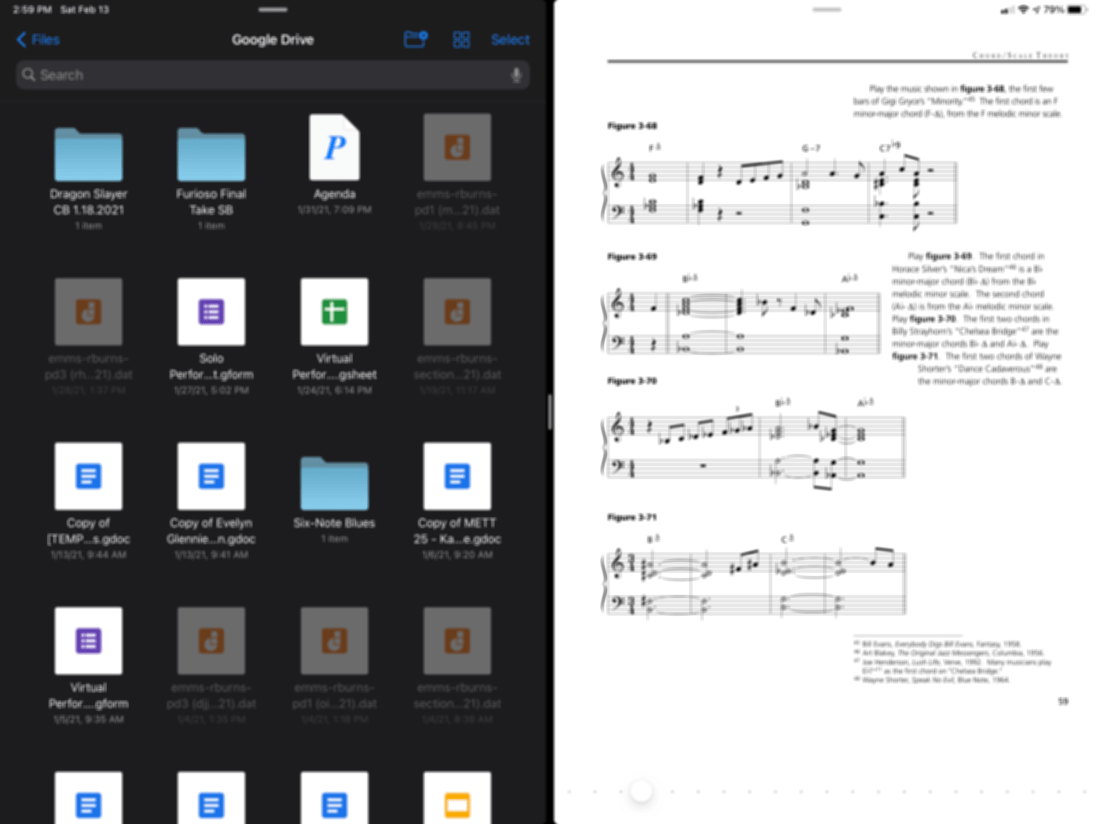
Sometimes I get asked the fastest way to import music into forScore on iPad. Most of my colleagues store their music in Dropbox or Google Drive so I made a video showing off how you can drag PDFs directly from one of these services into forScore by using the Files app and forScore in split-view.
Apple announced three new Macs yesterday that will use their new M1 chip. This will allow unprecedented increases in power, speed, and battery life. It will also allow iOS apps to run on them natively.
I have shared some real quick impressions below. If you want to hear more about this transition, Will Kuhn is on the upcoming episode of the podcast to talk about his impressions, amongst other topics in technology and music education. That episode should drop over the weekend.
Quick thoughts
Apple announced a new MacBook Air, MacBook Pro 13″, and Mac mini. Of these three, the Air and Mac mini are particularly tempting to me. They maintain similar prices (way cheaper in the case of the mini), and dramatically improve performance, battery life, speed, and allow for using iOS apps. If you need a Mac, and you don’t need the most powerful one on the market, I couldn’t recommend either of these more. Of course, it is always safe to wait for reviews, but I anticipate that there won’t be any significant deal breakers outside of potential software compatibility.
There are a lot of things Apple could do with the M1 chip down the road. Add FaceID, a cellular chip, a touchscreen, and maybe even a new design. Apple decided not to do these things yet and keep the designs pretty much like the last generation. I think this sends the message to the general public that this is not some new, experimental thing, but instead, the same old Mac you know and love. Just way better.
I was surprised not to see more iOS apps demonstrated. Apple showed a few iOS apps (like the game Among Us and HBO Max) running on one of the new Macs. Before the event, I have noted that it is weird that the TV app will show my recently watched HBO shows, but I can’t play them on an intel Mac like I can on iOS or tvOS, which have the HBO app. This will be an obvious improvement. But where is Hulu? Netflix? Surely Apple chooses who they feature on stage strategically. Still, I would have expected them to do more bragging if they were anticipating a ton of extremely popular apps to launch on day one. Fingers crossed for a lot of new options in the Mac App Store early on.
No AirTags, over the ear headphones, or Apple TV. I was personally curious about these devices, particularly the rumored studio headphones, but maybe they will come later.
macOS 11 – Big Sur
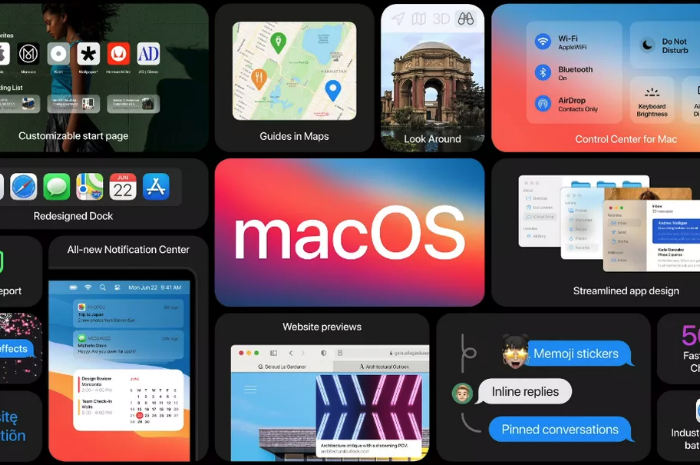
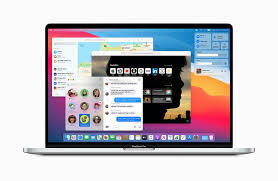
The new Mac operating system, Big Sur, is coming out tomorrow. This update is dramatic in numerous respects. You will immediately notice a fresh coat of paint. The user interface and app icons will feel a lot more like they do on iOS.
iPad Apps on the Mac
I am excited because iOS app developers I care about are finally starting to announce Catalyst apps in volume. Catalyst is Apple’s technology that allows developers to easily turn their iPad apps into Mac apps. There have been relatively few good examples of this over the past year. GoodNotes 5, Streaks, Twitter, and Home, are a few of the ones I use regularly, but the list isn’t long.
Instapaper has a Mac app as of today (yay), and forScore is launching one tomorrow. I expect to see a lot more in the coming weeks. It seems like changes to this new OS have finally provided developers the tools they need to make their iPad apps “good enough” to ship on the Mac.
Will I Install It On Day One?
While I usually wait to install releases like this, forScore will be enough of a productivity boost for my Mac workflow that I will be reckless and install it tomorrow, most likely. This will put my online teaching software setup at risk, but I think it is worth it. I am tired of having a beautifully curated music library on the iPad and not on my most powerful machine. Until forScore ships iCloud syncing, I plan to move my “true” sheet music library to the Mac version.
It’s official: forScore will be coming to the Mac this Thursday, Nov. 12th! https://t.co/vLEEMnnKwh
If you depend on any creative professional music software, audio interfaces, or other apps you aren’t sure will be compatible with Big Sur, don’t be like me. Wait! I have a fallback Mac mini I can use if things get ugly.
If you are wondering what score editing software is compatible with, fortunately, Scoring Notes has already got the scoop. Read their article below.
As far as Sibelius, Finale, Dorico, MuseScore, and Notion, are concerned: Broadly speaking, Big Sur does not appear to affect these applications much one way or the other. We don’t expect users already working on macOS Catalina to be negatively or positively affected by Big Sur when working with these applications — and whenever a new OS is involved, status quo is very welcome news indeed.
A number of teachers have asked me about the new iPad Air that Apple announced last month. It has been updated to look and function a lot more like the iPad Pro line and many are wondering if they need to go Pro or if the Air will satisfy their needs.
iPad Air and iPhone 12 (announced last week) reviews are out, and I have been reading through them this morning. Here are a few that stood out to me:
Based on everything I have learned so far, there has never been a better time to buy Apple’s entry level products. The regular iPhone 12 and iPad Air are spectacular products, and I am guessing that a very large majority of users, even tech nerds, and professionals, are going to feel totally satisfied with them.
I have not tested pro apps like StaffPad, Ferrite, or LumaFusion on the iPad Air because I am still using the 2018 model iPad Pro. My educated guess is that you would not feel limited by the iPad Air, even if you use these apps. You would especially not feel limited using music apps like Tonal Energy and forScore.
When it comes to the iPhone, I am more compelled by the new Mini size and the Pro Max size (which comes with a much better camera system than the regular 12 Pro). Reviews for these are not out yet.
I will probably upgrade my phone, and it will probably be the Pro Max, just because I have a 9-month-old and want to take the best pictures possible of him. That said, I really miss the iPhone 5 days of the tiny phone and might consider a Mini in a future year if I read good things about it later this season.
I am going to keep my iPad Pro around for a bit, but if the Mac were ever to come equipped with a touch screen and Apple Pencil support, I would have to re-evaluate needing the larger-sized iPad Pro and whether or not I need an iPad altogether. I do miss the comfort of the smaller iPad size, particularly for reading, and my gut says that this iPad Air might satisfy my needs down the road.
Conclusion – You probably won’t regret not going Pro on Apple’s fall lineup of products, but the differences are definitely in the details so make sure you read up on them first.
Dr. Christopher Cicconi, Assistant Professor of Music Education, and Director of Bands and Orchestra at Towson University, joins the show to talk about selecting meaningful repertoire for your ensemble. We also talk about score study with iPad Pro apps, involving yourself in your music teaching community, and yes, I go on a tangent about my favorite new weather app.
David MacDonald returns to the show to talk about the hardware and software in our virtual teaching setups. Then we speculate about touchscreen Macs and consider how Apple’s recent App Store policies might impact the future of creative professional software on iOS.
MusicFirst offers music educators and their students easy-to-use, affordable, cloud-based software that enables music learning, creation, assessment, sharing, and exploration on any device, anywhere, at any time.
MusicFirst Classroom is the only learning management system designed specifically for K-12 music education. It combines the flexibility of an LMS with engaging content and powerful software integrations to help manage your students’ progress, make lesson plans, and create assignments.
And for younger students, MusicFirst Junior is the perfect online system for teaching elementary general music. It includes a comprehensive K-5 curriculum, hundreds of lessons & songs, and kid-friendly graphics to making learning and creating music fun!
Whether you’re teaching remotely, in-person, or in a blended learning environment, MusicFirst will work with you to find a solution that fits your program’s unique needs. Try it free for 30 days at musicfirst.com.
Speaking of forScore coming to the Mac, I continue to hear chatter in the technology community about touchscreen Macs. The design of Apple's forthcoming macOS update, Big Sur, has larger, more spread apart, user interface elements, indicating that it might be getting prepared for touch input. This would align well with Apple's transition to putting their own silicone chips in their devices this year.
I have no idea if Apple is making Macs with touchscreens, but I find it hard to believe they would take their existing Mac laptop and desktop designs and simply make the current screens touchable.
At Apple's developer conference this past June, there were obvious signs that Apple wants developers to adopt design elements from macOS in their iPad apps and vice versa.
Silicone enabled Macs will run touch-first, iOS apps natively, and Apple has been working hard to make their technologies consistent across all platforms. I wouldn't be surprised if touch screen Macs came out of the box with Apple Pencil support. And if Macs have Pencil support, no one wants to awkwardly hold a pencil up in the air in front of them and draw on a horizontal screen.
Here is where I am going with this. With sheet music apps like forScore finally coming to the Mac, and Apple technologies being shared across devices, I am starting to think that I would love a Mac with a display that folded back on its keyboard. Something that I could plug into my audio interface and large screen monitor to edit audio on at home, and then flip onto my podium and read scores off of during band rehearsal. They could charge nearly anything for a 14 inch MacBook Pro in this format and I would buy it.
Who knows if it would be an optimal experience? Who knows if it's what Apple is planning? Who knows if it is anywhere near ready? Not me. It will be very curious to see what happens over the next few months as Apple has announced that some Macs will make this transition by the end of the year.
In the hustle of our school semester starting, I forgot to post about possibly the most exciting app news I have heard this summer.
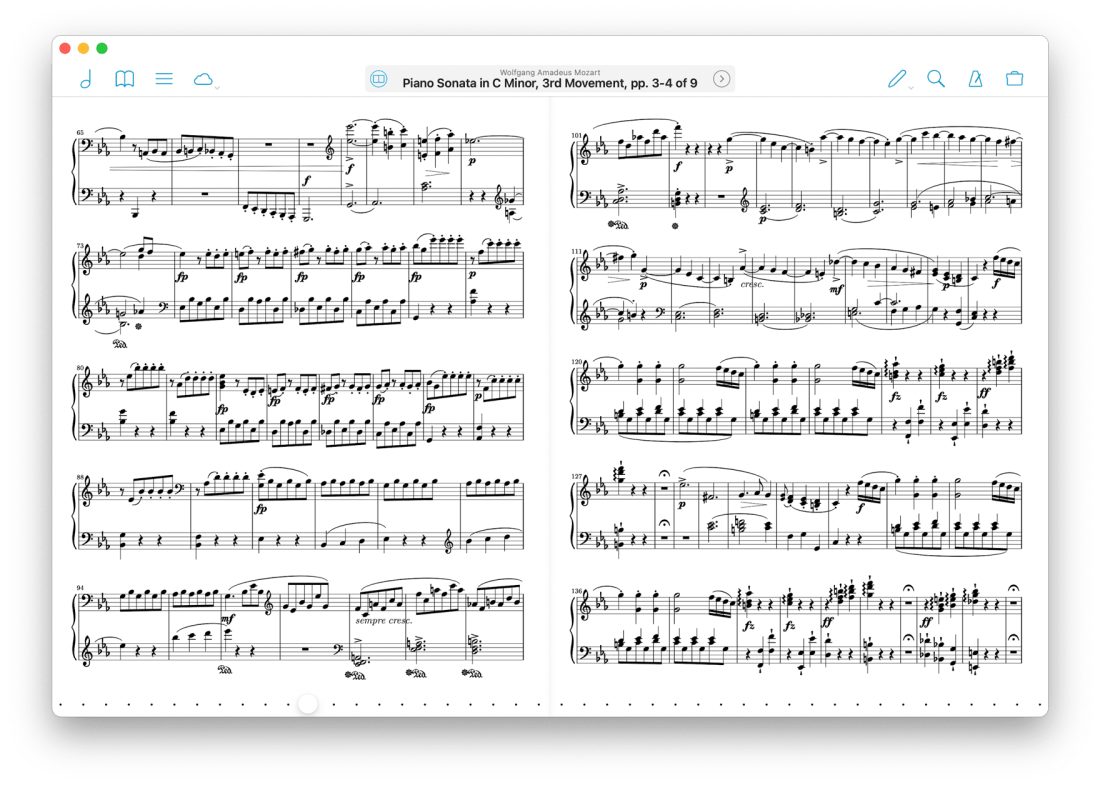
After writing about it and talking about it on the podcast for well over a year, I am pleased to say that forScore has announced they are making a native Mac app. It will be coming this fall, alongside their version 12 update. Read all about version 12 here…
forScore comes to the Mac in a big way with a brand new, fully native experience built for some of the most advanced and powerful devices out there. forScore runs on macOS Big Sur, both on Intel and Apple Silicon-powered Macs, and it’s included with forScore for iOS and iPadOS as a universal purchase.
That’s right—it’s absolutely free for everyone who has ever bought forScore.
From the looks of it, forScore is using Apple's Catalyst technology, which allows iPad apps to be ported to the Mac.
While I have not seen the Mac version of forScore, I have been testing the iOS version of forScore 12. It's great! My favorite small (but significant) feature is that you can now annotate while viewing two pages at a time without the app jolting into annotation mode. You just write directly on the screen with the Apple Pencil and your markings appear immediately.
I store my score backups on my hard drive's file system, which is how I access them on the Mac. But I store my most frequently read scores in forScore on the iPad. I am glad the experience of interacting with my sheet music will now be consistent across both devices.
Something I have felt would need to happen for this to be useful is iCloud syncing. forScore says that is coming too…
Bringing forScore to the Mac is just the beginning—a whole new platform means a whole new set of opportunities. From subtle refinements to major new features already in development like iCloud Syncing, we’re building the future one step at a time.
We’re just getting started. Again.
Using a Mac version of the app with the need to maintain two separate score libraries would have been a nonstarter for me. As an added side benefit, I can see this getting me to use forScore on the iPhone. Its not the best screen size for sheet music, but every now and then, I'd like to be able to take it out of my pocket and reference a score real quick. The problem is that it is never real quick because none of my scores are there!
I could not be more excited about this announcement!
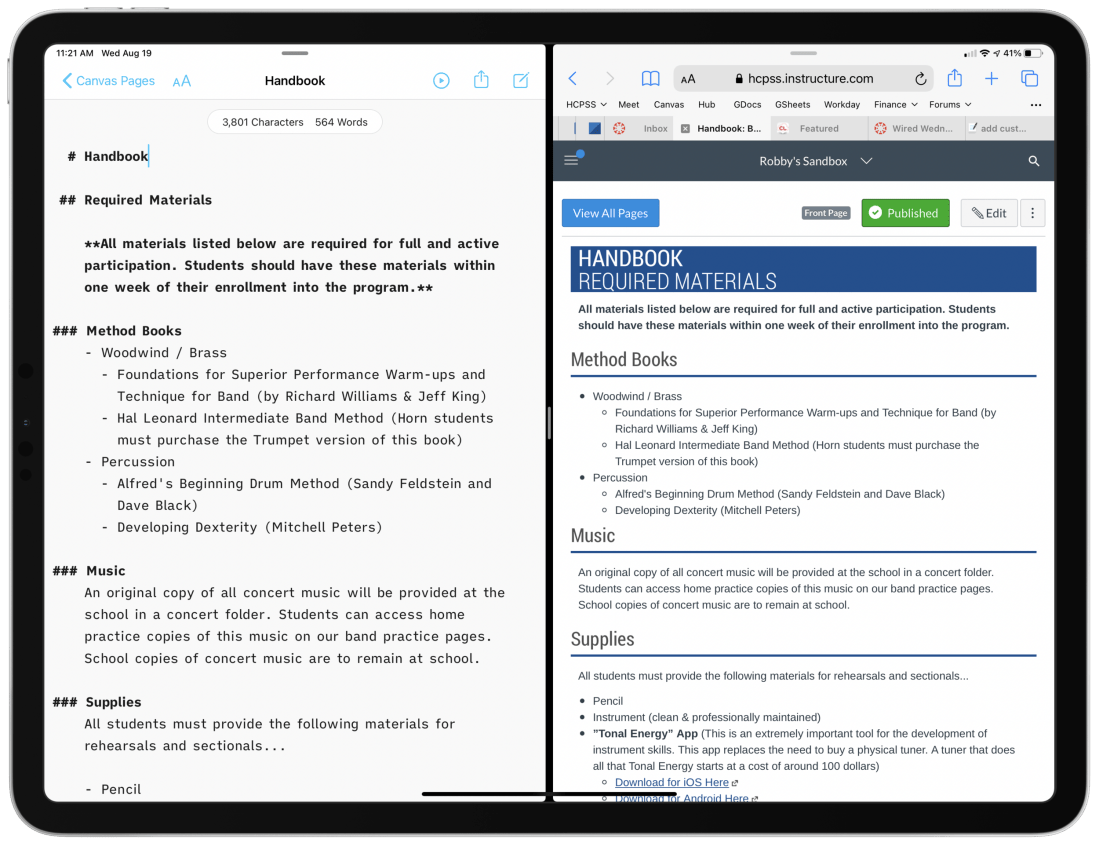
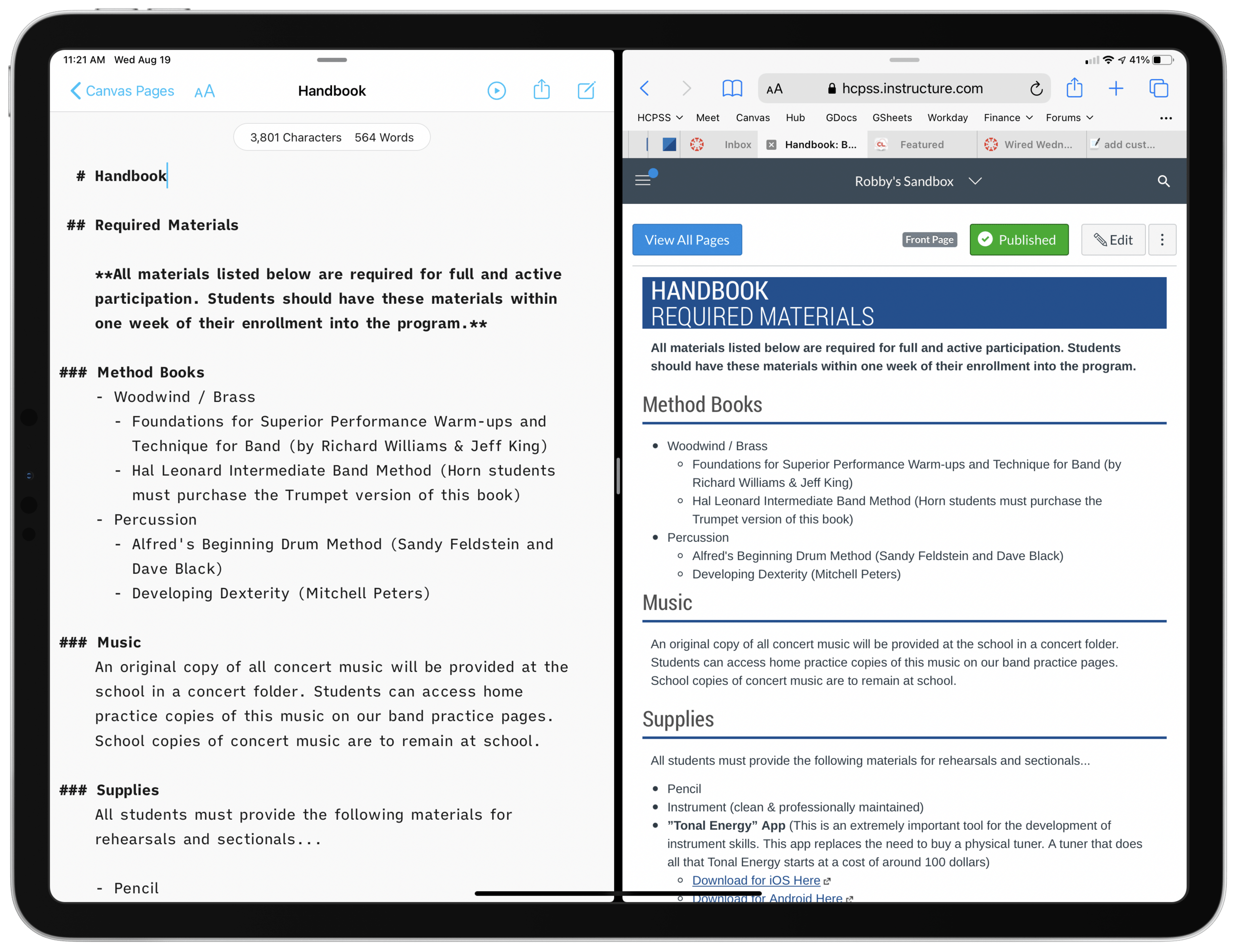
Left:A draft of a Canvas page, written in a text file on my computer. I used the Markdown syntax for headings, lists, and links. Right: What the Canvas page looks like once the text on the left is imported into the course page as HTML.
My district’s LMS of choice is Canvas, which is pretty stressful to work with. From most accounts I hear about other LMS software, Canvas is far from the worst. “You go to war with the LMS you have” I once heard.
Lately, I am writing my Canvas content in Markdown and storing it as text files on my computer.
Why?
Canvas is littered with user-hostile behaviors. Each class is a separate container. All files, pages, and assignments are quarantined, requiring multi-step procedures for sharing between courses. On top of this, the organizing tools are a mess. I am never 100 percent sure where to go. Even when I do, I have to wait for the internet to load each new thing I click on.
<div class="
      image-block-outer-wrapper
      layout-caption-below
      design-layout-inline
      combination-animation-none
      individual-animation-none
      individual-text-animation-none
    ">


    <figure class="
          sqs-block-image-figure
          intrinsic
        " style="max-width:2500px">


      <div class="image-block-wrapper">
        <div class="sqs-image-shape-container-element


          has-aspect-ratio
        " style="position: relative;padding-bottom:61.119998931884766%;overflow: hidden">


            <img src="https://images.squarespace-cdn.com/content/v1/5595df9ce4b0ce9ff9ecd1a8/1597866028922-HBRQ0FDXB4AE8F1L2EUI/CleanShot+2020-08-19+at+15.38.50%402x.png" alt="Instead of one file repository that all courses pull from, each class has its own separate Files area." width="2500" height="1528" style="display:block;object-fit: cover;width: 100%;height: 100%;object-position: 50% 50%" loading="lazy">

        </div>
      </div>


      <figcaption class="image-caption-wrapper">
        <div class="image-caption"><p class="">Instead of one file repository that all courses pull from, each class has its own separate Files area.</p></div>
      </figcaption>


    </figure>


</div>
Canvas is equally difficult for students. All of the course pages and content are just sort of floating in space. It’s up to the teacher to link the material together meaningful, but the tools to do so are inelegant and unintuitive. My music program has resorted to a website for communicating most general information since it exposes the hierarchy of its structure to our viewers. In other words, we control where every page lives, and our students can get to any part of our site from the navigation bar at the top of the page.
The WYSIWYG web editors you see within most Canvas pages, assignments, and announcements are equally frustrating. They are clunky, the text field is tiny, the buttons for all the tools are ambiguous, and I lose my data if the page refreshes itself or I lose connection. Additionally, it’s hard to anticipate what my formatting will look like before actually clicking the save button.
Lately, I am writing my Canvas content in Markdown and storing it as text files on my computer. By editing in Markdown, I can create content in third-party apps, work with data offline, control where files are organized, search them from the Spotlight, and quickly export as HTML for input into the Canvas HTML editor when I am ready to publish.
Using Mac and iOS Native Apps
I like native applications because the good ones feel designed to look like the computing platform. For example, the forScore app on iOS uses similar navigation buttons and fonts to Apple’s own Mail, Keynote, Pages, and Notes. This way, I don’t feel like I am learning new software.
Native apps that deal with documents store files on my hard drive. I can easily organize them into my own folder system, work on them without an internet connection, open the same file in different applications, and search them from the Spotlight. Document-based apps update your file as you edit your data. Websites often lose your data when they run into issues.
I don’t write anything longer than a sentence or two into the text field of a website. Instead, I draft them inDrafts and move my work to iAWriter for longer projects. Both of these apps can preview Markdown.
What is Markdown?
Markdown is a shorthand syntax for HTML. It empowers me to draft web content without actually writing code. Skim this Markdown syntax guide to see what I mean. You can learn the basics in five minutes.
Drafts and iA Writer have one-button shortcuts to convert Markdown to formatted text or HTML. Here is an example of Markdown, and what it would look like once converted to rich text or HTML.
# Blog Post Title
Here are *three things* I want to do today.
1. Work out
2. Sit in the hot tub
3. Grill some chicken

Let me tell you more about them.

## Work out
Today I will work out on my bike. My wife once said, and I quote:
> The earlier in the day you aim to do it, the more likely it is to happen.

## Sit in the hot tub
This will be relaxing. Maybe I will listen to a podcast there. Here are some recent favorites...
- Sound Expertise
- Sticky Notes
- Upgrade

My favorite podcast player is [Overcast](https://overcast.fm).
Once an app like Drafts or iA Writer converts the Markdown to rich text, it would look like this:
<div class="
      image-block-outer-wrapper
      layout-caption-below
      design-layout-inline
      combination-animation-none
      individual-animation-none
      individual-text-animation-none
    ">


    <figure class="
          sqs-block-image-figure
          intrinsic
        " style="max-width:1536px">


      <div class="image-block-wrapper">
        <div class="sqs-image-shape-container-element


          has-aspect-ratio
        " style="position: relative;padding-bottom:119.140625%;overflow: hidden">


            <img src="https://images.squarespace-cdn.com/content/v1/5595df9ce4b0ce9ff9ecd1a8/1597864448247-LZ511PWF8U5IKLA96WGX/CleanShot+2020-08-19+at+14.44.57%402x.png" alt="A good Markdown app like iA Writer will convert the syntax to rich text for you and copy it so that you can paste it into an application like Google Docs, Microsoft Word, or your website." width="1536" height="1830" style="display:block;object-fit: cover;width: 100%;height: 100%;object-position: 50% 50%" loading="lazy">

        </div>
      </div>


      <figcaption class="image-caption-wrapper">
        <div class="image-caption"><p class="">A good Markdown app like iA Writer will convert the syntax to rich text for you and copy it so that you can paste it into an application like Google Docs, Microsoft Word, or your website.</p></div>
      </figcaption>


    </figure>


</div>
I could have just as easily exported the resulting rich text to a Word document or Google Doc and all of the formatting would have been properly executed.
iAWriter can also export my Markdown as HTML like this:
<h1>Blog Post Title</h1>

<p>Here are <em>three things</em> I want to do today.</p>

<ol>
<li>Work out</li>
<li>Sit in the hot tub</li>
<li>Grill some chicken</li>
</ol>

<p>Let me tell you more about them.</p>

<h2>Work out</h2>

<p>Today I will workout on my bike. My wife once said, and I quote:</p>

<blockquote>
<p>The earlier in the day you aim to do it, the more likely it is to happen.</p>
</blockquote>

<h2>Sit in the hot tub</h2>

<p>This will be relaxing. Maybe I will listen to a podcast there. Here are some recent favorites...</p>

<ul>
<li>Sound Expertise</li>
<li>Sticky Notes</li>
<li>Upgrade</li>
</ul>

<p>My favorite podcast player is <a href="https://overcast.fm">Overcast</a>.</p>
Because Markdown can be converted to HTML automatically, I have found it less stressful to actually write my Canvas pages, announcements, and messages to parents in Markdown and then pasting the resulting HTML into the HTML editor of Canvas. I store my Markdown files in a folder of text files, with subfolders for each course. I have favorited these folders so that they are always accessible in the iA Writer sidebar. These folders are easily accessible. Because I am writing in plaintext, the result feels much more like writing in a simple note app than it does a word processor.
<div class="
      image-block-outer-wrapper
      layout-caption-below
      design-layout-inline
      combination-animation-none
      individual-animation-none
      individual-text-animation-none
    ">


    <figure class="
          sqs-block-image-figure
          intrinsic
        " style="max-width:2372px">


      <div class="image-block-wrapper">
        <div class="sqs-image-shape-container-element


          has-aspect-ratio
        " style="position: relative;padding-bottom:78.33052062988281%;overflow: hidden">


            <img src="https://images.squarespace-cdn.com/content/v1/5595df9ce4b0ce9ff9ecd1a8/1597864486248-5J9W1DWCB7H44XERKZW5/CleanShot+2020-08-19+at+14.45.57%402x.png" alt="iA Writer links to folders of text files on your hard drive. But it looks like a simple note app." width="2372" height="1858" style="display:block;object-fit: cover;width: 100%;height: 100%;object-position: 50% 50%" loading="lazy">

        </div>
      </div>


      <figcaption class="image-caption-wrapper">
        <div class="image-caption"><p class="">iA Writer links to folders of text files on your hard drive. But it looks like a simple note app.</p></div>
      </figcaption>


    </figure>


</div>
Here is an example of a Canvas announcement intended to be shared with one of my band classes early this fall. It contains an embedded Google Form families sign as an agreement to our policies. Markdown and HTML can be written in the same document and iA Writer treats it all as HTML when you export it.
I got the HTML embed straight from the Share menu of the Google Form setup. I didn’t need to know any code to make this message!
<div class="
      image-block-outer-wrapper
      layout-caption-below
      design-layout-inline
      combination-animation-none
      individual-animation-none
      individual-text-animation-none
    ">


    <figure class="
          sqs-block-image-figure
          intrinsic
        " style="max-width:2500px">


      <div class="image-block-wrapper">
        <div class="sqs-image-shape-container-element


          has-aspect-ratio
        " style="position: relative;padding-bottom:62.519996643066406%;overflow: hidden">


            <img src="https://images.squarespace-cdn.com/content/v1/5595df9ce4b0ce9ff9ecd1a8/1597866399217-9I7XOHMYA9C68EXRFUBS/CleanShot+2020-08-19+at+15.46.06%402x.png" alt="On the left: a Markdown document that contains HTML code for a Google Form embed. On the right: pasting that as HTML into the HTML editor in Canvas." width="2500" height="1563" style="display:block;object-fit: cover;width: 100%;height: 100%;object-position: 50% 50%" loading="lazy">

        </div>
      </div>


      <figcaption class="image-caption-wrapper">
        <div class="image-caption"><p class="">On the left: a Markdown document that contains HTML code for a Google Form embed. On the right: pasting that as HTML into the HTML editor in Canvas.</p></div>
      </figcaption>


    </figure>


</div>


<div class="
      image-block-outer-wrapper
      layout-caption-below
      design-layout-inline
      combination-animation-none
      individual-animation-none
      individual-text-animation-none
    ">


    <figure class="
          sqs-block-image-figure
          intrinsic
        " style="max-width:2500px">


      <div class="image-block-wrapper">
        <div class="sqs-image-shape-container-element


          has-aspect-ratio
        " style="position: relative;padding-bottom:76.95999908447266%;overflow: hidden">


            <img src="https://images.squarespace-cdn.com/content/v1/5595df9ce4b0ce9ff9ecd1a8/1597864190944-J0QAE339L9AL7Q519LPF/iVBORw0KGgoAAAANSUhEUgAAC50AAAjwCAYAAAAKgq9xAAAACXBIWXMAAAsTAAALEwEAmpwYAAAM+3.png" alt="How the resulting announcement appears to students." width="2500" height="1924" style="display:block;object-fit: cover;width: 100%;height: 100%;object-position: 50% 50%" loading="lazy">

        </div>
      </div>


      <figcaption class="image-caption-wrapper">
        <div class="image-caption"><p class="">How the resulting announcement appears to students.</p></div>
      </figcaption>


    </figure>


</div>
EDIT: When I wrote this post, I fogtot to add one benefit to having all of these files on your computer… even though Canvas messages don’t support formatting like headings and bold, I draft those in iAWriter too. It is SO much easier to find and re-use old emails I have sent to parents when they are searchable from my computer. Have you ever tried to search your Canvas ‘Sent’ folder? It’s terrible! Local computer copies for the win!






 Music Ed Tech Talk
You must be logged in to post a comment.