

Thanks to my sponsor this month, MusicFirst
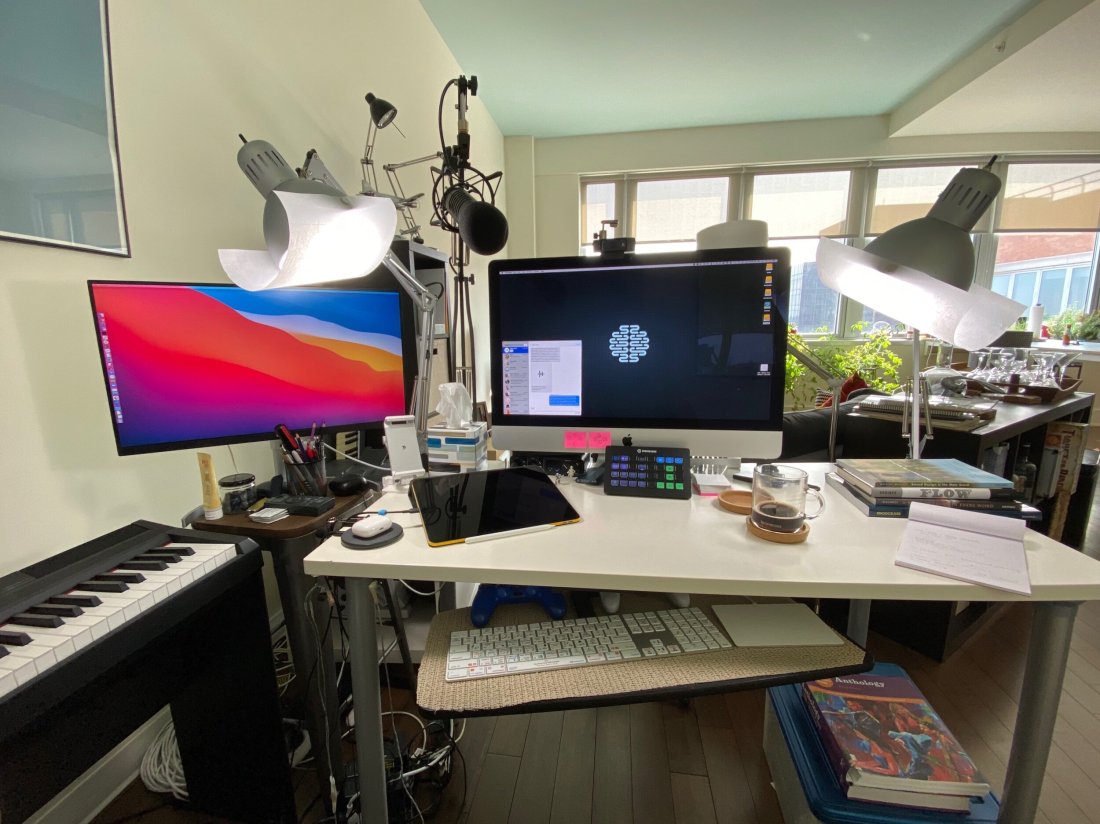
David MacDonald returns to the show to talk about the hardware and software in our virtual teaching setups. Then we speculate about touchscreen Macs and consider how Apple’s recent App Store policies might impact the future of creative professional software on iOS.
Topics include:
- New Zoom features for musicians and teachers
- David and Philip Rothman‘s new podcast, Scoring Notes
- Using Open Broadcaster Software to level up your virtual teaching
- Routing audio from your apps into Zoom and Google Meet calls
- Teaching with Auralia
- LMS integration with third-party music education apps
- Using MainStage and Logic for performing instruments into virtual classrooms
- Touchscreen Macs
- Apple’s App Store Policy
Show Notes:
- Optimize Your Zoom Settings for Music Teaching and Performing! | Music Ed Tech Talk
- Better music experiences come to Zoom with high fidelity audio | Scoring Notes
- My Online Teaching Setup (High-Tech Edition) | Music Ed Tech Talk
- My Very Straightforward and Very Successful Setup for Teaching Virtual Private Lessons
- Will Kuhn
- Electronic Music School on Twitch… with Will Kuhn and Ethan Hein
- Open Broadcaster Softwarehttps://obsproject.com/
- Virtual Cam for Mac
- AirServer
- How can I use AirServer for Mac with OBS
- Reflector
- Hyper-Charging Online Classes with Open Broadcaster Software | Music Ed Tech Talk
- Teaching Tech: Live keyboard overlay in Zoom | This Page Left Intentionally Useless
- Loopback
- Virtual Midi Piano Keyboard app (Free)
- Rogue Amoeba‘s amazing audio apps for Mac
- Farrago soundboard app
- Fission audio editing app
- IDAGIO
- Izotope RX Plugins
- Mac Power Users – #531: Teaching with GoodNotes, with David MacDonald
- East West Composer Cloud – subscribe to plugins
- Music Ed Tech Talk Podcast – #5 – Yours In Quarantine, featuring Julianna Mateyko, Director of Support and Training with MusicFirst
- Music Ed Tech Talk Podcast – #13 – Exploring Noteflight Learn, with John Mlynczak
- Music Ed Tech Talk Podcast – #12 – Making Music and Podcasts Using Soundtrap, with Meredith Allen, Sales Enablement Manager at Soundtrap
- Auralia – Ear Training with Real Music
- OBS Camera App
- Logitech C920 Pro Webcam
- Use iPad, iPhone, or iPod touch to sketch in or mark up Mac documents
- On Stage CM01 Video Camera/Digital Recorder Adapter
- Elago Stream Deck
- Keyboard Maestro
- Philip Rothman’s Stream Deck Profiles for Dorico/Sibelius/Musescore
- MainStage
- Apple Pro Apps for Education
- Accidental Tech Podcast
- forScore
- forScore for Mac
- GoodNotes
- Collaboration in GoodNotes
- PDF Expert
- Alfred Clipboard Manager
- StaffPad
Where to Find Us:
Robby – Twitter | Blog | Book
David MacDonald – Twitter | Website | Blog
Please don’t forget to rate the show and share it with others!
Subscribe to Music Ed Tech Talk:
Subscribe to the Podcast in…
Apple Podcasts | Overcast | Castro | Spotify | RSS
Today’s episode is sponsored by MusicFirst:
MusicFirst offers music educators and their students easy-to-use, affordable, cloud-based software that enables music learning, creation, assessment, sharing, and exploration on any device, anywhere, at any time.
MusicFirst Classroom is the only learning management system designed specifically for K-12 music education. It combines the flexibility of an LMS with engaging content and powerful software integrations to help manage your students’ progress, make lesson plans, and create assignments.
And for younger students, MusicFirst Junior is the perfect online system for teaching elementary general music. It includes a comprehensive K-5 curriculum, hundreds of lessons & songs, and kid-friendly graphics to making learning and creating music fun!
Whether you’re teaching remotely, in-person, or in a blended learning environment, MusicFirst will work with you to find a solution that fits your program’s unique needs. Try it free for 30 days at musicfirst.com.
<div class="
      image-block-outer-wrapper
      layout-caption-below
      design-layout-inline
      combination-animation-none
      individual-animation-none
      individual-text-animation-none
    ">


    <figure class="
          sqs-block-image-figure
          intrinsic
        " style="max-width:2500px">


      <div class="image-block-wrapper">
        <div class="sqs-image-shape-container-element


          has-aspect-ratio
        " style="position: relative;padding-bottom:74.95999908447266%;overflow: hidden">


            <img src="https://images.squarespace-cdn.com/content/v1/5595df9ce4b0ce9ff9ecd1a8/1600038818677-9KFU4NAEUS7MPSAS5S61/IMG_3003.jpeg" alt="David’s teaching setup." width="2500" height="1874" style="display:block;object-fit: cover;width: 100%;height: 100%;object-position: 50% 50%" loading="lazy">

        </div>
      </div>


      <figcaption class="image-caption-wrapper">
        <div class="image-caption"><p class="">David’s teaching setup.</p></div>
      </figcaption>


    </figure>


</div>


<div class="
      image-block-outer-wrapper
      layout-caption-below
      design-layout-inline
      combination-animation-none
      individual-animation-none
      individual-text-animation-none
    ">


    <figure class="
          sqs-block-image-figure
          intrinsic
        " style="max-width:2500px">


      <div class="image-block-wrapper">
        <div class="sqs-image-shape-container-element


          has-aspect-ratio
        " style="position: relative;padding-bottom:75%;overflow: hidden">


            <img src="https://images.squarespace-cdn.com/content/v1/5595df9ce4b0ce9ff9ecd1a8/1600038852982-OD6Y5XFUFRAL1TR2PPJD/A7067C72-D117-473F-A9FA-D3938A9C1A5E.jpeg" alt="My teaching setup." width="2500" height="1875" style="display:block;object-fit: cover;width: 100%;height: 100%;object-position: 50% 50%" loading="lazy">

        </div>
      </div>


      <figcaption class="image-caption-wrapper">
        <div class="image-caption"><p class="">My teaching setup.</p></div>
      </figcaption>


    </figure>


</div>


<div class="
      image-block-outer-wrapper
      layout-caption-below
      design-layout-inline
      combination-animation-none
      individual-animation-none
      individual-text-animation-none
    ">


    <figure class="
          sqs-block-image-figure
          intrinsic
        " style="max-width:2500px">


      <div class="image-block-wrapper">
        <div class="sqs-image-shape-container-element


          has-aspect-ratio
        " style="position: relative;padding-bottom:75%;overflow: hidden">


            <img src="https://images.squarespace-cdn.com/content/v1/5595df9ce4b0ce9ff9ecd1a8/1600038981679-Y8MXKP63LULXCLM4Y5I3/IMG_2823.jpeg" alt="…From far away." width="2500" height="1875" style="display:block;object-fit: cover;width: 100%;height: 100%;object-position: 50% 50%" loading="lazy">

        </div>
      </div>


      <figcaption class="image-caption-wrapper">
        <div class="image-caption"><p class="">…From far away. </p></div>
      </figcaption>


    </figure>


</div>
 Music Ed Tech Talk