Summer is a nice time to take a break and relax, but Google has instead been busy working on new updates and features for schools.
On June 22nd Google hosted their “Anywhere School 2021” event (http://goo.gle/tas21) where they covered loads of announcements concerning 40 updates for Google Classroom, Google Meet, Chrome and Chromebooks, and Google Workspace tools in general.
In case you missed it, or are just trying to review through everything that was shared, see below for a list of all 40 updates that were shared at the event.
On the one hand, many of these features looks great (especially the education streaming feature with YouTube/Google Meet). On the other hand, it is easy to see that some of these features are born out of the needs of virtual/hybrid learning and may not be as useful as schools potentially return to in-person instruction this fall.
That said, it looks like there is plenty in store for Google Classroom users, no matter what teaching environment you may find yourself in this fall.
I have been meaning to write about “what I have been doing for online learning” since the fall.
This has proven difficult for many reasons, mostly that there is a lot I have been doing and it is all interconnected.
Generally, my planning and technology use has fallen into two categories.
Tech that supports synchronous classes (via Zoom/Google Meet/etc.)
Tech that supports the asynchronous work (via LMS, cloud-based and student-facing software, etc.)
Fortunately, I was invited to present at two music conferences this year, MMEA and TMEA, and each of my accepted sessions has serendipitously aligned with each of those areas.
This presentation in the video above is an overview of the asynchronous part. In other words, how I am keeping my virtual instruction focused on playing instruments solo, through student-facing tools like Noteflight, Soundtrap, Flipgrid, and a handful of iOS utility apps.
These strategies were developed while I was teaching virtually but they can just as easily be used in a hybrid or in-person teaching model. I would argue that they are just as valuable in either of those environments.
This presentation was first given at TMEA on Saturday, February 14th, 2021.
Google’s editing applications can open and edit Microsoft files, with that capability recently coming to Android. When opening Office files from the Drive web client, Google will now directly open them in editing mode.
I would guess this is one more small nail in the coffin for my school district never using anything other than Google Drive again. Most of my colleagues have moved their docs, tables, and presentations to Google’s suite of apps. For the few hold-outs who still email Word docs instead of Google Doc links, it looks like this will allow them to continue editing comfortably in Microsoft Office, while enjoying the benefits of organizing their work in Google Drive and sharing it with others.
I have been outspoken about enjoying native apps over web apps but online teaching has forced me to depend on my Mac and Google Chrome much more. The more I get used to doing my work in a web browser, the less I mind it.
I still do most of my work in Apple’s iWork suite because it is nicer, easier, prettier, faster, and better integrated with Apple platforms. Something tells me iWork isn’t getting the option to edit from the Google Drive interface any day soon.
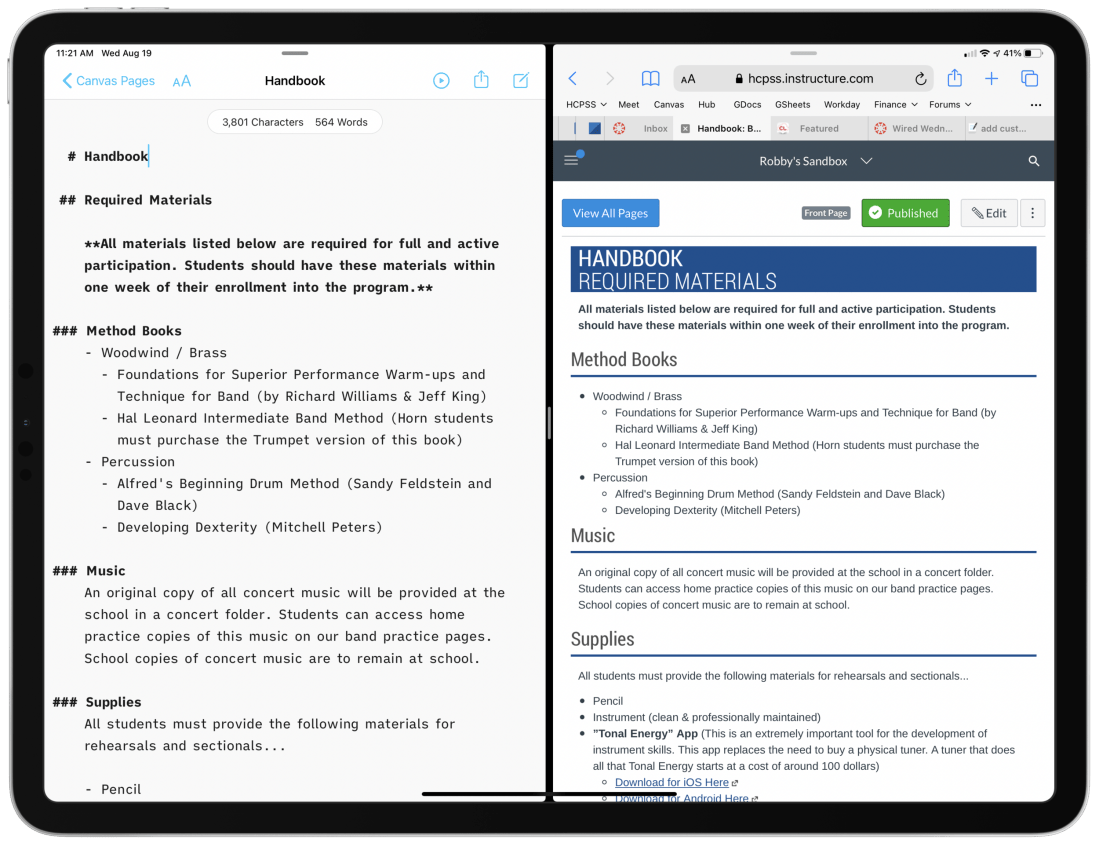
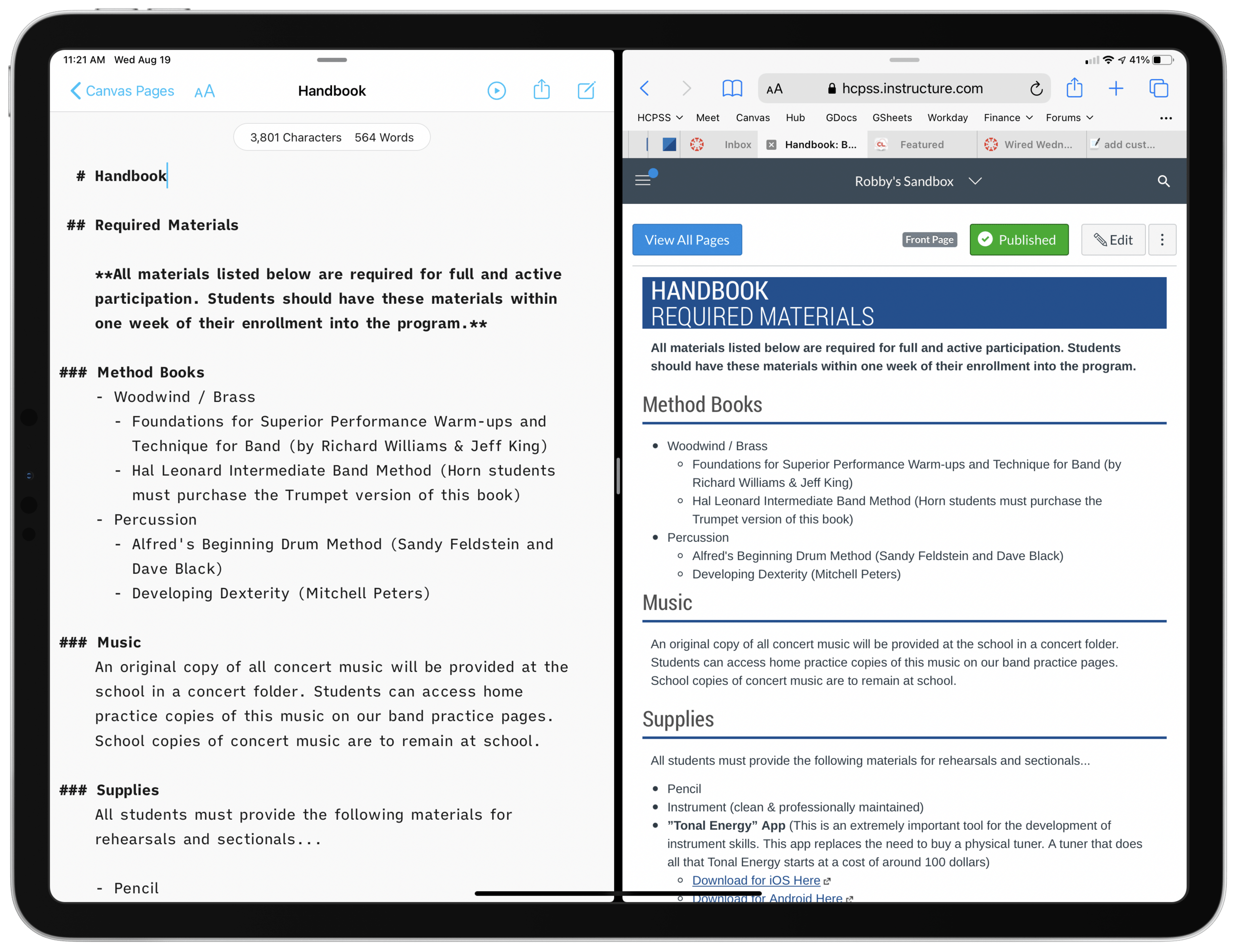
Left:A draft of a Canvas page, written in a text file on my computer. I used the Markdown syntax for headings, lists, and links. Right: What the Canvas page looks like once the text on the left is imported into the course page as HTML.
My district’s LMS of choice is Canvas, which is pretty stressful to work with. From most accounts I hear about other LMS software, Canvas is far from the worst. “You go to war with the LMS you have” I once heard.
Lately, I am writing my Canvas content in Markdown and storing it as text files on my computer.
Why?
Canvas is littered with user-hostile behaviors. Each class is a separate container. All files, pages, and assignments are quarantined, requiring multi-step procedures for sharing between courses. On top of this, the organizing tools are a mess. I am never 100 percent sure where to go. Even when I do, I have to wait for the internet to load each new thing I click on.
<div class="
      image-block-outer-wrapper
      layout-caption-below
      design-layout-inline
      combination-animation-none
      individual-animation-none
      individual-text-animation-none
    ">


    <figure class="
          sqs-block-image-figure
          intrinsic
        " style="max-width:2500px">


      <div class="image-block-wrapper">
        <div class="sqs-image-shape-container-element


          has-aspect-ratio
        " style="position: relative;padding-bottom:61.119998931884766%;overflow: hidden">


            <img src="https://images.squarespace-cdn.com/content/v1/5595df9ce4b0ce9ff9ecd1a8/1597866028922-HBRQ0FDXB4AE8F1L2EUI/CleanShot+2020-08-19+at+15.38.50%402x.png" alt="Instead of one file repository that all courses pull from, each class has its own separate Files area." width="2500" height="1528" style="display:block;object-fit: cover;width: 100%;height: 100%;object-position: 50% 50%" loading="lazy">

        </div>
      </div>


      <figcaption class="image-caption-wrapper">
        <div class="image-caption"><p class="">Instead of one file repository that all courses pull from, each class has its own separate Files area.</p></div>
      </figcaption>


    </figure>


</div>
Canvas is equally difficult for students. All of the course pages and content are just sort of floating in space. It’s up to the teacher to link the material together meaningful, but the tools to do so are inelegant and unintuitive. My music program has resorted to a website for communicating most general information since it exposes the hierarchy of its structure to our viewers. In other words, we control where every page lives, and our students can get to any part of our site from the navigation bar at the top of the page.
The WYSIWYG web editors you see within most Canvas pages, assignments, and announcements are equally frustrating. They are clunky, the text field is tiny, the buttons for all the tools are ambiguous, and I lose my data if the page refreshes itself or I lose connection. Additionally, it’s hard to anticipate what my formatting will look like before actually clicking the save button.
Lately, I am writing my Canvas content in Markdown and storing it as text files on my computer. By editing in Markdown, I can create content in third-party apps, work with data offline, control where files are organized, search them from the Spotlight, and quickly export as HTML for input into the Canvas HTML editor when I am ready to publish.
Using Mac and iOS Native Apps
I like native applications because the good ones feel designed to look like the computing platform. For example, the forScore app on iOS uses similar navigation buttons and fonts to Apple’s own Mail, Keynote, Pages, and Notes. This way, I don’t feel like I am learning new software.
Native apps that deal with documents store files on my hard drive. I can easily organize them into my own folder system, work on them without an internet connection, open the same file in different applications, and search them from the Spotlight. Document-based apps update your file as you edit your data. Websites often lose your data when they run into issues.
I don’t write anything longer than a sentence or two into the text field of a website. Instead, I draft them inDrafts and move my work to iAWriter for longer projects. Both of these apps can preview Markdown.
What is Markdown?
Markdown is a shorthand syntax for HTML. It empowers me to draft web content without actually writing code. Skim this Markdown syntax guide to see what I mean. You can learn the basics in five minutes.
Drafts and iA Writer have one-button shortcuts to convert Markdown to formatted text or HTML. Here is an example of Markdown, and what it would look like once converted to rich text or HTML.
# Blog Post Title
Here are *three things* I want to do today.
1. Work out
2. Sit in the hot tub
3. Grill some chicken

Let me tell you more about them.

## Work out
Today I will work out on my bike. My wife once said, and I quote:
> The earlier in the day you aim to do it, the more likely it is to happen.

## Sit in the hot tub
This will be relaxing. Maybe I will listen to a podcast there. Here are some recent favorites...
- Sound Expertise
- Sticky Notes
- Upgrade

My favorite podcast player is [Overcast](https://overcast.fm).
Once an app like Drafts or iA Writer converts the Markdown to rich text, it would look like this:
<div class="
      image-block-outer-wrapper
      layout-caption-below
      design-layout-inline
      combination-animation-none
      individual-animation-none
      individual-text-animation-none
    ">


    <figure class="
          sqs-block-image-figure
          intrinsic
        " style="max-width:1536px">


      <div class="image-block-wrapper">
        <div class="sqs-image-shape-container-element


          has-aspect-ratio
        " style="position: relative;padding-bottom:119.140625%;overflow: hidden">


            <img src="https://images.squarespace-cdn.com/content/v1/5595df9ce4b0ce9ff9ecd1a8/1597864448247-LZ511PWF8U5IKLA96WGX/CleanShot+2020-08-19+at+14.44.57%402x.png" alt="A good Markdown app like iA Writer will convert the syntax to rich text for you and copy it so that you can paste it into an application like Google Docs, Microsoft Word, or your website." width="1536" height="1830" style="display:block;object-fit: cover;width: 100%;height: 100%;object-position: 50% 50%" loading="lazy">

        </div>
      </div>


      <figcaption class="image-caption-wrapper">
        <div class="image-caption"><p class="">A good Markdown app like iA Writer will convert the syntax to rich text for you and copy it so that you can paste it into an application like Google Docs, Microsoft Word, or your website.</p></div>
      </figcaption>


    </figure>


</div>
I could have just as easily exported the resulting rich text to a Word document or Google Doc and all of the formatting would have been properly executed.
iAWriter can also export my Markdown as HTML like this:
<h1>Blog Post Title</h1>

<p>Here are <em>three things</em> I want to do today.</p>

<ol>
<li>Work out</li>
<li>Sit in the hot tub</li>
<li>Grill some chicken</li>
</ol>

<p>Let me tell you more about them.</p>

<h2>Work out</h2>

<p>Today I will workout on my bike. My wife once said, and I quote:</p>

<blockquote>
<p>The earlier in the day you aim to do it, the more likely it is to happen.</p>
</blockquote>

<h2>Sit in the hot tub</h2>

<p>This will be relaxing. Maybe I will listen to a podcast there. Here are some recent favorites...</p>

<ul>
<li>Sound Expertise</li>
<li>Sticky Notes</li>
<li>Upgrade</li>
</ul>

<p>My favorite podcast player is <a href="https://overcast.fm">Overcast</a>.</p>
Because Markdown can be converted to HTML automatically, I have found it less stressful to actually write my Canvas pages, announcements, and messages to parents in Markdown and then pasting the resulting HTML into the HTML editor of Canvas. I store my Markdown files in a folder of text files, with subfolders for each course. I have favorited these folders so that they are always accessible in the iA Writer sidebar. These folders are easily accessible. Because I am writing in plaintext, the result feels much more like writing in a simple note app than it does a word processor.
<div class="
      image-block-outer-wrapper
      layout-caption-below
      design-layout-inline
      combination-animation-none
      individual-animation-none
      individual-text-animation-none
    ">


    <figure class="
          sqs-block-image-figure
          intrinsic
        " style="max-width:2372px">


      <div class="image-block-wrapper">
        <div class="sqs-image-shape-container-element


          has-aspect-ratio
        " style="position: relative;padding-bottom:78.33052062988281%;overflow: hidden">


            <img src="https://images.squarespace-cdn.com/content/v1/5595df9ce4b0ce9ff9ecd1a8/1597864486248-5J9W1DWCB7H44XERKZW5/CleanShot+2020-08-19+at+14.45.57%402x.png" alt="iA Writer links to folders of text files on your hard drive. But it looks like a simple note app." width="2372" height="1858" style="display:block;object-fit: cover;width: 100%;height: 100%;object-position: 50% 50%" loading="lazy">

        </div>
      </div>


      <figcaption class="image-caption-wrapper">
        <div class="image-caption"><p class="">iA Writer links to folders of text files on your hard drive. But it looks like a simple note app.</p></div>
      </figcaption>


    </figure>


</div>
Here is an example of a Canvas announcement intended to be shared with one of my band classes early this fall. It contains an embedded Google Form families sign as an agreement to our policies. Markdown and HTML can be written in the same document and iA Writer treats it all as HTML when you export it.
I got the HTML embed straight from the Share menu of the Google Form setup. I didn’t need to know any code to make this message!
<div class="
      image-block-outer-wrapper
      layout-caption-below
      design-layout-inline
      combination-animation-none
      individual-animation-none
      individual-text-animation-none
    ">


    <figure class="
          sqs-block-image-figure
          intrinsic
        " style="max-width:2500px">


      <div class="image-block-wrapper">
        <div class="sqs-image-shape-container-element


          has-aspect-ratio
        " style="position: relative;padding-bottom:62.519996643066406%;overflow: hidden">


            <img src="https://images.squarespace-cdn.com/content/v1/5595df9ce4b0ce9ff9ecd1a8/1597866399217-9I7XOHMYA9C68EXRFUBS/CleanShot+2020-08-19+at+15.46.06%402x.png" alt="On the left: a Markdown document that contains HTML code for a Google Form embed. On the right: pasting that as HTML into the HTML editor in Canvas." width="2500" height="1563" style="display:block;object-fit: cover;width: 100%;height: 100%;object-position: 50% 50%" loading="lazy">

        </div>
      </div>


      <figcaption class="image-caption-wrapper">
        <div class="image-caption"><p class="">On the left: a Markdown document that contains HTML code for a Google Form embed. On the right: pasting that as HTML into the HTML editor in Canvas.</p></div>
      </figcaption>


    </figure>


</div>


<div class="
      image-block-outer-wrapper
      layout-caption-below
      design-layout-inline
      combination-animation-none
      individual-animation-none
      individual-text-animation-none
    ">


    <figure class="
          sqs-block-image-figure
          intrinsic
        " style="max-width:2500px">


      <div class="image-block-wrapper">
        <div class="sqs-image-shape-container-element


          has-aspect-ratio
        " style="position: relative;padding-bottom:76.95999908447266%;overflow: hidden">


            <img src="https://images.squarespace-cdn.com/content/v1/5595df9ce4b0ce9ff9ecd1a8/1597864190944-J0QAE339L9AL7Q519LPF/iVBORw0KGgoAAAANSUhEUgAAC50AAAjwCAYAAAAKgq9xAAAACXBIWXMAAAsTAAALEwEAmpwYAAAM+3.png" alt="How the resulting announcement appears to students." width="2500" height="1924" style="display:block;object-fit: cover;width: 100%;height: 100%;object-position: 50% 50%" loading="lazy">

        </div>
      </div>


      <figcaption class="image-caption-wrapper">
        <div class="image-caption"><p class="">How the resulting announcement appears to students.</p></div>
      </figcaption>


    </figure>


</div>
EDIT: When I wrote this post, I fogtot to add one benefit to having all of these files on your computer… even though Canvas messages don’t support formatting like headings and bold, I draft those in iAWriter too. It is SO much easier to find and re-use old emails I have sent to parents when they are searchable from my computer. Have you ever tried to search your Canvas ‘Sent’ folder? It’s terrible! Local computer copies for the win!
Today I am excited to announce that my podcast, Robby Burns + Friends, is getting a long overdue re-brand. I am renaming the show Music Ed Tech Talk. It will continue to follow the candid guest/host conversation style and will focus on music, education, technology, and other mutual interests.
Given my investment in the fields of music and education, and my intense interest in technology, most episodes of Robby Burns + Friends were already centered on these topics. I felt it was time to rebrand the show to better indicate to new listeners what they should expect when they press play.
That being said, I see this show, in combination with my blog, to be my digital megaphone, so don’t be surprised to hear me venture into the unknown. This is not a show about music technology education. It is a show about music, education, and technology. Three separate interests, sometimes discussed in isolation, sometimes in combination, and sometimes not at all. What I am saying is — don’t be surprised to hear occasional digressions on Star Wars and pickling.
I am hosting this show in the same place so you should expect to keep getting episodes in your feed if you were subscribed to Robby Burns + Friends. If not, please let me know. I am keeping the first three seasons of RB+F in the Apple Podcasts Directory under the new title because I feel that they are, spiritually speaking, the same show. I will be tightening up the format a little bit, and am planning to speak with new and exciting guests.
That about sums it up. Ushering in this new season of Music Ed Tech Talk is my very first guest ever, Jon Tippens. You can listen to the new episode and read the show notes here or click play right below.
As was teased last week, I am launching a new podcast. Well, it is here! Craig McClellan and I are excited to launch The Class Nerd Podcast today. Craig writes at The Class Nerd Blog…
Robby and I are both teachers who are passionate about our jobs, but also about not making our jobs our lives. We both work hard to make teaching as efficient and effective as possible so we have time to spend with our families and on other things we care about. A lot of this increased efficiency has come out of our love of Apple devices, and we have both tried to share our workflows with the greater education community through blogs, and in Robby’s case, a book. This podcast is meant to be another resource for teachers.
Semester 1 of The Class Nerd Podcast will be 10 weekly episodes around 25-30 minutes in length. Hopefully this is conducive to the busy lifestyles of teachers, and can be some easy summer PD.
With the the school year ending for me today, I cannot help but think this could provide a nice listen for some of you while you are traveling in planes, cars, or relaxing by the beach this summer.
Episode 1 is all about tools for beefing up your email productivity, focusing predominantly on Apple’s Mail app. We hope you enjoy it!
I am excited to share a sneak peek of a project I have been working on for the past few months.
Nashville based educator, Craig McClellan, and I are launching a podcast later this summer called The Class Nerd. Our hope is to introduce teachers to some really cool technology tips and workflows that will help them on their path to being better educators.
As we sort out all of the technical details that come with managing a podcast, check out “Episode 0: Tech Origin Stories” where Craig and I discuss our paths to becoming classroom tech nerds.


 Music Ed Tech Talk