🔀 Mastering Organization in Rehearsal with iPad

In September, School Band and Orchestra Magazine published an article of mine about using the iPad to be organized while rehearsing a large ensemble. I am reposting it here for readers of my blog to enjoy…

Mastering Organization in the Rehearsal with iPad:

Chances are likely that you have heard of a few iPad apps for use in the classroom. Like me, you may have heard about so many of them that you can’t even remember them all. Or you have made it so far as to download them and now hundreds of little icons have been left un-touched in a folder called “Music,” sitting on your home screen.

There are a lot of fantastic music teaching apps for educators and students. Tuning apps, notation apps, note reading apps, staff recognition, music games, creation tools, historical videos, you name it. The iPad is often positioned in music education as a miscellaneous platform. One that we use for whatever purpose it serves best in the moment, whether that be in our own hands or those of our students. Few of us have an iPad for each of our students though. And several years into owning one, you might still wonder what niche it is really intended to fill.

For me, the iPad become a transformative tool in the classroom when I started to think about it like a digital piece of paper. And it became in-dispensable when I found ways to become de-pendent on it while rehearsing large ensembles.

The apps in this article have turned the iPad in-to a necessity for me. Many of them are not simply portable versions of desktop apps I use elsewhere. They are apps that thrive, particularly on the form factor of the iPad.

Files

Rather than bringing a pile of parent letters, pie sale pamphlets, and field trip documents to the podium, I have taken to queuing these documents on my iPad. Thankfully, Apple has re-leased a Files app with iOS 11. This app func-tions very similarly to the Finder on the Mac. You can view documents, launch them in other applications, and even drag files from one fold-er into another. The Files app works out of the box using Apple’s iCloud Drive, but third party cloud providers get to join the fun too! Installing apps like Dropbox and Google Drive now makes them appear alongside the left sidebar in the Files app. No need to go fishing in the Dropbox app to see your documents stored there. In Files, they are displayed, natively, alongside your other iCloud files. You interact with your documents the same way no matter which cloud service you are browsing.

You can drag your favorite folders to the side-bar for easy reach, regardless of what third party cloud drive provider they are part of. Us-ing the iPad’s split view feature, you can open another app, like Mail, on the other side of the screen and drag files from the Files app, over into the Mail app, to add them as attachments.

If you are looking for a little more control, I rec-ommend an app called Documents 5 by Read-dle. If you have purchased their app PDF Ex-pert (which is amazing), it allows you to use all of the PDF Expert annotation tools right from within the Documents app. You can also open multiple different files at once in a tabbed inter-face, much like a web browser. This is useful for mornings where I need to review multiple different documents with the class at once.

Notability

I give my students a weekly rehearsal grade for preparation and participation. I use a rubric to generate this score but I base it off of informally collected data in the classroom. I needed a way to quickly jot down information on top of stu-dents names and then an easy way to view it from my computer later while inputting grades. I decided to design a seating chart using Om-niGroup’s OmniGraffle app (but you could just as easily draw one and scan it into your com-puter as a PDF). I open these PDFs in an app called Notability. Of all the many great note apps on iPad that let you scribble on a PDF, I find Notability to be the least fussy. The mo-ment the PDF shows up on screen you can begin scribbling on it with an Apple Pencil. It really feels as responsive as paper. I write quick notes on student performance on these charts throughout rehearsal. Jimmy is sitting with great posture, Susan is late, John didn’t bring his instrument…When I sit down at my computer, I launch the Mac version and view all of the charts because the edits have been syncing over iCloud. Then I enter my grades.

Going into the Dropbox app each morning, du-plicating the file, and opening it in Notability was getting to be quite a chore. So I decided to automate it…

Workflow (Now Shortcuts)

Workflow is an app for iOS that allows you to string together multiple actions and trigger them with one tap of a button. This all takes place in plain English, using drag and drop blocks to make up your recipe. This app is a real testament to the growing power of iOS as a productivity platform. If this app sounds in-tense, don’t worry. When you download it, the app walks you through the process.

One of my favorite “Workflows” is a two step workflow called “Band Seating Chart.” Step one of this workflow looks into my Dropbox account for a file called “Symphonic Winds.PDF.” Next, it opens that file as a new note in Notability. All in one tap. Workflows can be published as tap-pable app icons on the homescreen for easy use. So to create a new seating chart in Nota-bility every day as described above, all I do is tap once. Pretty cool.

If designing workflows seems tedious, never fear. You can download these pre-made from a user submitted gallery.

Note: Workflow was purchased by Apple and was integrated into iOS as the Shortcuts app with the release of iOS 12 this past fall. Look forward to more posts about this awesome app in the future.

forScore

forScore is my app of choice for all score read-ing and annotating now. I keep all of my music in it. Since the app added the ability to index long Real Book style PDFs last year, I even store my method books and longer form teach-ing materials within it. Indexing these files means that I can search for individual song ti-tles in the forScore search, even if they are within the body of a larger single file. forScore takes me right to the exact page I want to be on.

Of course my more obvious stuff goes in for-Score as well — things like band scores, meth-od books, sheet music for the next gig, you name it.

I am a messy note taker. While I miss the tac-tile feeling of post it notes and pencil on a pa-per score, doing it with forScore allows me to be as messy as I want and just erase it later in the tap of a button. forScore allows me to an-notate with my Apple Pencil right on the screen. With my seating chart open on the other half of the iPad screen in Notability, I can actually an-notate my seating chart and my score simulta-neously. And for the workaholics out there, have you ever tried score study in bed? You don’t need to keep a messenger bag of paper in your bedroom anymore!

forScore is full of fun bells and whistles. My cur-rent favorite is to embed press-able buttons in my scores that initiate tuning drones and met-ronome clicks. And forScore works with all the new iPad features of iOS 11. So, for example, I can open the Files app on one half of the iPad screen, forScore on the other, and drag and drop scores from Files right into my forScore library. These are just a few of the many pow-erful features in forScore.

Drafts

One of the most stressful things in rehearsal is tending to all of the student needs. Not to men-tion my already spinning head, struggling to keep all of my teaching responsibilities togeth-er. Drafts is a note taking app that focuses on simplicity at the front end, and unlimited power on the backend. Launching into this app brings the user to a blank white space and a key-board, where you can instantly begin typing. Once you have accumulated a bunch of unpro-cessed “drafts,” you can swipe to the right to reveal numerous custom “actions.” These ac-tions can process the text in your notes by rout-ing them to other third party services. Your draft could become the body of an email or text, a Twitter status, or a calendar event. It could be exported as a task to a todo app or become the basis of a Google search. User ac-tions can be created much like workflows in the Workflow app, even including multiple different steps. I use one of my favorite Drafts actions to take meeting notes and then, in one tap, save them to Evernote, email them to the members of my music team, and parse out the actions relevant to me and save them to my todo app of choice, OmniFocus. As with Workflow, you can download user created actions from an online gallery. When the whirlwind of rehearsal starts, and students begin telling me about bro-ken valves, missing music, and the like, I simply start brain dumping all of my thoughts into Drafts. Then later, I sit down at my desk and process all of these thoughts by sending them to the apps they need to go to.
Raw first impressions of the new iPad Pro

I am all set up with my new 12.9 inch iPad Pro. Here are my gut thoughts on the process of purchasing the device and the first few hours of use.

I ordered the 11 inch device on day one and then immediately regretted it once I heard reports of the 12.9’s lightness. This mixed in with the fact that the 11 inch still runs apps in a different size class than the 12.9. For example, when you run Mail and Notes side by side, it is possible to see the list of notes/messages and the contents of the note/message on screen at once in the 12.9 model.

I went in to the Apple Store today with the idea in mind that I would test both out, most likely buy a 12.9, and then return the 11.

Things I tested in the store:

-Holding each device in hand with and without Keyboard Folio attached.

-Running two productivity apps side by side in 50/50 split view on both devices to see how much content was visible.

-Typing an email on each keyboard.

-Looking at sheet music on one half of the screen while taking handwritten notes on the other. (In landscape and in portrait)

-Fitting each device in and out of my back pack.

-Taking handwritten notes in Apple Notes while holding the device in the other hand.

Making the decision

It was a hard decision. I really miss watching movies and reading books on the couch with my current 12.9. It’s too big. It is also too heavy for me to hold in one hand at length. Still, I purchased it. Because I don’t want to miss out on any software features now, or down the road. The fact that you can put 15 apps on the dock of the 12.9 and that you can run apps with more features in split view was enough to sell me on it. Apple could add those features to the 11 inch later through software. But Apple could also add new features to just the 12.9. Another tie breaker was the keyboard. I just can’t type on the 11 inch keyboard as comfortably. I don’t think I will regret this. An honest look at my iPad use over the past year reveals hours and hours a day reading sheet music from far away while viewing a seating chart on the other half of the screen. Can I just have two iPads? The thought crossed my mind and then I realized how needlessly complex that could be. My wallet rejoiced.

First thoughts

The inductive charging pencil that snaps to the device is brilliant. It is going to make the pencil feel so much more delightful to use.

Pencil only attaches to the top while in landscape. Bummer.

It will take some time to retrain myself to swipe up to go to home screen and double tap the pencil to change tools. These are superior methods, but habit is habit.

Using the pencil with Apple Notes is a dream. Combine the higher refresh rate (my first time experiencing this since I own the first gen iPad Pro) with the feel of the new pencil, along with the responsiveness of “tap to wake,” and you get as close to paper as I can imagine. Tapping the pencil tip to the sleeping iPad screen instantly gets you handwriting in the Notes app. This feature has existed before, but it is so smooth now, that… you really just have to try it to believe it. It’s so good that I am already thinking about how to work Apple Notes back into my note workflow (I can’t ever seem to avoid using less than three or four note apps at once). I was so compelled by this idea that I sketched out some workflow ideas in Apple Notes with the new pencil. I have to conceive of note apps with a healthy dose of metaphor.

<div class="
      image-block-outer-wrapper
      layout-caption-below
      design-layout-inline
      combination-animation-none
      individual-animation-none
      individual-text-animation-none
    ">


    <figure class="
          sqs-block-image-figure
          intrinsic
        " style="max-width:2500px">


      <div class="image-block-wrapper">
        <div class="sqs-image-shape-container-element


          has-aspect-ratio
        " style="position: relative;padding-bottom:74.96339416503906%;overflow: hidden">


            <img src="https://images.squarespace-cdn.com/content/v1/5595df9ce4b0ce9ff9ecd1a8/1541641012630-WHTK84Q7Q1JWM0I3CNVY/FullSizeRender.jpg" alt="FullSizeRender.jpg" width="2500" height="1874" style="display:block;object-fit: cover;width: 100%;height: 100%;object-position: 50% 50%" loading="lazy">

        </div>
      </div>


    </figure>


</div>


12.9 is lighter but still too heavy to hold in one hand with ease. It actually feels grippier to me when the case is on. Less like I am going to drop it.

New Keyboard Folio is way easier to unfold but harder to detach from the iPad.

Apps that aren’t optimized for the screen are currently letterboxed. I don’t mind it as much as I thought I would.

This device is going to feel so much better to use all around, but as many members of the tech press have stated, it is still powered by a limited OS. iOS hasn’t seen features to differentiate the iPad since iOS 11. Rumor has it that iOS 13 is going to bring a lot more iPad productivity. Until the other shoe drops, I wait in eager anticipation for what this iPad could become.

Features I would need from iOS to allow me to use my iPad for 99 percent of my work (that are within Apple’s control)

-Trackpad and mouse support

-Open two instances of the same app side by side

-Faster animation when I press Command+Tab

-Desktop-ier Safari

-Improvements to the Files app (I need more control in iCloud Drive over which documents are stored in the cloud vs. local to the device. Third party providers like Google Drive do not show up in the search results when I search in Files app or in Spotlight.)

-Default apps. Not just for stuff like Mail and Maps. I need to be able to specify which app a document opens in when I tap it in the Files app.

-Ability to manage my iTunes Library.

-Logic Pro (they have to be working on this, right?)

-Bonus point: Ability to have more than one audio in or out running at the same time.

-Bonus point: some sort of rethink to the home screen. I would love to be able to launch a file or a folder from there. A widget with recent notes wouldn’t suck either.

-Bonus point: three apps 33/33/33 percent at the same time.

-Extreme bonus point: keyboard intent to allow TextExpander to work.

-Extreme bonus point: extension for apps to put a window in the middle of the screen that allows for viewing or editing content. Example: a quick note function, or the ability to add a task to OmniFocus.

I think about half of the things I did not label as Bonus could happen in the next year. I would be disappointed if they don’t, but fortunately, I bought the new iPad for what it is, not what it will be. And what it is is an extremely powerful iPad that is 100 percent more delightful to use in every respect. I can’t wait to test this thing out in the classroom tomorrow.

App of the Week: Drafts 5

PNG image 12.png

My ability to handle the cognitive load of teaching middle school band is largely supported by a wonderful app called Drafts, made by Agile Tortoise. I will detail a little bit about how I use this app below, but I want to first say that the developer of Drafts, Greg Pierce, very generously chatted with me about it on my podcast recently. Greg also has a background in guitar, ethnomusicology, and folk studies. He has an interesting journey towards app development, which we also talked about on the show. Listen to the episode here.

So what is Drafts? Drafts is the starting point for all text on my iPhone and iPad. It sits on the dock, right under my thumb, and I press it every time I have any kind of thought that I don’t want to slip away. Drafts opens to a blank white screen and a keyboard so you can instantly start typing. Adding a new Draft is as simple as tapping the plus button. You don’t need to worry about what kinds of thoughts these are, or what kinds of apps you should be capturing them in. They can be todos, messages, emails, future blog posts, anything. Picture me at the front of the classroom before band rehearsal. 70 students pouring into the room. Instruments blaring loud. Countless questions being thrown at me at once. Chaos all around. From the podium, I leave Drafts open alongside my sheet music and type anything that comes to mind. If a student tells me they don’t have a 2nd trombone part to Air and Dance, I write a note in Drafts. If a flute is broken, I start an email to the repair shop requesting for them to come pick it up. If I want to take general notes on our rehearsal progress, I start typing that in another draft. Even if I remember I need eggs at the grocery store later, I type that too!

<div class="
      image-block-outer-wrapper
      layout-caption-below
      design-layout-inline
      combination-animation-none
      individual-animation-none
      individual-text-animation-none
    ">


    <figure class="
          sqs-block-image-figure
          intrinsic
        " style="max-width:1250px">


      <div class="image-block-wrapper">
        <div class="sqs-image-shape-container-element


          has-aspect-ratio
        " style="position: relative;padding-bottom:72.15999603271484%;overflow: hidden">


            <img src="https://images.squarespace-cdn.com/content/v1/5595df9ce4b0ce9ff9ecd1a8/1525837057559-LF4X9EEU6GA7GD9NSJMZ/PNG+image+2.png" alt="A beautiful, distraction free, user interface, as soon as you launch Drafts." width="1250" height="902" style="display:block;object-fit: cover;width: 100%;height: 100%;object-position: 50% 50%" loading="lazy">

        </div>
      </div>


      <figcaption class="image-caption-wrapper">
        <div class="image-caption"><p class="">A beautiful, distraction free, user interface, as soon as you launch Drafts.</p></div>
      </figcaption>


    </figure>


</div>


<div class="
      image-block-outer-wrapper
      layout-caption-below
      design-layout-inline
      combination-animation-none
      individual-animation-none
      individual-text-animation-none
    ">


    <figure class="
          sqs-block-image-figure
          intrinsic
        " style="max-width:1250px">


      <div class="image-block-wrapper">
        <div class="sqs-image-shape-container-element


          has-aspect-ratio
        " style="position: relative;padding-bottom:72.15999603271484%;overflow: hidden">


            <img src="https://images.squarespace-cdn.com/content/v1/5595df9ce4b0ce9ff9ecd1a8/1525837079584-J6QMEMBAKLMRU6U4FRMA/PNG+image+13.png" alt="Drafts pairs perfectly with the sheet music app forScore in split view mode." width="1250" height="902" style="display:block;object-fit: cover;width: 100%;height: 100%;object-position: 50% 50%" loading="lazy">

        </div>
      </div>


      <figcaption class="image-caption-wrapper">
        <div class="image-caption"><p class="">Drafts pairs perfectly with the sheet music app forScore in split view mode.</p></div>
      </figcaption>


    </figure>


</div>

All of this stuff is categorized in the inbox where I can easily access it by swiping to the right. Here I can view any current or past archived draft, flag important ones, or send them to the trash. Once I am ready to process it all, I swipe left to reveal actions. Actions can do many things. At the most simple level, they send text to other apps like messages, email, a todo app, or Twitter. But actions can be heavily customized. They can perform multiple steps on text, and even run JavaScript on them. In the example below, you can see that I have a variety of drafts. Meeting notes, a few tasks, a start to a grocery list, a text to my wife, and the beginning of an email. To process these I would use the following actions, respectively: Send the meeting notes to the Apple Notes app, the tasks go to OmniFocus (where I manage all of my todos), the groceries go into my Reminders app grocery list, the text to my wife goes to Messages, and the email goes to Mail. Many of these actions happen in the background, meaning that I don’t leave Drafts, and can therefore process them really quickly. You don’t need to be a fancy pants to get awesome actions into Drafts, by the way. Some of my most frequently used actions are built into the app. There is also an Action Directory where you can steal the wonderful actions that others have already made. 

<div class="
      image-block-outer-wrapper
      layout-caption-below
      design-layout-inline
      combination-animation-none
      individual-animation-none
      individual-text-animation-none
    ">


    <figure class="
          sqs-block-image-figure
          intrinsic
        " style="max-width:1250px">


      <div class="image-block-wrapper">
        <div class="sqs-image-shape-container-element


          has-aspect-ratio
        " style="position: relative;padding-bottom:72.15999603271484%;overflow: hidden">


            <img src="https://images.squarespace-cdn.com/content/v1/5595df9ce4b0ce9ff9ecd1a8/1525837106654-9MW2EQ6VN7EGWAL2YI0A/PNG+image+11.png" alt="Swiping right reveals all unprocessed drafts." width="1250" height="902" style="display:block;object-fit: cover;width: 100%;height: 100%;object-position: 50% 50%" loading="lazy">

        </div>
      </div>


      <figcaption class="image-caption-wrapper">
        <div class="image-caption"><p class="">Swiping right reveals all unprocessed drafts.</p></div>
      </figcaption>


    </figure>


</div>


<div class="
      image-block-outer-wrapper
      layout-caption-below
      design-layout-inline
      combination-animation-none
      individual-animation-none
      individual-text-animation-none
    ">


    <figure class="
          sqs-block-image-figure
          intrinsic
        " style="max-width:1250px">


      <div class="image-block-wrapper">
        <div class="sqs-image-shape-container-element


          has-aspect-ratio
        " style="position: relative;padding-bottom:72.15999603271484%;overflow: hidden">


            <img src="https://images.squarespace-cdn.com/content/v1/5595df9ce4b0ce9ff9ecd1a8/1525837128748-E21J4QI4WOCT5ARX0UT0/PNG+image+10.png" alt="Swiping left reveals all of the various actions you can perform on drafts." width="1250" height="902" style="display:block;object-fit: cover;width: 100%;height: 100%;object-position: 50% 50%" loading="lazy">

        </div>
      </div>


      <figcaption class="image-caption-wrapper">
        <div class="image-caption"><p class="">Swiping left reveals all of the various actions you can perform on drafts.</p></div>
      </figcaption>


    </figure>


</div>

Drafts 5, the newest version, was released recently. The app is free which means there is absolutely no excuse not to give it a try. Some of the power features like creating your own actions and using automation require a subscription price of $1.99 a month or $19.99 a year.

<div class="
      image-block-outer-wrapper
      layout-caption-below
      design-layout-inline
      combination-animation-none
      individual-animation-none
      individual-text-animation-none
    ">


    <figure class="
          sqs-block-image-figure
          intrinsic
        " style="max-width:1250px">


      <div class="image-block-wrapper">
        <div class="sqs-image-shape-container-element


          has-aspect-ratio
        " style="position: relative;padding-bottom:72.15999603271484%;overflow: hidden">


            <img src="https://images.squarespace-cdn.com/content/v1/5595df9ce4b0ce9ff9ecd1a8/1525837161369-191EQM6PE79LJCCIPJHT/PNG+image+3.png" alt="This is the Edit Action screen. Actions are highly customizable. This particular action a) saves meeting notes to Evernote, b) saves tasks begining with &quot;@&quot; to my OmniFocus task app, and c) emails the notes to others in attendance." width="1250" height="902" style="display:block;object-fit: cover;width: 100%;height: 100%;object-position: 50% 50%" loading="lazy">

        </div>
      </div>


      <figcaption class="image-caption-wrapper">
        <div class="image-caption"><p class="">This is the Edit Action screen. Actions are highly customizable. This particular action a) saves meeting notes to Evernote, b) saves tasks begining with "@" to my OmniFocus task app, and c) emails the notes to others in attendance.</p></div>
      </figcaption>


    </figure>


</div>

I have always treated Drafts as a starting point for text. Interestingly, the new version has added some features that encourage using it as a note app replacement. You can now tag notes, create lists with checkable boxes, and even create custom workspaces that you organize your text into (paid feature). I am not sure if using Drafts this way is for me, but here are some ways I have been experimenting with it…

Processing Text

I have a “default” workspace depicted by the blue star icon below. Navigating workspaces is as easy as tapping custom icons in the lower left. My default workspace is where all of my unprocessed notes go. These generate a badge that appears on the icon of the Drafts app so that I don’t forget to act upon them later. This workspace resembles the extent to which I was using the previous version of Drafts.

<div class="
      image-block-outer-wrapper
      layout-caption-below
      design-layout-inline
      combination-animation-none
      individual-animation-none
      individual-text-animation-none
    ">


    <figure class="
          sqs-block-image-figure
          intrinsic
        " style="max-width:1250px">


      <div class="image-block-wrapper">
        <div class="sqs-image-shape-container-element


          has-aspect-ratio
        " style="position: relative;padding-bottom:72.15999603271484%;overflow: hidden">


            <img src="https://images.squarespace-cdn.com/content/v1/5595df9ce4b0ce9ff9ecd1a8/1525837194337-S07DU8QW4B4M3PC5C27L/PNG+image+11.png" alt="My default workspace. This functions like I used to use Drafts before workspaces became available." width="1250" height="902" style="display:block;object-fit: cover;width: 100%;height: 100%;object-position: 50% 50%" loading="lazy">

        </div>
      </div>


      <figcaption class="image-caption-wrapper">
        <div class="image-caption"><p class="">My default workspace. This functions like I used to use Drafts before workspaces became available.</p></div>
      </figcaption>


    </figure>


</div>

Simple Lists

My next workspace is where I keep active lists of things like recommended movies to see, blog ideas, and even a list of things I do every time I migrate to a new Mac. I can automatically append this list by pressing the “Add to list” action (available here) and then choosing which list to add to. 

<div class="
      image-block-outer-wrapper
      layout-caption-below
      design-layout-inline
      combination-animation-none
      individual-animation-none
      individual-text-animation-none
    ">


    <figure class="
          sqs-block-image-figure
          intrinsic
        " style="max-width:1250px">


      <div class="image-block-wrapper">
        <div class="sqs-image-shape-container-element


          has-aspect-ratio
        " style="position: relative;padding-bottom:72.15999603271484%;overflow: hidden">


            <img src="https://images.squarespace-cdn.com/content/v1/5595df9ce4b0ce9ff9ecd1a8/1525837238325-6FTX5VTUTFWTQ68Z9RUM/PNG+image+6.png" alt="My lists workspace." width="1250" height="902" style="display:block;object-fit: cover;width: 100%;height: 100%;object-position: 50% 50%" loading="lazy">

        </div>
      </div>


      <figcaption class="image-caption-wrapper">
        <div class="image-caption"><p class="">My lists workspace.</p></div>
      </figcaption>


    </figure>


</div>


<div class="
      image-block-outer-wrapper
      layout-caption-below
      design-layout-inline
      combination-animation-none
      individual-animation-none
      individual-text-animation-none
    ">


    <figure class="
          sqs-block-image-figure
          intrinsic
        " style="max-width:1250px">


      <div class="image-block-wrapper">
        <div class="sqs-image-shape-container-element


          has-aspect-ratio
        " style="position: relative;padding-bottom:72.15999603271484%;overflow: hidden">


            <img src="https://images.squarespace-cdn.com/content/v1/5595df9ce4b0ce9ff9ecd1a8/1525837266517-YDJKPQU4ZTIYA0GM4TOZ/PNG+image.png" alt="If a friend recommends a movie to me, I quickly write it in a draft without fiddling around with apps on my phone and getting distracted from conversation. Later, I append it to my movie list in one tap." width="1250" height="902" style="display:block;object-fit: cover;width: 100%;height: 100%;object-position: 50% 50%" loading="lazy">

        </div>
      </div>


      <figcaption class="image-caption-wrapper">
        <div class="image-caption"><p class="">If a friend recommends a movie to me, I quickly write it in a draft without fiddling around with apps on my phone and getting distracted from conversation. Later, I append it to my movie list in one tap.</p></div>
      </figcaption>


    </figure>


</div>

Blog Drafts

My next workspace is for blogging. I usually write my blog posts in a third party text editor called Ulysses which means that I usually get started in Drafts and then tap an action that sends the text there. But sometimes I do like to spend a little bit of time in Drafts writing before I take that step. For these types of drafts, I now have a tag called “blog” that allows them to show up separate from my other notes that need to be processed.

<div class="
      image-block-outer-wrapper
      layout-caption-below
      design-layout-inline
      combination-animation-none
      individual-animation-none
      individual-text-animation-none
    ">


    <figure class="
          sqs-block-image-figure
          intrinsic
        " style="max-width:1250px">


      <div class="image-block-wrapper">
        <div class="sqs-image-shape-container-element


          has-aspect-ratio
        " style="position: relative;padding-bottom:72.15999603271484%;overflow: hidden">


            <img src="https://images.squarespace-cdn.com/content/v1/5595df9ce4b0ce9ff9ecd1a8/1525837297311-XXLRMYBY8ONNBH8CDTZO/PNG+image+7.png" alt="Blogging workspace." width="1250" height="902" style="display:block;object-fit: cover;width: 100%;height: 100%;object-position: 50% 50%" loading="lazy">

        </div>
      </div>


      <figcaption class="image-caption-wrapper">
        <div class="image-caption"><p class="">Blogging workspace.</p></div>
      </figcaption>


    </figure>


</div>

Lesson Planning and Note Taking

My last workspace is called Sectionals. My band program has weekly classes for each instrument. Once a week, I see the flutes from my band during one period, the clarinets the next, etc. I do some lesson planning for these sectionals in a note app called Bear. In those same notes I also write down things that happen in the sectionals. Things I assigned, things I assessed, things I said, students absent, instruments I repaired, etc. Fiddling through my notes app to add these notes was getting cumbersome and was distracting me from engaging with my students. So I created a series of sectional related actions that enable me to automate part of this process. The “R1, R2…” actions in the image below are examples of text expansion. Tapping buttons like these expand text that I commonly type. R1 stands for Rotation 1, which I would type if I were taking notes on the first week trumpet sectional for the quarter. The other actions automatically append my sectional notes. For example, tapping SW Trumpet would take my draft and append it to the bottom of that particular note in the Bear note app.

<div class="
      image-block-outer-wrapper
      layout-caption-below
      design-layout-inline
      combination-animation-none
      individual-animation-none
      individual-text-animation-none
    ">


    <figure class="
          sqs-block-image-figure
          intrinsic
        " style="max-width:1250px">


      <div class="image-block-wrapper">
        <div class="sqs-image-shape-container-element


          has-aspect-ratio
        " style="position: relative;padding-bottom:72.15999603271484%;overflow: hidden">


            <img src="https://images.squarespace-cdn.com/content/v1/5595df9ce4b0ce9ff9ecd1a8/1525837320778-5I7DQMGX97W7HEP41E14/PNG+image+8.png" alt="My sectionals workspace. Custom actions can be organized into different groups. This particular one has actions that expand common text that I type in my sectional notes like which weekly rotation we are on. It also contains buttons that take the te…" width="1250" height="902" style="display:block;object-fit: cover;width: 100%;height: 100%;object-position: 50% 50%" loading="lazy">

        </div>
      </div>


      <figcaption class="image-caption-wrapper">
        <div class="image-caption"><p class="">My sectionals workspace. Custom actions can be organized into different groups. This particular one has actions that expand common text that I type in my sectional notes like which weekly rotation we are on. It also contains buttons that take the text and append them to different notes, depending on which instrument group I am in front of.</p></div>
      </figcaption>


    </figure>


</div>


<div class="
      image-block-outer-wrapper
      layout-caption-below
      design-layout-inline
      combination-animation-none
      individual-animation-none
      individual-text-animation-none
    ">


    <figure class="
          sqs-block-image-figure
          intrinsic
        " style="max-width:1250px">


      <div class="image-block-wrapper">
        <div class="sqs-image-shape-container-element


          has-aspect-ratio
        " style="position: relative;padding-bottom:72.15999603271484%;overflow: hidden">


            <img src="https://images.squarespace-cdn.com/content/v1/5595df9ce4b0ce9ff9ecd1a8/1525837370388-QU5AO7Y8N7ZO5R0FX4IO/PNG+image-3D47FF6EA617-1.96b3dddb4c70433c8d7520be03a47059.png" alt="My sectional note in the Bear note taking app, now appended by Drafts." width="1250" height="902" style="display:block;object-fit: cover;width: 100%;height: 100%;object-position: 50% 50%" loading="lazy">

        </div>
      </div>


      <figcaption class="image-caption-wrapper">
        <div class="image-caption"><p class="">My sectional note in the Bear note taking app, now appended by Drafts.</p></div>
      </figcaption>


    </figure>


</div>

As you can see, Drafts is a simple note app with infinite customizability. Check it out today at Get Drafts.

The 6 Best Automation Apps for iOS

UPDATE: I address my favorite automations and advanced workflows in a recent episode of my podcast. Listen and subscribe below…

Listen on Apple PodcastsListen on SpotifyRSS Feed

Interested in learning some apps this summer that will make your school year easier in the fall? Here are my favorite automation apps for iOS and a very brief explanation of each. Don’t worry, I am planning on blogging about a few of these at length later this year. 

Note: All of these apps take a little bit of an investment to learn but the payoff is HUGE. You will find yourself doing things on your iPhone and iPad you never thought were possible. If customizing your own automations seems daunting, every one of these apps has a user-submitted gallery where you can download actions that other people have already made.

1. Workflow 

Download here

Workflow is an automation tool that allows you to string together various different actions so that they can be initiated with a single tap. The list of actions you can choose from is dense and many of them are easy to understand without any coding experience. You could do something as simple as open the camera, take three pictures, and generate a .gif file all in one tap (see below). This idea is novel of course. The real power is in figuring out how to take tedious actions that require multiple taps and apps and string them all up into one tap using Workflow’s rich list of integrated apps. One of my favorite Workflows looks into my Dropbox folder for a PDF of a seating chart, generates a copy, and opens it in Notability on my iPad, where I can scribble information about my student’s progress with an Apple Pencil. (See this workflow depicted below). 

<div class="
      image-block-outer-wrapper
      layout-caption-below
      design-layout-inline
      combination-animation-none
      individual-animation-none
      individual-text-animation-none
    ">


    <figure class="
          sqs-block-image-figure
          intrinsic
        " style="max-width:1242px">


      <div class="image-block-wrapper">
        <div class="sqs-image-shape-container-element


          has-aspect-ratio
        " style="position: relative;padding-bottom:177.7777862548828%;overflow: hidden">


            <img src="https://images.squarespace-cdn.com/content/v1/5595df9ce4b0ce9ff9ecd1a8/1500989678855-TA1Z5D0G77O2FM186LRR/image-asset.png" alt="" width="1242" height="2208" style="display:block;object-fit: cover;width: 100%;height: 100%;object-position: 50% 50%" loading="lazy">

        </div>
      </div>


    </figure>


</div>


<div class="
      image-block-outer-wrapper
      layout-caption-below
      design-layout-inline
      combination-animation-none
      individual-animation-none
      individual-text-animation-none
    ">


    <figure class="
          sqs-block-image-figure
          intrinsic
        " style="max-width:2500px">


      <div class="image-block-wrapper">
        <div class="sqs-image-shape-container-element


          has-aspect-ratio
        " style="position: relative;padding-bottom:74.95999908447266%;overflow: hidden">


            <img src="https://images.squarespace-cdn.com/content/v1/5595df9ce4b0ce9ff9ecd1a8/1500989711961-DC08TAM05MP3UZLT5HGN/image-asset.jpeg" alt="" width="2500" height="1874" style="display:block;object-fit: cover;width: 100%;height: 100%;object-position: 50% 50%" loading="lazy">

        </div>
      </div>


    </figure>


</div>


<div class="
      image-block-outer-wrapper
      layout-caption-below
      design-layout-inline
      combination-animation-none
      individual-animation-none
      individual-text-animation-none
    ">


    <figure class="
          sqs-block-image-figure
          intrinsic
        " style="max-width:2500px">


      <div class="image-block-wrapper">
        <div class="sqs-image-shape-container-element


          has-aspect-ratio
        " style="position: relative;padding-bottom:74.95999908447266%;overflow: hidden">


            <img src="https://images.squarespace-cdn.com/content/v1/5595df9ce4b0ce9ff9ecd1a8/1500989772701-7W28D2X3319YRALJ7PSE/image-asset.jpeg" alt="" width="2500" height="1874" style="display:block;object-fit: cover;width: 100%;height: 100%;object-position: 50% 50%" loading="lazy">

        </div>
      </div>


    </figure>


</div>

Apple just purchased Workflow earlier this year. My hope is that this will allow users to better automate Apple’s own apps and even system level actions down the road. 

2. Drafts

Download here

Drafts is a clean and minimalist text editor that allows you to send text to other apps. Think of it as the starting point for all text on you iPhone or iPad. It functions like a simple, text based, note taking app, until you swipe left and reveal a series of actions you can perform on the text. You can perform actions as simple as posting your text as a Facebook status, Tweet, text message, or email. You can also create actions so complex that they can include JavaScript. One of my more basic Drafts actions takes a list of items I have typed in a rush and imports them all into my Grocery list, which is a list I keep in the Apple Reminders app. 

<div class="
      image-block-outer-wrapper
      layout-caption-below
      design-layout-inline
      combination-animation-none
      individual-animation-none
      individual-text-animation-none
    ">


    <figure class="
          sqs-block-image-figure
          intrinsic
        " style="max-width:1242px">


      <div class="image-block-wrapper">
        <div class="sqs-image-shape-container-element


          has-aspect-ratio
        " style="position: relative;padding-bottom:177.7777862548828%;overflow: hidden">


            <img src="https://images.squarespace-cdn.com/content/v1/5595df9ce4b0ce9ff9ecd1a8/1500989804964-NT2K4GU93MXQ2RY8WR1W/image-asset.png" alt="" width="1242" height="2208" style="display:block;object-fit: cover;width: 100%;height: 100%;object-position: 50% 50%" loading="lazy">

        </div>
      </div>


    </figure>


</div>


<div class="
      image-block-outer-wrapper
      layout-caption-below
      design-layout-inline
      combination-animation-none
      individual-animation-none
      individual-text-animation-none
    ">


    <figure class="
          sqs-block-image-figure
          intrinsic
        " style="max-width:1242px">


      <div class="image-block-wrapper">
        <div class="sqs-image-shape-container-element


          has-aspect-ratio
        " style="position: relative;padding-bottom:177.7777862548828%;overflow: hidden">


            <img src="https://images.squarespace-cdn.com/content/v1/5595df9ce4b0ce9ff9ecd1a8/1500989841302-ABE5M573PKTNCEB5C6JM/image-asset.png" alt="" width="1242" height="2208" style="display:block;object-fit: cover;width: 100%;height: 100%;object-position: 50% 50%" loading="lazy">

        </div>
      </div>


    </figure>


</div>


<div class="
      image-block-outer-wrapper
      layout-caption-below
      design-layout-inline
      combination-animation-none
      individual-animation-none
      individual-text-animation-none
    ">


    <figure class="
          sqs-block-image-figure
          intrinsic
        " style="max-width:1242px">


      <div class="image-block-wrapper">
        <div class="sqs-image-shape-container-element


          has-aspect-ratio
        " style="position: relative;padding-bottom:177.7777862548828%;overflow: hidden">


            <img src="https://images.squarespace-cdn.com/content/v1/5595df9ce4b0ce9ff9ecd1a8/1500989880229-6JKUSP0OQE9HA46B1WMO/image-asset.png" alt="" width="1242" height="2208" style="display:block;object-fit: cover;width: 100%;height: 100%;object-position: 50% 50%" loading="lazy">

        </div>
      </div>


    </figure>


</div>


3. IFTTT 

Download here

IFTTT (If This Then That) is a web service that allows you to create If-Then statements that trigger actions to happen in apps. First, the user logs into all of their connected services (Facebook, Twitter, WordPress, Philips Hue Lights, Gmail, etc…). Then the user creates “Applets” where something that is done in one service can trigger something to happen in another service. For example, I could say “IF I am tagged in a Facebook post, THEN save that photo to my Dropbox. Or “IF I favorite that YouTube video, THEN save it to my Evernote notebook and tag it videos.” Of course, you can get really crazy with home automation apps and do things like “IF someone mentions me on Twitter, THEN flicker my Philips Hue light bulbs red.” 

<div class="
      image-block-outer-wrapper
      layout-caption-below
      design-layout-inline
      combination-animation-none
      individual-animation-none
      individual-text-animation-none
    ">


    <figure class="
          sqs-block-image-figure
          intrinsic
        " style="max-width:1242px">


      <div class="image-block-wrapper">
        <div class="sqs-image-shape-container-element


          has-aspect-ratio
        " style="position: relative;padding-bottom:177.7777862548828%;overflow: hidden">


            <img src="https://images.squarespace-cdn.com/content/v1/5595df9ce4b0ce9ff9ecd1a8/1500989925193-ZVH30Q6EZ124C2M001C3/image-asset.png" alt="" width="1242" height="2208" style="display:block;object-fit: cover;width: 100%;height: 100%;object-position: 50% 50%" loading="lazy">

        </div>
      </div>


    </figure>


</div>


<div class="
      image-block-outer-wrapper
      layout-caption-below
      design-layout-inline
      combination-animation-none
      individual-animation-none
      individual-text-animation-none
    ">


    <figure class="
          sqs-block-image-figure
          intrinsic
        " style="max-width:1242px">


      <div class="image-block-wrapper">
        <div class="sqs-image-shape-container-element


          has-aspect-ratio
        " style="position: relative;padding-bottom:177.7777862548828%;overflow: hidden">


            <img src="https://images.squarespace-cdn.com/content/v1/5595df9ce4b0ce9ff9ecd1a8/1500989949065-8MPQZ1M38Q5YMX18LJN9/image-asset.png" alt="" width="1242" height="2208" style="display:block;object-fit: cover;width: 100%;height: 100%;object-position: 50% 50%" loading="lazy">

        </div>
      </div>


    </figure>


</div>


<div class="
      image-block-outer-wrapper
      layout-caption-below
      design-layout-inline
      combination-animation-none
      individual-animation-none
      individual-text-animation-none
    ">


    <figure class="
          sqs-block-image-figure
          intrinsic
        " style="max-width:1242px">


      <div class="image-block-wrapper">
        <div class="sqs-image-shape-container-element


          has-aspect-ratio
        " style="position: relative;padding-bottom:177.7777862548828%;overflow: hidden">


            <img src="https://images.squarespace-cdn.com/content/v1/5595df9ce4b0ce9ff9ecd1a8/1500989990622-X09XRDJBKTONPGU7Q0CP/image-asset.png" alt="" width="1242" height="2208" style="display:block;object-fit: cover;width: 100%;height: 100%;object-position: 50% 50%" loading="lazy">

        </div>
      </div>


    </figure>


</div>

4. Editorial 

Download here

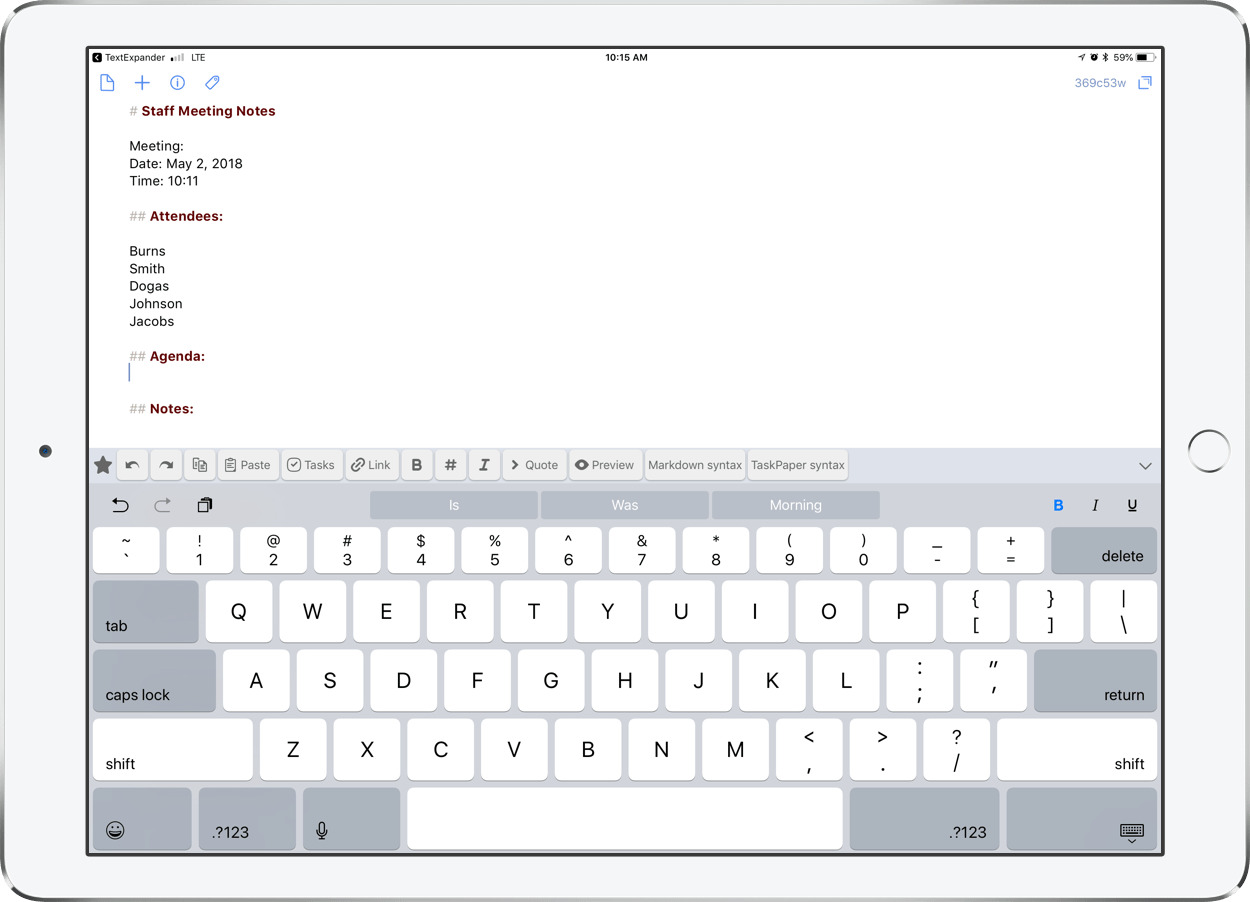
Editorial is a text editor meant primarily for longer form writing. If you have a blog and an iPad, this app really shines. The app supports plain text, Markdown, and TaskPaper. Markdown is a syntax that allows users to create formatting like headings, bullet lists, tables, and expressions for the web without actually using HTML. For example, when I wrote this blog post, I did not click around in the toolbar to make each of the sections of this post into headings. Instead I just typed ‘##’ in front of each of them, and my blogging service of choice, Squarespace (which interprets Markdown), automatically did the formatting for me. See below for an example.

TaskPaper is an amazing app for Mac that allows you to create checkable todo lists using only plain text. The syntax that the app uses also goes by the same name – TaskPaper. It is a really friendly way to work with checklists without taking your finger off the keyboard to format things. See the example below to get an idea what TaskPaper does. TaskPaper doesn’t have an iOS app, so the fact that Editorial works with TaskPaper files is great!

Much like Drafts, Editorial also has powerful user customizable workflows that you can perform on your text. You could have it post to your WordPress blog in one tap, for example. My favorite Editorial Workflow takes a list I wrote in the TaskPaper format and uses it as a template for reoccurring projects in my task app of choice, OmniFocus. Certain projects that I perform over and over again contain similar tasks. For example, I always do the same fifteen to twenty things every time I put on a band concert at my school. I keep a checklists of these tasks stored in Editorial so that every time I have a concert, take a sub day, or go on a field trip, I tap one button in Editorial and it imports the list into OmniFocus, complete with due dates, flags, and tags. 

<div class="
      image-block-outer-wrapper
      layout-caption-below
      design-layout-inline
      combination-animation-none
      individual-animation-none
      individual-text-animation-none
    ">


    <figure class="
          sqs-block-image-figure
          intrinsic
        " style="max-width:1242px">


      <div class="image-block-wrapper">
        <div class="sqs-image-shape-container-element


          has-aspect-ratio
        " style="position: relative;padding-bottom:177.7777862548828%;overflow: hidden">


            <img src="https://images.squarespace-cdn.com/content/v1/5595df9ce4b0ce9ff9ecd1a8/1500990078860-CS0NBKDUFFXVSTGSFM2N/image-asset.png" alt="" width="1242" height="2208" style="display:block;object-fit: cover;width: 100%;height: 100%;object-position: 50% 50%" loading="lazy">

        </div>
      </div>


    </figure>


</div>


<div class="
      image-block-outer-wrapper
      layout-caption-below
      design-layout-inline
      combination-animation-none
      individual-animation-none
      individual-text-animation-none
    ">


    <figure class="
          sqs-block-image-figure
          intrinsic
        " style="max-width:1242px">


      <div class="image-block-wrapper">
        <div class="sqs-image-shape-container-element


          has-aspect-ratio
        " style="position: relative;padding-bottom:177.7777862548828%;overflow: hidden">


            <img src="https://images.squarespace-cdn.com/content/v1/5595df9ce4b0ce9ff9ecd1a8/1500990108805-RIW37X8TD7UJT7DI4ZBR/image-asset.png" alt="" width="1242" height="2208" style="display:block;object-fit: cover;width: 100%;height: 100%;object-position: 50% 50%" loading="lazy">

        </div>
      </div>


    </figure>


</div>


<div class="
      image-block-outer-wrapper
      layout-caption-below
      design-layout-inline
      combination-animation-none
      individual-animation-none
      individual-text-animation-none
    ">


    <figure class="
          sqs-block-image-figure
          intrinsic
        " style="max-width:1242px">


      <div class="image-block-wrapper">
        <div class="sqs-image-shape-container-element


          has-aspect-ratio
        " style="position: relative;padding-bottom:177.7777862548828%;overflow: hidden">


            <img src="https://images.squarespace-cdn.com/content/v1/5595df9ce4b0ce9ff9ecd1a8/1500990144595-FB2SX3DWTWZ2XUGBVM7C/image-asset.png" alt="" width="1242" height="2208" style="display:block;object-fit: cover;width: 100%;height: 100%;object-position: 50% 50%" loading="lazy">

        </div>
      </div>


    </figure>


</div>

5. Launch Center Pro

Download here

Launch Center Pro is kind of like a springboard (the screen of apps you see when you unlock your iPhone) only it launches actions instead of apps. Actions can do almost anything. In fact, all of the apps in this post can be launched from within Launch Center. For example, I can publish my Workflows as buttons in Launch Center. I can create buttons in Launch Center that trigger IFTTT Applets. Launch Center actions can also launch apps, turn lights on and off in my house, take me into specific lists within my todo app, and more! 

Launch Center Pro took me a little more time to get my head around because it assumes that the user knows a little bit about something called x-callback-url. This is a protocol that most of the apps in this post take advantage of but don’t quite expose to the user. With Launch Center Pro, I felt like I really had to learn this system before digging in. Fortunately, MacStories has a great tutorial that you can read here.

<div class="
      image-block-outer-wrapper
      layout-caption-below
      design-layout-inline
      combination-animation-none
      individual-animation-none
      individual-text-animation-none
    ">


    <figure class="
          sqs-block-image-figure
          intrinsic
        " style="max-width:1242px">


      <div class="image-block-wrapper">
        <div class="sqs-image-shape-container-element


          has-aspect-ratio
        " style="position: relative;padding-bottom:177.7777862548828%;overflow: hidden">


            <img src="https://images.squarespace-cdn.com/content/v1/5595df9ce4b0ce9ff9ecd1a8/1500990190517-8N352Z9Y0YTS26RQQP9U/image-asset.png" alt="" width="1242" height="2208" style="display:block;object-fit: cover;width: 100%;height: 100%;object-position: 50% 50%" loading="lazy">

        </div>
      </div>


    </figure>


</div>


<div class="
      image-block-outer-wrapper
      layout-caption-below
      design-layout-inline
      combination-animation-none
      individual-animation-none
      individual-text-animation-none
    ">


    <figure class="
          sqs-block-image-figure
          intrinsic
        " style="max-width:1242px">


      <div class="image-block-wrapper">
        <div class="sqs-image-shape-container-element


          has-aspect-ratio
        " style="position: relative;padding-bottom:177.7777862548828%;overflow: hidden">


            <img src="https://images.squarespace-cdn.com/content/v1/5595df9ce4b0ce9ff9ecd1a8/1500990220051-QMKR8W6KDK5OFN39T24Z/image-asset.png" alt="" width="1242" height="2208" style="display:block;object-fit: cover;width: 100%;height: 100%;object-position: 50% 50%" loading="lazy">

        </div>
      </div>


    </figure>


</div>


<div class="
      image-block-outer-wrapper
      layout-caption-below
      design-layout-inline
      combination-animation-none
      individual-animation-none
      individual-text-animation-none
    ">


    <figure class="
          sqs-block-image-figure
          intrinsic
        " style="max-width:1242px">


      <div class="image-block-wrapper">
        <div class="sqs-image-shape-container-element


          has-aspect-ratio
        " style="position: relative;padding-bottom:177.7777862548828%;overflow: hidden">


            <img src="https://images.squarespace-cdn.com/content/v1/5595df9ce4b0ce9ff9ecd1a8/1500990256848-0ULX2LD3OIVLCAQSACCS/image-asset.png" alt="" width="1242" height="2208" style="display:block;object-fit: cover;width: 100%;height: 100%;object-position: 50% 50%" loading="lazy">

        </div>
      </div>


    </figure>


</div>

6. Launcher

Download here

Launcher is a much simpler and friendlier version of Launch Center Pro. Setting up actions is very straightforward and a number of them are available as pre-built templates. Launcher lives entirely inside of a Today Widget, which is a special widget that you can invoke on iOS by dragging down from the top of the screen or by swiping to the right of your first screen of apps. Launch Center Pro also has a widget available that does much the same thing, but you might find that you prefer Launcher if the learning curve for LCP is steep.

<div class="
      image-block-outer-wrapper
      layout-caption-below
      design-layout-inline
      combination-animation-none
      individual-animation-none
      individual-text-animation-none
    ">


    <figure class="
          sqs-block-image-figure
          intrinsic
        " style="max-width:750px">


      <div class="image-block-wrapper">
        <div class="sqs-image-shape-container-element


          has-aspect-ratio
        " style="position: relative;padding-bottom:177.86666870117188%;overflow: hidden">


            <img src="https://images.squarespace-cdn.com/content/v1/5595df9ce4b0ce9ff9ecd1a8/1500990302053-2MQIIF49UMYIOA0A0YER/image-asset.png" alt="" width="750" height="1334" style="display:block;object-fit: cover;width: 100%;height: 100%;object-position: 50% 50%" loading="lazy">

        </div>
      </div>


    </figure>


</div>


<div class="
      image-block-outer-wrapper
      layout-caption-below
      design-layout-inline
      combination-animation-none
      individual-animation-none
      individual-text-animation-none
    ">


    <figure class="
          sqs-block-image-figure
          intrinsic
        " style="max-width:750px">


      <div class="image-block-wrapper">
        <div class="sqs-image-shape-container-element


          has-aspect-ratio
        " style="position: relative;padding-bottom:177.86666870117188%;overflow: hidden">


            <img src="https://images.squarespace-cdn.com/content/v1/5595df9ce4b0ce9ff9ecd1a8/1500990333299-1NS530F6ZN3ESXTBGXT3/image-asset.png" alt="" width="750" height="1334" style="display:block;object-fit: cover;width: 100%;height: 100%;object-position: 50% 50%" loading="lazy">

        </div>
      </div>


    </figure>


</div>


<div class="
      image-block-outer-wrapper
      layout-caption-below
      design-layout-inline
      combination-animation-none
      individual-animation-none
      individual-text-animation-none
    ">


    <figure class="
          sqs-block-image-figure
          intrinsic
        " style="max-width:750px">


      <div class="image-block-wrapper">
        <div class="sqs-image-shape-container-element


          has-aspect-ratio
        " style="position: relative;padding-bottom:177.86666870117188%;overflow: hidden">


            <img src="https://images.squarespace-cdn.com/content/v1/5595df9ce4b0ce9ff9ecd1a8/1500990354014-NNTM6GS33S3PN0DGFIZ8/image-asset.png" alt="" width="750" height="1334" style="display:block;object-fit: cover;width: 100%;height: 100%;object-position: 50% 50%" loading="lazy">

        </div>
      </div>


    </figure>


</div>

My iPad Homescreen – August 7th, 2016 Edition

There is nothing more fun for an app nerd than discussing their homescreen. The homescreen is the screen on a mobile device that contains the most essential apps for the conscious user. I am always changing this screen depending on the time of year, apps I am using frequently, and new apps I am trying out. Here is what my current homescreen looks like…
<div class="
      image-block-outer-wrapper
      layout-caption-below
      design-layout-inline


    ">


    <figure class="
          sqs-block-image-figure
          intrinsic
        " style="max-width:2732px">


      <div class="image-block-wrapper">
        <div class="sqs-image-shape-container-element


          has-aspect-ratio
        " style="position: relative;padding-bottom:74.83333587646484%;overflow: hidden">


            <img src="https://images.squarespace-cdn.com/content/v1/5595df9ce4b0ce9ff9ecd1a8/1469160015792-SB0RJCOQA51P5GKIF41G/image.jpg" alt="My current homescreen." width="2732" height="2048" style="display:block;object-fit: cover;width: 100%;height: 100%;object-position: 50% 50%" loading="lazy">

        </div>
      </div>


      <figcaption class="image-caption-wrapper">
        <div class="image-caption">My current homescreen.</p></div>
      </figcaption>


    </figure>


</div>

And a brief description of some noteworthy apps on it…

The Dock

Messages – With iMessage, my iPad is just another window into my text conversations. I use this app just as much on the iPad and Mac as I do on the phone.

Spark Mail – One of my favorite Mail app replacements. Spark has enough power features to merit its own blog post, but the feature I am finding quite useful right now is the ability to filter just the important notifications so I am not bothered by junk email throughout the day.

Notes – The Apple Notes app is increasingly becoming my go to for most of my note taking needs. I love using it for checklists, outlines, and sketching. The action extension (accessible from within any iOS app by pressing the square with the arrow pointing out of it) allows me to clip whatever I am looking at, no matter the app, into a new note or existing note.

OmniFocus – This app runs my life. I keep it on the dock for easy access to my tasks and projects.

Drafts – Most of what I type on the iPad starts here and then later gets filtered into the app that best suits its content. I am often sending drafts to Twitter, OmniFocus, Notes app, and my blog app.

Other Essentials

Dropbox – Pretty much all of my documents live here. This is where I browse, edit, and share them from my iPad.

Documents – Think of Documents as the missing Finder app on iPad. It allows you to work with files locally on the iPad but also from various cloud services like Dropbox and Google Drive. In fact, it allows you to see all of your content from all of your cloud drives all in the same window. Right now this is crucial for me because I am using a personal and professional Google Drive account simultaneously. Documents allows me to be logged into both of them at the same time, something not even my Mac can do.

Pages – Of all the basic “office” style applications I work with, Pages is perhaps the most essential. Pages is a beautiful and intuitive replacement for Microsoft Word. I love how it seamlessly syncs my documents across all devices through iCloud Drive.

Byword – Byword is a plain text editor. If I am typing a document of length that doesn’t need to look pretty or include any multimedia, I usually type it here. Byword has a clutter free atmosphere that allows me to focus on just the text I am typing rather than buttons and tools.

forScore – My entire mobile score workflow is based on this app. I pull scores from my Dropbox account right into forScore where I can annotate them, perform from them, categorize them, and add all sorts of interesting metadata to them.

Blog – This is the app I use to post to my blog on my Squarespace website.

Notion – Still the best music notation software on iPad. I use it for small projects and defer to Sibelius on my Mac still for larger scale work. Notion allows you to scribble on a staff with the Apple Pencil and then it converts your hand writing into crystal clear notation. It’s magical.

Recent Favorites:

Google Drive – I have been deviating a little bit from my entirely Dropbox based workflow recently, in part because some colleagues of mine prefer to use Google Drive for collaboration. I really like the Google Drive app. I just wish that the Google Docs and Sheets app took advantage of iPad Pro split screen multitasking.

Sheets – Of all the a Google Doc apps, Sheets is the one I use the most. There are a bunch of ways to use cloud drives to collaborate with others on spreadsheets but Google Sheets is the only one I trust to sync everyone’s data reliably. I use this app very frequently to access docs related to scheduling and inventory.

GoodNotes – Although I am using Apple Notes for most things, I find that a few tasks require a little more power. GoodNotes is great at a couple of things. First of all, it has excellent Apple Pencil support for handwritten note taking and sketching. Next, I love how easy it is to combine my own notes along with other PDFs from my iPad all into the same notebooks. GoodNotes (and apps like Notability, which I was previously using until I started trying GN) does the best job allowing me to immediately scribble on top of PDFs. Many PDF annotation apps offer this feature but typically take a couple of taps to enter into annotation mode. GoodNotes feels more like a piece of paper. Also, while there are plenty of great dedicated score apps (including Notion from earlier in this post), I love that GN has a staff paper option. In fact, it is easy to intermingle a diverse range of paper styles all within the same notebook.

Slack – What is Slack? My favorite communication tool on the planet. Slack is an awesome collaboration tool for teams. I am not really sure this is the place to detail the range of its features, but I will share that the music team at my school has been using Slack for the past few months and it has been a real game changer. It is coming to replace both text messaging and email for us. The basic idea behind Slack is that a team can have multiple different “channels” within their team which are basically conversation threads. Any member of the team can be in any channel. For example, all of the people in our team who teach band or orchestra classes are part of an instrumental music channel where we have almost all of our digital communication about that subject. The choir guy doesn’t have to see any of that conversation. There is a general channel for general communication and even a random channel so that my endless gifs do not annoy my coworkers by disrupting otherwise productive discussions. Slack takes the cruft and formality out of the picture, enabling simple text conversation while also empowering us to be way better organized about the way we collaborate on different projects. Slack also has tons of integrations with other services. For example, with the Google Drive integration, I can share Google Docs right from within a Slack channel and other users can comment on it or launch right into it.

1Password – My favorite app for managing passwords, software serial numbers, secure notes, and more. I never forget a password with this app. And Touch ID on my iPad allows me to log in anywhere by simply touching my thumb to the home button.

Scrivener – Scrivener is a non-linear writing tool. I used the Mac version to write my book. I am beginning to plan some other writing projects and am enjoying the ability to sync my projects from Mac to iPad and back again.

comiXology – I pretty much only have time to read comic books in the summer. If you are in to this sort of thing, Amazon’s comiXology app is the place to buy and read your comics (actually, because Amazon likes to avoid paying Apple’s 30 percent of every purchase, you will have to buy the comics from Amazon or comiXology’s website). comiXology has this cool feature I like where it smartly detects the ends of the frames and allows you to scroll through each of them full screen. Right now, I am reading the Walking Dead series.

BusyCal – I am trying out this Calendar replacement right now. Usually, my calendar app of choice is Fantastical but BusyCal allows me to do some interesting things like, for example, associate contacts in my address book with events for better context.