My ability to handle the cognitive load of teaching middle school band is largely supported by a wonderful app called Drafts, made by Agile Tortoise. I will detail a little bit about how I use this app below, but I want to first say that the developer of Drafts, Greg Pierce, very generously chatted with me about it on my podcast recently. Greg also has a background in guitar, ethnomusicology, and folk studies. He has an interesting journey towards app development, which we also talked about on the show. Listen to the episode here.
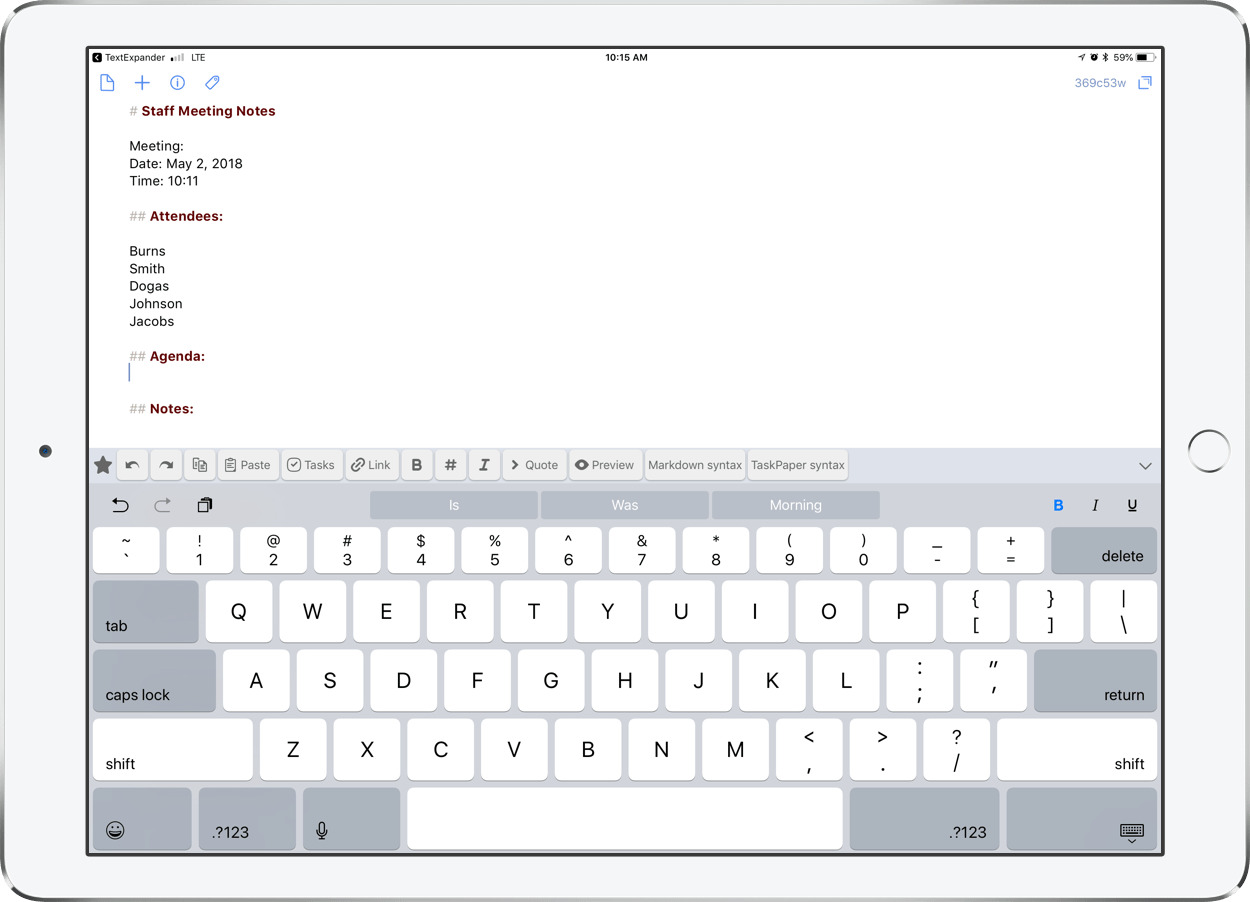
So what is Drafts? Drafts is the starting point for all text on my iPhone and iPad. It sits on the dock, right under my thumb, and I press it every time I have any kind of thought that I don’t want to slip away. Drafts opens to a blank white screen and a keyboard so you can instantly start typing. Adding a new Draft is as simple as tapping the plus button. You don’t need to worry about what kinds of thoughts these are, or what kinds of apps you should be capturing them in. They can be todos, messages, emails, future blog posts, anything. Picture me at the front of the classroom before band rehearsal. 70 students pouring into the room. Instruments blaring loud. Countless questions being thrown at me at once. Chaos all around. From the podium, I leave Drafts open alongside my sheet music and type anything that comes to mind. If a student tells me they don’t have a 2nd trombone part to Air and Dance, I write a note in Drafts. If a flute is broken, I start an email to the repair shop requesting for them to come pick it up. If I want to take general notes on our rehearsal progress, I start typing that in another draft. Even if I remember I need eggs at the grocery store later, I type that too!
<div class="
      image-block-outer-wrapper
      layout-caption-below
      design-layout-inline
      combination-animation-none
      individual-animation-none
      individual-text-animation-none
    ">


    <figure class="
          sqs-block-image-figure
          intrinsic
        " style="max-width:1250px">


      <div class="image-block-wrapper">
        <div class="sqs-image-shape-container-element


          has-aspect-ratio
        " style="position: relative;padding-bottom:72.15999603271484%;overflow: hidden">


            <img src="https://images.squarespace-cdn.com/content/v1/5595df9ce4b0ce9ff9ecd1a8/1525837057559-LF4X9EEU6GA7GD9NSJMZ/PNG+image+2.png" alt="A beautiful, distraction free, user interface, as soon as you launch Drafts." width="1250" height="902" style="display:block;object-fit: cover;width: 100%;height: 100%;object-position: 50% 50%" loading="lazy">

        </div>
      </div>


      <figcaption class="image-caption-wrapper">
        <div class="image-caption"><p class="">A beautiful, distraction free, user interface, as soon as you launch Drafts.</p></div>
      </figcaption>


    </figure>


</div>


<div class="
      image-block-outer-wrapper
      layout-caption-below
      design-layout-inline
      combination-animation-none
      individual-animation-none
      individual-text-animation-none
    ">


    <figure class="
          sqs-block-image-figure
          intrinsic
        " style="max-width:1250px">


      <div class="image-block-wrapper">
        <div class="sqs-image-shape-container-element


          has-aspect-ratio
        " style="position: relative;padding-bottom:72.15999603271484%;overflow: hidden">


            <img src="https://images.squarespace-cdn.com/content/v1/5595df9ce4b0ce9ff9ecd1a8/1525837079584-J6QMEMBAKLMRU6U4FRMA/PNG+image+13.png" alt="Drafts pairs perfectly with the sheet music app forScore in split view mode." width="1250" height="902" style="display:block;object-fit: cover;width: 100%;height: 100%;object-position: 50% 50%" loading="lazy">

        </div>
      </div>


      <figcaption class="image-caption-wrapper">
        <div class="image-caption"><p class="">Drafts pairs perfectly with the sheet music app forScore in split view mode.</p></div>
      </figcaption>


    </figure>


</div>
All of this stuff is categorized in the inbox where I can easily access it by swiping to the right. Here I can view any current or past archived draft, flag important ones, or send them to the trash. Once I am ready to process it all, I swipe left to reveal actions. Actions can do many things. At the most simple level, they send text to other apps like messages, email, a todo app, or Twitter. But actions can be heavily customized. They can perform multiple steps on text, and even run JavaScript on them. In the example below, you can see that I have a variety of drafts. Meeting notes, a few tasks, a start to a grocery list, a text to my wife, and the beginning of an email. To process these I would use the following actions, respectively: Send the meeting notes to the Apple Notes app, the tasks go to OmniFocus (where I manage all of my todos), the groceries go into my Reminders app grocery list, the text to my wife goes to Messages, and the email goes to Mail. Many of these actions happen in the background, meaning that I don’t leave Drafts, and can therefore process them really quickly. You don’t need to be a fancy pants to get awesome actions into Drafts, by the way. Some of my most frequently used actions are built into the app. There is also an Action Directory where you can steal the wonderful actions that others have already made.
<div class="
      image-block-outer-wrapper
      layout-caption-below
      design-layout-inline
      combination-animation-none
      individual-animation-none
      individual-text-animation-none
    ">


    <figure class="
          sqs-block-image-figure
          intrinsic
        " style="max-width:1250px">


      <div class="image-block-wrapper">
        <div class="sqs-image-shape-container-element


          has-aspect-ratio
        " style="position: relative;padding-bottom:72.15999603271484%;overflow: hidden">


            <img src="https://images.squarespace-cdn.com/content/v1/5595df9ce4b0ce9ff9ecd1a8/1525837106654-9MW2EQ6VN7EGWAL2YI0A/PNG+image+11.png" alt="Swiping right reveals all unprocessed drafts." width="1250" height="902" style="display:block;object-fit: cover;width: 100%;height: 100%;object-position: 50% 50%" loading="lazy">

        </div>
      </div>


      <figcaption class="image-caption-wrapper">
        <div class="image-caption"><p class="">Swiping right reveals all unprocessed drafts.</p></div>
      </figcaption>


    </figure>


</div>


<div class="
      image-block-outer-wrapper
      layout-caption-below
      design-layout-inline
      combination-animation-none
      individual-animation-none
      individual-text-animation-none
    ">


    <figure class="
          sqs-block-image-figure
          intrinsic
        " style="max-width:1250px">


      <div class="image-block-wrapper">
        <div class="sqs-image-shape-container-element


          has-aspect-ratio
        " style="position: relative;padding-bottom:72.15999603271484%;overflow: hidden">


            <img src="https://images.squarespace-cdn.com/content/v1/5595df9ce4b0ce9ff9ecd1a8/1525837128748-E21J4QI4WOCT5ARX0UT0/PNG+image+10.png" alt="Swiping left reveals all of the various actions you can perform on drafts." width="1250" height="902" style="display:block;object-fit: cover;width: 100%;height: 100%;object-position: 50% 50%" loading="lazy">

        </div>
      </div>


      <figcaption class="image-caption-wrapper">
        <div class="image-caption"><p class="">Swiping left reveals all of the various actions you can perform on drafts.</p></div>
      </figcaption>


    </figure>


</div>
Drafts 5, the newest version, was released recently. The app is free which means there is absolutely no excuse not to give it a try. Some of the power features like creating your own actions and using automation require a subscription price of $1.99 a month or $19.99 a year.
<div class="
image-block-outer-wrapper
layout-caption-below
design-layout-inline
combination-animation-none
individual-animation-none
individual-text-animation-none
">
<figure class="
sqs-block-image-figure
intrinsic
" style="max-width:1250px">
<div class="image-block-wrapper">
<div class="sqs-image-shape-container-element
has-aspect-ratio
" style="position: relative;padding-bottom:72.15999603271484%;overflow: hidden">
<img src="https://images.squarespace-cdn.com/content/v1/5595df9ce4b0ce9ff9ecd1a8/1525837161369-191EQM6PE79LJCCIPJHT/PNG+image+3.png" alt="This is the Edit Action screen. Actions are highly customizable. This particular action a) saves meeting notes to Evernote, b) saves tasks begining with "@" to my OmniFocus task app, and c) emails the notes to others in attendance." width="1250" height="902" style="display:block;object-fit: cover;width: 100%;height: 100%;object-position: 50% 50%" loading="lazy">
</div>
</div>
<figcaption class="image-caption-wrapper">
<div class="image-caption"><p class="">This is the Edit Action screen. Actions are highly customizable. This particular action a) saves meeting notes to Evernote, b) saves tasks begining with "@" to my OmniFocus task app, and c) emails the notes to others in attendance.</p></div>
</figcaption>
</figure>
</div>
I have always treated Drafts as a starting point for text. Interestingly, the new version has added some features that encourage using it as a note app replacement. You can now tag notes, create lists with checkable boxes, and even create custom workspaces that you organize your text into (paid feature). I am not sure if using Drafts this way is for me, but here are some ways I have been experimenting with it…
Processing Text
I have a “default” workspace depicted by the blue star icon below. Navigating workspaces is as easy as tapping custom icons in the lower left. My default workspace is where all of my unprocessed notes go. These generate a badge that appears on the icon of the Drafts app so that I don’t forget to act upon them later. This workspace resembles the extent to which I was using the previous version of Drafts.
<div class="
      image-block-outer-wrapper
      layout-caption-below
      design-layout-inline
      combination-animation-none
      individual-animation-none
      individual-text-animation-none
    ">


    <figure class="
          sqs-block-image-figure
          intrinsic
        " style="max-width:1250px">


      <div class="image-block-wrapper">
        <div class="sqs-image-shape-container-element


          has-aspect-ratio
        " style="position: relative;padding-bottom:72.15999603271484%;overflow: hidden">


            <img src="https://images.squarespace-cdn.com/content/v1/5595df9ce4b0ce9ff9ecd1a8/1525837194337-S07DU8QW4B4M3PC5C27L/PNG+image+11.png" alt="My default workspace. This functions like I used to use Drafts before workspaces became available." width="1250" height="902" style="display:block;object-fit: cover;width: 100%;height: 100%;object-position: 50% 50%" loading="lazy">

        </div>
      </div>


      <figcaption class="image-caption-wrapper">
        <div class="image-caption"><p class="">My default workspace. This functions like I used to use Drafts before workspaces became available.</p></div>
      </figcaption>


    </figure>


</div>
Simple Lists
My next workspace is where I keep active lists of things like recommended movies to see, blog ideas, and even a list of things I do every time I migrate to a new Mac. I can automatically append this list by pressing the “Add to list” action (available here) and then choosing which list to add to.
<div class="
      image-block-outer-wrapper
      layout-caption-below
      design-layout-inline
      combination-animation-none
      individual-animation-none
      individual-text-animation-none
    ">


    <figure class="
          sqs-block-image-figure
          intrinsic
        " style="max-width:1250px">


      <div class="image-block-wrapper">
        <div class="sqs-image-shape-container-element


          has-aspect-ratio
        " style="position: relative;padding-bottom:72.15999603271484%;overflow: hidden">


            <img src="https://images.squarespace-cdn.com/content/v1/5595df9ce4b0ce9ff9ecd1a8/1525837238325-6FTX5VTUTFWTQ68Z9RUM/PNG+image+6.png" alt="My lists workspace." width="1250" height="902" style="display:block;object-fit: cover;width: 100%;height: 100%;object-position: 50% 50%" loading="lazy">

        </div>
      </div>


      <figcaption class="image-caption-wrapper">
        <div class="image-caption"><p class="">My lists workspace.</p></div>
      </figcaption>


    </figure>


</div>


<div class="
      image-block-outer-wrapper
      layout-caption-below
      design-layout-inline
      combination-animation-none
      individual-animation-none
      individual-text-animation-none
    ">


    <figure class="
          sqs-block-image-figure
          intrinsic
        " style="max-width:1250px">


      <div class="image-block-wrapper">
        <div class="sqs-image-shape-container-element


          has-aspect-ratio
        " style="position: relative;padding-bottom:72.15999603271484%;overflow: hidden">


            <img src="https://images.squarespace-cdn.com/content/v1/5595df9ce4b0ce9ff9ecd1a8/1525837266517-YDJKPQU4ZTIYA0GM4TOZ/PNG+image.png" alt="If a friend recommends a movie to me, I quickly write it in a draft without fiddling around with apps on my phone and getting distracted from conversation. Later, I append it to my movie list in one tap." width="1250" height="902" style="display:block;object-fit: cover;width: 100%;height: 100%;object-position: 50% 50%" loading="lazy">

        </div>
      </div>


      <figcaption class="image-caption-wrapper">
        <div class="image-caption"><p class="">If a friend recommends a movie to me, I quickly write it in a draft without fiddling around with apps on my phone and getting distracted from conversation. Later, I append it to my movie list in one tap.</p></div>
      </figcaption>


    </figure>


</div>
Blog Drafts
My next workspace is for blogging. I usually write my blog posts in a third party text editor called Ulysses which means that I usually get started in Drafts and then tap an action that sends the text there. But sometimes I do like to spend a little bit of time in Drafts writing before I take that step. For these types of drafts, I now have a tag called “blog” that allows them to show up separate from my other notes that need to be processed.
<div class="
      image-block-outer-wrapper
      layout-caption-below
      design-layout-inline
      combination-animation-none
      individual-animation-none
      individual-text-animation-none
    ">


    <figure class="
          sqs-block-image-figure
          intrinsic
        " style="max-width:1250px">


      <div class="image-block-wrapper">
        <div class="sqs-image-shape-container-element


          has-aspect-ratio
        " style="position: relative;padding-bottom:72.15999603271484%;overflow: hidden">


            <img src="https://images.squarespace-cdn.com/content/v1/5595df9ce4b0ce9ff9ecd1a8/1525837297311-XXLRMYBY8ONNBH8CDTZO/PNG+image+7.png" alt="Blogging workspace." width="1250" height="902" style="display:block;object-fit: cover;width: 100%;height: 100%;object-position: 50% 50%" loading="lazy">

        </div>
      </div>


      <figcaption class="image-caption-wrapper">
        <div class="image-caption"><p class="">Blogging workspace.</p></div>
      </figcaption>


    </figure>


</div>
Lesson Planning and Note Taking
My last workspace is called Sectionals. My band program has weekly classes for each instrument. Once a week, I see the flutes from my band during one period, the clarinets the next, etc. I do some lesson planning for these sectionals in a note app called Bear. In those same notes I also write down things that happen in the sectionals. Things I assigned, things I assessed, things I said, students absent, instruments I repaired, etc. Fiddling through my notes app to add these notes was getting cumbersome and was distracting me from engaging with my students. So I created a series of sectional related actions that enable me to automate part of this process. The “R1, R2…” actions in the image below are examples of text expansion. Tapping buttons like these expand text that I commonly type. R1 stands for Rotation 1, which I would type if I were taking notes on the first week trumpet sectional for the quarter. The other actions automatically append my sectional notes. For example, tapping SW Trumpet would take my draft and append it to the bottom of that particular note in the Bear note app.
<div class="
      image-block-outer-wrapper
      layout-caption-below
      design-layout-inline
      combination-animation-none
      individual-animation-none
      individual-text-animation-none
    ">


    <figure class="
          sqs-block-image-figure
          intrinsic
        " style="max-width:1250px">


      <div class="image-block-wrapper">
        <div class="sqs-image-shape-container-element


          has-aspect-ratio
        " style="position: relative;padding-bottom:72.15999603271484%;overflow: hidden">


            <img src="https://images.squarespace-cdn.com/content/v1/5595df9ce4b0ce9ff9ecd1a8/1525837320778-5I7DQMGX97W7HEP41E14/PNG+image+8.png" alt="My sectionals workspace. Custom actions can be organized into different groups. This particular one has actions that expand common text that I type in my sectional notes like which weekly rotation we are on. It also contains buttons that take the te…" width="1250" height="902" style="display:block;object-fit: cover;width: 100%;height: 100%;object-position: 50% 50%" loading="lazy">

        </div>
      </div>


      <figcaption class="image-caption-wrapper">
        <div class="image-caption"><p class="">My sectionals workspace. Custom actions can be organized into different groups. This particular one has actions that expand common text that I type in my sectional notes like which weekly rotation we are on. It also contains buttons that take the text and append them to different notes, depending on which instrument group I am in front of.</p></div>
      </figcaption>


    </figure>


</div>


<div class="
      image-block-outer-wrapper
      layout-caption-below
      design-layout-inline
      combination-animation-none
      individual-animation-none
      individual-text-animation-none
    ">


    <figure class="
          sqs-block-image-figure
          intrinsic
        " style="max-width:1250px">


      <div class="image-block-wrapper">
        <div class="sqs-image-shape-container-element


          has-aspect-ratio
        " style="position: relative;padding-bottom:72.15999603271484%;overflow: hidden">


            <img src="https://images.squarespace-cdn.com/content/v1/5595df9ce4b0ce9ff9ecd1a8/1525837370388-QU5AO7Y8N7ZO5R0FX4IO/PNG+image-3D47FF6EA617-1.96b3dddb4c70433c8d7520be03a47059.png" alt="My sectional note in the Bear note taking app, now appended by Drafts." width="1250" height="902" style="display:block;object-fit: cover;width: 100%;height: 100%;object-position: 50% 50%" loading="lazy">

        </div>
      </div>


      <figcaption class="image-caption-wrapper">
        <div class="image-caption"><p class="">My sectional note in the Bear note taking app, now appended by Drafts.</p></div>
      </figcaption>


    </figure>


</div>
As you can see, Drafts is a simple note app with infinite customizability. Check it out today at Get Drafts.


 Music Ed Tech Talk