Readwise Reader now syncs highlights to Apple Notes

I’ve been using Readwise Reader for the past few years as both an RSS client and a read-it-later service.

I subscribe to all my favorite blogs and news sources within the app. My workflow typically involves swiping through the day’s articles, saving some to my read-later list, and catching up on them when I have time.

One of Readwise’s standout features is its ability to capture highlights from both web articles and Kindle books, automatically syncing them to your preferred notes app. It now integrates with Apple Notes!

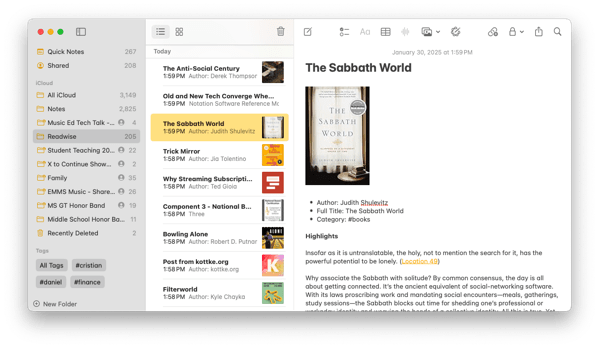
Here’s what my Apple Notes app looks like after an export: The sync pulls in book cover art, metadata, and the full text of each quote, along with direct links to those highlights in Readwise Reader and the Kindle app. It’s an invaluable tool for research and deep thinking.

CleanShot 2025-01-30 at 16.51.47.

My smart speaker setup

I aspire to write more about my smart home setup here but doing so requires a style of writing that doesn’t always come easily for me. So I decided to podcast about it. Scroll below to hear my recent conversation with David MacDonald about how I set up my smart speakers. Click here to learn about my favorite smart home devices.

Episode Description:

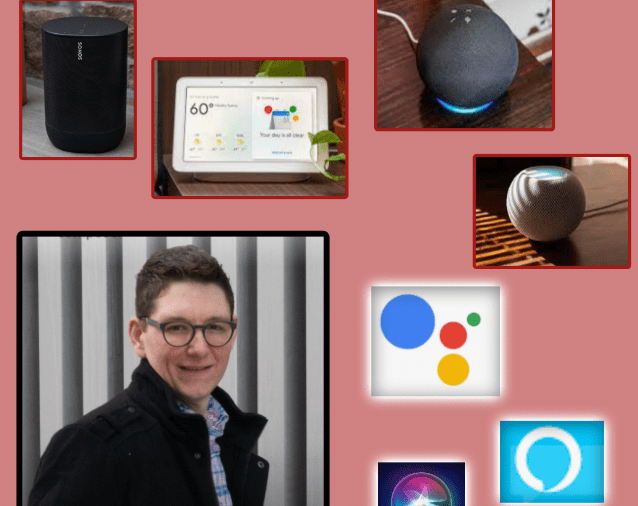
Robby and David (music composition, theory, and technology teacher at the Wichita State University) compare smart speakers, their assistants, and their smart home ecosystems. This episode covers the HomePod, Google Nest, Amazon Echo, Siri, Alexa, Google Assistant, Sonos speakers, and the various quirks that result from trying to use them in combination.

Backstage Access Patreon supporters get extended conversation about Apple Notes, DEVONthink, Standard Music Font Layout compatibility, FileMaker databases, student motivation, grading (and ungrading), and sticker charts.

Subscribe to the Blog…
RSS | Email Newsletter

Subscribe to the Podcast in…
Apple Podcasts | Overcast | Castro | Spotify | RSS

Support Music Ed Tech Talk

Become a Patron!

.bmc-button img{height: 34px !important;width: 35px !important;margin-bottom: 1px !important;box-shadow: none !important;border: none !important;vertical-align: middle !important;}.bmc-button{padding: 7px 15px 7px 10px !important;line-height: 35px !important;height:51px !important;text-decoration: none !important;display:inline-flex !important;color:#ffffff !important;background-color:#000000 !important;border-radius: 5px !important;border: 1px solid transparent !important;padding: 7px 15px 7px 10px !important;font-size: 20px !important;letter-spacing:0.6px !important;box-shadow: 0px 1px 2px rgba(190, 190, 190, 0.5) !important;-webkit-box-shadow: 0px 1px 2px 2px rgba(190, 190, 190, 0.5) !important;margin: 0 auto !important;font-family:'Arial', cursive !important;-webkit-box-sizing: border-box !important;box-sizing: border-box !important;}.bmc-button:hover, .bmc-button:active, .bmc-button:focus {-webkit-box-shadow: 0px 1px 2px 2px rgba(190, 190, 190, 0.5) !important;text-decoration: none !important;box-shadow: 0px 1px 2px 2px rgba(190, 190, 190, 0.5) !important;opacity: 0.85 !important;color:#ffffff !important;}Buy me a coffeeBuy me a coffee

Show Notes:

App of the Week:
Robby – HomeRun 2
David MacDonald – Letterpress

Album of the Week:
Robby – Hiatus Kaiyote – Mood Valiant
David MacDonald – Frederic Rzewski: The People United Will Never Be Defeated – Ursula Oppens | The People United Will Never Be Defeated – Kaj Schumacher | Winnsboro Cotton Mill Blues

Tech Tip of the Week:
Robby – Use a clipboard manager
David MacDonald – New stream deck store!

Where to Find Us:
Robby – Twitter | Blog | Book
David MacDonald – Twitter | Website

Please don’t forget to rate the show and share it with others!

Using Drafts and TextExpander to Organize Lesson Notes

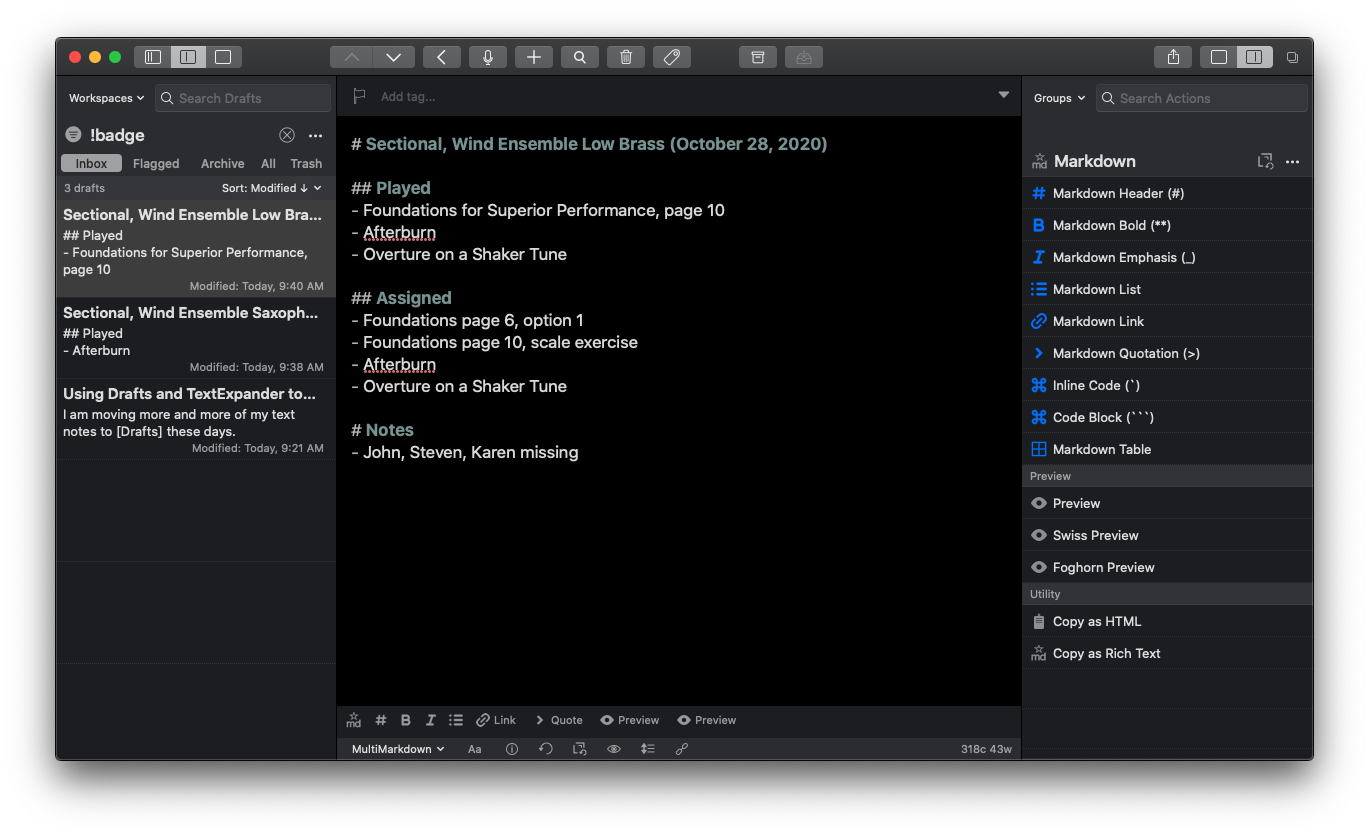
Taking notes on sectionals in the Drafts app.

I am moving more of my text notes to Drafts these days. You can read about how I use Drafts here. Drafts is a note-taking app where most of my text typing starts. When I am ready to act upon my text, the actions on the right side of the screen allow me to send it off to messages, emails, tasks, notes, social media, and more.

Generally, I use Drafts as a text-inbox, where I eventually process all of my text ideas and send them to other apps that are better suited for them. But lately, I wonder why I need to take the extra step of sending a draft to another app when Drafts is perfectly suited for organizing and searching text.

Let’s take Lesson Notes, for example. When I teach a sectional, large ensemble, or private lesson, I like to take notes on what we played and what I assigned. Usually, I would type these in Drafts and then send the finished text to Apple Notes. But lately, I am just keeping it in Drafts and archiving it so that it doesn’t clutter up the inbox area. Everything is in plaintext so searching my entire 7,000 draft library is way faster than searching Apple Notes. Plus, it reduces the amount of time I ever even need to open Apple Notes by 90 percent.
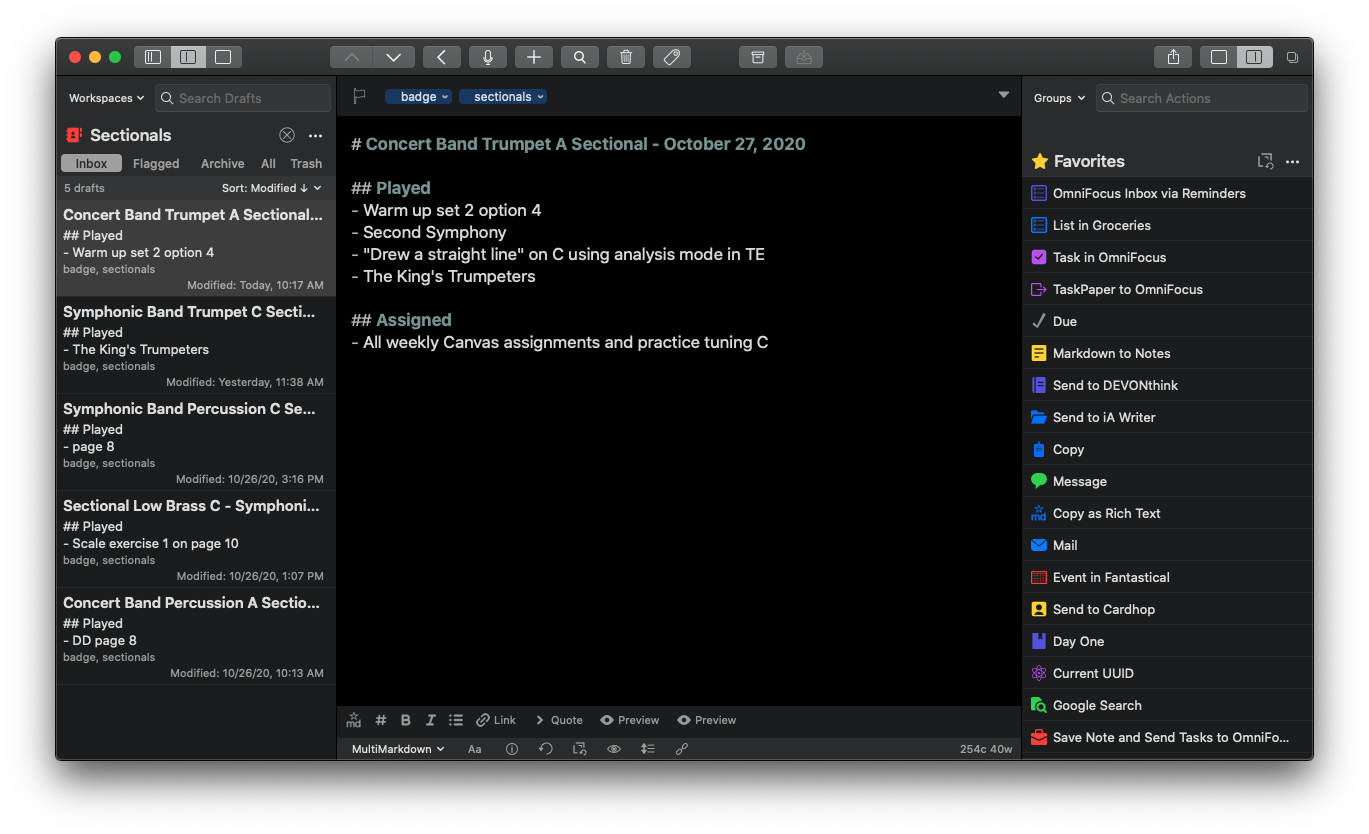
My "Sectionals" Workspace.

I add the tag “sectionals” to a draft where I have taken sectional notes, and I have a custom workspace that allows me to see just the drafts with that tag.
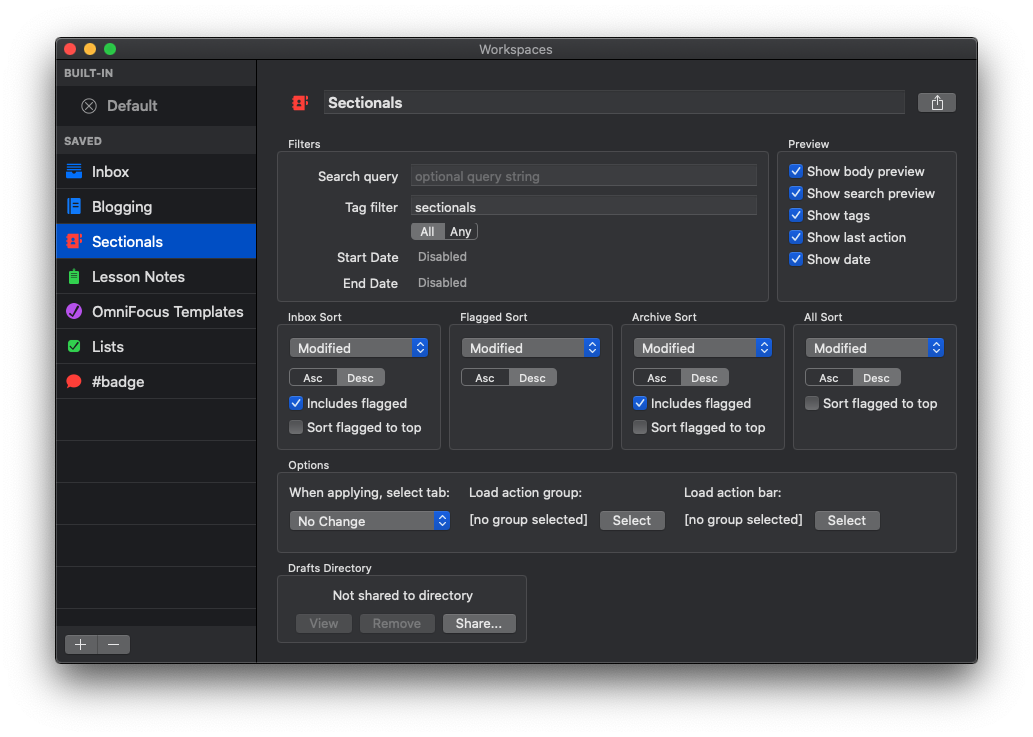
Here is how I have set up my Sectionals Workspace to include drafts with the "sectionals" tag.

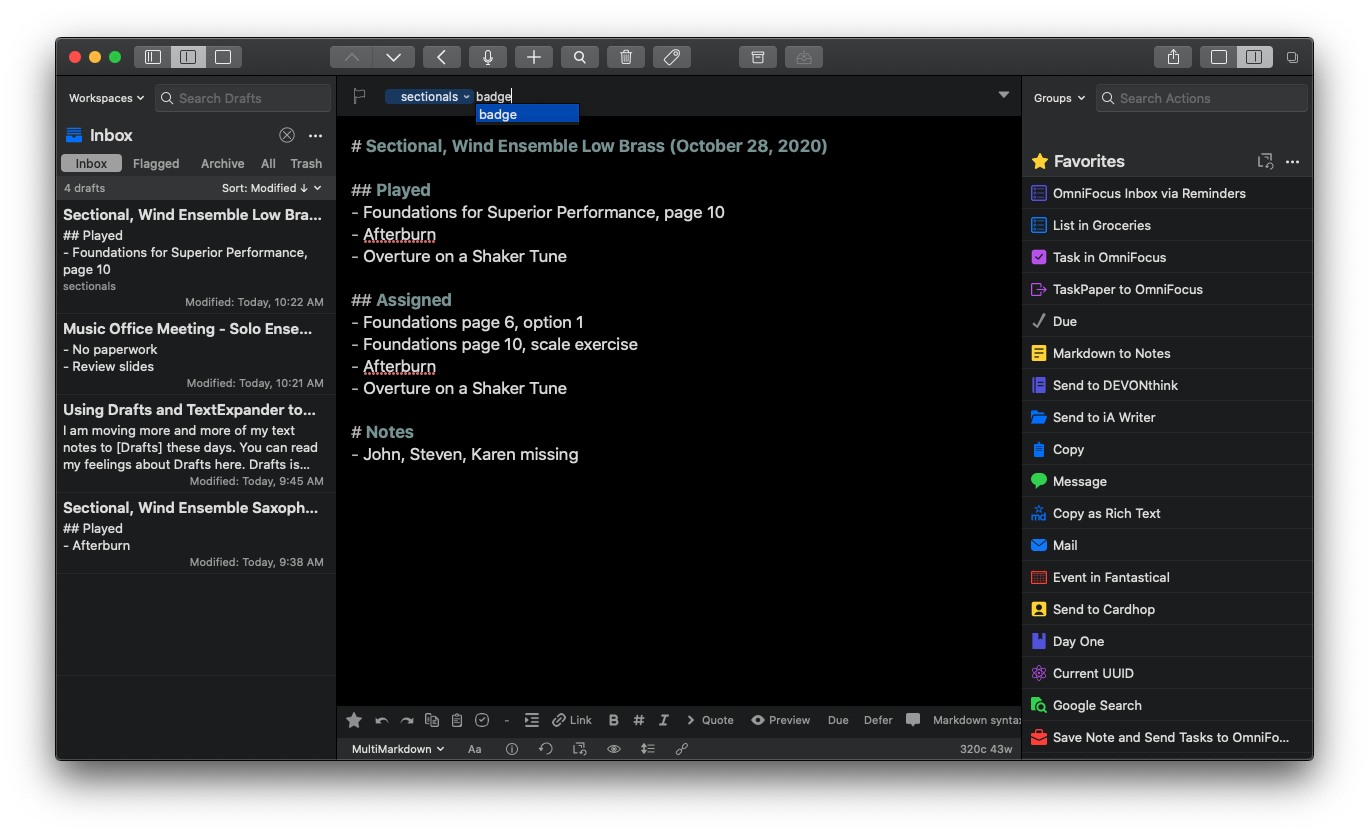
Adding tags is as simple as typing them into the tag area.

Additionally, tagging them “badge” makes it so that the draft doesn’t contribute to the number on the red badge of the Drafts icon. I use the badge only to inform me of drafts that need to be processed to another app.

I write most of my drafts in Markdown, which means I use “#” symbols to note levels of the heading, “**” to indicate things I want bold, etc… If you want to read more about how I use Markdown, read this post. Drafts and common web editing tools like WordPress (and even Canvas) can turn this Markdown into HTML. I only use Markdown for my sectional notes to show bullet-pointed lists and first/second-level headings. Drafts does some light formatting to help me better see this information by, for example, highlighting the headings green.

It gets tedious to retype this template for every class, so I have TextExpander snippets to do it for me. Read about how I am using TextExpander here.

In the case of the snippet below, I type “sectionalnotes” into the body of the draft and then TextExpander prompts me for the ensemble and sectional name and then automatically fills in that data, with my fill-ins and the current date.
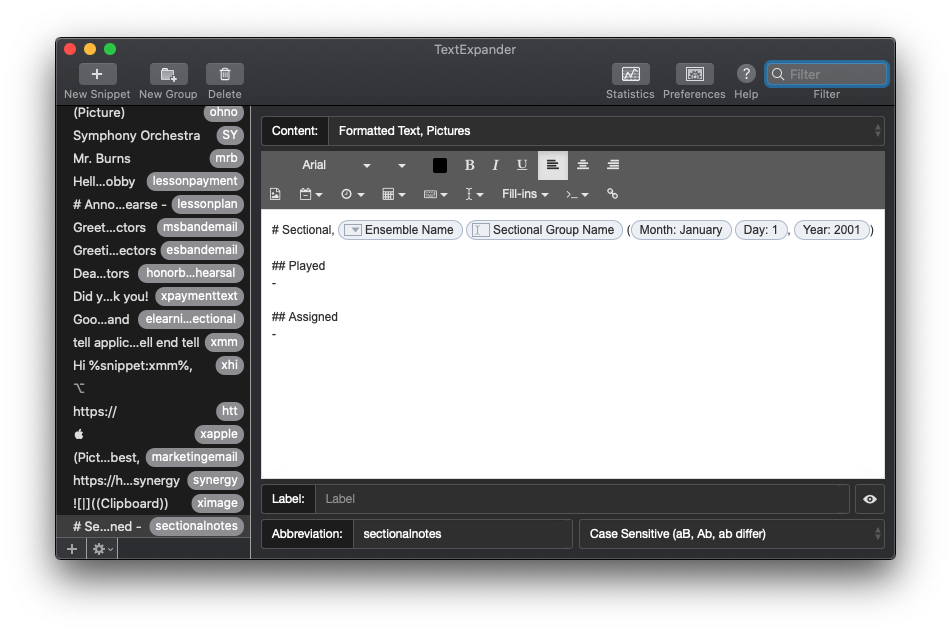
My TextExpander snippet for Sectional Notes.

Using an action called Current UUID, I can copy a link to a draft to my clipboard and paste it in to the calendar event for whatever class, lesson, or sectional it is related to. That way, I can easily refer to it by date, using the visually friendly interface of a calendar app.

Raw first impressions of the new iPad Pro

I am all set up with my new 12.9 inch iPad Pro. Here are my gut thoughts on the process of purchasing the device and the first few hours of use.

I ordered the 11 inch device on day one and then immediately regretted it once I heard reports of the 12.9’s lightness. This mixed in with the fact that the 11 inch still runs apps in a different size class than the 12.9. For example, when you run Mail and Notes side by side, it is possible to see the list of notes/messages and the contents of the note/message on screen at once in the 12.9 model.

I went in to the Apple Store today with the idea in mind that I would test both out, most likely buy a 12.9, and then return the 11.

Things I tested in the store:

-Holding each device in hand with and without Keyboard Folio attached.

-Running two productivity apps side by side in 50/50 split view on both devices to see how much content was visible.

-Typing an email on each keyboard.

-Looking at sheet music on one half of the screen while taking handwritten notes on the other. (In landscape and in portrait)

-Fitting each device in and out of my back pack.

-Taking handwritten notes in Apple Notes while holding the device in the other hand.

Making the decision

It was a hard decision. I really miss watching movies and reading books on the couch with my current 12.9. It’s too big. It is also too heavy for me to hold in one hand at length. Still, I purchased it. Because I don’t want to miss out on any software features now, or down the road. The fact that you can put 15 apps on the dock of the 12.9 and that you can run apps with more features in split view was enough to sell me on it. Apple could add those features to the 11 inch later through software. But Apple could also add new features to just the 12.9. Another tie breaker was the keyboard. I just can’t type on the 11 inch keyboard as comfortably. I don’t think I will regret this. An honest look at my iPad use over the past year reveals hours and hours a day reading sheet music from far away while viewing a seating chart on the other half of the screen. Can I just have two iPads? The thought crossed my mind and then I realized how needlessly complex that could be. My wallet rejoiced.

First thoughts

The inductive charging pencil that snaps to the device is brilliant. It is going to make the pencil feel so much more delightful to use.

Pencil only attaches to the top while in landscape. Bummer.

It will take some time to retrain myself to swipe up to go to home screen and double tap the pencil to change tools. These are superior methods, but habit is habit.

Using the pencil with Apple Notes is a dream. Combine the higher refresh rate (my first time experiencing this since I own the first gen iPad Pro) with the feel of the new pencil, along with the responsiveness of “tap to wake,” and you get as close to paper as I can imagine. Tapping the pencil tip to the sleeping iPad screen instantly gets you handwriting in the Notes app. This feature has existed before, but it is so smooth now, that… you really just have to try it to believe it. It’s so good that I am already thinking about how to work Apple Notes back into my note workflow (I can’t ever seem to avoid using less than three or four note apps at once). I was so compelled by this idea that I sketched out some workflow ideas in Apple Notes with the new pencil. I have to conceive of note apps with a healthy dose of metaphor.

<div class="
      image-block-outer-wrapper
      layout-caption-below
      design-layout-inline
      combination-animation-none
      individual-animation-none
      individual-text-animation-none
    ">


    <figure class="
          sqs-block-image-figure
          intrinsic
        " style="max-width:2500px">


      <div class="image-block-wrapper">
        <div class="sqs-image-shape-container-element


          has-aspect-ratio
        " style="position: relative;padding-bottom:74.96339416503906%;overflow: hidden">


            <img src="https://images.squarespace-cdn.com/content/v1/5595df9ce4b0ce9ff9ecd1a8/1541641012630-WHTK84Q7Q1JWM0I3CNVY/FullSizeRender.jpg" alt="FullSizeRender.jpg" width="2500" height="1874" style="display:block;object-fit: cover;width: 100%;height: 100%;object-position: 50% 50%" loading="lazy">

        </div>
      </div>


    </figure>


</div>


12.9 is lighter but still too heavy to hold in one hand with ease. It actually feels grippier to me when the case is on. Less like I am going to drop it.

New Keyboard Folio is way easier to unfold but harder to detach from the iPad.

Apps that aren’t optimized for the screen are currently letterboxed. I don’t mind it as much as I thought I would.

This device is going to feel so much better to use all around, but as many members of the tech press have stated, it is still powered by a limited OS. iOS hasn’t seen features to differentiate the iPad since iOS 11. Rumor has it that iOS 13 is going to bring a lot more iPad productivity. Until the other shoe drops, I wait in eager anticipation for what this iPad could become.

Features I would need from iOS to allow me to use my iPad for 99 percent of my work (that are within Apple’s control)

-Trackpad and mouse support

-Open two instances of the same app side by side

-Faster animation when I press Command+Tab

-Desktop-ier Safari

-Improvements to the Files app (I need more control in iCloud Drive over which documents are stored in the cloud vs. local to the device. Third party providers like Google Drive do not show up in the search results when I search in Files app or in Spotlight.)

-Default apps. Not just for stuff like Mail and Maps. I need to be able to specify which app a document opens in when I tap it in the Files app.

-Ability to manage my iTunes Library.

-Logic Pro (they have to be working on this, right?)

-Bonus point: Ability to have more than one audio in or out running at the same time.

-Bonus point: some sort of rethink to the home screen. I would love to be able to launch a file or a folder from there. A widget with recent notes wouldn’t suck either.

-Bonus point: three apps 33/33/33 percent at the same time.

-Extreme bonus point: keyboard intent to allow TextExpander to work.

-Extreme bonus point: extension for apps to put a window in the middle of the screen that allows for viewing or editing content. Example: a quick note function, or the ability to add a task to OmniFocus.

I think about half of the things I did not label as Bonus could happen in the next year. I would be disappointed if they don’t, but fortunately, I bought the new iPad for what it is, not what it will be. And what it is is an extremely powerful iPad that is 100 percent more delightful to use in every respect. I can’t wait to test this thing out in the classroom tomorrow.

Skepticism about Evernote’s new announcement

Screen Shot 2018-08-15 at 9.34.29 AM.png

As you probably know, I have been a huge advocate for Evernote in my book, clinics, and numerous podcasts. If you know that, you might also know that I have been looking for a replacement for it for years now. 

Evernote’s future has been unclear to me for a number of years now. While they have managed to keep their apps up to date with the latest iOS features, no major new features have been added to the platform in recent memory. Yet the company has raised prices, removed features from the free tier, and had some other small missteps. 

Yesterday, Evernote unveiled this post on their site. Its a followup to this post from earlier in the year. I thought the post from earlier in the year was a load of meaningless corporate and marketing speak, but today’s really takes the cake. And don’t even get me started on the post within today’s post that goes on and on for paragraphs about redesigning the app’s Elephant mascot, amongst other things. Dropbox tried this exact kind of thing earlier in the year where they make a huge rebrand announcement that is all graphic design and marketing fluff without any meat about how it will impact the user experience. And it hasn’t changed anything about how Dropbox is actually used other than making the user interface more difficult to understand in some places.

<div class="
      image-block-outer-wrapper
      layout-caption-below
      design-layout-inline
      combination-animation-none
      individual-animation-none
      individual-text-animation-none
    ">


    <figure class="
          sqs-block-image-figure
          intrinsic
        " style="max-width:1774px">


      <div class="image-block-wrapper">
        <div class="sqs-image-shape-container-element


          has-aspect-ratio
        " style="position: relative;padding-bottom:75.08455657958984%;overflow: hidden">


            <img src="https://images.squarespace-cdn.com/content/v1/5595df9ce4b0ce9ff9ecd1a8/1534339871462-LV5PKU0SHGJBH1AJP6VG/Screen+Shot+2018-08-15+at+9.29.43+AM.png" alt="Like, really, Dropbox. In this limited space, could you seriously not think of any more information I might want to see while playing back an audio file other than this dude dancing next to a disco ball? This particular page is even worse on the sma…" width="1774" height="1332" style="display:block;object-fit: cover;width: 100%;height: 100%;object-position: 50% 50%" loading="lazy">

        </div>
      </div>


      <figcaption class="image-caption-wrapper">
        <div class="image-caption"><p class="">Like, really, Dropbox. In this limited space, could you seriously not think of any more information I might want to see while playing back an audio file other than this dude dancing next to a disco ball? This particular page is even worse on the small screen of an iPhone.</p></div>
      </figcaption>


    </figure>


</div>

To me, yesterday’s blog posts are further proof that Evernote does not have a clear vision for how to make their products better for users. The community has been very clear about what they want from the company. A better redesigned Mac app, markdown support, and code blocks, to name a few. But rather than disclose a roadmap of user facing product improvements, Evernote seems only committed to blowing steam through the use of fancy graphic design, photography, and web design. If only they put all of that time and money into actual features that would make users lives better. 

So I think this is the final straw. I am going to let my Evernote subscription lapse this fall when it comes to a close. The real challenge about this situation for me, and other Evernote users, is that it is the most fully featured note app on the market. Of all the things one might want from a note app, Evernote covers more of them than any of the competition. But unfortunately for Evernote, stock software like Apple Notes is good enough to do most of the things people need. And for those who want more, there is an emerging bunch of independent developers making note apps who show way more hustle, adding major features to their apps, annually (Bear, for example).

Apple Notes does such a nice job with simple text scraps, web clippings, and check lists, that the only primary use of Evernote I need to replace once my subscription lapses is the “everything bucket” use case. “Everything bucket” is the phrase I use to describe the dumping of PDFs, images, emails, and websites into a digital “drawer” so to speak, where I can later search these documents by the text within them. 

This summer I have been giving DEVONthink a try. It is a Mac and iOS app that is a one time paid purchase on each device. It is a document management app that has all of the “everything bucket” features of Evernote and more. I hope to write more on it soon. For now, I am pretty happy that I have an easy way to clip receipts, websites for later review, and emails, and have them made automatically text searchable. The DEVONthink app on Mac is hideous, and setting up iCloud sync took me a minute, but the utility of the app is worth it so far. I prefer something like this rather than to continue to support companies who string their customers along while they spend time and money on making their elephant mascot look more 2018. 

I may be wrong. Evernote could come out with a killer set of new features in the next 12 months, convincing me and the rest of the world to return to it. I’ll believe it when I see it.