Microsoft is creating a new kind of Office document. Instead of Word, Excel, or PowerPoint, the company has created Lego blocks of Office content that live on the web. The tables, graphs, and lists that you typically find in Office documents are transforming into living, collaborative modules that exist outside of traditional documents.
Microsoft calls its Lego blocks Fluid components, and they can be edited in real time by anyone in any app. The idea is that you could create things like a table without having to switch to multiple apps to get it done, and the table will persist on the web like a Lego block, free for anyone to use and edit.
This is obviously very cool, but it’s the next part that gets me excited.
Fluid is designed to make those tables, charts, and lists always feel alive and editable, no matter where you create them and regardless of how you share and copy them into other apps. Instead of getting a static and dull chart you copied from Excel, you’ll get a chart that can be edited anywhere you paste it, and you’ll see everyone making edits as they happen. That might be in the middle of an email chain, in a chat app like Microsoft Teams, or even third-party apps eventually.
So certain parts of Office documents can be shared between multiple spaces, or with multiple users, across multiple apps. If I am understanding this correctly, I can instantly think of 25 ways this could make my job easier. Here are a few…
Copy tasks from a Microsoft To Do project called Field Trip into an email to my music team and have everyone check off tasks in the email as they do them. Status of those completed tasks syncs back to my project in To Do.
Say I am logging a spreadsheet of student concert attire orders and I need some data for a few choir kids. I can copy and paste just those cells, email them to the choir teacher, he can fill out the data right in the email, and I watch as it syncs back to my spreadsheet.
Similar to that last one. My school district sends me an updated list of recommended private teachers. I email just the flute teachers to my flute students and it stays up to date when the data is edited by those who maintain the list.
No more putting the same student names in multiple different documents. I can have one Word document that acts as a primary roster. All concert programs, student lists, sectional roster documents, etc. are just snippets of text from my primary roster document, that automatically update when I update the primary roster. No more misspelled names, inconsistency, or duplicated work.
Various data from documents can be clipped into media rich notes in OneNote where I can access them alongside one another without thinking about document management. For example, a short list of Concert Attire tasks could coexist in the same note as a portion of a payment spreadsheet, and both could update in real time when I edit their respective documents in To Do and Excel.
For the reccord, I don’t use any of Microsoft’s apps as my default tools, but I can certainly see myself using them more often if I can leverage this kind of power out of them.
Some questions I have:
Will this be web only or will it eventually roll out to Microsoft apps on all platforms?
Will Microsoft stand alone apps like Excel continue to exist or will they be replaced with one app (like the iPhone which now has an “Office” app that combines features of the whole suite)
Will this actually catch on with people who are used to saving files to places on their hard drive? It seems ahead of its time.
Will it compete with Google Docs? Someone needs to. Google Docs gets a only a few things right, but they get them really right, and that’s why I think it has been so pervasive. Personally, I would far prefer that my work and personal circles relied on great native apps like Office.
Will third party apps be able to embed the modular Microsoft elements inside of them, create modular elements to be able to insert in Microsoft docs, or both?
Would Apple ever consider participating in this framework with their iWorks apps? Would they recreate their own version?
Friend and colleague, Lori Schwartz Reichl, joins the show to talk about student and teacher engagement, the up-sides of teaching private lessons remotely, broadening her teaching career beyond the classroom, the Institute for Composer Diversity, and much more!
Major upgrade to Logic Pro today. New non-linear loop composing, new drum machine, and sampling features… it sure does feel like this release is a response to some of the features that make Abelton Live such a compelling experience.
Live Loops is a dynamic way to create and arrange music in real time. Kick off your composition by adding loops, samples, or your recorded performances into a grid of cells. Trigger different cells to play with your ideas without worrying about a timeline or arrangement. Once you find combinations that work well together you can create song sections, then move everything into the Tracks area to continue production and finish your song.
We redesigned and improved our most popular plug-in — the EXS24 Sampler — and renamed it Sampler. The new single-window design makes it easier to create and edit sampler instruments while remaining backward compatible with all EXS24 files. An expanded synthesis section with sound-shaping controls brings more depth and dynamics to your instruments. The reimagined mapping editor adds powerful, time-saving features that speed the creation of complex instruments. Use the zone waveform editor to make precise edits to sample start/end, loop ranges, and crossfades. And save hours of tedious editing with new drag-and-drop hot zones.
Quick Sampler is a fast and easy way to work with a single sample. Drag and drop an audio file from the Finder, Voice Memos, or anywhere within Logic Pro X. Or record audio directly into Quick Sampler using a turntable, microphone, musical instrument, or even channel strips playing in Logic Pro X. In a few steps, you can transform an individual sample into a fully playable instrument. And with Slice Mode, you can split a single sample into multiple slices — perfect for chopping up vocals or breaking up and resequencing drum loops.
The new Sampler and Quick Sampler seem especially interesting. Making these kinds of (usually advanced) workflows dead simple is something that Apple is unmatched at when it comes to software design.
This week, Chris Russell and Paul Shimmons join my show. We catch up on recent news in music ed tech, discuss what we are doing for distance learning, and then discuss how we have been using the new StaffPad for iPadOS app.
Chris and Paul, co-hosts of the Music Education & Technology Podcast, rejoin the show to talk about how we are doing for distance learning, StaffPad for iPadOS, and other recent news in music technology education.
Teachers in my district were tasked with making a welcome video introducing students to the first week of distance learning.
After denying several times that I would put any serious effort into this project, I inevitably got carried away and spiraled down a rabbit hole of apps, workflows, and tricks. Musicians and teachers are feeling a special kind of hunger right now to be creative. I am thankful for software and internet connected tools that help me to communicate in a unique way.
Apple Clips App might be the only one of these apps you need. It is a free Apple app that is kind of like a cross between iMovie and Photo Booth. Its intended purpose is to make quick, engaging videos, designed to be shared in the age of Instagram Stories.
Clips is how I got my Memoji head to appear on my body. It will also automatically caption your video for you. It can bring in numerous effects, call outs, emoji, backdrops, and can even do still images of words. You could make a video that accomplishes the same general effects as mine in next to zero effort using only Clips.
<div class="
      image-block-outer-wrapper
      layout-caption-below
      design-layout-inline
      combination-animation-none
      individual-animation-none
      individual-text-animation-none
    ">


    <figure class="
          sqs-block-image-figure
          intrinsic
        " style="max-width:1443px">


      <div class="image-block-wrapper">
        <div class="sqs-image-shape-container-element


          has-aspect-ratio
        " style="position: relative;padding-bottom:198.6833038330078%;overflow: hidden">


            <img src="https://images.squarespace-cdn.com/content/v1/5595df9ce4b0ce9ff9ecd1a8/1586639484809-3JS15B9QIDA1YU9LS68G/iVBORw0KGgoAAAANSUhEUgAABaMAAAszCAYAAACIWkB7AAABgmlDQ1BzUkdCIElFQzYxOTY2LTIu-2+5.PNG" alt="Clips allows you to integrate Animoji, Filters, Text, Stickers, and Emoji to your live video." width="1443" height="2867" style="display:block;object-fit: cover;width: 100%;height: 100%;object-position: 50% 50%" loading="lazy">

        </div>
      </div>


      <figcaption class="image-caption-wrapper">
        <div class="image-caption"><p class="">Clips allows you to integrate Animoji, Filters, Text, Stickers, and Emoji to your live video.</p></div>
      </figcaption>


    </figure>


</div>


<div class="
      image-block-outer-wrapper
      layout-caption-below
      design-layout-inline
      combination-animation-none
      individual-animation-none
      individual-text-animation-none
    ">


    <figure class="
          sqs-block-image-figure
          intrinsic
        " style="max-width:1443px">


      <div class="image-block-wrapper">
        <div class="sqs-image-shape-container-element


          has-aspect-ratio
        " style="position: relative;padding-bottom:198.6833038330078%;overflow: hidden">


            <img src="https://images.squarespace-cdn.com/content/v1/5595df9ce4b0ce9ff9ecd1a8/1586639517421-K3TKGRRLGTMHTJN8H973/iVBORw0KGgoAAAANSUhEUgAABaMAAAszCAYAAACIWkB7AAABgmlDQ1BzUkdCIElFQzYxOTY2LTIu-2+4.PNG" alt="Clips automatically adds captions in a style you like. You can edit them after the fact." width="1443" height="2867" style="display:block;object-fit: cover;width: 100%;height: 100%;object-position: 50% 50%" loading="lazy">

        </div>
      </div>


      <figcaption class="image-caption-wrapper">
        <div class="image-caption"><p class="">Clips automatically adds captions in a style you like. You can edit them after the fact.</p></div>
      </figcaption>


    </figure>


</div>


<div class="
      image-block-outer-wrapper
      layout-caption-below
      design-layout-inline
      combination-animation-none
      individual-animation-none
      individual-text-animation-none
    ">


    <figure class="
          sqs-block-image-figure
          intrinsic
        " style="max-width:1443px">


      <div class="image-block-wrapper">
        <div class="sqs-image-shape-container-element


          has-aspect-ratio
        " style="position: relative;padding-bottom:198.6833038330078%;overflow: hidden">


            <img src="https://images.squarespace-cdn.com/content/v1/5595df9ce4b0ce9ff9ecd1a8/1586639567505-19DDGEIFM7BPQGL7VF6K/iVBORw0KGgoAAAANSUhEUgAABaMAAAszCAYAAACIWkB7AAABgmlDQ1BzUkdCIElFQzYxOTY2LTIu-2+6.PNG" alt="You can record yourself speaking over static posters to communicate information in an engaging way." width="1443" height="2867" style="display:block;object-fit: cover;width: 100%;height: 100%;object-position: 50% 50%" loading="lazy">

        </div>
      </div>


      <figcaption class="image-caption-wrapper">
        <div class="image-caption"><p class="">You can record yourself speaking over static posters to communicate information in an engaging way.</p></div>
      </figcaption>


    </figure>


</div>
iMessage
iMessage is where I made my Memoji. It is also another place that you can get a Memoji head on top of your body (see screenshots below). I used this method for a few scenes in the video, instead of Clips, because it can shoot in landscape view. Clips produces square video only.
<div class="
      image-block-outer-wrapper
      layout-caption-below
      design-layout-inline
      combination-animation-none
      individual-animation-none
      individual-text-animation-none
    ">


    <figure class="
          sqs-block-image-figure
          intrinsic
        " style="max-width:1443px">


      <div class="image-block-wrapper">
        <div class="sqs-image-shape-container-element


          has-aspect-ratio
        " style="position: relative;padding-bottom:198.6833038330078%;overflow: hidden">


            <img src="https://images.squarespace-cdn.com/content/v1/5595df9ce4b0ce9ff9ecd1a8/1586639707502-8Y82ATQOI1TRRMHJFJYM/iVBORw0KGgoAAAANSUhEUgAABaMAAAszCAYAAACIWkB7AAABgmlDQ1BzUkdCIElFQzYxOTY2LTIu-2.PNG" alt="An alternate way to film yourself with a Memoji head is to open up a text message conversation to someone or yourself." width="1443" height="2867" style="display:block;object-fit: cover;width: 100%;height: 100%;object-position: 50% 50%" loading="lazy">

        </div>
      </div>


      <figcaption class="image-caption-wrapper">
        <div class="image-caption"><p class="">An alternate way to film yourself with a Memoji head is to open up a text message conversation to someone or yourself.</p></div>
      </figcaption>


    </figure>


</div>


<div class="
      image-block-outer-wrapper
      layout-caption-below
      design-layout-inline
      combination-animation-none
      individual-animation-none
      individual-text-animation-none
    ">


    <figure class="
          sqs-block-image-figure
          intrinsic
        " style="max-width:1443px">


      <div class="image-block-wrapper">
        <div class="sqs-image-shape-container-element


          has-aspect-ratio
        " style="position: relative;padding-bottom:198.6833038330078%;overflow: hidden">


            <img src="https://images.squarespace-cdn.com/content/v1/5595df9ce4b0ce9ff9ecd1a8/1586639773074-HJ6AGP8TJZP3HZY063KW/iVBORw0KGgoAAAANSUhEUgAABaMAAAszCAYAAACIWkB7AAABgmlDQ1BzUkdCIElFQzYxOTY2LTIu-2+2.PNG" alt="Select the camera icon right above the keyboard, and then tap the effect button in the lower left corner." width="1443" height="2867" style="display:block;object-fit: cover;width: 100%;height: 100%;object-position: 50% 50%" loading="lazy">

        </div>
      </div>


      <figcaption class="image-caption-wrapper">
        <div class="image-caption"><p class="">Select the camera icon right above the keyboard, and then tap the effect button in the lower left corner.</p></div>
      </figcaption>


    </figure>


</div>


<div class="
      image-block-outer-wrapper
      layout-caption-below
      design-layout-inline
      combination-animation-none
      individual-animation-none
      individual-text-animation-none
    ">


    <figure class="
          sqs-block-image-figure
          intrinsic
        " style="max-width:1443px">


      <div class="image-block-wrapper">
        <div class="sqs-image-shape-container-element


          has-aspect-ratio
        " style="position: relative;padding-bottom:198.6833038330078%;overflow: hidden">


            <img src="https://images.squarespace-cdn.com/content/v1/5595df9ce4b0ce9ff9ecd1a8/1586639815026-QYATBABHZ5OJ5MSWKYJK/iVBORw0KGgoAAAANSUhEUgAABaMAAAszCAYAAACIWkB7AAABgmlDQ1BzUkdCIElFQzYxOTY2LTIu-2+3.PNG" alt="Next, select the Animoji icon, and then select your own Memoji." width="1443" height="2867" style="display:block;object-fit: cover;width: 100%;height: 100%;object-position: 50% 50%" loading="lazy">

        </div>
      </div>


      <figcaption class="image-caption-wrapper">
        <div class="image-caption"><p class="">Next, select the Animoji icon, and then select your own Memoji.</p></div>
      </figcaption>


    </figure>


</div>
Final Cut Pro X
Final Cut is an industry standard video editor. It is currently free for 90 days. If you know iMovie and want to go deeper, this will be the easiest option for you.
I used Final Cut to dump all of my audio, video, and photo assets, and to mix them all down into the final product. I didn’t use Final Cut to do anything iMovie can’t do except for the fancy moment where multiple videos show up on top of the main video at once (and it was very important to me that it do this).
ScreenFlow is like the iMovie of making screencasts. It can do fancy video automations and call out things happening on the screen (like mouse clicks, taps, type our whatever your keyboard is doing, etc…)
ScreenFlow’s editing tools are almost as easy as iMovie and it is so powerful, I probably could have probably made the entire video in it. There is a free version if you don’t mind a watermark on the final product.
Keynote
Keynote is what I used to make the nice slides with information. I used ScreenFlow to record my screen as I tabbed through the presentation in time along to an audio recording of my voice over.
Logic Pro
Apple’s premiere audio editing software. Free for 90 days right now. If you have used GarageBand, the basics of Logic will feel familiar to you. I used it to record some of the voice overs in the video but it is frankly unnecessary. I just wanted to use my nicer microphone and it happened to be plugged into the Mac I already use to edit audio in Logic.
This free teleprompter allows you to write a script and have it appear in large text on your iPad’s screen. It automatically paces through the words as you read them.
Others
I also used OmniOutliner to outline the original ideas, BBEdit to write the script, and YouTube to publish, but those are largely unnecessary.
If this seems overwhelming, I assure you that you could make close to the same result in just iMovie or Apple Clips with next to zero effort. I have been locked inside for weeks and wanted to learn some of the skills required to polish up a video in Final Cut. I hope you enjoyed it.
David MacDonald, composer and professor at Wichita State University, joins the show to talk about paperless iPad workflows, student collaboration over the cloud, the state of notation apps on the iPad, and some of our favorite macOS and iOS productivity apps.
More topics include:
– Collaborating on student composition projects over the cloud using iPads, Dropbox, PDF Expert, and GoodNotes
– AirPlaying the iPad to Zoom conference calls
– Using the iPad as a digital whiteboard using GoodNotes
– Behavior management
– Writing apps
– Why Markdown is useful
– Using GoodNotes Dropbox backups as a student collaboration feature
– Strengths of iCloud Drive, Dropbox, Google Drive
– Using third party cloud providers in the iOS Files app
– All of the various ways PDF Expert can work with files
– Annotating documents on iPad
– Searchable handwritten text in GoodNotes
– Converting iMessage stickers into stamps in PDF Expert to teach the proper resolution of the tendency tones in the Neapolitan sixth chord
Edit:I have received numerous Instagram and Facebook questions about this post and thought I would clarify some things. Scroll to the bottom for more information on choosing the right voice app, my studio set up, and links to the extra gear I use if you want to level up. I am adding these details because some people want to take it beyond the basics. That said, my point stands that you really only need an internet connected cell phone and a voice chat app to teach online.
I’m seeing a lot of questions from teachers flying around social media fussing over new voice chat apps, microphone set up, and elaborate private teaching workflows.
I have moved my private teaching studio of 22 students to live video over the past three weeks. For or better or worse, the technical demands of teaching remote are very simple.
1. Use a phone (the quality is way better) 2. Use FaceTime (unless you can’t then use Google or Skype)
I made a video about it below. I am being kind of sarcastically dry in my tone, but my points are absolutely true. And if you watch it all the way, I actually do have some hardware recommendations to improve the experience. You do not need to be fancy. Most phones already have a voice chat app installed on them.
Zoom is the new hot thing. They are also in the news a lot this week for concerns over privacy (though its arguable that they are doing no worse than any other company out there.) There is absolutely no reason to make your students download a new thing just because it is being talked about. For what its worth, I hear from many educators that Zoom has poor audio quality compared to some of the others. If you want to read more on Zoom, I think this article from The Verge explains their rise to success and the risks that come with it.
Virtual lessons are going very well for me. No one gets into music to learn and play together remotely, but the human connection of music is something that we are just going to have to reinvent for a little while.
There are some real benefits to doing lessons remote. Seeing a student in their own practice space, using their own tools, is instantaneously valuable. I have noticed poor posture, inefficient instrument set up, wacky music stand placement, and more. It is also eye opening to ask a student to use a pencil, tuner, or metronome, and hear them tell you it is in another room! These are things you can’t coach in your own environment. And they spend way more time practicing in theirs than in yours.
Furthermore, a lot of my students need so much coaching on practice process that I am instructing mostly the same way I would in my studio. Teaching them how to break things down, assigning exercises, discussing long term practice goals and pacing. These are ideas I tell them verbally and are therefore not lost over the poor quality of an internet connected call.
I am fortunate that percussion technique has physiological components that are seen out of the body. I can see stick height, movement, placement, and grip, no matter how good or bad the audio quality is.
Many musical features can be heard just as adequately over a voice call: rhythm, style, tempo, and accuracy, to name a few. The major musical qualities I continue to miss out on are dynamics and tone quality which do not translate well over the compression of most smart phone microphones. These are, of course, two of the most important things to a musician. Like I said, this isn’t ideal for the long term, but it is viable for a time.
This is an uncertain time. Technological changes cause us to to question the nature of our work and personal engagements. But you do not need to reinvent your profession. If you have a smartphone and an internet connection, you have everything you need.
Common Questions:
Is that Shure MV88 the best Mic for the money? No! It is actually very cost inefficient compared to other stuff on the market. But it is very convenient! It plugs right into the bottom of the iPhone without adding a cord or significant weight to the device. Click here to buy it. If you want something for a little more money that is way better in audio quality, check out the AKG P120, which I think sounds better than the wildly popular Blue Yeti and Snowball mics. It is also on sale right now.
What tripod do you use?Amazon Essentials. It’s cheaply built, but effective. It will hold together if it doesn’t leave your studio.
Why are you so opinionated about voice apps? I try to use what works for my students. If we both happen to have an iPhone, I prefer FaceTime because it has the best audio and video quality of all the apps I have tried. Google apps are second best, followed by Skype/WhatsApp. Zoom was by far the weakest audio/video quality and required the most fussing around to set up.
Do you have connectivity issues? Rarely, but most of my students have more than one of the voice chat apps installed and we can usually get the second attempt up and running.
What is your studio set up like? Lately, I position the iPhone on my desk like a webcam so that I can see my sheet music (on iPad) and notes (on Mac) and make eye contact with students at the same time. I keep a snare drum to my side and bring the camera with tripod around the room in my studio to model on other percussion instruments. See picture below.
Wait! That picture is complicated! You said all I need is a phone and a voice app! Yes, this is all you need. I also choose to share my students notes with them over a Google Calendar and read my music digitally. You don’t have to use technology for those things. If you do, you can use secondary devices. Alternatively, you could start a voice call on the iPad or Mac and then use other apps on the screen while the voice call keeps running in the background. Your phone is going to give you the best quality video though.
Julianna Mateyko, Director of Support and Training for MusicFirst, joins the show to give me customer support. Other topics include: teaching music remote, quarantined lifestyles, Instacart, and cute life-simulator games as a form of escapism in the age of COVID. Also, our favorite albums and apps of the week.
– SAMR Model for Technology (Substitution, Augmentation, Modification, Redefinition) … Julianna refers to this as the three levels of technology in the episode
Andrew Hitz (former tuba player for Boston Brass, professor at Shenandoah University, speaker, creator, and podcaster) joins the show to talk about portfolio careers, being an entrepreneurial musician, confident self-promotion, apps we’re using, classical music subscription services, and Phish. And as usual, way more…
Show Notes:
Baltimore Brass – Amazing Instrument and Repair Shop in Baltimore, Maryland
I remember seeing the introduction of StaffPad for Windows Surface tablets back in 2015. Applications that convert handwriting to music notation were not widespread yet and I was absolutely shocked by the demo videos.
My amazement was immediately followed by frustration when I leaned this was a Windows only product. It was a tough pill to swallow, but I understood. The iPad was (and is) widely held as a superior tablet for consumer and professional use, but iOS did not have proper stylus support at the time. There were only third party options, and none of them leveraged the operating system for the level of accuracy that the Apple Pencil now provides.
When the iPad Pro launched months later, I thought “surely StaffPad will now be possible.” Turns out I was right. Though it has taken many years, the StaffPad team has been hard at work, and the product is now available for iOS.
I have been beta testing StaffPad for the past month. I consider myself to be testing it largely from the perspective of a music educator, specifically a middle school band director, which means that I am doing things like…
Reconstructing missing flute parts from my music library using the original score
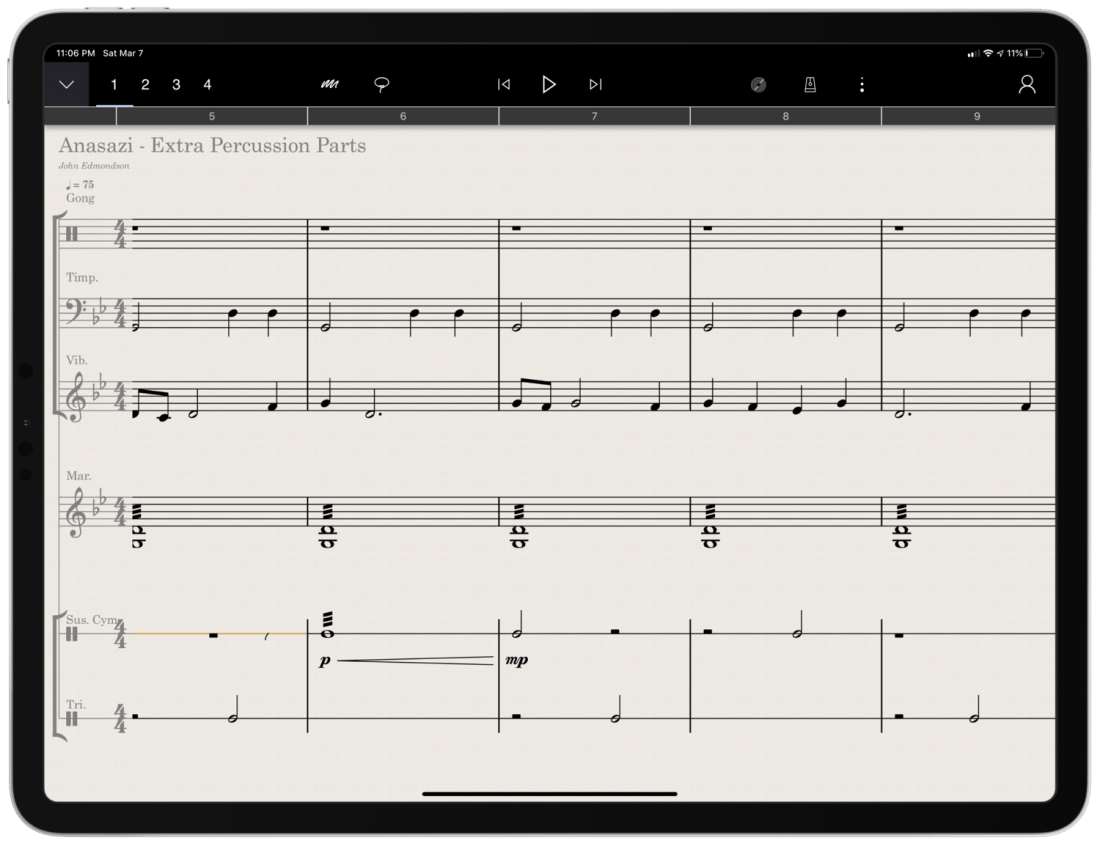
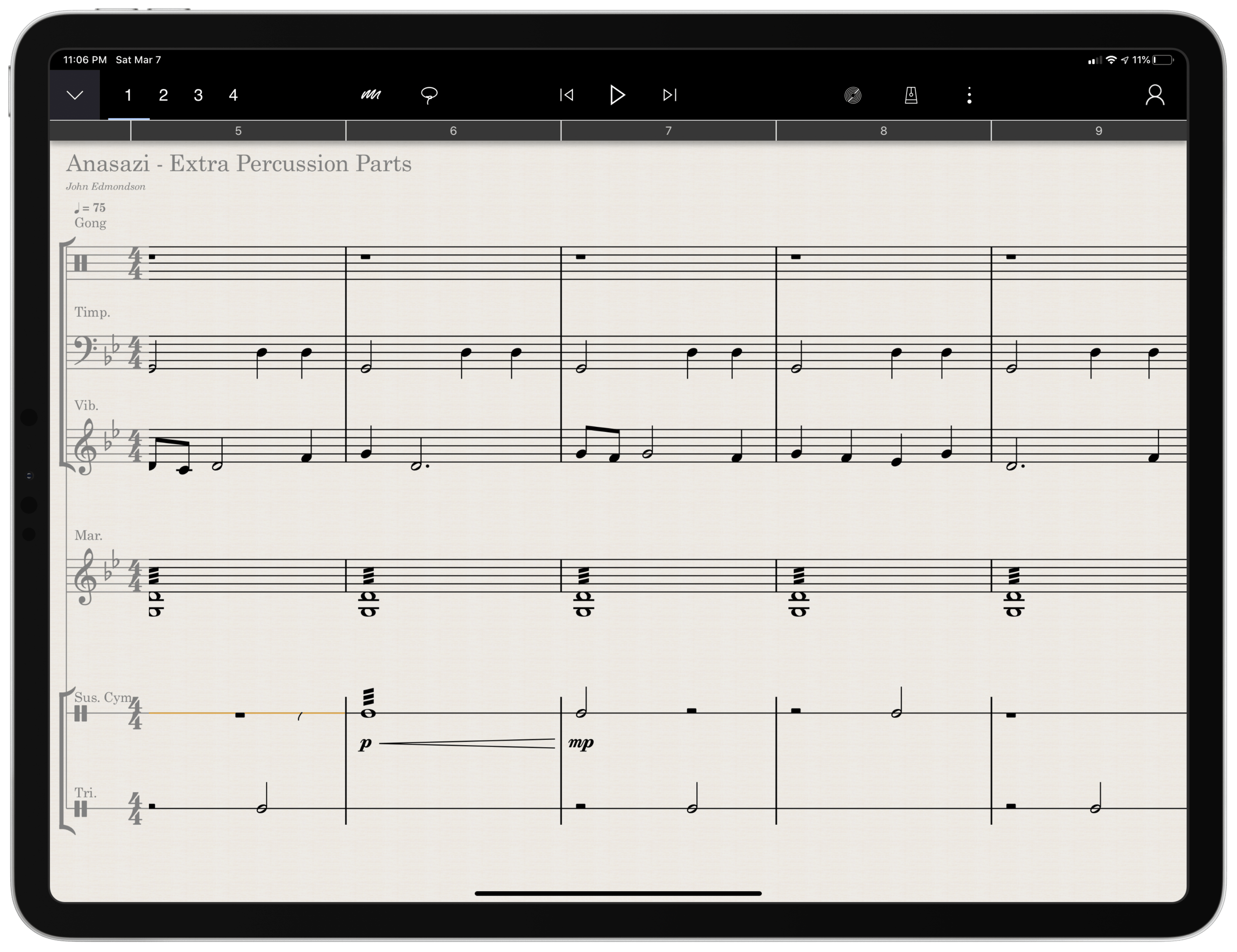
Arranging extra percussion parts for works that are sparse in percussion writing
Writing short folk melodies to use in our sectional curriculum
…pretty basic stuff. If you want a very balanced and comprehensive review of all the StaffPad features, not just the ones I depended on, I strongly recommend you check out the Scoring Notes review by David MacDonald.
TL;DR: If you want to skip this review, I’ll get to the point:
StaffPad is an exceptional tool for music educators. It is elegantly designed, astoundingly intuitive, and makes exactly the right trade-off for what a teacher would and would not need in a pro-level score editor. It is a best-of-class example of what a professional ‘iPad-first’ app should look like. It legitimizes the platform by being a tool that executes tasks that no other computing device can.
While I believe StaffPad near-perfectly conceived, it’s hand writing recognition is a headache to use at times, and it needs to improve a lot in this area for me to consider it rock-solid-dependable. Fortunately, I got better at it as I wrote this review.
Ok, let’s get to it.
UPDATE: I spoke at length about my experiences using StaffPad on my pocast. Listen and subscribe below.
The design of StaffPad is one of the most impressive I have ever seen. It is undeniably professional, but maintains the elegance and simplicity you would expect if you are familiar with Apple’s native iOS apps. It manages not to be overbearing with buttons and knobs, yet none of the tools seem too far away or too many menus deep.
Everything is beautifully laid out in a way where my eyes naturally gravitate towards the information relevant to me. There isn’t any information on this screen that doesn’t need to be.
Home shows just recent documents, Library shows all of your stuff, templates shows the customary templates you would expect from a score editor, and Collections shows some pre-made StaffPad scores designed to show off the sound library. I appreciate how the Templates page is not bogged down with dozens of rare options like Mariachi Band.
The Store button takes you to a screen where you can buy sound libraries and other extensions. More on that later. Discover takes you to some helpful introduction videos.
I am going to get into note input in a bit. Before that, I want to pontificate the nature of writing notes with a pencil on a touch surface.
At launch, the iPad made a promise to simplify computing for every person, allowing you to touch directly what you want to do on the screen and removing the abstraction of pointing and clicking, the preferred interface of personal computers for decades.
John Gruber, amongst other Apple commentators, have recently had a lot to say about the original promise of the iPad; about how it has maybe lost its way as it has tried to become more like the Mac, introducing inscrutable multitasking gestures and imitating professional PC software rather than leveraging the strengths of a touch interface. There is a great conversation about it on his podcast, which makes special reference to how revolutionary the original GarageBand app was for iPad.
I mention all of that here because I think StaffPad perfectly fulfills that original iPad promise. Writing notes directly on the screen really is the way to write music, as it removes all abstractions and lets you just touch where you want things to go. It also exists in a category of rare, niche, and professional iPad apps that a) cost real money, and b) could not really exist on a Mac. I already wrote about this a little bit here.
So what features exactly does StaffPad have? If you want an exhaustive list, check out StaffPad’s help page. It is very detailed and straightforward.
<div class="
      image-block-outer-wrapper
      layout-caption-below
      design-layout-inline
      combination-animation-none
      individual-animation-none
      individual-text-animation-none
    ">


    <figure class="
          sqs-block-image-figure
          intrinsic
        " style="max-width:2500px">


      <div class="image-block-wrapper">
        <div class="sqs-image-shape-container-element


          has-aspect-ratio
        " style="position: relative;padding-bottom:76.95999908447266%;overflow: hidden">


            <img src="https://images.squarespace-cdn.com/content/v1/5595df9ce4b0ce9ff9ecd1a8/1583683028358-VYZELFL54B15ZM614AQ7/0B66A098-2FE9-417B-8A4D-BDD066DC627D.png" alt="Though StaffPad’s website has a great introduction video, the help page lists everything StaffPad can do in a concise manner." width="2500" height="1924" style="display:block;object-fit: cover;width: 100%;height: 100%;object-position: 50% 50%" loading="lazy">

        </div>
      </div>


      <figcaption class="image-caption-wrapper">
        <div class="image-caption"><p class="">Though StaffPad’s website has a great introduction video, the help page lists everything StaffPad can do in a concise manner.</p></div>
      </figcaption>


    </figure>


</div>
If you need specialty engraving features and every editing feature money can buy, you need Dorico or Sibelius (but choose Dorico). If you need a sketch app for music notation, that can make 90% of your score needs come true from the comfort of your couch, StaffPad has you covered.
There are trade-offs. But for my basic purposes, they are just the right trade-offs. For a handwritten sketch app, StaffPad strikes exactly the right balance of what it does and what it doesn’t do, especially considering the quality of the resulting scores. There aren’t a lot of ways to customize your score’s layout, but StaffPad makes really good default choices about how to stylize the final product.
I appreciate that everything StaffPad does is very discoverable and not buried too many layers deep. Most things, you can just write directly on the screen with the pencil (though I had a lot of trouble with articulation, and especially with dynamics). StaffPad attempts to solve the problem of organizing features by using what I call a “double tool bar.” I am sure they have a technical name for it. Basically, the tool bar shows one set of tools, and when you tap the upward or downward facing arrow on the upper left corner of the screen, it shows another set of tools.
If I knew the logic behind how StaffPad has organized these tools, I would probably be able to find them better, but because the options are selectable from two sides of the same toolbar, I often get confused which “side” of it I need to be on to get what I want. At least changing it over is only a tap away.
One side of the tool bar has buttons which contains the following…
Options to change the voice(of which there are four).
Button to toggle an annotation mode.This mode allows you to scribble freely on your score and highlight certain sections. This mode is necessary because regular strokes draw notes on the staff by default. I can’t think of any standard notation editor that allows freeform annotations with a stylus since most of them are not designed for a tablet.
A loop tool. This tool is great but buggy. It does what you would expect. It allows you to circle a section of music and then copy, paste, or duplicate it. This is a nice way to solve the problem of there being no keyboard shortcuts for selection, copy, and paste, in the app. Sometimes StaffPad crashes when I use it.
The famous three-dots button.(which in most apps means “more”) This button takes you to most of the notations that you cannot write on the staff directly with the Apple Pencil – trills, fermatas, rehearsal markings, etc. This button is so frequently accessed that I kind of wish it showed up on both sides of the tool bar. Furthermore, it would be great to be able to edit the order the options appear, rather than scrolling to the right every time I need a rehearsal marking.
Fenby. – a digital assistant that you can talk to. Fenby is wicked cool. Similar to digital assistants like Siri, however, it works really well only when it works. I got used to telling it to “add strings” or “transpose” the score, but there are other commands listed on the StaffPad website that I could not get to work.
The other side of the tool bar includes buttons for…
Undo and redo buttons. Which, again, are so commonly needed that I wish they showed up on both sides of the tool bar. You can use the new text gestures introduced with iOS 13 to three finger pinch (copy), three finger spread (paste), three finger swipe left (undo) and three finger swipe right (redo). Once you get the hang of these, you really start to fly.
Also, a bonus note (and my favorite take away from Paul Shimmons’ StaffPad review): copying a selection of music in StaffPad, and pasting it into another app results in a beautifully formatted score excerpt. It’s nice touches like this that make StaffPad a delight to work with.
Copy and paste using the new three finger gestures in iOS 13 is very natural.
Button add/remove instruments. This screen is super elegant and I love it.
Automation layer. You can actually draw your automations right onto each stave with the pencil. It is too bad this is a feature I will not use that much, because the implementation is really slick. I hope that all iOS DAWS consider adding Apple Pencil support for automation layers.
Button to toggle transposing vs. non transposing score.
Playback buttons. Again, these are on both sides of the toolbar but I use them far less often than some of the other options.
Button to access version history.
Share button. The share menu is ridiculously elegant and straightforward. It has all of the export options you would want, and appears very clean. My only complaint is that it does not work the way standard iOS share buttons work where once you share something, the share menu is no longer active. In StaffPad, it is more of a “mode” that you enter in to. I don’t prefer this, but it is also not the end of the world.
Settings button. This screen is really straightforward and easy on the eyes. This is the one case where I do wish StaffPad would add more options. The screen is designed nicely enough that I would not mind scrolling downward for more options.
For example, I would like to be able to customize the tool bar or choose for the Apple Pencil’s double tap gesture to do something other than initiate a lasso select.
Fenby. I do not think this feature is useful enough to put on both tool bars.
Note input
Ok so here’s where the rubber meets the road. StaffPad only accepts note input through the Apple Pencil. I have written about this elsewhere. I would love for StaffPad, like Notion, to have a Mac counterpart. But it’s not designed that way. Because Windows operates on a tablet, Surface users of StaffPad do not need to distinguish between tablet and PC operating systems. StaffPad runs on Windows, period. macOS is a different operating system than iPadOS, so there is no way I can run StaffPad on my Mac.
Interestingly, the main PC score apps, Dorico, Sibelius, and Finale, have made no attempts at an iPad app. I find that we are in this weird fragmented stage with Apple software where nearly any productivity app (I am thinking iWork, the Omni apps, even now Photoshop) can run on any Apple platform and even sync your work between devices, meanwhile niche pro apps still tend to exist on only one platform (Pro Tools/Ableton on the Mac and forScore/StaffPad for the iPad for example). These niche pro apps take unique advantage of platform conventions (the ability to work with complex audio streams in the case of DAWS on the Mac, and the Apple Pencil in the case of iPad).
Maybe its for the best. But I can’t help but feel like StaffPad would be superior if I could snap my iPad into the Smart Keyboard Folio and enter notes from there, or boot up a Mac version and enter notes with a MIDI keyboard..
Because I can’t do that, it is imperative that StaffPad’s handwriting recognition is air tight.
Simply put: it doesn’t register for me all the time. While I am getting better at it after a month of practice, it has a way to go. Sometimes I write really messy and get surprisingly great results on first pass. Other times, I write as slowly and neatly as I can and StaffPad doesn’t convert the notation.
Fortunately, StaffPad’s rules for notation conversion are very thoughtfully considered. Unlike Notion, notes do not convert until I tap somewhere outside the current measure I am composing. This means I can stop and think as long as I want before moving on. StaffPad also leaves anything that it doesn’t recognize in my own handwriting while converting the rest. This means I do not have to worry about an ambiguous pencil stroke being converted into StaffPad’s best guess, and I can go back and fix it later. Speaking of fixing things later, there isn’t a need to be too careful, because notes that end up a line or a space to high or low can be held with the pencil tip and dragged wherever you want on the staff.
This video shows off the design, features, and note input of StaffPad in action.
StaffPad’s design ingenuity continues to shines in the details. You are allowed to write whatever you want in a bar, regardless of if it fits in the time signature or not. StaffPad also allows you to drag the bar line to the right with the pencil if you run out of room. These considerations work well for my brain, because there is less cognitive overhead. I feel like I am writing with a pencil and paper, not a computer.
Still, there are times that I have to try numerous attempts before achieving success. The StaffPad support team recommended that I do notes in one pass, articulations in another, and dynamics in yet another, until I gain confidence with the system. They also recommended that I try to write the notes at approximately the size they will appear once converted. This advise helped but I am still making more mistakes than I would like.
My wife is a professional artist. She uses the iPad Pro to do illustrations and design mock ups. In other words, she has way better control of a pencil than I do. I asked her to spend some time writing various different musical symbols, at varying speeds and sizes. She, too, was perplexed at which of her pencil strokes worked and which ones didn’t.
StaffPad’s help documentation (again, excellent) makes it look really easy. The examples of handwriting are really loose. As a percussionist who detests how other score programs handle drum set notation, I would love to be able to write drum parts as easily as the support documentation illustrates. No matter how hard I try to imitate it, I am getting inconsistent results enough so that I am reluctant to try these features again in the future.
While I am reflecting on note input, I need to acknowledge that StaffPad has, by far, the best implementation of erasing that I have ever seen for the Apple Pencil. There is no double-tap, or need to tap a button on screen to turn on the eraser. You simple press harder! It takes a little getting used to, and it is easy to press too hard when attempting to compose and erasing by mistake. But overall, I wish all apps would adopt this style. It is truly a dream.
Hard press to erase in @StaffPad is by far the best implementation of erasing with Apple Pencil I have seen in any app. It is even more seamless than if the Apple Pencil added an eraser to the other side. I’m seriously ruined for eraser tools in all other software. pic.twitter.com/fTJxDpsgVB
Most of my testing for StaffPad included preparing for my recent band concerts. My Concert Band has 10 percussionists and some of my music had only three or four parts. I also have some flutes in my Jazz Band this year, and planned some repertoire that does not have original flute parts. Arranging these additional parts took place while I was on leave for the birth of my first child and was awaiting a return to school, where I would have only two weeks to prepare this concert before the performance date.
Headaches aside, the lightness and simplicity of StaffPad’s design, mixed with its direct note input, made this an indispensable tool for me in the past month. Projects that would have had more overhead using a heftier score editor like Dorico were a breeze using StaffPad and iOS. The iPad’s portability made it easy to sneak little additions to my work into busy days of carrying, holding, and feeding a newborn in one arm while sitting on the couch in my living room rather than at a desk.
Between pencil input and the tool bars mentioned above, there are a handful of features that are hidden beneath contextual menus that are achieved by long pressing on various places in the score. Long pressing in a measure allowed you to change the time or key signature. Long pressing on bar lines allows you to change their style or add measures to the music, add lyrics, text, or chords. These menus are very tastefully done, and as I have already mentioned, they have just enough features that they are confusing to dig through, but just enough that I was never wondering where something was. The lyrics and chords options are not as in depth as other score applications, but they were just right for my needs.
iOS-ness
There are features available to third party apps that I believe should be in every app. I was disappointed that StaffPad did not follow a few of these conventions.
Specifically, I wish StaffPad supported Split View. iPad apps can now share half the screen with another app. StaffPad only works in full screen.
This was frustrating for me, particularly in my arranging project mentioned earlier. I wanted to be able to open forScore on one half of the screen for a reference of the full score, and then compose in StaffPad on the other half of the screen. StaffPad customer support informs me that they experienced weird multi-touch results when StaffPad was on half of the screen and that it doesn’t work. But I would still like to see it happen.
You can use other apps in slide over view, which is where you drag an iPhone-sized version of an app over top a full screen app for quick reference. You can see if the screenshot below that this is really too small to be tenable for score reference.
<div class="
      image-block-outer-wrapper
      layout-caption-below
      design-layout-inline
      combination-animation-none
      individual-animation-none
      individual-text-animation-none
    ">


    <figure class="
          sqs-block-image-figure
          intrinsic
        " style="max-width:2500px">


      <div class="image-block-wrapper">
        <div class="sqs-image-shape-container-element


          has-aspect-ratio
        " style="position: relative;padding-bottom:76.95999908447266%;overflow: hidden">


            <img src="https://images.squarespace-cdn.com/content/v1/5595df9ce4b0ce9ff9ecd1a8/1583684645922-TSXCS5EUETXGQFLXTPZ2/E07C9D5E-2A92-485A-B45A-51E39CF9485B.png" alt="Referencing a score is awkward because StaffPad doesn’t support the iPad’s splitview feature." width="2500" height="1924" style="display:block;object-fit: cover;width: 100%;height: 100%;object-position: 50% 50%" loading="lazy">

        </div>
      </div>


      <figcaption class="image-caption-wrapper">
        <div class="image-caption"><p class="">Referencing a score is awkward because StaffPad doesn’t support the iPad’s splitview feature.</p></div>
      </figcaption>


    </figure>


</div>
Playback
Spitfire and cinesamples audio libraries, amongst others, are available as inn-app purchases. They sound fantastic! Given how seamlessly they work with StaffPad, it is astounding how easy it is to get good sounding playback. If only using advanced audio plugins with score apps was this easy on macOS and Windows.
That said, I am extremely hesitant about buying these plugins. These samples, once purchased, only work with StaffPad on iOS and cannot be used with any other program like they can be if you purchase the PC versions of these plugins directly from the companies that engineer them.
StaffPad is a unique composing application that leverages everything unique about the iPad to provide what I anticipate will be an indispensable tool for my work as a music educator. While the handwriting recognition doesn’t always work as I expect, it gets better with each update and also as I practice it.
StaffPad is elegantly designed and makes trade-offs that position it as perhaps the most natural score editor I have ever worked with. I am so glad that this app exists both as a tool for my professional work, and as a statement about what the iPad can be. I would recommend it to anyone who is looking for a score app that balances power and ease as long as they acknowledge that there is a learning curve and a price.





You must be logged in to post a comment.