New iPad Air and iPhone

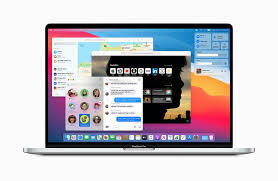
A number of teachers have asked me about the new iPad Air that Apple announced last month. It has been updated to look and function a lot more like the iPad Pro line and many are wondering if they need to go Pro or if the Air will satisfy their needs.

iPad Air and iPhone 12 (announced last week) reviews are out, and I have been reading through them this morning. Here are a few that stood out to me:

2020 iPad Air review: Almost Pro | Sixcolors.com

iPad Air Review: Forward-Looking | MacStories.net 

The iPhone 12 and iPhone 12 Pro | Daring Fireball

iPhone 12 and iPhone 12 Pro Review: The Best iPhones-but Note for the 5G

Based on everything I have learned so far, there has never been a better time to buy Apple’s entry level products. The regular iPhone 12 and iPad Air are spectacular products, and I am guessing that a very large majority of users, even tech nerds, and professionals, are going to feel totally satisfied with them.

I have not tested pro apps like StaffPad, Ferrite, or LumaFusion on the iPad Air because I am still using the 2018 model iPad Pro. My educated guess is that you would not feel limited by the iPad Air, even if you use these apps. You would especially not feel limited using music apps like Tonal Energy and forScore.

When it comes to the iPhone, I am more compelled by the new Mini size and the Pro Max size (which comes with a much better camera system than the regular 12 Pro). Reviews for these are not out yet.

I will probably upgrade my phone, and it will probably be the Pro Max, just because I have a 9-month-old and want to take the best pictures possible of him. That said, I really miss the iPhone 5 days of the tiny phone and might consider a Mini in a future year if I read good things about it later this season.

I am going to keep my iPad Pro around for a bit, but if the Mac were ever to come equipped with a touch screen and Apple Pencil support, I would have to re-evaluate needing the larger-sized iPad Pro and whether or not I need an iPad altogether. I do miss the comfort of the smaller iPad size, particularly for reading, and my gut says that this iPad Air might satisfy my needs down the road.

Conclusion – You probably won’t regret not going Pro on Apple’s fall lineup of products, but the differences are definitely in the details so make sure you read up on them first.

Syncing Peloton Bike Workouts to the Apple Watch Activity Rings

My wife and I started using the 12 dollar a month Peloton service, without the bike, early this year. It is full of engaging, thorough, and motivating classes that span everything from yoga to strength training. I recommend it. Even if you don’t have an interest in the bike, it is still a viable service for staying physically active at home. That said, we did become interested in the bike through this service and have been owners since around February.

<div class="
      image-block-outer-wrapper
      layout-caption-below
      design-layout-inline
      combination-animation-none
      individual-animation-none
      individual-text-animation-none
    ">


    <figure class="
          sqs-block-image-figure
          intrinsic
        " style="max-width:1242px">


      <div class="image-block-wrapper">
        <div class="sqs-image-shape-container-element


          has-aspect-ratio
        " style="position: relative;padding-bottom:216.42510986328125%;overflow: hidden">


            <img src="https://images.squarespace-cdn.com/content/v1/5595df9ce4b0ce9ff9ecd1a8/1602779879740-3ANA8T5APF1PGJECNPO4/IMG_3577.PNG" alt="Go to the Apple Health settings of the Peloton app to begin setup." width="1242" height="2688" style="display:block;object-fit: cover;width: 100%;height: 100%;object-position: 50% 50%" loading="lazy">

        </div>
      </div>


      <figcaption class="image-caption-wrapper">
        <div class="image-caption"><p class="">Go to the Apple Health settings of the Peloton app to begin setup.</p></div>
      </figcaption>


    </figure>


</div>


<div class="
      image-block-outer-wrapper
      layout-caption-below
      design-layout-inline
      combination-animation-none
      individual-animation-none
      individual-text-animation-none
    ">


    <figure class="
          sqs-block-image-figure
          intrinsic
        " style="max-width:1242px">


      <div class="image-block-wrapper">
        <div class="sqs-image-shape-container-element


          has-aspect-ratio
        " style="position: relative;padding-bottom:216.42510986328125%;overflow: hidden">


            <img src="https://images.squarespace-cdn.com/content/v1/5595df9ce4b0ce9ff9ecd1a8/1602779771852-K63S5UDUFECEG0RQLQ25/IMG_3574.PNG" alt="After my bike workout, I go to this screen of the Peloton app to review my workout." width="1242" height="2688" style="display:block;object-fit: cover;width: 100%;height: 100%;object-position: 50% 50%" loading="lazy">

        </div>
      </div>


      <figcaption class="image-caption-wrapper">
        <div class="image-caption"><p class="">After my bike workout, I go to this screen of the Peloton app to review my workout.</p></div>
      </figcaption>


    </figure>


</div>

One of my favorite features of the bike is that it syncs my activity to Apple’s health ecosystem, where I also track sleep, water, and numerous other fitness metrics.

The newer and fancier Peloton bike uses Apple’s GymKit technology to sync metrics only the bike knows (like distance) with metrics only the Apple Watch knows (like heart rate) and then immediately track it as an Apple Watch workout. 

I admit I am slightly jealous I don’t have this version but you can get the same results if you have a third-party heart rate monitor. All I do is wear this third party heart rate monitor on my arm when I do a bike ride, and then open up the Peloton app on my phone when I am done. The Peloton app syncs my ride metrics to the Apple Health app, which then syncs the fitness data to the Fitness app on the iPhone and Apple Watch, ensuring that I fill my rings. 

<div class="
      image-block-outer-wrapper
      layout-caption-below
      design-layout-inline
      combination-animation-none
      individual-animation-none
      individual-text-animation-none
    ">


    <figure class="
          sqs-block-image-figure
          intrinsic
        " style="max-width:1242px">


      <div class="image-block-wrapper">
        <div class="sqs-image-shape-container-element


          has-aspect-ratio
        " style="position: relative;padding-bottom:216.42510986328125%;overflow: hidden">


            <img src="https://images.squarespace-cdn.com/content/v1/5595df9ce4b0ce9ff9ecd1a8/1602779957090-3LDY9EJA0W3LXK7Y4BDE/IMG_3576.PNG" alt="Post workout, I review my workout in the Peloton app and then open Apple Health to see the data tracked in that workout alongside other thigns I am tracking like diet, water, meditation minutes, and blood oxygen." width="1242" height="2688" style="display:block;object-fit: cover;width: 100%;height: 100%;object-position: 50% 50%" loading="lazy">

        </div>
      </div>


      <figcaption class="image-caption-wrapper">
        <div class="image-caption"><p class="">Post workout, I review my workout in the Peloton app and then open Apple Health to see the data tracked in that workout alongside other thigns I am tracking like diet, water, meditation minutes, and blood oxygen.</p></div>
      </figcaption>


    </figure>


</div>


<div class="
      image-block-outer-wrapper
      layout-caption-below
      design-layout-inline
      combination-animation-none
      individual-animation-none
      individual-text-animation-none
    ">


    <figure class="
          sqs-block-image-figure
          intrinsic
        " style="max-width:1242px">


      <div class="image-block-wrapper">
        <div class="sqs-image-shape-container-element


          has-aspect-ratio
        " style="position: relative;padding-bottom:216.42510986328125%;overflow: hidden">


            <img src="https://images.squarespace-cdn.com/content/v1/5595df9ce4b0ce9ff9ecd1a8/1602779801724-D72VQBX8X1D0Y72ECXEW/IMG_3575.PNG" alt="Next, I open the Apple Fitness app. Sometimes it takes a few minutes for the rings to show up here, and then later on the watch, but they always do." width="1242" height="2688" style="display:block;object-fit: cover;width: 100%;height: 100%;object-position: 50% 50%" loading="lazy">

        </div>
      </div>


      <figcaption class="image-caption-wrapper">
        <div class="image-caption"><p class="">Next, I open the Apple Fitness app. Sometimes it takes a few minutes for the rings to show up here, and then later on the watch, but they always do.</p></div>
      </figcaption>


    </figure>


</div>

The best part is that I can charge my watch while I ride, which means I can wear it to track sleep throughout the night using AutoSleep.

Peloton also has an Apple TV and Amazon Fire Stick app now. Great for doing yoga in the living room. I track these workouts normally on my Apple Watch by running the appropriate workout type before I start.

Stay healthy out there.

How Is Apple’s Keynote Stacking Up in the Age of Online Learning?

CleanShot 2020-10-14 at 13.55.50.png

In the age of online learning, the teaching world is embracing Google Docs even more than ever. Google Slides are all the rage, especially in combination with the great ecosystem of Chrome Extensions like Flat for Docs and Peardeck.

I love the extensibility of web-based software, but I feel more at home using native apps like Microsoft Office and Apple’s iWork. These apps feel like they belong on the operating system, they function reliably offline, have great keyboard shortcuts, more professional features, and great designs. 

I am spending less time creating documents for my classes this year as things have moved to online Canvas content, Noteflight scores, and Soundtrap templates. There is a lesser need for my usual rosters, seating charts, posters, and other data that I create in native software. Presenting information online is still as relevant as ever though, and for that, I am finding that Apple’s Keynote is still the tool for the job. 

No, I can’t add a Peardeck to my Keynote presentations, but I can access them from a web browser and share them with my colleagues, where we can both be editing the same presentation at the same time, just like a Google Slides presentation.

I am using Google Slides for some things (notably, the extensions above), but Keynote is still my go-to app. It gives me more speed, more control, better templates, and fine integration across Apple’s ecosystem. If I edit a slide on my Mac, for example, that presentation even becomes quickly launchable from the Files widget on my iPadOS home screen for further editing.

<div class="
      image-block-outer-wrapper
      layout-caption-below
      design-layout-inline
      combination-animation-none
      individual-animation-none
      individual-text-animation-none
    ">


    <figure class="
          sqs-block-image-figure
          intrinsic
        " style="max-width:2500px">


      <div class="image-block-wrapper">
        <div class="sqs-image-shape-container-element


          has-aspect-ratio
        " style="position: relative;padding-bottom:74.95999908447266%;overflow: hidden">


            <img src="https://images.squarespace-cdn.com/content/v1/5595df9ce4b0ce9ff9ecd1a8/1602699875079-USKAC3WQHVAD3OEXL0N9/IMG_145B157A0F04-1.jpeg" alt="Widgets on the left side of my iPad homescreen allow me to see recent data across all my apps including timers, calendars, tasks, recent notes, and recently opened documents across all my devices! It’s fair for me to mention that while this works mo…" width="2500" height="1874" style="display:block;object-fit: cover;width: 100%;height: 100%;object-position: 50% 50%" loading="lazy">

        </div>
      </div>


      <figcaption class="image-caption-wrapper">
        <div class="image-caption"><p class="">Widgets on the left side of my iPad homescreen allow me to see recent data across all my apps including timers, calendars, tasks, recent notes, and recently opened documents across all my devices! It’s fair for me to mention that while this works more reliably with documents stored in iCloud, I have been noticing my Google Docs starting to show up in this Files widget. Horray!</p></div>
      </figcaption>


    </figure>


</div>

Keynote recently received two updates that make it even better for teaching online. 

Running a Presentation in a Two Monitor Setup Without Overtaking Both Screens

I run two monitors for my online classes. The one on the left is used in combination with Open Broadcasting Software to quickly share my screen without fiddling with options inside of Google Meet or Zoom. Until recently, running a Keynote presentation would overtake both monitors, rendering it useless for my secondary screen, where I watch over the Google Meet, and interact with other software. 

Now through using an option in the Menubar called Play Slideshow in Window, Keynote can run in a standalone window, which can be put into full-screen mode and only take up one monitor. You can also right-click the Toolbar and permanently add an option to present this way. See these options in the gifs below.

Now, I can run this on the monitor I share with students and have them enter my class to a rotation of slides, while I do unrelated tasks on my other display.

via GIPHY

via GIPHY

Embed YouTube Videos Into Slides

One of the last standing reasons I loved using Google Slides was because you could embed videos from websites like YouTube and Vimeo right into the slides and have them play with an internet connection. If you show a lot of YouTube to your class, this is way faster than downloading YouTube videos to your hard drive and then embedding those into Keynote or Powerpoint (although, the Downie app makes this process very easy).

via GIPHY

Now that Keynote can embed YouTube videos right into a slide, I can save a lot of time, and space! I have the entire Breathing Gym video series in one of my slide shows, and the storage really adds up!

I play a “Friday Video Feature” for my students every Friday, usually pertaining to some kind of educational goal, but sometimes just a short, fun, video. I used to save these on my hard drive, and at one point, I archived them in Evernote, but now I think I am just going to leave a year’s worth of my favorites embedded YouTube videos right into the same presentation I run for the class each day so that I can pull them up on command.

Overall I am pleased with the results I get in Keynote, particularly how good the final presentations look. Some of these recent updates, particularly the YouTube support, seem related to Apple’s understanding that their education users are probably depending on the web more. If that’s the case, I am curious to see what else they have in the pipeline for iWork.

via GIPHY

Weekly Recap: Learn OmniFocus, Teaching for MSDE, and New Online Store

The past eight or so days have been very exciting and busy for me. I have been engaged with a number of online learning opportunities and resources. Here is a recap:

Scale Exercise Play-Along Tracks

Last week, I launched my store on this website. I am selling my first ever resource for teachers: Scale Exercise Play-Along Tracks with Trap Beats underneath them. You can buy just the audio play-alongs, or the Logic and GarageBand projects I produced them in to edit them in any way you like.

You can find my store here, a blog post about them here, and watch the promo below.

<div class="sqs-video-wrapper" data-provider-name="YouTube" data-html="
“>

Learn OmniFocus Workflow Guest

On Saturday, I was a Workflow Guest for LearnOmniFocus, a fantastic website and community where you can learn not only about the task manager application OmniFocus, but about other great productivity apps and the very nature of being a mindful and productive worker.

You can read about the appearance here and join the community here. There are educator discounts. The video of my session will be made available publicly and for free very soon. 

Links to two of my more recent blog posts about OmniFocus can be found below:

– Never Miss a Task, with OmniFocus Project Templates

– Staying on Top of Teaching Responsibilities With Omnifocus Perspectives

<div class="
      image-block-outer-wrapper
      layout-caption-below
      design-layout-inline
      combination-animation-none
      individual-animation-none
      individual-text-animation-none
    ">


    <figure class="
          sqs-block-image-figure
          intrinsic
        " style="max-width:2464px">


      <div class="image-block-wrapper">
        <div class="sqs-image-shape-container-element


          has-aspect-ratio
        " style="position: relative;padding-bottom:56.08766174316406%;overflow: hidden">


            <img src="https://images.squarespace-cdn.com/content/v1/5595df9ce4b0ce9ff9ecd1a8/1602032203672-G5YL7FGQ30OHDO8E7NBF/CleanShot+2020-08-12+at+16.45.08%402x.png" alt="CleanShot 2020-08-12 at 16.45.08@2x.png" width="2464" height="1382" style="display:block;object-fit: cover;width: 100%;height: 100%;object-position: 50% 50%" loading="lazy">

        </div>
      </div>


    </figure>


</div>

Creating and Using Virtual Performances in Your Music Instruction

I am teaching this online class for the Maryland State Department of Education with my awesome friend and colleague, Peter Perry. Peter’s book, Technology Tips for Ensemble Teachers is third in the same series as my own, and is worth checking out.

You can learn more about the class here.

It has been a busy week or two but I am excited at these opportunities to share my love of technology with these different communities.

<div class="
      image-block-outer-wrapper
      layout-caption-below
      design-layout-inline
      combination-animation-none
      individual-animation-none
      individual-text-animation-none
    ">


    <figure class="
          sqs-block-image-figure
          intrinsic
        " style="max-width:1080px">


      <div class="image-block-wrapper">
        <div class="sqs-image-shape-container-element


          has-aspect-ratio
        " style="position: relative;padding-bottom:100%;overflow: hidden">


            <img src="https://images.squarespace-cdn.com/content/v1/5595df9ce4b0ce9ff9ecd1a8/1602032262669-EEMVPI9AM9J8CLZAYODZ/Fall_Compass_Graphic.png" alt="Fall_Compass_Graphic.png" width="1080" height="1080" style="display:block;object-fit: cover;width: 100%;height: 100%;object-position: 50% 50%" loading="lazy">

        </div>
      </div>


    </figure>


</div>