When school let out in March, I wrote My Very Straightforward and Very Successful Setup for Teaching Virtual Private Lessons. The impetus for this post, and its snarky title, was an overwhelming number of teachers I saw on Facebook fussing about what apps and hardware they should use to teach online when all you really need is a smartphone, FaceTime, and maybe a tripod.
I stand by that post. But there are also reasons to go high-tech. I have had a lot of time this summer to reflect on the coming fall teaching semester. I have been experimenting with software and hardware solutions that are going to make my classes way more engaging.
Zoom
I have been hesitant about Zoom. I still have reservations about their software. Yet, it is hard to resist how customizable their desktop version is. I will be using Google Meet for my public school classes in September, but for my private lessons, I have been taking advantage of Zoom’s detailed features and settings.
For example, it’s easier to manage audio ins and outs. Right from the chat window, I can change if my voice input is going through my Mac’s internal microphone or my studio microphone, or if video is coming from my laptop webcam or my external Logitech webcam. This will also be useful for routing audio from apps into the call (we will get to that in a moment).
<div class="
      image-block-outer-wrapper
      layout-caption-below
      design-layout-inline
      combination-animation-none
      individual-animation-none
      individual-text-animation-none
    ">


    <figure class="
          sqs-block-image-figure
          intrinsic
        " style="max-width:2500px">


      <div class="image-block-wrapper">
        <div class="sqs-image-shape-container-element


          has-aspect-ratio
        " style="position: relative;padding-bottom:42.20000076293945%;overflow: hidden">


            <img src="https://images.squarespace-cdn.com/content/v1/5595df9ce4b0ce9ff9ecd1a8/1597075201184-OOWEFIAO8PYDRTX1UOAT/CleanShot+2020-08-10+at+11.02.33.png" alt="Zoom allows you to choose the audio/video input from right within the call." width="2500" height="1055" style="display:block;object-fit: cover;width: 100%;height: 100%;object-position: 50% 50%" loading="lazy">

        </div>
      </div>


      <figcaption class="image-caption-wrapper">
        <div class="image-caption"><p class="">Zoom allows you to choose the audio/video input from right within the call.</p></div>
      </figcaption>


    </figure>


</div>
Zoom also allows you to AirPlay the screen of an iOS device to the student as a screen sharing option. This is the main reason I have been experimenting with Zoom. Providing musical feedback is challenging over an internet-connected video call. Speaking slowly helps to convey thoughts accurately, but it helps a lot more when I say “start at measure 32” and the student sees me circle the spot I want them to start in the music, right on their phone.
You can get really detailed by zooming in and out of scores and annotating as little as a single note. If you are wondering, I am doing all of this on a 12.9 inch iPad Pro with Apple Pencil, using the forScore app. A tight feedback loop of “student performance—>teacher feedback—>student adjustment” is so important to good teaching, and a lot of it is lost during online lessons. It helps to get some of it back through the clarity and engagement of annotated sheet music.
<div class="
      image-block-outer-wrapper
      layout-caption-below
      design-layout-inline
      combination-animation-none
      individual-animation-none
      individual-text-animation-none
    ">


    <figure class="
          sqs-block-image-figure
          intrinsic
        " style="max-width:2500px">


      <div class="image-block-wrapper">
        <div class="sqs-image-shape-container-element


          has-aspect-ratio
        " style="position: relative;padding-bottom:42.20000076293945%;overflow: hidden">


            <img src="https://images.squarespace-cdn.com/content/v1/5595df9ce4b0ce9ff9ecd1a8/1597075253336-3D35PXRK7I734NAHHIN8/CleanShot+2020-08-10+at+11.03.17.png" alt="Selecting AirPlay as a screen sharing option." width="2500" height="1055" style="display:block;object-fit: cover;width: 100%;height: 100%;object-position: 50% 50%" loading="lazy">

        </div>
      </div>


      <figcaption class="image-caption-wrapper">
        <div class="image-caption"><p class="">Selecting AirPlay as a screen sharing option.</p></div>
      </figcaption>


    </figure>


</div>


<div class="
      image-block-outer-wrapper
      layout-caption-below
      design-layout-inline
      combination-animation-none
      individual-animation-none
      individual-text-animation-none
    ">


    <figure class="
          sqs-block-image-figure
          intrinsic
        " style="max-width:2500px">


      <div class="image-block-wrapper">
        <div class="sqs-image-shape-container-element


          has-aspect-ratio
        " style="position: relative;padding-bottom:42.20000076293945%;overflow: hidden">


            <img src="https://images.squarespace-cdn.com/content/v1/5595df9ce4b0ce9ff9ecd1a8/1597075390118-QA7W16X26KDSA9LT8512/CleanShot+2020-08-10+at+11.05.43.png" alt="AirPlaying annotated sheet music to the Zoom call using the iPad Pro and forScore app." width="2500" height="1055" style="display:block;object-fit: cover;width: 100%;height: 100%;object-position: 50% 50%" loading="lazy">

        </div>
      </div>


      <figcaption class="image-caption-wrapper">
        <div class="image-caption"><p class="">AirPlaying annotated sheet music to the Zoom call using the iPad Pro and forScore app.</p></div>
      </figcaption>


    </figure>


</div>
As much as I love this, I still think Zoom is pretty student hostile, particularly with the audio settings. Computers already try to normalize audio by taking extreme louds and compressing them. Given that my private lessons are on percussion instruments, this is very bad. Zoom is the worst at it of all the video apps I have used. To make it better, you have to turn on an option in the audio settings called “Use Original Audio” so that the host hears the student’s raw sound, not Zoom’s attempt to even it out. Some of my students report that they have to re-choose this option in the “Meeting Settings” of each new Zoom call.
If this experiment turns out to be worth it for the sheet music streaming, I will deal with it. But this is one of the reasons why I have been using simple apps like FaceTime up until this point.
I have been experimenting with a few apps by Rogue Amoeba that give me more control over how audio is flowing throughout my hardware and software.
Last Spring, I would often play my public school students YouTube videos, concert band recordings from Apple Music, and warm-up play-alongs that were embedded in Keynote slides. I was achieving this by having the sound of these sources come out of my computer speakers and right back into the microphone of my laptop. It actually works. But not for everyone. And not well.
Loopback is an app by Rogue Amoeba that allows you to combine the audio input and output of your various microphones, speakers, and apps, into new single audio devices that can be recognized by the system. I wrote about it here. My current set up includes a new audio device I created with Loopback which combines my audio interface and a bunch of frequently used audio apps into one. The resulting device is called Interface+Apps. If I select it as the input in my computer’s sound settings, then my students hear those apps and any microphone plugged into my audio interface directly. The audio quality of my apps is therefore more pure and direct, and there is no risk of getting an echo or feedback effect from my microphone picking up my computer speaker’s sound.
<div class="
      image-block-outer-wrapper
      layout-caption-below
      design-layout-inline
      combination-animation-none
      individual-animation-none
      individual-text-animation-none
    ">


    <figure class="
          sqs-block-image-figure
          intrinsic
        " style="max-width:1112px">


      <div class="image-block-wrapper">
        <div class="sqs-image-shape-container-element


          has-aspect-ratio
        " style="position: relative;padding-bottom:90.28776550292969%;overflow: hidden">


            <img src="https://images.squarespace-cdn.com/content/v1/5595df9ce4b0ce9ff9ecd1a8/1597075481531-T3RND7H6QZK7U88DPYPF/CleanShot+2020-08-10+at+11.07.26.png" alt="A Loopback device I created which combines the audio output of many apps with my audio interface into a new, compound device called “Interface+Apps.”" width="1112" height="1004" style="display:block;object-fit: cover;width: 100%;height: 100%;object-position: 50% 50%" loading="lazy">

        </div>
      </div>


      <figcaption class="image-caption-wrapper">
        <div class="image-caption"><p class="">A Loopback device I created which combines the audio output of many apps with my audio interface into a new, compound device called “Interface+Apps.”</p></div>
      </figcaption>


    </figure>


</div>


<div class="
      image-block-outer-wrapper
      layout-caption-below
      design-layout-inline
      combination-animation-none
      individual-animation-none
      individual-text-animation-none
    ">


    <figure class="
          sqs-block-image-figure
          intrinsic
        " style="max-width:780px">


      <div class="image-block-wrapper">
        <div class="sqs-image-shape-container-element


          has-aspect-ratio
        " style="position: relative;padding-bottom:78.20512390136719%;overflow: hidden">


            <img src="https://images.squarespace-cdn.com/content/v1/5595df9ce4b0ce9ff9ecd1a8/1597075501814-75OMM2CT6NQU8BBM81BQ/CleanShot+2020-08-10+at+11.08.54.png" alt="I can select this compound device from my Mac’s Sound settings." width="780" height="610" style="display:block;object-fit: cover;width: 100%;height: 100%;object-position: 50% 50%" loading="lazy">

        </div>
      </div>


      <figcaption class="image-caption-wrapper">
        <div class="image-caption"><p class="">I can select this compound device from my Mac’s Sound settings.</p></div>
      </figcaption>


    </figure>


</div>
Now I can do the following with a much higher level of quality…
Run a play-along band track and have a private student drum along
Play examples of professional bands for my band class on YouTube
Run Keynote slides that contain beats, tuning drones, and other play-along/reference tracks
and…
Logic Pro X
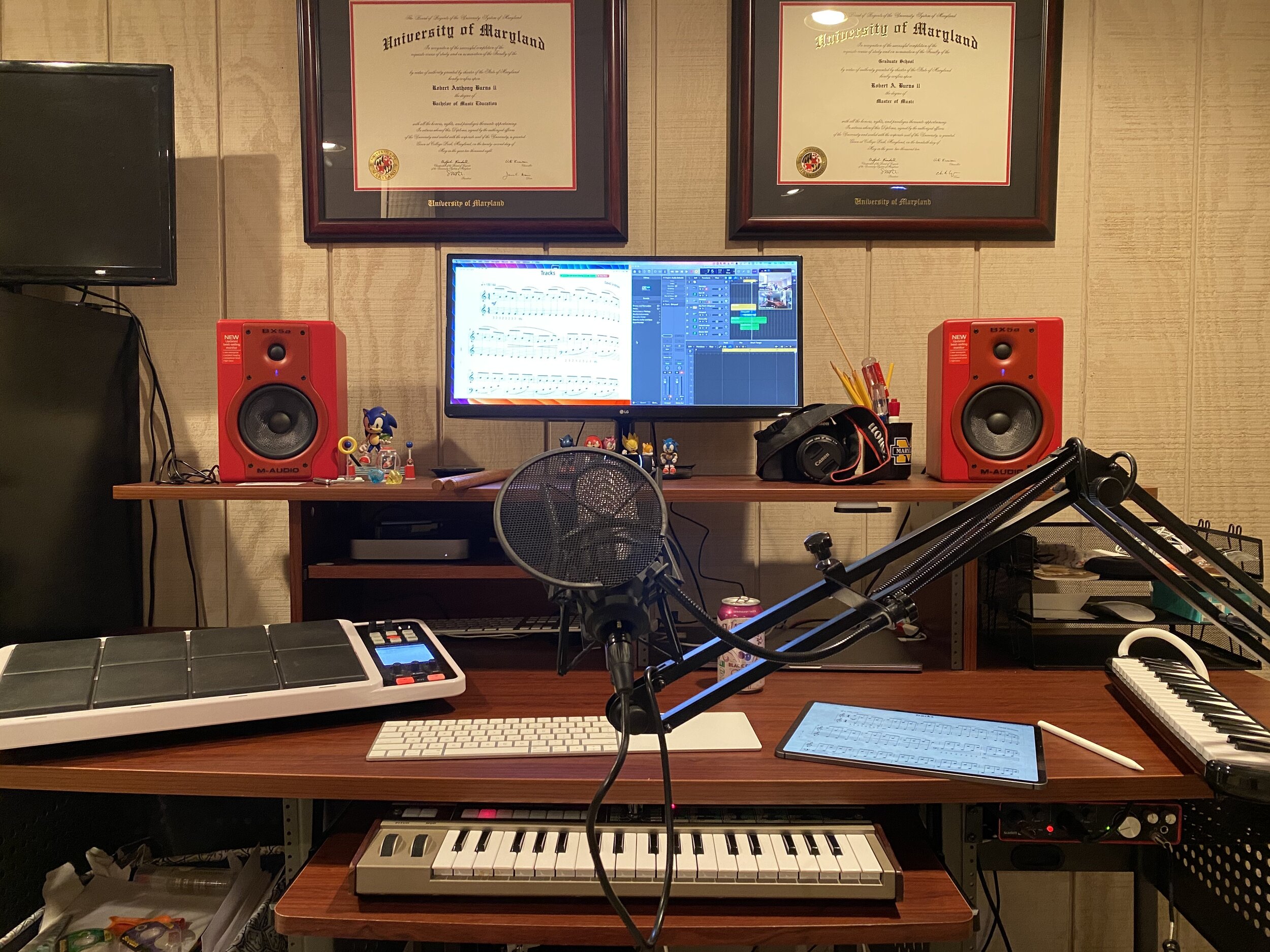
Logic Pro X is one of my apps routing through to the call via Loopback. I have a MIDI keyboard plugged into my audio interface and a Roland Octopad electronic drum pad that is plugged in as an audio source (though it can be used as a MIDI source too).
The sounds on the Roland Octopad are pretty authentic. I have hi-hat and bass drum foot pedal triggers so I can play it naturally. So in Logic, I start with an audio track that is monitoring the Octopad, and a software instrument track that is set to a piano (or marimba or xylophone, whatever is relevant). This way, I can model drum set or mallet parts for students quickly without leaving my desk. The audio I produce in Logic is routed through Loopback directly into the call. My students say the drum set, in particular, sounds way better in some instances than the quality of real instruments over internet-connected calls. Isn’t that something…
Obviously, there is a reason I have previously recommended a set up as simple as a smartphone and a tripod stand. Smartphones are very portable and convenient. And simple smartphone apps like FaceTime and Google Duo make a lot of good default choices about how to handle audio without the fiddly settings some of the more established “voice conference” platforms are known for.
Furthermore, I can’t pick up my desk and move it to my timpani or marimba if I need to model something. So I have begun experimenting with multiple camera angles. I bought a webcam back in March (it finally just shipped). I can use this as a secondary camera to my laptop’s camera (Command+Shift+N in Zoom to change cameras).
Alternatively, I can share my iPhone screen via AirPlay and turn on the camera app. Now I can get up from my desk and go wherever I need to. The student sees me wherever I go. This option is sometimes laggy.
Alternatively, I can log in to the call separately on the iPhone and Mac. This way, there are two instances of me, and if I need to, I can mute the studio desk microphone, and use the phone microphone so that students can hear me wherever I go. I like this option the best because it has the added benefit of showing me what meeting participants see in Zoom.
<div class="
      image-block-outer-wrapper
      layout-caption-below
      design-layout-inline
      combination-animation-none
      individual-animation-none
      individual-text-animation-none
    ">


    <figure class="
          sqs-block-image-figure
          intrinsic
        " style="max-width:1296px">


      <div class="image-block-wrapper">
        <div class="sqs-image-shape-container-element


          has-aspect-ratio
        " style="position: relative;padding-bottom:70.21604919433594%;overflow: hidden">


            <img src="https://images.squarespace-cdn.com/content/v1/5595df9ce4b0ce9ff9ecd1a8/1597075560578-KQFGYGMPES39PW5D9RUH/CleanShot+2020-08-10+at+11.52.56.png" alt="Logging in to the Zoom call on the Mac and iPhone gives me two different camera angles." width="1296" height="910" style="display:block;object-fit: cover;width: 100%;height: 100%;object-position: 50% 50%" loading="lazy">

        </div>
      </div>


      <figcaption class="image-caption-wrapper">
        <div class="image-caption"><p class="">Logging in to the Zoom call on the Mac and iPhone gives me two different camera angles.</p></div>
      </figcaption>


    </figure>


</div>
SoundSource
This process works well once it is set up. But it does take some fiddling around with audio ins and outs to get it right. SoundSource is another app by Rogue Amoeba that takes some of the fiddly-ness out of the equation. It replaces the sound options in your Mac’s menubar, offering your more control and more ease at the same time.
This app saved me from digging into the audio settings of my computer numerous times. In addition to putting audio device selection at a more surface level, it also lets you control the individual volume level of each app, apply audio effects to your apps, and more. One thing I do with it regularly is turn down the volume of just the Zoom app when my students play xylophone.
Rogue Amoeba’s apps will cost you, but they are worth it for those who want more audio control on the Mac. Make sure you take advantage of their educator discount.
EDIT: My teaching set up now includes the use of OBS and an Elago Stream Deck. Read more here.
Conclusion
I went a little overboard here. If this is overwhelming to you, don’t get the idea that you need to do it all. Anyone of these tweaks will advance your setup and teaching.
This post is not specific about the hardware I use. If you care about the brands and models of my gear, check out My Favorite Technology to read more about the specific audio equipment in my setup.
Will Robin, an assistant professor of musicology at the University of Maryland’s School of Music, has a new podcast called Sound Expertise. It’s a platform for music scholars to talk about their research.
I have really been enjoying this show. It manages to go very deep, while remaining brief and accessible at the same time. I am talking about how the show can address systemic racism in music schools, and define the qualities of timbre that characterize “1980s” music, all while remaining around 45 minutes per episode.
And when I say accessible, I mean that I wouldn’t hesitate for a moment to recommend it to someone outside of the field of music.
Will is striking a really good balance with this show and I am learning new things each episode. Be sure to check it out!
Theresa Hoover Ducassoux joins the show to talk about technology for teaching band at a distance, productivity methodologies, Google apps for personal and school use, Flipgrid, empowering students, and more…
Other topics:
Personal productivity systems and apps
The Getting Things Done Methodology
Teaching band online
Being creative with whatever teaching scenario and schedule your district is moving forward with this fall
Engaging students with musical performance using the Flipgrid video service
Google apps for personal productivity
Google apps for classroom teaching
Organizing files in Google Drive
Automating band warm ups
Chamber music breakout groups using Google Meet and Soundtrap
Getting Google Certified
Her book- Pass the Baton: Empowering All Music Students
UPDATE: Listen to Theresa’s appearance on my podcast and subscribe below…
Listen on Apple PodcastsListen on SpotifyRSS FeedTheresa Hoover Ducassoux is a band director in Virginia doing awesome work ensuring that her students are engaged and empowered in her band classes, online and in person. She is especially savvy with a lot of the web-based tech tools that are popular in education right now.
Her post, which I have linked and quoted below, explains some ways you might use Google’s Jamboard app in the music classroom to engage students.
Jamboard is one of the newer and lesser-known G Suite tools, but it’s one that I love and am excited to use this school year! Jamboard is a collaborative whiteboard that be accessed by an app or web browser. The simplicity of the tool makes it great for education. Jamboard is a great way to have all students in your class share their voices.
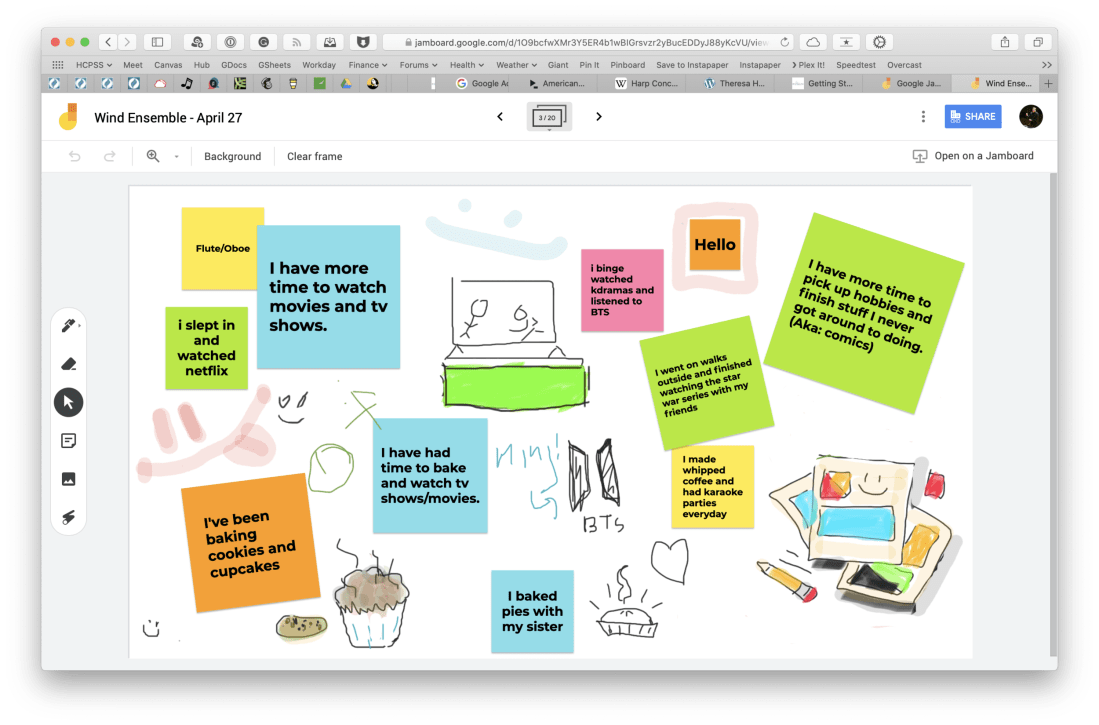
Jamboard is indeed excellent. I used it for a number of things last spring. One way we used it was to communicate and share what we had been up to in our free time when school started online.
<div class="
      image-block-outer-wrapper
      layout-caption-below
      design-layout-inline
      combination-animation-none
      individual-animation-none
      individual-text-animation-none
    ">


    <figure class="
          sqs-block-image-figure
          intrinsic
        " style="max-width:2500px">


      <div class="image-block-wrapper">
        <div class="sqs-image-shape-container-element


          has-aspect-ratio
        " style="position: relative;padding-bottom:65.95999908447266%;overflow: hidden">


            <img src="https://images.squarespace-cdn.com/content/v1/5595df9ce4b0ce9ff9ecd1a8/1596727567417-F9EYY0NWKQGJQAMN4WLR/CleanShot+2020-08-06+at+11.18.02%402x.png" alt="CleanShot 2020-08-06 at 11.18.02@2x.png" width="2500" height="1649" style="display:block;object-fit: cover;width: 100%;height: 100%;object-position: 50% 50%" loading="lazy">

        </div>
      </div>


      <figcaption class="image-caption-wrapper">
        <div class="image-caption"><p class="">I used this Jamboard our first day of online learning to ask students how they had been spending their extra time at home. Each section of the band had a page of the digital whiteboard to edit.</p></div>
      </figcaption>


    </figure>


</div>
Another way we used it was as an adjudication tool for providing ourselves feedback on our virtual ensemble video progress. You can see a brief snippet of that process in the middle of my How to Make a Virtual Band video, below.
Go and check out Theresa’s post, and all of her fine work at Off The Beaten Path Music. Spoiler: She is my podcast guest this week. Jamboard is just one of the many awesome tools and online teaching strategies we talk about. I learned a ton from her. That episode should be published tomorrow. Stay tuned!
Summer break for a teacher is a great time to learn new things. Amongst a number of new interests and skills I have been exploring, I have been taking time to engage with some new software.
I have been using Lynda.com for over 10 years. They are an awesome video tutorial website that has engaging software classes that cover everything from Photoshop, to Final Cut Pro, to Microsoft Word. The list of apps you can learn is huge. I have learned most of the creative professional software I know from Lynda.
What I like about Lynda.com is that they provide downloadable exercise files to use with the class, and there is a transcript of every word the presenter says that you can search by text. Earlier this week, I was trying to brush up on slip editing in Logic Pro. I typed “slip editing” into the search of the Logic Pro X: Essential Training course and it took me straight to the video that discusses the feature.
Lynda classes don’t just include big creative apps. I have found entire classes on single plugins for digital audio workstations. When I was learning photography, not only did they have a class for Adobe Lightroom, they had a class on the fundamentals of exposure, and a class specific to navigating the operating system of my exact model of Canon camera (the EOS 60D).
Lynda.com is completely free with a library card in my area. It’s worth looking into if you want to use the service.
This summer, I have been learning Photoshop and Affinity Photo. These two apps do the same kind of work, but I have appreciated learning the underlying concepts from the industry standard (Photoshop), and then learning the tools and features in Affinity, which is way more intuitive. My goal is to feel less limited manipulating the graphics on my computer. My dream is to be able to create any document imaginable for my band program.
I can’t recommend Lynda enough. After Affinity Photo for Mac and iPad, I am off to learn Affinity Designer. Did I mention that you can also learn computer programing on Lynda? A brief list of classes I have taken there, off of the top of my head, includes:
Trained as an opera singer, Rhiannon Giddens was a founding member of the Carolina Chocolate Drops, the acclaimed folk group. With the Chocolate Drops and as a solo artist, a virtuoso fiddler and banjo player with a soulful voice, she has delved into African-American and old-time traditions. She won a MacArthur “genius” grant in 2017 and wrote an opera based on the autobiography of Omar Ibn Said, a Muslim man from Africa who was enslaved in South Carolina. (Its planned premiere has been delayed until next year by the coronavirus pandemic.)
Now she will have a new, global curatorial canvas for her genre-skipping ideas. On Tuesday, Silkroad, the cross-cultural music organization created by Yo-Yo Ma in 1998, announced that Ms. Giddens would be its next artistic director.
Awesome news! If you haven’t heard Rhiannon Gidden’s music, you owe it to yourself. Her music has a wide appeal, and regardless of your musical tastes, I think you will find something to love about it.
Due is an indispensable app that I depend on daily on both iOS, the Apple Watch, and the Mac. There are three things that immediately come to mind when I think about why I like this app over the basic Reminders app.
Its design is beautiful, intelligent, and easy to read.
Its natural language parsing is a breeze… “remind me to help with lunch duty at 11:27 am” adds a reminder with the time just as I type it.
The swipe down gesture to add a new task is very intuitive.
By far, most important: you can set the notifications to keep pinging you until you check the task as done. You can even customize the amount of time it snoozes when you tap the snooze button.
I don't use this app to manage big projects. For that, I use OmniFocus. But for tasks that have to be acted on in a very specific moment, Due is the tool for the job.
It just got a major Mac update. Most of the changes are design focused, which I can appreciate because the Mac app, while it functioned, was starting to look pretty out of date. If you want to read more of the specifics, I recommend the MacStories article linked below.
A full-fledged task manager is terrific for many projects, but if you dump your entire life into one, it can quickly become a cluttered mess. At the same time, if you’re focused on a big project, it’s easy to let everything that’s not in your task manager slip through the cracks. One strategy for attacking the problem that has worked well for me is using a separate, lightweight app for tasks like remembering to take out the garbage, pick up medicine at the pharmacy, or publish an article when an embargo lifts.
In the past, I’ve used Due on the iPhone and iPad for these sorts of tasks. There has been a Mac version of Due for years too, but it hadn’t been updated in about two years and was showing its age. However, with today’s update, Due for Mac joins the iOS version with a fully-modern design and slate of new features, putting it on par with the outstanding iOS version, which I’ve covered in the past.
I am taking part in a Panel Discussion called “Teaching Music Online During the Pandemic” this Wednesday, August 5th. It is taking place on the Music Teachers Facebook Group at 8 pm through Zoom.
I will specifically be contributing ideas about practical instruction for performing ensembles. I am planning to discuss everything from large group rehearsal to break-out chamber ensembles, to music scanning apps, and software for assessing student performance.
Some great minds are involved. Here is a description of the panel from the Facebook Event:
Join us for a free online panel discussion with several of your Music Teacher Administrators and Moderators and special guests as we discuss the tools, techniques, and resources to move your music ensembles and music classrooms totally online or to a blended learning hybrid. Panelists include Jim Frankel, CEO of Music First; Katie Wardrobe, Director, Midnight Music Technology Training; Ron Kearns, retired HS band teacher; Tom West Blended Learning Instrumental Music teacher; Robby Burns, MS band teacher; Richard McCready, HS guitar teacher & music ministry; Tiffany Walker, MS band teacher; Krystal Williams, HS band teacher.
If you are interested, you can join the group here. Note: You will not be admitted into the group if you do not answer the questions.
One of the reasons I continue using Apple products is that they work well together. The better the features work across devices, the less often users need third party software to get things done.
Now that iCloud Drive supports the sharing of files and folders, a lot of vocal Mac and iOS users have debated if they can finally let go of Dropbox.
Productivity master, David Sparks, had some things to say about it on his blog this week:
All that said, Dropbox still has many features that sure would be nice in iCloud, like a much better implementation of version history and deletion recovery. I was hoping we would get some more functionality for iCloud Drive this year at WWDC, but we didn’t. I was hoping I could throw Dropbox overboard. One less service and one less thing to pay for sure sounded nice.
For me, the major hole in iCloud Drive is that I cannot control what lives on my hard drive and what stays in the cloud. Both Dropbox and iCloud have a feature where they will smartly try to make this decision for you, uploading files you haven’t touched in months to the cloud so that they don’t take up hard drive space.
Sometimes I need the control to be able to tell a service to keep a folder or a file permanently downloaded, no matter what. And iCloud Drive still can’t do this task.
iCloud folder and file sharing are reliable in my use, but setting up the share is far less intuitive than Dropbox, which presents its options to you with clear iconography when you right-click on a folder or file in the Finder.
Why Apple can’t get right what Dropbox figured out over ten years ago still confuses me. Hopefully they will tweak it and make it better.
I am fortunate that my free Dropbox account is large enough that I don’t need to pay. iCloud remains my primary storage solution but I keep Dropbox around for miscellaneous purposes, including sharing with others who don’t use iCloud.
If you want to use Dropbox on a Mac, but avoid installing it, I recommend the app Transmit. While the app is marketed as an FTP client, it can also act as a Google Drive or Dropbox client, allowing you to upload, download, copy, and share files, using a native macOS experience, and without allowing Dropbox to run in the background.
<div class="
      image-block-outer-wrapper
      layout-caption-below
      design-layout-inline
      combination-animation-none
      individual-animation-none
      individual-text-animation-none
    ">


    <figure class="
          sqs-block-image-figure
          intrinsic
        " style="max-width:473px">


      <div class="image-block-wrapper">
        <div class="sqs-image-shape-container-element


          has-aspect-ratio
        " style="position: relative;padding-bottom:56.448204040527344%;overflow: hidden">


            <img src="https://images.squarespace-cdn.com/content/v1/5595df9ce4b0ce9ff9ecd1a8/1595768986115-FCA3C7CFPFFJGKZ1T7J5/iCloud+Dropbox+Question+Mark+image+for+blog+post+july+2020.jpg" alt="iCloud Dropbox Question Mark image for blog post july 2020.jpg" width="473" height="267" style="display:block;object-fit: cover;width: 100%;height: 100%;object-position: 50% 50%" loading="lazy">

        </div>
      </div>


    </figure>


</div>






 Music Ed Tech Talk
You must be logged in to post a comment.