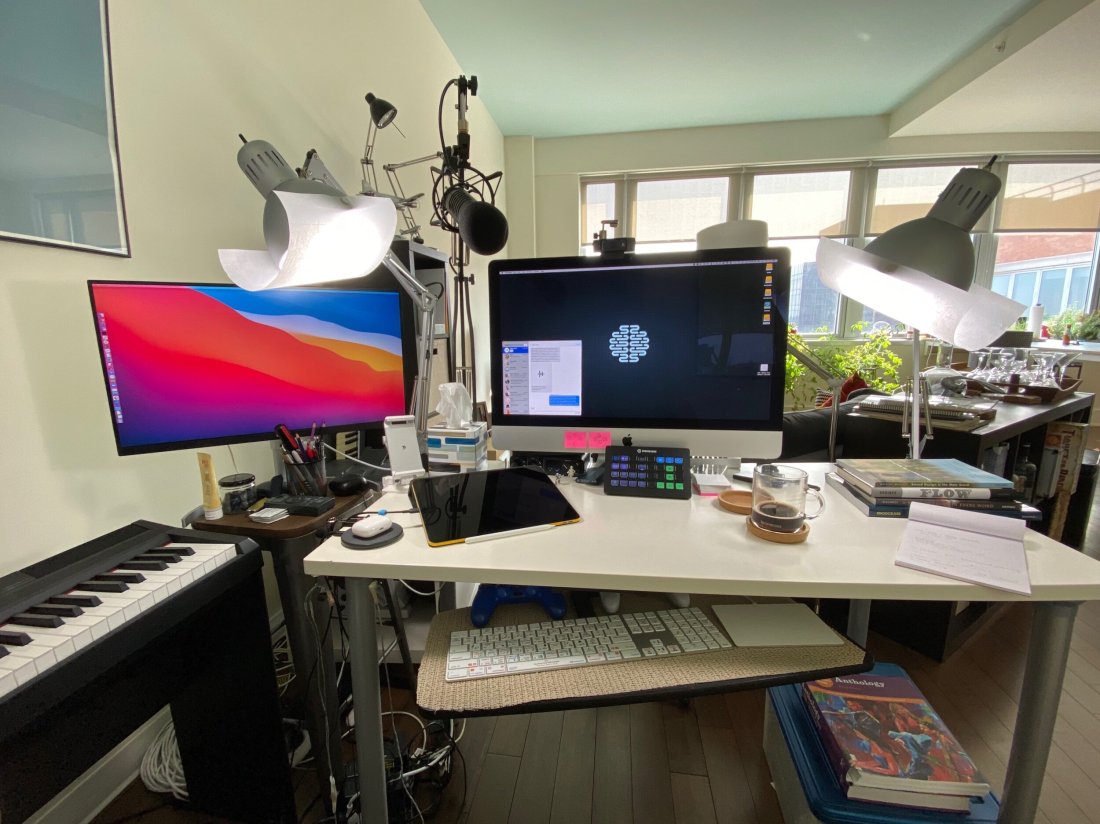
New Software Updates from Apple: Exploring Widgets!

iOS 14, iPadOS 14, watchOS 7, and tvOS 14 came out a few weeks ago. I have a lot to say about these updates, but today I wanted to write about widgets for a moment.

Widgets are catching on as a significant feature amongst the masses. As someone who plays around with the way apps are organized on the home screen at least twice a week, I can tell that widgets are going to add a lot of excitement (and anxiety) into my life. I have been toying with them since July when this software entered the public beta, and I am far from resolved.

Here is where I have landed for now…

<div class="
      image-block-outer-wrapper
      layout-caption-below
      design-layout-inline
      combination-animation-none
      individual-animation-none
      individual-text-animation-none
    ">


    <figure class="
          sqs-block-image-figure
          intrinsic
        " style="max-width:1242px">


      <div class="image-block-wrapper">
        <div class="sqs-image-shape-container-element


          has-aspect-ratio
        " style="position: relative;padding-bottom:216.42510986328125%;overflow: hidden">


            <img src="https://images.squarespace-cdn.com/content/v1/5595df9ce4b0ce9ff9ecd1a8/1601639710190-ABPAAFXGJTAJD31YXCJT/IMG_3278.png" alt="IMG_3278.png" width="1242" height="2688" style="display:block;object-fit: cover;width: 100%;height: 100%;object-position: 50% 50%" loading="lazy">

        </div>
      </div>


    </figure>


</div>


<div class="
      image-block-outer-wrapper
      layout-caption-below
      design-layout-inline
      combination-animation-none
      individual-animation-none
      individual-text-animation-none
    ">


    <figure class="
          sqs-block-image-figure
          intrinsic
        " style="max-width:1242px">


      <div class="image-block-wrapper">
        <div class="sqs-image-shape-container-element


          has-aspect-ratio
        " style="position: relative;padding-bottom:216.42510986328125%;overflow: hidden">


            <img src="https://images.squarespace-cdn.com/content/v1/5595df9ce4b0ce9ff9ecd1a8/1601639467546-YND9UWSG7ETKEX4NUTYC/IMG_3261.png" alt="IMG_3261.png" width="1242" height="2688" style="display:block;object-fit: cover;width: 100%;height: 100%;object-position: 50% 50%" loading="lazy">

        </div>
      </div>


    </figure>


</div>


<div class="
      image-block-outer-wrapper
      layout-caption-below
      design-layout-inline
      combination-animation-none
      individual-animation-none
      individual-text-animation-none
    ">


    <figure class="
          sqs-block-image-figure
          intrinsic
        " style="max-width:1242px">


      <div class="image-block-wrapper">
        <div class="sqs-image-shape-container-element


          has-aspect-ratio
        " style="position: relative;padding-bottom:216.42510986328125%;overflow: hidden">


            <img src="https://images.squarespace-cdn.com/content/v1/5595df9ce4b0ce9ff9ecd1a8/1601639792660-8H84SLDTYQEJOPM9UWV0/IMG_3257.png" alt="IMG_3257.png" width="1242" height="2688" style="display:block;object-fit: cover;width: 100%;height: 100%;object-position: 50% 50%" loading="lazy">

        </div>
      </div>


    </figure>


</div>

Page one (middle image) contains my most tapped app icons. This will be a hard habit to break, but I find lots of value in having upcoming calendar tasks and weather permanently on my most visited screen. Weather Line and Fantastical have the best small-sized widgets, in my opinion. Even this smallest widget size takes up four app icons, so they need to be beautiful and information-dense for it to be worth me sacrificing four apps.

I didn’t think I would want weather on this first screen, but now that it is always visible to me, I don’t see how I could live without it. The Weather Line widget is awesome because its user interface depicts the weather on a line, almost like a chart. It even manages to fit an hourly rain graph into its small space when it is raining out. Not even my second favorite weather widget, Carrot Weather, does that.

The Today View (left image) is where I keep Siri Shortcuts and the older, legacy style widgets from iOS 13. As much as I like the newer widgets’ look, the older style widgets are interactive. I keep OmniFocus, Timery (for time tracking), Streaks (for tracking daily habits), and Waterminder (for quickly logging water) all on this screen because I can tap right on the buttons to act on these apps without the widget needing to launch into the app.

I am continually playing with page 2 (right picture). I like it to be mostly another grid of tappable apps, but I am experimenting with various widgets here. I think what I have settled on is to have the Maps and Notes app widgets stacked on top of each other at the top, and then to use the Siri Suggestion widget, which shows me two rows of apps that swap in and out throughout the day based on my phone’s predictions of which apps I want to use in which contexts. The image above shows some other widgets I am experimenting with, but I think I prefer having more app icons there.

<div class="
      image-block-outer-wrapper
      layout-caption-below
      design-layout-inline
      combination-animation-none
      individual-animation-none
      individual-text-animation-none
    ">


    <figure class="
          sqs-block-image-figure
          intrinsic
        " style="max-width:2500px">


      <div class="image-block-wrapper">
        <div class="sqs-image-shape-container-element


          has-aspect-ratio
        " style="position: relative;padding-bottom:74.95999908447266%;overflow: hidden">


            <img src="https://images.squarespace-cdn.com/content/v1/5595df9ce4b0ce9ff9ecd1a8/1601639863519-8AJDPFRCBGYSMH2BRCXI/IMG_3071.png" alt="IMG_3071.png" width="2500" height="1874" style="display:block;object-fit: cover;width: 100%;height: 100%;object-position: 50% 50%" loading="lazy">

        </div>
      </div>


    </figure>


</div>

On the iPad, I keep: calendar, weather, notes, Apollo (a Reddit app I use to keep up on the latest news about my interests), Siri Shortcuts, and the Files app for launching into recently modified files. 

On both my phone and iPad, I am waiting for an OmniFocus widget to track my tasks. Even though I like the one in the Today view where you can mark the tasks as done right from the widget, I think I might want to have my next few upcoming tasks permanently visible on page one.

9to5Mac.com and MacStories.net have been two great websites to follow if you want to stay up on which apps offer widgets.
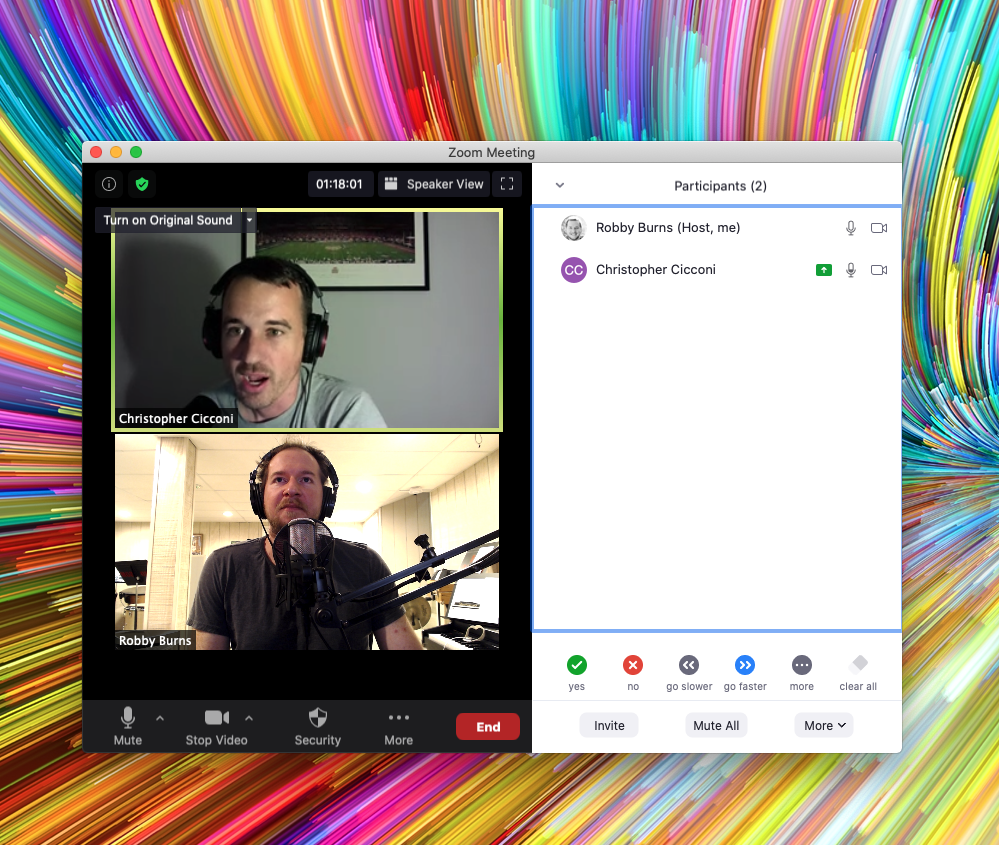
METT Episode #17 – Talking About the Weather, with Chris Cicconi

Dr. Christopher Cicconi, Assistant Professor of Music Education, and Director of Bands and Orchestra at Towson University, joins the show to talk about selecting meaningful repertoire for your ensemble. We also talk about score study with iPad Pro apps, involving yourself in your music teaching community, and yes, I go on a tangent about my favorite new weather app.

<div class="
      image-block-outer-wrapper
      layout-caption-below
      design-layout-inline
      combination-animation-none
      individual-animation-none
      individual-text-animation-none
    ">


    <figure class="
          sqs-block-image-figure
          intrinsic
        " style="max-width:999px">


      <div class="image-block-wrapper">
        <div class="sqs-image-shape-container-element


          has-aspect-ratio
        " style="position: relative;padding-bottom:84.58457946777344%;overflow: hidden">


            <img src="https://images.squarespace-cdn.com/content/v1/5595df9ce4b0ce9ff9ecd1a8/1601906714231-C88BQJMIWJW7ADRPTTOH/CleanShot+2020-09-23+at+20.27.54.png" alt="CleanShot 2020-09-23 at 20.27.54.png" width="999" height="845" style="display:block;object-fit: cover;width: 100%;height: 100%;object-position: 50% 50%" loading="lazy">

        </div>
      </div>


    </figure>


</div>

Show Notes:

App of the Week:
Robby – Weather Line and Carrot Weather
Chris – Fidelity

Album of the Week:
Robby – Trust in the Life-force of the Deep Mystery – The Comet Is Coming
Chris – Game of Thrones Highlights – Spotify Playlist | Mad Max: Fury Road Soundtrack

Where to Find Us:
Robby – Twitter | Blog | Book
Chris – Towson University Profile Page

Please don’t forget to rate the show and share it with others!

Subscribe to Music Ed Tech Talk:

Subscribe to the Blog

Subscribe to the Podcast in…
Apple Podcasts | Overcast | Castro | Spotify | RSS

Thanks to my sponsor this month, MusicFirst.

Introducing My “Scale Exercise Play-Along Tracks With Trap Beats” – Available Now on My New Online Store!

I am announcing a new section of this website. A STORE! Starting today, I will be selling digital products and services I have created for musicians and music teachers. Check it out here!

First up is a collection of Scale Exercise Play-Along Tracks with Trap Beats underneath them.

You bet there’s a promotional video.

<div class="sqs-video-wrapper" data-provider-name="YouTube" data-html="
“>

Here is the product description from the sale page:

This collection contains over 70 major scale play-along tracks for your ensemble.

Each track includes a tuning drone playing the tonic with a scale overtop in just intonation so that you can reinforce flawless intonation, tone production, and blend amongst your students. Every exercise includes a count-off and a trap beat underneath to engage your students while reinforcing slower playing and subdividing!

The audio-only version of this package includes mp3 files of the following recordings in all twelve major keys, at 70bpm.

  • Whole note scale

  • Half note scale

  • Quarter note scale

  • Eighth note scale

  • Scale Exercise in Thirds

  • Mini-Scale with Arpeggio

Also included:

  • Remington at three different speeds! Perfect for playing underneath many of the exercises that come from popular band methods.

The premium version of this product includes the audio tracks above in addition to the Logic Pro and GarageBand stems so you can edit every element of the tracks, including speed, pitch, and instrumentation.

These are perfect for running through your Zoom/Google Meet/Virtual Classroom to keep kids playing as much as possible.

I have been using tracks like these with my band students for years now and they LOVE them. The trap beat resonates with them. Its popularity in hip hop music aside, there is something compelling about them, musically. The backbeat on three, combined with the busy hi-hat activity, helps kids subdivide slower tempos and keeps them motivated to practice stuff like long tones and scales. The strong 808 baseline asserts the beat while adding fun syncopation.

It was essential to me that the drones were in just intonation because I teach my students to hear and adjust to the beats that result when unison pitches and diatonic intervals are in/out of tune. The Yamaha Harmony Director was definitely the tool for the job. Here’s a really brief blog post I shared earlier this month about the process if you want to take a stab at making something like this.

You can alternatively do this process using the (excellent) Tonal Energy Tuner App, a MIDI keyboard, and GarageBand on iOS. I wrote about that here. I prefer the Tonal Energy experience, but the Yamaha’s hardware keys made it easier to “perform” the drones and allowed me to create in Logic Pro, which I am more proficient in.

The original concept for this was very ambitious initially, and I simplified the vision a ton to help myself “ship it.” I have seen music teachers asking for something like this on social media a lot lately, and it seemed like time to do the work. I am happy with how they turned out and I hope to create more of these down the road in varying style, tempo, and exercise patterns.

A few notes:

  1. Due to file upload limitations on Squarespace, buying the stems directs you to download a text file instead of the audio files. The text file contains a link to a third-party hosting source. A little inelegant, I know, but setting up a Squarespace store was otherwise the most comfortable choice.
  2. These are incredibly effective for engaging synchronous ensemble rehearsals. No, we still can’t play at once, but running rehearsal tracks through your Google Meet or Zoom call while students are muted is a great way to keep them playing. These tracks are slow enough that I have had success having groups of 3-6 unmute while playing along, and it is not total chaos. Between these, my Solfege Bingo tracks, and The Breathing Gym DVD, we can be synchronously active for more than 80 percent of each class. I get the audio to route directly through to the call using Loopback.
  3. Many of these tracks, particularly the scale exercise in thirds, mini-scale, and Remington tracks, pair perfectly with a multitude of examples in the Foundation for Superior Performance band method books series. I did not title them as such because the book and my project are in no way connected. I bring it up here because I know those exercises are ubiquitous in band rehearsals, and it’s for this reason, many directors have their students purchase those books.
  4. I made the arrangements of these tracks simple to keep the appeal as wide-reaching and flexible as possible. My hope is that people who really want to change the style, edit the beat, change the speed, or any other kind of alternation, will buy the version that comes with the GarageBand and Logic stems. Tip: If you want to use software instruments to create your own accompaniment, and want them to be justly in tune with my tracks, Logic Pro has support for tuning systems. That means that if you mute my trap beat and add your own samba tracks, you can have the instruments play in the key area you select instead of their usual equal tempered tuning.